
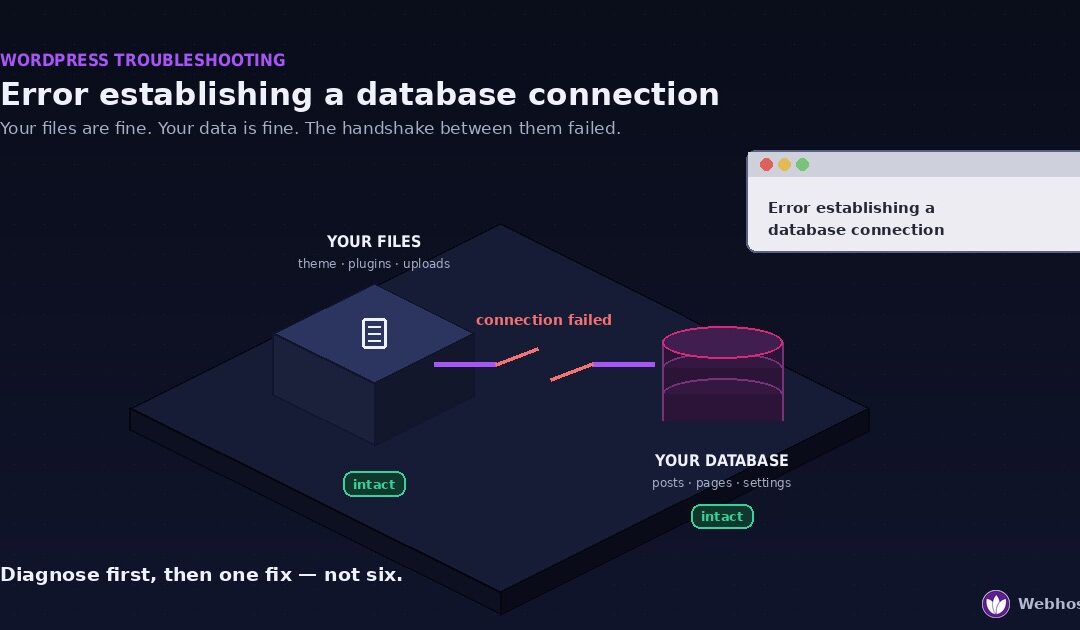
“Error establishing a database connection” means WordPress cannot reach its database. Your files are almost certainly fine, your content is almost certainly fine, and what has failed is the connection between them. Four causes account for nearly every case: wrong credentials in wp-config.php, a database server that is down or overloaded, a corrupted database, or an account that has hit a resource limit.
Here is what most guides get wrong. They hand you six fixes and tell you to work through them until something sticks — which means five of the things you try are irrelevant, and if one of them involves editing files or repairing tables, you have introduced risk to a site that was merely disconnected. That is not how our support engineers approach this. They spend the first minute working out which problem it is, and then apply one fix.
So that is how this guide is ordered: a sixty-second triage first, then the specific fix for your specific cause. There is also a section most hosting companies would rather not publish — how to tell when this error is your host’s fault, and exactly what to ask them.
What the Error Actually Means
A WordPress site is two separate things living in two separate places, and understanding that makes this error far less frightening.
The first part is your files: WordPress itself, your theme, your plugins, your uploaded images. These sit on your server’s disk, like documents in a folder. The second part is your database: your posts, pages, comments, users, settings, and nearly every word you have ever written. That lives in a MySQL or MariaDB database — a separate service running alongside your web server, with its own address, its own username, and its own password.
Every time somebody visits your site, PHP wakes up, reads your files, and then asks the database for the content that belongs on the page. It presents credentials, the database checks them, hands over the data, and the page is assembled and sent to the browser. This happens in a few thousandths of a second, dozens of times per page load, and you never think about it — until the handshake fails.
When it fails, WordPress has no content to build a page from. It cannot show your homepage, because your homepage is in the database. It cannot show a nice styled error page, because the styling instructions are also in the database. So it falls back to one line of plain text on a white background — the message you are looking at now.
Two things follow from this, and both are good news.
Your data is very probably fine. In the overwhelming majority of cases the database is sitting there intact and simply unreachable, exactly like a locked filing cabinet whose key has gone missing. The information has not been deleted. Even in the least common cause — actual corruption — the damage is usually limited to a table or two that can be repaired.
The error is a symptom, not a diagnosis. WordPress cannot tell you why the handshake failed; it only reports that it did. Wrong password, database server down, table corrupted, connection limit reached — all four produce this identical message. That ambiguity is the entire reason people end up trying six unrelated fixes, and it is what the next section eliminates.
First: Find Out Which Problem You Have
Three checks, about a minute, and you will know which of the four causes you are dealing with. Do these before you touch a single file.
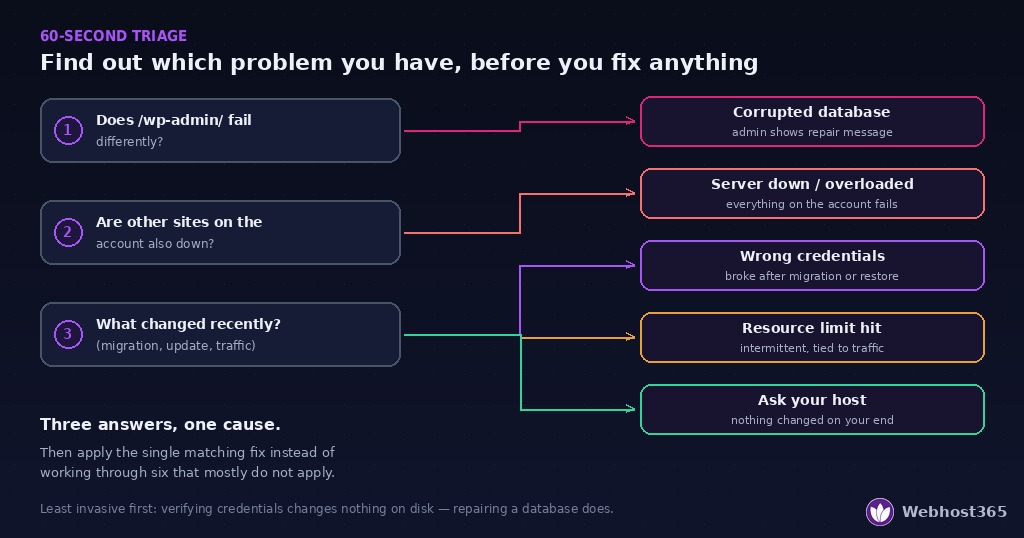
Check 1: Does the admin area fail differently?
Visit yoursite.com/wp-admin/ and read carefully.
If you see the same database connection error, the whole database is unreachable — go to the credentials or server-side causes below. If you see a different message, particularly one mentioning that the database may need repairing, you have found your answer: this points to corrupted tables, and only that section applies to you. A working front page with a broken admin, or vice versa, is the single most useful signal available, and it takes five seconds to collect.
Check 2: Is anything else on the account also broken?
If you host more than one site on the same account or server, load another one.
If they are all failing, the problem is the database server itself or your account’s resource limits — not the configuration of any individual site. Nobody’s wp-config.php file spontaneously changes on three sites at once. If only the one site is broken and its neighbours are fine, the fault is local to that site: credentials or corruption.
Check 3: What changed recently?
Think back over the last few days, not the last few minutes.
A migration, host change, or restored backup points hard at credentials — the database name, user, or password on the new server almost never matches what the old wp-config.php expects. A plugin or theme update points at a query that has started misbehaving, which usually shows up as resource exhaustion rather than a clean failure. A traffic spike, campaign, or sudden surge in bot activity points at connection or memory limits. And nothing changed at all, on a site that has run happily for months, most often points at the server side — which is where the host’s-fault section becomes relevant.
Reading your three answers
Put them together and the picture is usually unambiguous:
| What you observed | Most likely cause | Go to |
|---|---|---|
| Admin shows a repair-related message | Corrupted database | Cause 3 |
| Every site on the account is down | Server down or overloaded | Cause 2 |
| Broke right after a migration or restore | Wrong credentials | Cause 1 |
| Broke during a traffic spike; intermittent | Resource limit reached | Cause 4 |
| Nothing changed; only your site affected | Server side — ask your host | Section 7 |
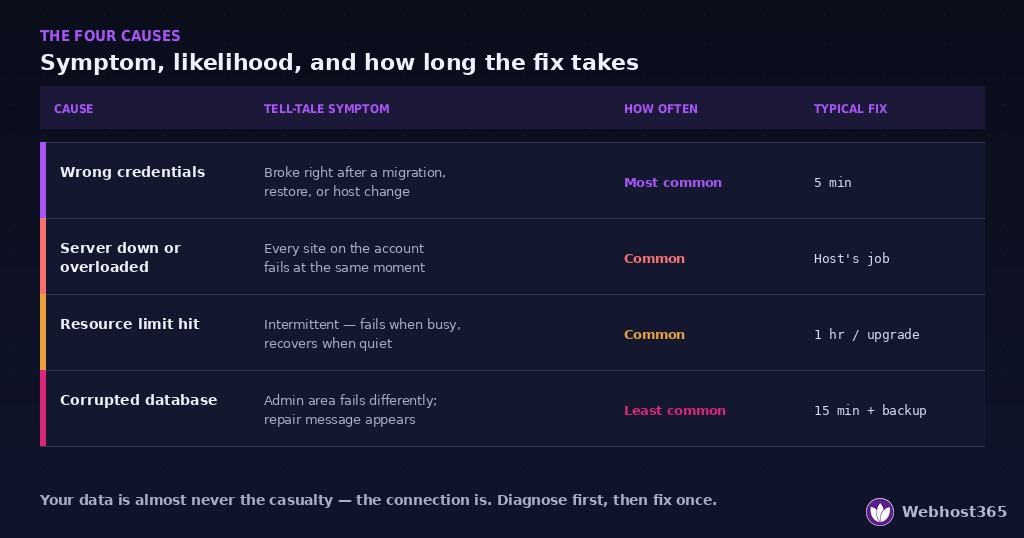
If two rows seem to fit, work the cheapest and least invasive one first: verifying credentials changes nothing on disk, while repairing a database does. And if you are still unsure after this, that is genuinely fine — the four cause sections below are ordered by how often we see them in real support tickets, so working downward from the top is the next best strategy.
Cause 1: Wrong Database Credentials
This is the most common cause we see, and it is almost always triggered by a change: a migration to a new host, a restored backup, a moved site, or a password rotation somebody forgot to propagate. WordPress is still politely presenting the old credentials to a database that no longer accepts them.
Where the credentials live
Four values in a single file, wp-config.php, sitting in the root folder of your WordPress installation — the same folder as wp-content and wp-admin. Open it via your file manager, FTP, or SSH and look near the top:
php
define( 'DB_NAME', 'yoursite_wp' );        // the database name
define( 'DB_USER', 'yoursite_wpuser' );    // the database username
define( 'DB_PASSWORD', 'your-password' );  // that user's password
define( 'DB_HOST', 'localhost' );          // where the database lives
Each one has to match exactly what the database server expects. Not approximately — exactly, including case.
Verifying each value
Open your control panel’s database section (in DirectAdmin, MySQL Management; in cPanel, MySQL Databases) and compare, in this order:
Database name. Most hosts prefix database names with the account username, so the database you created as wp appears as useracct_wp. After a migration, the prefix frequently changes because the account name changed. This is the single most common mismatch.
Database user. The same prefixing applies, and there is a second trap: the user may exist but no longer be assigned to the database. A user with no privileges on the database fails in exactly the same way as a wrong password.
Password. The one value you cannot read back — control panels store it hashed. Do not guess. If there is any doubt, reset it (below).
Host. Usually localhost, which is correct on most shared and single-server setups. Some hosts use 127.0.0.1, a named server such as mysql.yourhost.com, or a non-standard port written as localhost:3307. If you migrated from a provider that used a remote database server, this value will still be pointing at your old host — a wrong DB_HOST produces this error instantly.
Resetting the password safely
If the password is in doubt, set a new one rather than hunting for the old one. In your control panel, open the database user, set a fresh strong password, and save it. Then update wp-config.php to match:
php
define( 'DB_PASSWORD', 'the-new-password-you-just-set' );Save, reload your site. If credentials were the problem, it is fixed the moment the file is saved — there is nothing to restart and no cache to clear.
Testing the credentials directly
If it still fails and you want certainty about whether the credentials themselves work, test them outside WordPress. Over SSH:
bash
mysql -u yoursite_wpuser -p -h localhost yoursite_wpEnter the password when prompted. A mysql> prompt means the credentials are correct and your problem lies elsewhere in this article. An “access denied” message means the credentials genuinely are wrong. An “unknown database” message means the database name is wrong or the database no longer exists.
Two habits worth keeping. First, back up wp-config.php before editing it — copy it to wp-config.php.bak so a mistyped quote is a thirty-second recovery rather than a crisis. Second, never paste your wp-config.php contents into a forum, a chat window, or a support ticket. Those four values are complete access to everything your site knows. A competent host will never ask you for them; they can read the file on the server themselves.
Cause 2: The Database Server Is Down or Overloaded
If check 2 in the triage showed every site on your account failing, or nothing changed on your end and the error simply appeared, the database service itself is the suspect. Your credentials are fine — there is nobody home to check them.
What this looks like from your side
The failure is usually total and abrupt: every site that shares the server drops at once, and the error appears without any action on your part. If you have SSH access, one command settles it:
bash
systemctl status mysqld # or mariadb, depending on the serveractive (running) means the service is up and the problem is elsewhere. Anything else — failed, inactive, or restarting in a loop — means you have found it. On shared hosting you will not have this access, which is itself diagnostic: if you cannot check and every site is down simultaneously, it is a platform-level issue and the answer is a support ticket, not an edit to your files.
The overload version: “too many connections”
There is a subtler variant worth understanding, because it is far more common than a hard crash. Every database server allows a finite number of simultaneous connections. When that ceiling is reached, new connection attempts are refused — and a refused connection produces the same error message as a dead server.
What fills those connections is rarely mysterious: a traffic spike, a badly written plugin query that holds connections open, an aggressive bot crawl, or — on shared hosting — a neighbouring account misbehaving on the same database server. The tell is that the error is intermittent. Reload the page three times and it works once. A dead server never works; an exhausted server works occasionally, whenever a connection frees up.
If the pattern is intermittent and only your site is affected, skip ahead to Cause 4, because the limit being hit is probably yours. If it is intermittent across every site on the server, it is the server’s ceiling, not yours, and that belongs in a ticket.
What you can do
Honestly, on shared hosting: not much, and that is not a failure on your part. You cannot restart a service you do not control, and you should not try. What you can do is make the ticket useful — the exact questions to ask are in the host’s-fault section later in this guide.
On a VPS where you hold root, you have real options. Restart the service, check why it stopped, and look at the logs before assuming the restart fixed anything:
bash
sudo systemctl restart mysqld
sudo tail -50 /var/log/mysqld.log        # MySQL
sudo tail -50 /var/log/mariadb/mariadb.log   # MariaDB
The most common story those logs tell is memory: the database was killed by the kernel because the server ran out of RAM. If you find that, the fix is not a restart — the restart just resets the clock until it happens again. The fix is sizing, which our RAM guide and calculator covers, or moving the site to a plan whose ceiling is above its actual usage.
Cause 3: A Corrupted Database
If triage check 1 showed the admin area failing differently from the front end — particularly with a message suggesting the database may need repairing — this is your cause. It is the least common of the four, and the only one where WordPress will occasionally tell you outright what is wrong.
Corruption usually means one or two tables have been damaged, not that your content is gone. It happens when a write is interrupted: the server lost power mid-query, the database process was killed while saving, the disk filled up, or a plugin doing bulk operations was cut off partway through. The data around the damage is intact; the table’s index or structure has a torn page in it.
Before you repair anything: back up
This is not a formality. Repair operations modify tables in place, and a repair that goes wrong on an already-damaged table can turn a recoverable problem into an unrecoverable one. Take a copy first, even a rough one.
If you have SSH:
bash
mysqldump -u yoursite_wpuser -p yoursite_wp > backup-before-repair.sqlIf the dump fails because of the corruption itself, that is important information — go straight to your host rather than attempting a repair yourself. If you only have a control panel, use phpMyAdmin’s Export tab, or take a full account backup from the panel. And if your host keeps daily backups — ours do, with 30-day retention on paid managed plans — you already have the safety net; just confirm a recent restore point exists before proceeding.
Option A: WordPress repair mode
WordPress has a built-in repair tool, deliberately switched off by default. Enable it by adding one line to wp-config.php, above the line that says it has stopped editing:
php
define( 'WP_ALLOW_REPAIR', true );Then visit:
https://yoursite.com/wp-admin/maint/repair.phpYou will see two buttons. Repair Database attempts to fix damaged tables. Repair and Optimize Database does the same and then reclaims space, which takes considerably longer on a large database. Start with plain repair.
Now the part people skip, and it matters: that page requires no login. While WP_ALLOW_REPAIR is enabled, anyone who guesses the URL can trigger a repair on your database. Remove the line the moment you are finished:
php
// define( 'WP_ALLOW_REPAIR', true ); // ← delete or comment out when doneSave the file, and confirm the repair URL now refuses to run.
Option B: Repair through phpMyAdmin
If repair mode cannot run — because the front end and admin are both dead — go around WordPress entirely. Open phpMyAdmin from your control panel, select your database, and look at the table list. Damaged tables are often flagged in the status column. Tick the affected tables (or use the select-all checkbox), then choose Repair table from the dropdown at the bottom.
Two caveats worth knowing. Repair works on MyISAM tables; modern WordPress installs default to InnoDB, where the equivalent options are more limited and a restore from backup is frequently the faster, safer path. And if the damage is in wp_options — the table WordPress reads on literally every request — the site will stay down until that specific table is healthy, so prioritise it.
When to stop and restore
Be willing to give up early on this one. If a repair fails, or the same corruption returns within days, you are treating a symptom: repeated corruption points at failing disk, a database that keeps being killed, or a server with a genuine problem. Restore from a known-good backup, then find out why it corrupted — because a site that corrupts once will corrupt again on the same infrastructure.
Cause 4: You Hit a Resource Limit
This is the cause that fools people, because nothing broke. Your credentials are right, the server is up, the database is healthy — and your site still fails, usually at the worst moments. What happened is that your account reached a ceiling.
What the ceiling actually is
Every hosting plan has limits, and on shared hosting three of them can produce this error. Concurrent database connections — a cap on how many simultaneous conversations your account may hold with the database. Memory — a limit on how much RAM your processes can consume; exceed it and processes get killed, sometimes mid-query. CPU or process limits — enough sustained load and new requests are queued or refused.
Any of the three ends with a connection attempt that cannot be served, and WordPress reports the only thing it knows: it could not establish a database connection.
How to recognise it
The signature is intermittent failure that correlates with activity. The site works at 3 a.m. and fails at 9 a.m. It fails during your newsletter send and recovers an hour later. It broke the week your traffic doubled. Refresh five times and it loads twice.
Three things commonly push a site over its ceiling, and they are worth distinguishing because the fix differs:
Real growth. Traffic climbed steadily and the plan that comfortably held the site last year no longer does. Nothing is wrong — the site outgrew its allocation. Our RAM calculator and the WordPress requirements by traffic level guide will tell you in a few minutes whether your current plan is genuinely undersized.
A plugin that changed behaviour. An update introduced an expensive query, a related-posts or analytics plugin started scanning the whole posts table on every page load, or a broken cron job is firing constantly. The tell is timing: it began right after an update, with no change in traffic. Deactivating recently updated plugins one at a time — from the file system, by renaming the plugin folder, if you cannot reach the admin — usually finds it fast.
Bot traffic. Aggressive crawlers and scrapers generate real load that never appears in your analytics, because analytics counts humans. A site with modest visitor numbers and inexplicable resource pressure is often serving thousands of bot requests an hour.
What to do about it
Two moves, in order. Reduce the load: fix or replace the offending plugin, add caching so most requests never reach PHP or the database at all — a page cache handles anonymous visitors, and Redis object caching absorbs the repeated database queries a page cache cannot — and block abusive crawlers. Many sites that appear to need a bigger plan actually need one fewer plugin and a working cache.
Then, if the load is legitimate, raise the ceiling. A site that genuinely serves the traffic it is serving should sit on a plan that supports it. That may mean a larger shared plan, business hosting with more headroom, or the move to a VPS with resources nobody else can touch. There is no virtue in running a growing site permanently one busy morning away from an outage.
When It Is Your Host’s Fault (And What to Ask Them)
Most guides on this error assume the problem is yours. Often it is. But a meaningful share of the time it is not, and no amount of editing wp-config.php will help — you are debugging someone else’s infrastructure with your hands tied. We would rather say that plainly than have you spend an afternoon on it.
How to tell it is not you
Four signals, any of which shifts the odds firmly toward the server side:
Nothing changed on your end. No plugin update, no migration, no traffic spike, no edits — and the site simply stopped. Working software does not spontaneously forget its own password. When nothing changed for you, something changed somewhere else.
Every site on the account is down at once. Covered in triage, and worth repeating because it is close to conclusive. Multiple independent sites do not develop the same fault simultaneously by coincidence.
Your credentials test clean. You ran the mysql command from Cause 1 and got a prompt, or your control panel connects to the database happily — yet WordPress still cannot. That gap points at the environment between them.
It resolves on its own. The site comes back after twenty minutes with no action from you. That is somebody else restarting a service, clearing a stuck process, or a load spike passing. It also means it will happen again unless the underlying cause was addressed.
The three questions to put in your ticket
Vague tickets get vague replies. Skip “my site is down, please help” and ask these three:
- Was there a database service interruption on my server in the last [timeframe]? A direct question about a specific window. It is answerable from monitoring in seconds, and the answer is either yes or no.
- Is my account currently hitting any resource limits — connections, memory, or CPU — and can you show me the numbers? This separates “the platform broke” from “your site outgrew its plan,” which are different problems with different fixes. Asking for the numbers matters: a limit you cannot see is a limit you cannot plan around.
- If this was server-side, what caused it and what prevents a recurrence? The one that distinguishes a host that fixed your symptom from a host that fixed the problem.
Include the exact times you observed the failure, whether other sites were affected, and what you have already ruled out. A ticket that shows you did the triage gets escalated faster than one that does not, because it saves the engineer the first twenty minutes.
What a reasonable response looks like
A competent host should acknowledge a total-outage ticket within minutes, not hours, and should be able to tell you within one reply whether the fault was platform-side. If it was, you should get a plain explanation — not “we have restarted the service, please check now” with no cause attached. If it was your account hitting limits, you should get the actual usage figures and a specific recommendation.
What you should not accept: being told to reinstall WordPress when the database is unreachable, being asked to send your wp-config.php contents, or repeated restarts with no explanation while the same outage recurs weekly. Those are signs of a support process that treats symptoms.
We hold ourselves to this too. Our support team answers tickets around the clock, and when something is our fault, we say so and explain what happened — because a customer who understands an outage stays, and a customer who is managed through one does not.
Preventing It From Happening Again
Fixing this error once is a good afternoon. Not seeing it again is better, and four habits do most of the work.
Keep backups that actually include the database. A files-only backup is not a backup of a WordPress site — your content lives in the database, so a backup without it restores an empty shell. Confirm your backup covers both, runs automatically, and is stored off the server. Then do the part almost nobody does: test a restore once, on a staging site, while nothing is on fire. A backup you have never restored is a hypothesis. On our paid managed plans, daily backups with 30-day retention run automatically, but the “test a restore” advice applies regardless of who takes them.
Update through staging, not on the live site. Most self-inflicted database problems arrive attached to an update — a plugin that changes its queries, a theme that adds an expensive lookup, a migration tool that half-finishes. A staging site turns those into a discovery instead of an outage: the problem happens on a copy, you fix it there, and your visitors never know it existed.
Watch the trend, not just the moment. Resource-limit failures announce themselves weeks in advance if you are looking — slowly rising memory use, response times creeping up, occasional intermittent errors that resolve themselves. Check your account’s resource graphs monthly and compare against where you were three months ago. The goal is to notice you need more headroom before an outage tells you. An uptime monitor with a keyword check catches this error too, because the error page often returns a 200 that a plain ping ignores.
Right-size the plan to the site you have now, not the one you launched. Sites grow; plans do not grow with them. If your traffic has doubled since you signed up, the plan that fit then may be the ceiling you are now bouncing off. Our RAM calculator and the requirements-by-traffic guide will tell you honestly whether you are undersized — and if the answer is no, that is useful too, because then you know the problem is a plugin rather than your plan.
Four habits, none of which takes more than an hour to set up once. Together they turn this error from a recurring emergency into something you read about in an article.
Final Thoughts
The short version: this error means WordPress cannot reach its database, not that your site is gone. Spend the first minute diagnosing rather than fixing — check whether the admin fails differently, whether other sites on the account are also down, and what changed recently. Those three answers point at one of four causes: wrong credentials after a migration, a database server that is down or overloaded, corrupted tables, or an account that has hit a resource limit. Then apply the one fix that matches, instead of six that mostly do not.
And if the honest answer is that nothing changed on your end and everything on the account is down, stop debugging. That is your host’s problem to solve, and asking the three questions from that section will get you further in five minutes than another hour inside wp-config.php.
Two habits keep this from recurring: backups that include the database and have actually been test-restored, and a staging site so updates break a copy instead of your live site. Both take an hour to set up once. If you would rather that hour was somebody else’s, daily backups and staging come standard on our WordPress plans — but the advice holds wherever you host.
Seeing a different error? Our 502 Bad Gateway guide and 500 error guide cover the siblings, and the 5-minute site-down diagnosis tells you which failure you have when the message is unclear.
FAQ
Almost never. The error means WordPress cannot connect to the database, not that the database is gone — the content is typically sitting there intact and simply unreachable, like a locked filing cabinet with a missing key. Even in the least common cause, corruption, the damage is usually confined to one or two tables that can be repaired or restored from a recent backup. Take a backup before attempting any repair, and the risk stays close to zero.
You need access to two things: your site’s files and your database credentials. If you have FTP or SFTP, you can read and edit wp-config.php to verify or update the credentials, which covers the most common cause. Without file access of any kind, there is nothing you can safely do yourself — the fix belongs to whoever administers the hosting account, and the right move is a support ticket that includes the exact times of failure and whether other sites are affected.
Intermittent failure is the signature of a resource limit rather than a broken configuration. Credentials are either right or wrong; they do not work every third page load. When a site fails during busy periods and recovers when traffic drops, the account is hitting a ceiling — connections, memory, or CPU — and requests are being refused only while that ceiling is reached. The fix is reducing the load with caching and plugin cleanup, or moving to a plan with more headroom.
Yes, indirectly. A plugin cannot change your credentials, but it can generate queries expensive enough to exhaust your memory or connection limits, which produces the same error. The tell is timing: the problem starts right after an update, with no change in traffic. Deactivate recently updated plugins one at a time to identify the culprit — if you cannot reach the admin, rename the plugin’s folder inside wp-content/plugins to disable it.
The name, username, and host are stored in wp-config.php in your WordPress root folder, defined as DB_NAME, DB_USER, DB_PASSWORD, and DB_HOST. The password is stored there in plain text but nowhere else in readable form — control panels keep it hashed — so if it is wrong, reset it rather than trying to recover it. Never share the contents of this file with anyone; a legitimate host can read it on the server and will not ask you for it.
A total outage ticket should be acknowledged within minutes, and a competent host should be able to tell you in their first reply whether the fault is platform-side or account-side. Resolution time depends on the cause, but the explanation should not: if it was their infrastructure, you are entitled to know what happened and what prevents a recurrence. Repeated restarts with no cause given, for the same recurring outage, is a support process worth leaving.