
“How much RAM does a website need?” is one of the most common questions in hosting, and it has no single answer — because the honest reply depends on three things, not one. A quiet blog and a busy online store can pull the same monthly traffic and yet need wildly different amounts of memory. What decides it is how much traffic you get, what your site actually does, and how well it caches. Rather than guess from a generic table, you can compute a realistic figure in a few seconds.
Use the calculator below to size your site, then read on for how it arrives at the number and how to bring it down. Move the inputs and the recommendation updates live, so you can see exactly how each choice — turning on caching, switching from a blog to a store — changes what you need.
How the Calculator Works
The estimate is not magic, and understanding the method is what makes the number trustworthy. At its heart is one simple relationship: the RAM a site needs is the memory consumed by its concurrent work, plus the memory its database and operating system require to run smoothly.
How Much RAM Does Your Website Need?
Move the controls — your estimate updates instantly.
Recommended RAM
This is an estimate to size your hosting, not an exact figure — real usage varies with your theme, traffic pattern, and configuration. Caching is the single biggest lever: turning it on can move you down a full tier.
The “concurrent work” part is the key. Every visitor whose page is not served from cache needs a PHP worker to build their page, and each worker holds a chunk of memory while it runs. So the calculation walks through a short chain. Your traffic sets how many requests arrive. Caching decides what fraction of those skip PHP entirely and what fraction become live workers. Your site type sets how heavy each worker is. Multiply the peak workers by the memory each one uses, add an allowance for the database and the operating system, and you have a realistic memory figure. The calculator rounds that up to a sensible plan size, because you always want a little headroom rather than a server running at its absolute limit.
That is why the same traffic can produce very different answers. Turn caching on and most requests never become workers at all, so the number drops sharply. Switch from a static blog to a WooCommerce store and each worker gets heavier while more requests become uncacheable, so the number climbs. The tool simply makes that arithmetic visible.
What Actually Uses Your RAM
Four things consume the memory on a web server, and knowing them makes the calculator’s output read like common sense rather than a black box.
The first is PHP workers, the processes that build your pages. A clean page execution on a content site typically uses somewhere around 30 to 60MB of memory, while a WooCommerce store’s heavier pages can use 40 to 100MB each. Multiply that by how many run at once and you have the largest variable in the whole equation.
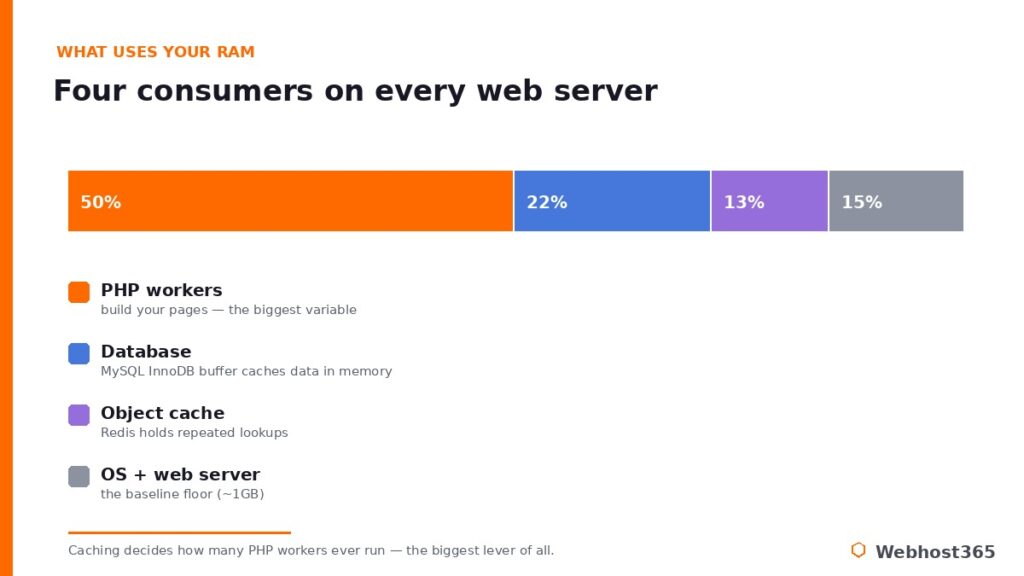
The second is the database. MySQL keeps frequently accessed data in memory through its InnoDB buffer pool, so that queries are answered from RAM instead of disk. On a database-heavy site this wants a meaningful share of memory, though there is no benefit to allocating more than the database’s actual size — a 500MB database gains nothing from 16GB of buffer.
The third is the object cache. A tool like Redis holds the database’s repeated lookups in memory to lighten the load from logged-in users and dynamic pages, and it needs its own allocation to do so. The fourth is simply the operating system and the web server themselves, which need breathing room to stay stable — the reason every sensible estimate leaves a floor of around a gigabyte before counting anything else. The calculator accounts for all four, which is why its floor never drops to an unrealistic number no matter how small the site.
Why Two Sites at the Same Traffic Need Different RAM
This is the point that trips up every simple “X visitors needs Y RAM” table, and it is worth seeing clearly because it explains most of the calculator’s behavior.
Picture two sites, each receiving a hundred thousand visitors a month. The first is a well-cached blog. Nearly every visitor is an anonymous reader who receives a pre-built page straight from the cache, so PHP barely runs and very few workers are ever active at once. Its real memory need stays modest, and a surprisingly small server keeps it fast. The second is a busy WooCommerce store. Its visitors log in, fill carts, and check out, and none of those pages can be served from cache because each one is unique to that shopper. Every one of those requests becomes a live PHP worker holding 80MB or more, and many run at the same time during a busy hour. Same traffic, several times the memory.
That is the whole reason a calculator beats a lookup table. The traffic number is only the starting point; your site type and your caching are the multipliers that decide where you actually land. Our companion guide on WordPress hosting requirements by traffic level walks through this tier by tier if you want the worked examples behind the numbers the tool gives you.
How to Need Less RAM
The encouraging part of all this is that the biggest variable is one you control. If the calculator’s number looks higher than you would like, these levers bring it down, often dramatically.
Page caching is the largest lever by far. With a full-page cache in place, anonymous visitors are handed pre-built pages that never start a PHP worker, which is why toggling caching in the calculator moves the result so much. It is the single highest-impact change available, and on every Webhost365 plan it is built in through LiteSpeed.
Object caching is the next step, and it targets what page caching cannot. A tool like Redis keeps the database’s repeated lookups in memory, easing the load from logged-in users, carts, and admin pages — exactly the dynamic traffic a page cache leaves untouched. Our guide to Redis object caching for WordPress covers when it helps most. Beyond caching, a CDN moves your images and static files off the server entirely so they never consume a worker, and keeping your plugin list lean and your PHP version current trims the memory every remaining request needs. Pull these levers and a site that looked like it needed a larger plan often fits comfortably on a smaller one.
RAM Isn’t the Only Spec
One honest caveat before you act on the number. RAM is usually the ceiling that decides how many visitors you can serve at once, but it is not the only thing that matters for a fast site.
CPU handles the uncached, dynamic work — assembling pages, running store logic, processing PHP — so a busy store leans on the processor as well as memory. Storage speed matters too: fast NVMe SSD means every database query and cache read returns quicker, which is why it has become the baseline for serious hosting. And bandwidth carries it all to your visitors. The calculator focuses on RAM because it is the most common bottleneck and the hardest to reason about by feel, but a well-balanced plan gives you all of these together rather than memory alone.
Conclusion: Size to the Workload, Not a Guess
The real answer to how much RAM a website needs is that you should compute it, not guess it — and the three inputs that matter are your traffic, what your site does, and how well it caches. A well-cached content site punches far above its memory, while a busy dynamic store genuinely needs more. The calculator above turns those inputs into a realistic figure in seconds, and the levers in this guide let you bring that figure down before you ever pay for a larger plan.
Once you have your number, matching it to a plan is straightforward. Small sites that the calculator sizes around 1GB fit WP Regular at $2.49 per month. Growing sites and light stores landing near 2GB suit WP Premium at $4.95 or WP Ultra at $7.95. Sites the tool pushes to 8GB or beyond — busy stores, membership platforms, heavy dynamic apps — step up to a Linux VPS with dedicated resources, from $19.99 for an 8GB c4.medium. Every Webhost365 plan ships with Bunny CDN and LiteSpeed caching already built in, which is exactly why these plans serve more than their raw RAM figure suggests, and your renewal price never moves from the price you signed up at. Run your numbers, pull the caching levers, and buy the plan your workload actually calls for.
FAQ: How Much RAM a Website Needs
It depends on caching and site type more than traffic. A well-cached content site runs comfortably on 1 to 2GB even at high traffic, because cached pages never start a PHP worker. A WooCommerce store or membership site needs more, since its logged-in and checkout pages cannot be cached and each one consumes a worker and its memory.
For a small, well-cached blog, portfolio, or brochure site, yes, comfortably. One gigabyte handles the operating system, a lean database, and enough PHP workers for the modest concurrency such a site sees. It becomes tight once you add a store, a membership system, or heavy traffic that cannot be served from cache.
Only up to the point where your site actually uses it. Adding RAM beyond what your workers, database, and cache need brings no speed gain, because there is nothing left to fill it with. Real speed comes from caching, an optimized database, image compression, and a current PHP version, not from surplus memory sitting idle.
Roughly twice what a content site needs at the same traffic. A store constantly handles carts, logins, and checkouts that cannot be cached, and each of those pages runs a heavier worker of around 80MB or more. A small store is comfortable around 2GB, while a busy one is firmly in VPS territory with 8GB or more.
Start with full-page caching, which stops most visitors from ever starting a PHP worker. Add object caching with Redis for dynamic pages, put a CDN in front to offload static files, trim unused plugins, and run a current PHP version. Together these can move a site down a whole plan tier.
It depends entirely on caching and site type. A well-cached content site can serve that traffic on 2GB because most visits come from cache, while a busy WooCommerce store at the same level needs dedicated VPS resources of 8GB or more for its uncacheable cart and checkout activity. The calculator above gives you a figure for your specific mix.