
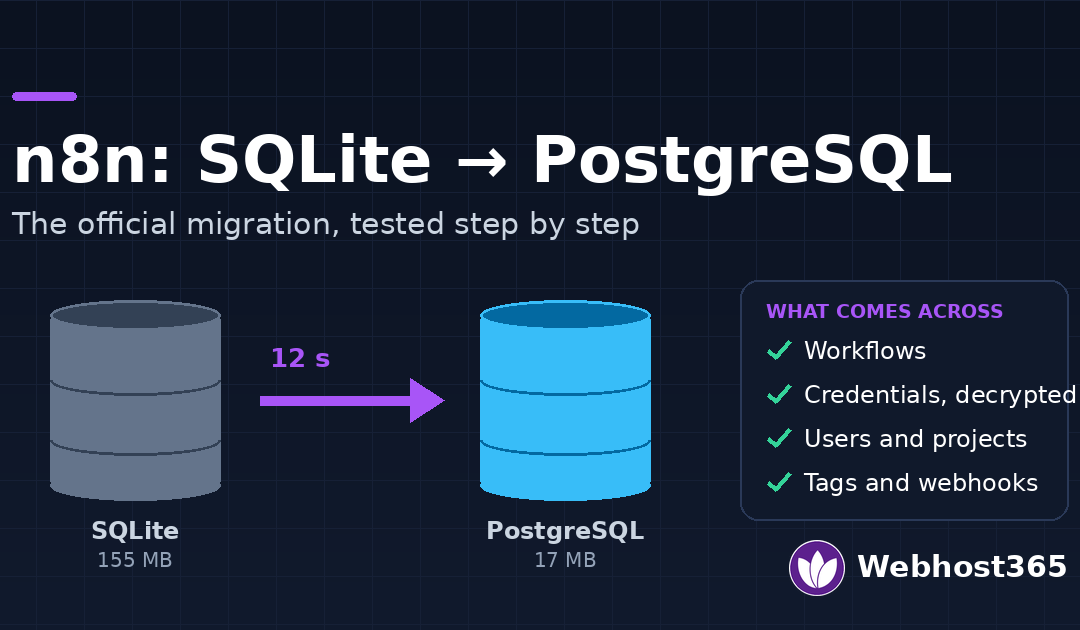
n8n’s official export and import commands move a SQLite instance to PostgreSQL in under a minute, and they bring your workflows, credentials, users, tags and webhook registrations with them. We ran the migration on a live instance to see what actually happens. This guide gives you the exact sequence, what we measured, and every error we hit on the way, with its fix.
When SQLite Stops Being Enough
n8n installs on SQLite by default, and for one person running a handful of workflows it is the right choice: a single file, nothing to configure, nothing extra to back up. It stops being the right choice at a few predictable points.
- More than one person edits workflows. SQLite handles one writer at a time. Two editors saving at once, or a busy workflow writing executions while someone edits, produce “database is locked” errors.
- Volume climbs past a few thousand executions a month. Execution history goes into the same file, and SQLite never shrinks it after pruning. In our n8n requirements test, roughly 190 runs of a 500 KB workflow grew the database from 2.4 MB to 155 MB.
- You want queue mode. Running separate worker processes requires PostgreSQL; SQLite is not an option for it.
- You want proper backups. A Postgres dump is consistent and restorable; copying a SQLite file while n8n is writing to it is neither.
If any of those apply, migrate now rather than later. The migration takes the same minute whether you have ten workflows or two hundred, but the stakes rise with every credential you add.
Before You Start: Backup, Version and the Encryption Key
Three things decide whether this goes smoothly, and all three come before the first command.
Stop n8n, then back up
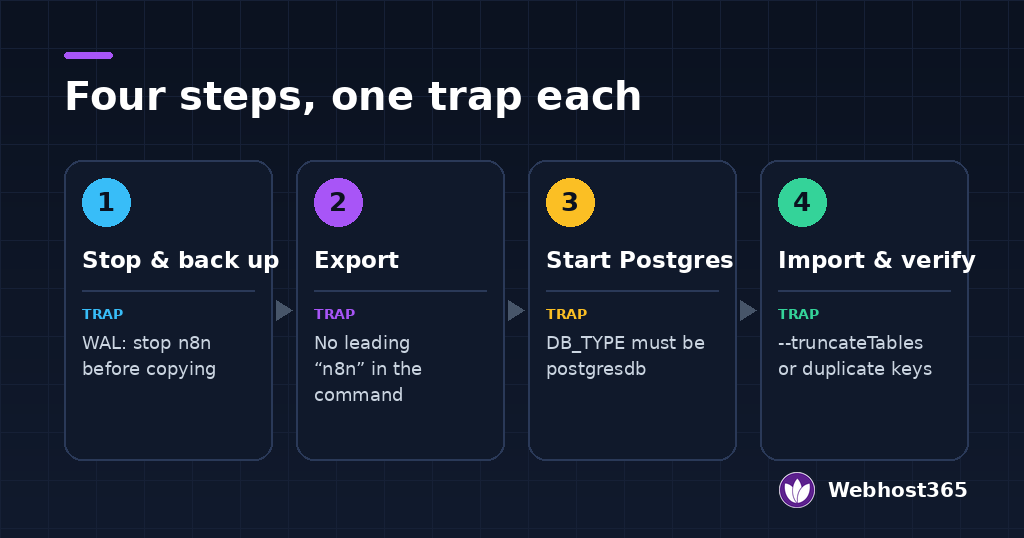
SQLite uses a write-ahead log, so a copy taken while n8n is running can miss recent writes or be inconsistent. Stop the container first, then copy the file somewhere outside the volume.
docker stop n8n
docker run --rm -v n8n_data:/data -v /root:/backup alpine cp /data/database.sqlite /backup/database.sqlite.bak
Adjust the container and volume names to yours. That backup is your way back if anything goes wrong, so keep it for at least a week after the migration. Our guide to website backup strategies covers where to keep it.
Check your n8n version
The entity export and import commands arrived in late 2025. If your instance predates them, export:entities is not a valid command and the migration path below does not exist; update n8n first.
docker exec n8n n8n --versionWe ran this guide on n8n 2.46.4. Check that the n8n image you use for the new Postgres stack is the same version as the one that made the export, because the import validates that the two database schemas match and refuses otherwise.
Find your encryption key
Every credential in n8n is encrypted with one key. If the new instance does not have the same key, the migration succeeds and every credential is unreadable. There are two places the key can live:
- If you set
N8N_ENCRYPTION_KEYin your Compose file or environment, use the same value in the new stack. - If you never set it, n8n generated one on first start and stored it in the data volume:
docker exec n8n cat /home/node/.n8n/configKeep that volume mounted in the new stack, or copy the key into N8N_ENCRYPTION_KEY. Either works. Losing it does not; there is no recovery.
One more thing to note down: the number of workflows and credentials you have, so you can confirm the count on the other side.
docker exec n8n n8n list:workflowStep 1: Export Everything From SQLite
With n8n stopped, run the export in a one-off container that mounts the same data volume. The command, documented on n8n’s command-line reference, writes every table n8n knows about to a directory inside the volume and compresses it to a single zip.
docker run --rm -v n8n_data:/home/node/.n8n docker.n8n.io/n8nio/n8n export:entities --outputDir=/home/node/.n8n/exportTwo things to notice in the command. There is no n8n before export:entities: the image’s entrypoint already runs n8n, so adding it produces “Command n8n not found”. And it uses docker run, not docker exec, because n8n is not running; the one-off container reads the database file directly.
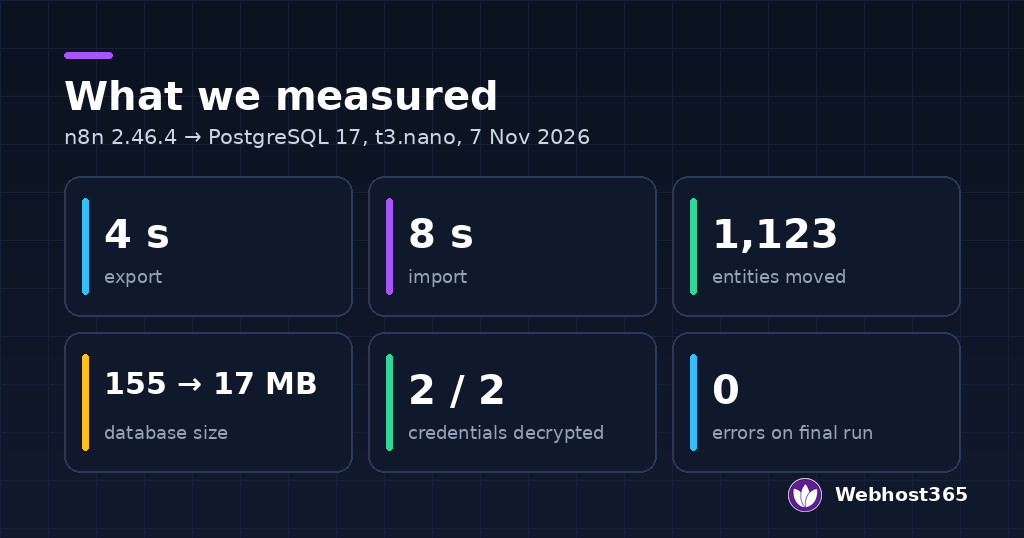
The output is long. It walks every table, 157 of them on n8n 2.46, prints the row count for each, and ends with a summary. On our instance it exported 1,123 entities in about four seconds, to a 196 KB zip. The lines that matter are these:
✅ Completed export for workflow_entity: 1 entities in 1 file(s)
✅ Completed export for credentials_entity: 2 entities in 1 file(s)
✅ Completed export for user: 1 entities in 1 file(s)
   Skipping table: execution_entity (ExecutionEntity) as it exists as an exclusion
The last line is deliberate: execution history is excluded by default, because on a busy instance it is most of the database. If you want it, add --includeExecutionHistoryDataTables=true and expect the export to take much longer. For most migrations, leaving it behind is the right call; it is history, not configuration.
You will also see a banner saying the feature is currently under development. It is, and it worked cleanly on every run we made. Check that the workflow and credential counts match what you noted earlier, then move on.
Step 2: Add PostgreSQL to Docker Compose
Now the new stack. If you installed n8n with a plain docker run rather than Compose, this is the moment to move to a Compose file, which our guide to self-hosting n8n with Docker Compose covers from scratch. The file below is the minimum that works.
services:
  postgres:
    image: postgres:17
    container_name: n8n-postgres
    restart: unless-stopped
    environment:
      - POSTGRES_USER=n8n
      - POSTGRES_PASSWORD=change-this-password
      - POSTGRES_DB=n8n
    volumes:
      - pg_data:/var/lib/postgresql/data
    healthcheck:
      test: ["CMD-SHELL", "pg_isready -U n8n -d n8n"]
      interval: 5s
      timeout: 5s
      retries: 10
  n8n:
    image: docker.n8n.io/n8nio/n8n
    container_name: n8n
    restart: unless-stopped
    ports:
      - "5678:5678"
    environment:
      - DB_TYPE=postgresdb
      - DB_POSTGRESDB_HOST=postgres
      - DB_POSTGRESDB_PORT=5432
      - DB_POSTGRESDB_DATABASE=n8n
      - DB_POSTGRESDB_USER=n8n
      - DB_POSTGRESDB_PASSWORD=change-this-password
    volumes:
      - n8n_data:/home/node/.n8n
    depends_on:
      postgres:
        condition: service_healthy
volumes:
  n8n_data:
    external: true
  pg_data:
Four lines in that file are traps we hit or nearly hit.
DB_TYPE=postgresdb, exactly. Writing postgres or postgresql does not error; n8n ignores it and starts on SQLite, and you discover it when your “migrated” instance has no data.
external: true on the data volume. Without it, Compose creates a new, empty volume with a prefixed name and your export, your config file and your encryption key are not in it. If you declared the key in the environment instead, add it to the n8n service here.
postgres:17. n8n 2.46 logs “Postgres 16 is outside the supported range and receives compatibility support only” on 16. It works, but start on 17 and skip the warning.
No old container named n8n. If one exists from a previous docker run, Compose refuses to create its own. Remove the old container; the volume survives.
Start Postgres alone and let the health check pass. Do not start n8n yet.
docker compose up -d postgres
docker compose ps
Keep the Postgres port off the public internet; it needs no port mapping at all for n8n on the same host. Our guide to securing a Linux VPS covers the firewall side if you have opened it.
Step 3: Import Into PostgreSQL
The import runs the same way as the export, in a one-off container, before n8n itself has started on the new database.
docker compose run --rm n8n import:entities --inputDir=/home/node/.n8n/export --truncateTables trueAgain, no n8n before import:entities. The command does more than copy rows. In order, it:
- Runs every n8n schema migration on the empty Postgres database, 321 of them on 2.46, so the tables exist.
- Checks that the export’s last migration matches the target’s last migration, and stops if they differ, which is why the two n8n versions must be the same.
- Disables foreign-key checks, truncates the target tables, imports the entities, advances the Postgres sequences, and re-enables the checks.
The --truncateTables true flag matters. The migrations in step 1 seed some tables, roles and scopes among them, and importing on top of them is where the “duplicate key value violates unique constraint” error people report comes from. Truncating first removes the seed rows so the import is clean.
On our instance the whole import took eight seconds. One line in the output is worth understanding:
Legacy aes-256-cbc encryption key not found; falling back to instance keyThat is n8n finding the key in the mounted volume’s config file, which is exactly what we want. If instead you see an error mentioning the key, stop and go back to the encryption-key section before anything else.
Step 4: Verify Before You Delete Anything
Start n8n on the new database and check it from three angles: the CLI, the database, and the browser. Only when all three agree is the migration done.
docker compose up -d
docker exec n8n n8n list:workflow
The workflow list should match what you noted before the export. Then count what matters directly in Postgres:
docker exec n8n-postgres psql -U n8n -d n8n -c "SELECT (SELECT count(*) FROM workflow_entity) AS workflows, (SELECT count(*) FROM credentials_entity) AS credentials, (SELECT count(*) FROM \"user\") AS users, (SELECT count(*) FROM tag_entity) AS tags, pg_size_pretty(pg_database_size('n8n')) AS db_size;"The decisive test is credentials. Counting them proves they were copied; it does not prove they can be decrypted. This does:
docker exec n8n n8n export:credentials --all --decrypted --output=/tmp/check.json
docker exec n8n cat /tmp/check.json
If the key survived, you see your credentials with their values in plain text. If it did not, the export fails with a decryption error, and you need the key from the old config before going further. Delete that file afterwards; it holds secrets.
Finally, in the browser: log in with your original password, open one credential, confirm one workflow is still active, and fire one webhook if you have one. Then leave the SQLite backup in place for a week. Nothing about the migration deletes it, and nothing should until you are sure.
What Went Wrong on Our Run, and the Fix
We did not get a clean first pass, and the errors are more useful than the success. Several of them match what people report in the n8n community’s migration thread, which opens by saying there is a major lack of information on this. Here is each one, verbatim.
“Command n8n not found.” Running docker compose run --rm n8n n8n export:entities fails because the image’s entrypoint already invokes n8n, so the command becomes n8n n8n export:entities. Drop the leading n8n in anything run through docker run or docker compose run. Keep it for docker exec, which bypasses the entrypoint.
“The container name /n8n is already in use.” Our instance had been started with docker run, and Compose could not create a container with the same name. Remove the old container with docker rm n8n after stopping it. The data volume is separate and survives.
“cp: can’t stat /data/database.sqlite.” Our first backup command looked in the wrong volume. Compose had silently created a new, empty volume called n8n_n8n_data beside the real n8n_data. The fix was external: true on the volume in the Compose file, and it is the mistake most likely to make a migration look like it deleted everything.
“Postgres 16 is outside the supported range and receives compatibility support only.” Not an error, but a warning on every n8n start. We rebuilt on postgres:17 and it went away.
Executions dropped from 190 to 0. Expected: execution history is excluded from the export by default. Our database fell from 155 MB to 17 MB because of it. Add the history flag if you need it; most people do not.
The encryption key was not where we thought. The instance had never had N8N_ENCRYPTION_KEY set, so the key lived in /home/node/.n8n/config on the volume. Keeping the volume mounted was enough, and the import’s “falling back to instance key” line confirmed it. Had we started the new stack on a fresh volume, every credential would have been lost.
“This feature is currently under development.” Printed by both commands. We ran the migration three times during testing, including a round trip back to SQLite, and it was correct each time.
What We Measured
| n8n version | 2.46.4, official Docker image |
| PostgreSQL | 17 in Docker, same host |
| Server | Our Indian VPS, t3.nano, 2 vCPU and 4 GB, Delhi |
| Export | 1,123 entities across 157 tables, about 4 seconds, 196 KB zip |
| Import | 321 schema migrations plus 1,123 entities, about 8 seconds |
| SQLite before | 155 MB, including about 190 executions of history |
| PostgreSQL after | 17 MB, history excluded |
| Moved and verified | 1 workflow, 2 credentials decrypted correctly, 1 user, 1 webhook, workflow history, settings |
| Date | 7 November 2026 |
The instance was small by design, so the times are a floor, not a forecast. A database with hundreds of workflows will take longer to import, but the sequence is identical, and the export zip stays small because workflows are text.
Final Thoughts
Migrate before you need to. The export takes seconds on a small instance, and the stakes grow with every credential and user you add after it. Keep three things through the whole process: the SQLite backup, the encryption key, and the same n8n version on both sides. Get those right and the official commands do the rest.
PostgreSQL is also the door to the next stage. Queue mode, multiple editors and a backup routine that is actually consistent all start here. If the migration has shown you more administration than you want to take on, our managed n8n plan runs on PostgreSQL from day one, and our guide to n8n hosting in India sets out what each option costs.
FAQs
Yes, provided the new instance uses the same encryption key as the old one. Credentials are encrypted at rest and the export carries them encrypted; the key decrypts them on the other side. Keep the original data volume mounted, or copy the key from /home/node/.n8n/config into N8N_ENCRYPTION_KEY. In our test both credentials decrypted correctly after import, and the “falling back to instance key” line during import confirmed the key had been found.
Not by default. The export skips the execution tables because they are usually most of the database, and the import therefore starts with no history. Our database dropped from 155 MB to 17 MB for this reason. If you need the history, add --includeExecutionHistoryDataTables=true to the export command and allow more time; for most instances it is better left behind.
Because the value must be postgresdb, exactly. n8n does not reject unknown values for DB_TYPE; it falls back to SQLite silently, so the instance starts, shows an empty database or the old one, and gives no hint why. Check the value, and check that the n8n service in Compose actually has the DB_ variables rather than the Postgres service.
Importing into tables that already hold seed rows, which is the error reported in the n8n community thread on this migration. The import runs n8n’s schema migrations first, and some of those insert default roles and scopes; importing the same rows from the export on top of them collides. Run the import with --truncateTables true so the seeded tables are emptied before the entities are written, which is how we ran it without the error.
n8n 2.46 treats PostgreSQL 17 as the supported version and prints a warning on 16 that it is outside the supported range and gets compatibility support only. Older versions may work but are not tested. Use the postgres:17 image unless you have a reason not to.
For a single-server n8n, Docker on the same host is simpler and faster: no network hop, no extra bill, and the Compose file keeps the two together. A managed database makes sense once you run queue mode across several servers, need automated point-in-time recovery, or have a team that already operates one. Either way, keep the Postgres port off the public internet.