
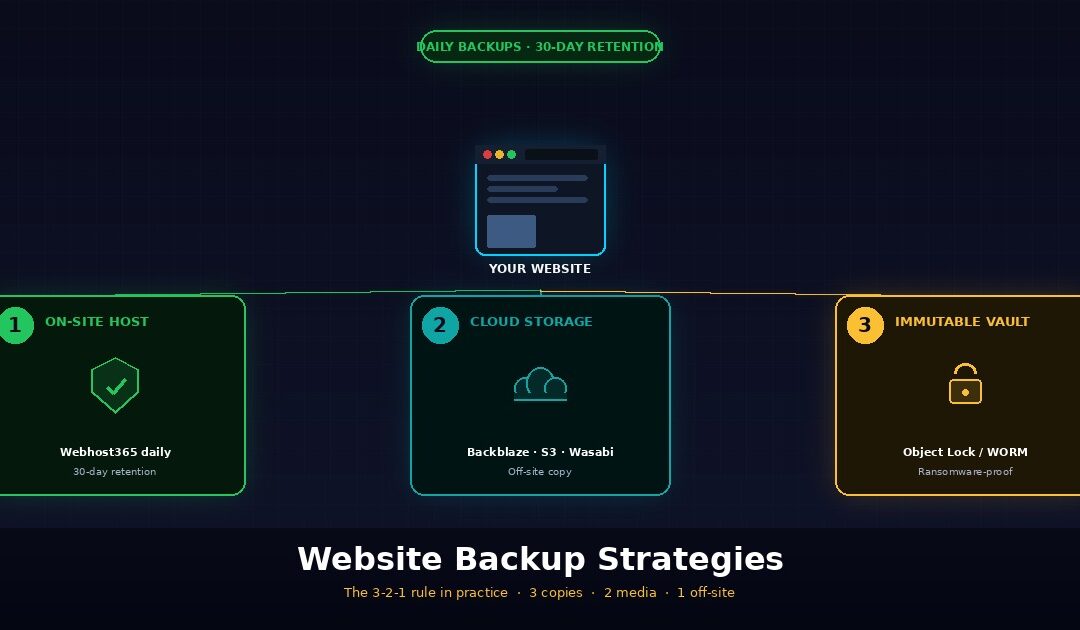
A solid website backup strategy follows the 3-2-1 rule: keep three copies of your site, on two different storage types, with one copy stored off-site. This rule, originally formulated by photographer Peter Krogh in 2009 and now endorsed by the US Cybersecurity and Infrastructure Security Agency (CISA), protects you against the three things that actually destroy websites — hardware failure, ransomware attacks, and human error. Webhost365 includes daily automated backups with 30-day retention on every hosting plan from $1.49 per month, which handles the on-site copy and one off-site copy of the 3-2-1 framework automatically.
This guide explains the 3-2-1 rule in plain English, the modern 3-2-1-1-0 evolution that handles ransomware, what to actually back up on a website (most guides miss DNS records entirely), how to automate the whole thing without thinking about it, and the one step almost everyone skips — testing the restore. By the end, you will have a backup strategy that survives the realistic disasters that hit real websites, not a checklist of theoretical best practices.
Why your website needs a real backup strategy
A real backup strategy uses multiple copies of your website data across different locations and media types, along with regular automated backups and tested restore procedures. “My host backs up the server” does not qualify as a backup strategy because host-level snapshots usually keep data for only a short time, focus on infrastructure recovery instead of granular file restoration, and may disappear if someone compromises or terminates the hosting account. A real strategy is independent of any single point of failure, including the hosting provider itself.
The three things that actually destroy websites
Hardware failure is the cause everyone thinks of first, and the one that matters least on quality modern hosts. Disk failures, RAID controller failures, and data centre incidents do happen, but on a host running AMD EPYC servers with NVMe SSD storage and proper redundancy, the realistic odds of losing your site to hardware failure in any given year are vanishingly small. Hardware-only thinking misses the actual common threats.
Ransomware and malware are the fastest-growing cause of catastrophic data loss for websites, and they specifically target WordPress because WordPress runs more than 40% of the web. Attack patterns range from automated brute-force attempts on /wp-login.php to sophisticated supply-chain attacks through compromised plugins. Once an attacker has control of your WordPress admin, they can install malicious code that sits dormant for weeks, encrypt your files, redirect your visitors to phishing sites, or simply delete everything. A backup that was made yesterday saves you. A backup that was made two weeks ago and has been silently corrupting since the malware arrived does not.
Human error causes more website incidents than hardware failure on quality hosts, full stop. The realistic top causes look like this: a botched plugin update breaks the site, a database import overwrites half the content, a developer accidentally deletes the wrong directory, a theme conflict corrupts CSS files, an admin runs the wrong SQL command in phpMyAdmin. None of these are dramatic. All of them are recoverable in five minutes if you have a working backup, and a multi-day rebuild if you do not.
Why “my host backs up everything” is not enough
Hosting providers do back up servers, and on a quality host those backups are genuinely useful. Webhost365 runs daily automated backups with 30-day retention on every plan, which is genuinely better than most competitors. But host-side backups have structural limitations that mean they cannot be your only backup, even on the best hosts.
Retention windows on host backups are usually short. Many hosts keep only a 7-day rolling backup, so anything older than a week disappears. Malware often stays hidden for two to four weeks because attackers design it to be subtle. When you finally notice the problem, the host has often already overwritten every backup with infected data. Webhost365’s 30-day retention extends this window significantly, but even 30 days assumes you will notice the problem within that month.
Server-level backups support infrastructure recovery, not granular site restoration. Hosts use these backups to recover your hosting account after a data center incident by restoring the server, the files, and the account itself. That is not the same as “restore my WooCommerce database to last Tuesday at 3pm because I accidentally deleted 200 products.” Granular restoration usually requires a support ticket and waiting hours to days.
If your hosting account gets suspended, terminated, or compromised, the host’s backups disappear with it. This is the failure mode that catches site owners off guard. A billing dispute, a Terms of Service violation, a successful phishing attack on your hosting account password — any of these can lock you out of your own backups stored on the same provider. The whole point of off-site backups is that they survive your hosting provider becoming the problem.
The honest framing is that hosts (including Webhost365) provide a critical safety net, but you also need an off-site copy you control. The 3-2-1 rule exists specifically to handle this combined-failure scenario.
The cost of no backup vs the cost of a backup strategy
The financial math on website backups is so one-sided it barely needs explaining, but it is worth doing once because most site owners have never run the numbers.
Lost e-commerce orders during outage are direct revenue impact. A WooCommerce store doing $1,000 per day in revenue loses $1,000 for every day of recovery. A two-day rebuild from no backup costs $2,000 in lost orders alone, before accounting for the customers who tried to buy and went to a competitor instead.
Lost customer data and trust have a longer-tail cost. A SaaS application that loses customer records does not just lose those customers. It loses the ones who hear about the incident through reviews, social media, or word of mouth. Recovery cost in churn often exceeds the direct revenue loss by a factor of two or three.
Lost SEO rankings during downtime can take months to recover. Google’s algorithms penalize sites that are unreachable for extended periods, particularly mobile-first indexing failures. A site that goes down for three days can lose ranking positions that took six months of content marketing to build, and rebuilding those positions requires another six months minimum.
The cost of a proper backup strategy is between $0 and $5 per month in cloud storage for most websites. A typical WordPress site with images and database is 2 to 5 GB. Backblaze B2 cloud storage costs roughly $0.005 per GB per month, so 5 GB of off-site backup storage costs $0.025 per month — yes, two and a half cents. Even with daily backups and 30-day retention multiplying the storage requirement, the math stays under $5 per month for most sites.
The conclusion is overwhelming. Backup costs are tiny. Incident costs are large. The break-even point is the first incident in the lifetime of the site, and incidents happen to most sites eventually. Skipping a backup strategy is not saving money — it is gambling that nothing will ever go wrong, with stakes that are 100 to 1000 times the savings.
The 3-2-1 backup rule explained
The 3-2-1 backup rule states that you should keep three copies of your data, stored on two different types of media, with at least one copy stored off-site. The rule was created by photographer Peter Krogh in his 2009 book The DAM Book and has become the de facto standard for data protection, endorsed by CISA, NIST, and most enterprise security frameworks. It works because it eliminates single points of failure across hardware, location, and media type simultaneously.
| Number | What it means | Practical example |
|---|---|---|
| 3 copies | Original + 2 backups | Live site + host backup + cloud backup |
| 2 media types | Different storage types | Hosting server + cloud storage (S3, B2) |
| 1 off-site | Geographically separate | Backup outside your hosting provider |
Three copies of your data
The reasoning behind three copies is statistical rather than arbitrary. One copy is no copy — if you lose it, the data is gone forever. Two copies on the same drive both die together when the drive fails. Two copies on different drives in the same building both die in the same fire or flood. Three copies across multiple locations and media types survive almost every realistic failure mode, which is why three is the minimum number that provides genuine protection.
For websites, the three copies look like this in practice: the live production site is copy one, the hosting provider’s automated backup is copy two, and your own off-site backup pushed to cloud storage is copy three. Each copy lives in a different administrative domain, which means a problem that destroys one copy is unlikely to destroy the others. A successful WordPress hack might compromise the live site and the host backup if the attacker has full access, but they cannot reach a Backblaze B2 bucket protected by separate credentials.
If one of your three copies is in your house and another is in your hosting account, you only have geographically two locations rather than three. The rule still works in this case because of media diversity — your local copy on a laptop SSD is fundamentally different from cloud object storage, and a problem that affects one is unlikely to affect the other. The strict reading of “three locations” is less important than the spirit of the rule, which is “no single failure mode kills all your copies.”
Two different storage types
The two-media-type requirement exists because identical drives often fail in similar conditions. Two SSDs from the same manufacturer batch, with the same firmware, running in the same server rack at the same temperature, will sometimes fail within days of each other. This is rare but real, and it is the failure mode the 3-2-1 rule’s media diversity is designed to prevent.
For websites, the practical interpretation is straightforward. Your hosting server’s SSD storage counts as one media type. Cloud object storage such as Backblaze B2, AWS S3, and Wasabi qualifies as a different media type because it uses fundamentally different infrastructure—distributed object storage instead of single-server block storage. Even though both are technically “SSDs at the bottom,” the abstraction layers, replication mechanisms, and failure modes are different enough to satisfy the rule.
Other valid combinations include host SSD plus a downloaded archive on your own machine plus cloud storage. The principle is that any two of your three copies should not share a fate when one specific thing goes wrong. Cloud storage from a single provider counts as one media type even if the provider replicates internally — if your account gets suspended or the provider has an outage, all your copies in that provider die together.
One copy stored off-site
Off-site means outside your hosting provider’s infrastructure, not just in a different physical building. The strict definition is geographic separation, but for website backups the practical definition is administrative separation. Same building means same fire, same flood, same power surge. Same hosting account means same suspension risk, same compromise risk, same Terms of Service termination risk.
Cloud storage providers are the standard answer for off-site website backups. Backblaze B2 is the price-leader at roughly $0.005 per GB per month, AWS S3 is the most widely supported by backup tools, and Wasabi offers fixed pricing without egress fees. Any of these works for the off-site copy in a 3-2-1 strategy, and the choice usually comes down to which one your backup tool integrates with most easily.
A USB drive in your office is technically off-site relative to the host, but it is not ideal as your primary off-site copy because it depends on you remembering to update it manually. Manual backups fail eventually because humans forget — automation is the only sustainable approach for the off-site layer. If you do use a USB drive, treat it as a fourth copy beyond the cloud-based off-site, not as your primary.
The modern 3-2-1-1-0 evolution (ransomware era)
The 3-2-1-1-0 backup rule extends the original 3-2-1 framework with two additional requirements: one immutable or air-gapped copy, and zero errors during recovery testing.
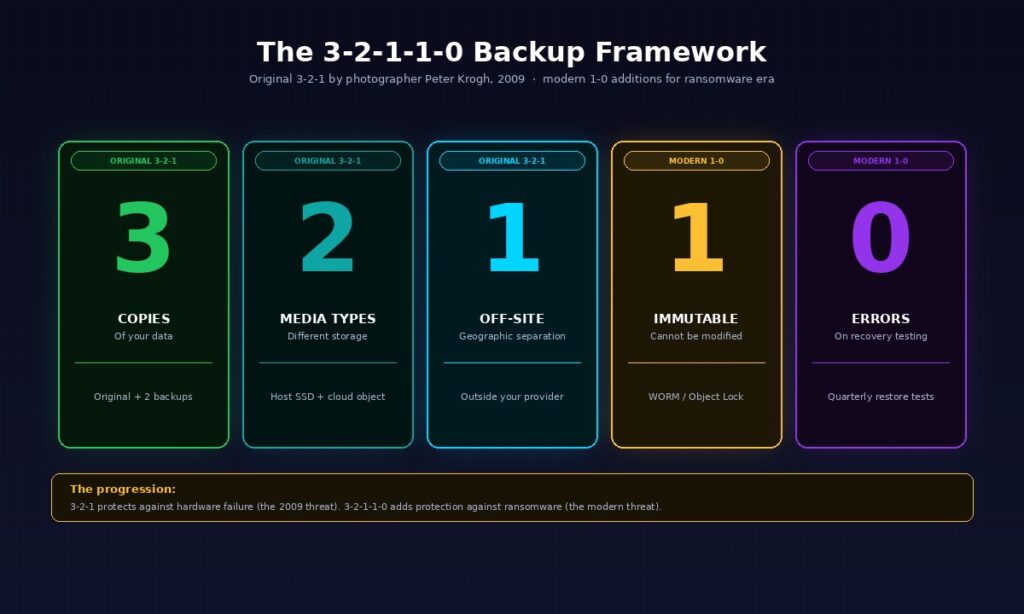
This evolution emerged in response to ransomware attacks that specifically target backup files, and is now recommended by Veeam, Acronis, and other enterprise backup vendors as the modern baseline for businesses with critical data. The original 3-2-1 was designed in 2009 when the dominant threat was hardware failure. The modern 3-2-1-1-0 is designed for an era when attackers actively try to destroy backups before extorting ransom.
The extra 1 — immutable or air-gapped backup
An immutable backup is a copy that cannot be modified or deleted, even by an administrator with full credentials. The technical implementation is usually write-once-read-many (WORM) storage, where data can be added but never altered. Cloud storage providers offer this through features like AWS S3 Object Lock and Backblaze B2 Object Lock, which let you set retention periods during which deletion is impossible.
An air-gapped backup is a copy that is physically disconnected from any network. The classic example is a portable drive that gets connected for the backup, then disconnected and stored in a safe. Air-gapped backups are immune to remote attacks by definition because there is no network path for malware to reach them. The trade-off is that they require manual handling, which means they are usually weekly or monthly rather than daily.
Why the immutable layer matters: ransomware that compromises your hosting account or your local machine can encrypt or delete every backup the attacker can reach. If your “off-site” backup is in a cloud bucket protected only by API keys that live on the compromised machine, the attacker can wipe it during the same intrusion that hits your live site. An immutable backup with a 30 or 90 day retention lock cannot be wiped even with full credentials, which means you have a guaranteed clean recovery point.
For most small business websites, the immutable layer can be implemented for free using Backblaze B2 with Object Lock enabled. The cost is the same as regular B2 storage. The configuration takes about 15 minutes once. The protection it provides against ransomware double extortion (where attackers encrypt your data and threaten to release stolen copies) is genuinely worth the setup time.
The 0 — zero errors during recovery testing
A backup that has never been restored is functionally not a backup. This is the single most important sentence in this entire article, and the reason the modern framework added the zero-errors requirement to the original 3-2-1.
The failure mode this addresses is the false-confidence backup. Your backup script runs every night. The logs say it completed successfully. The files appear in your cloud storage bucket. Everything looks good — until the day you actually need to restore, when you discover the database dump was corrupted, the file archive is missing critical directories, the backup script silently stopped including new tables six months ago, or the cloud storage credentials expired and the recent backups are actually empty.
The fix is scheduled restore testing. At minimum, every quarter, restore your backup to a staging environment and verify the site comes back functional. Test partial restores (a single file, a single database table) and full restores (the entire site from scratch). Document the time required from start to finish — this is your real Recovery Time Objective, not the theoretical one you assumed when you set up backups.
Most site owners skip restore testing because it feels redundant when nothing is broken. The few who actually do it discover problems with their backup configuration before disaster strikes, which is the entire point. Testing restores quarterly costs an hour of your time per quarter. Discovering your backups do not work during an actual incident costs days of downtime and potentially the entire business.
What to actually back up on a website
A complete website backup includes four components: the file system (themes, plugins, uploads, custom code), the database (posts, settings, users, transactions), the configuration files (wp-config.php for WordPress, server config files), and DNS records. Most automated backup tools handle the first three. DNS records often get overlooked, which causes prolonged outages during recovery because the DNS configuration has to be rebuilt manually from scratch. Each of the four components below covers what to back up, why it matters, and what most automated tools miss.
Files — themes, plugins, uploads, custom code
The file system is the most visible part of any website backup, and the part most backup tools handle correctly by default. For WordPress, this means everything in the /wp-content/ directory: your active theme, all installed plugins, the uploads folder containing every image and media file ever added, and any custom code in mu-plugins or theme child directories. non-WordPress sites, the equivalent is whatever lives in /public_html/, /var/www/, or your application’s root directory.
For containerised applications running on a Linux VPS with Docker, file backup means slightly different things. Your Docker Compose file, Dockerfiles, environment files (.env), and persistent volume data all need to be in the backup. The container images themselves can be rebuilt from the Compose file as long as the source code or the registry image references are preserved, so you do not need to back up the running container state — just the configuration that produces it.
The honest exclusion list matters for backup efficiency. The node_modules directory in Node.js projects can usually be excluded because it can be rebuilt from package.json. The .git directory contains version history that you should be storing in your remote repository anyway. WordPress cache directories like /wp-content/cache/ can be excluded because they regenerate automatically. Excluding these can shrink your backup size by 50 to 80 percent on a typical site, which makes daily backups practical even on tight storage budgets.
Database — the data that actually matters
The database is the single most important thing to back up because it contains everything dynamic about your site. WordPress posts, page content, user accounts, comments, plugin settings, theme customizations, WooCommerce orders, customer addresses, payment records — all of it lives in the database. Lose the database and you lose everything except the visual shell of your site.
For WordPress and WooCommerce sites, the database is typically MySQL or MariaDB. The standard backup approach is mysqldump to produce a SQL file, compressed with gzip to a .sql.gz archive. For Django, Laravel, or other modern frameworks, the database is often PostgreSQL, which uses pg_dump for the same purpose. Both tools produce a complete logical backup that can be restored to any compatible database server, which is important because it means your backup is not tied to the specific server it came from.
Backup frequency for databases should be more aggressive than file backups because databases change constantly while file structures change rarely. A WordPress blog might add one new post per week to the file system but update the database hundreds of times per day with comments, sessions, and analytics events. Daily database backups are the minimum for any site with active user interaction. WooCommerce stores and SaaS applications should run hourly database backups, which is cheap because database dumps are small and gzip compression handles the redundancy efficiently.
Configuration files — easy to forget, painful to recreate
Configuration files are the layer of backups that gets missed most often, because they are not in the obvious “files” or “database” buckets that backup tools target. Missing them turns a 30-minute restore into a 6-hour rebuild, which is why this section exists at all.
For WordPress, wp-config.php is the critical configuration file. It contains your database credentials, security salts, debug settings, and any custom constants. Losing this file means you cannot connect to your restored database, which means the rest of your backup is functionally useless until you rebuild it manually. The good news is wp-config.php is small and rarely changes, so backing it up is trivial — but it must be on the explicit backup checklist.
Server-level configuration is the second category. Web server config files like .htaccess (Apache or LiteSpeed) and nginx.conf (Nginx) contain URL rewrites, security rules, redirects, and caching directives that took someone hours to tune correctly. Losing them means the site comes back without the redirects, with broken pretty URLs, and with the security rules disabled. On VPS hosting, these files live in known locations and should be in every backup. On shared hosting, the .htaccess file in your home directory is what matters and it is usually included automatically.
Cron jobs are the configuration almost everyone forgets. If your site runs scheduled tasks — sending newsletter emails, processing recurring payments, running database cleanup, syncing with external APIs — those scheduled tasks are configured in the server’s crontab, separately from your application files. After a restore from backup, the application code is back but the cron jobs are not, so the scheduled work silently stops happening. The fix is to run crontab -l > crontab-backup.txt regularly and include that file in your backups.
Email forwarder configurations matter if your domain hosts both the website and email. Losing the forwarder config after a restore means email starts bouncing back to senders, which depending on your business can be more disruptive than the website itself being down. Document forwarders separately even if your hosting control panel is supposed to back them up automatically.
DNS records — the often-forgotten layer
DNS records are the layer of website infrastructure that almost no backup tool covers, and the layer where missing data causes the longest outages during recovery. Most site owners assume DNS is “set up once and forgotten,” which is true until you need to recover the site at a different IP address or migrate to a new provider.
The records that need backing up are: A records (mapping domain names to IP addresses), CNAMEs (subdomain aliases), MX records (mail server configuration), TXT records for SPF (v=spf1 ...), DKIM (used for email authentication), DMARC (email policy), and any verification records for services like Google Search Console, Microsoft 365, or third-party tools. A typical small business domain has 15 to 30 individual DNS records, each of which had to be created manually at some point.
The simplest backup approach is to export your DNS configuration as a zone file from your DNS provider. Cloudflare, AWS Route 53, Google Domains, and most managed DNS services have an export option that produces a standard BIND zone file. Save this file alongside your other backups. During recovery, the zone file can be re-imported to a new DNS provider in minutes rather than rebuilding records by hand.
The disaster scenario this prevents is real and worth describing concretely. A site goes down. The recovery plan involves migrating to a new server with a new IP address. Files restore successfully. Database restores successfully. The site is functional at the new IP. But the DNS records still point to the old IP, and the records on the old DNS provider are no longer accessible because the account was compromised in the same incident that took down the original server. Without a DNS backup, every record has to be reconstructed from memory and from looking at archived versions of the live site for clues. This typically takes 24 to 48 hours and causes prolonged email and website outages even after the actual server is back online. With a DNS backup, the records import in five minutes.
Backup automation — what “set and forget” actually looks like
Automated website backups should run daily for most sites, with longer retention windows than the default 7-day host-side window. The right architecture combines host-side automated backups (your first copy), an off-site cloud backup via a plugin or script (your second copy), and quarterly restore tests to verify the backups actually work. Manual backups are not a strategy because humans forget; automation is the only sustainable approach. The three subsections below cover frequency by site type, the tools that handle automation, and how long to keep each backup.
Backup frequency by site type
Backup frequency should match how fast your site’s content changes. A static brochure site updated once a month does not need hourly backups. A WooCommerce store processing orders every few minutes loses real money for every hour of data missed in a backup gap. The table below maps common site types to recommended backup frequencies for files and database separately, because these two layers change at very different rates on most sites.
| Site type | Files | Database |
|---|---|---|
| Personal blog (low activity) | Weekly | Daily |
| Business website (content updates) | Daily | Daily |
| WordPress / WooCommerce store | Daily | Daily or hourly |
| SaaS application with user data | Daily | Hourly or continuous |
| High-traffic news / membership | Hourly | Continuous |
The principle to remember is that database backups should always be at least as frequent as file backups, because databases change far more than files do on any site with user interaction. Most site owners over-backup files and under-backup databases, which is the opposite of what they actually need. A WordPress site can survive losing yesterday’s plugin update because plugins can be reinstalled. The same site cannot survive losing yesterday’s WooCommerce orders because that data does not exist anywhere except in the database.
Tools and scripts for automated backups
For WordPress sites, plugin-based backup tools are the easiest path. UpdraftPlus is the most popular free option and handles files, database, and off-site upload to multiple cloud destinations. BackWPup is a similar free alternative with a slightly different interface. BackupBuddy is a paid option from iThemes that some users prefer for its restore tool. Any of these handles the basic 3-2-1 setup for a WordPress site without requiring command-line access.
For VPS deployments, shell scripts plus cron jobs are the standard approach. A simple bash script using rsync to push files to remote storage and mysqldump for the database, scheduled via cron to run nightly, handles most workloads reliably. The advantage of scripts over plugins is full control and no dependency on third-party WordPress code. The disadvantage is you have to write and maintain the scripts yourself.
For Docker deployments, the backup pattern is slightly different because container state is ephemeral by design. The right approach is to back up Docker volumes (where persistent data lives), the Compose file (which describes the entire stack), and the environment files (which contain secrets). A common pattern uses docker run --volumes-from to mount volumes into a temporary container that creates a tar archive, then pipes the archive to cloud storage via the cloud provider’s CLI tool.
Cloud storage destinations for off-site backups have a clear cost hierarchy. Backblaze B2 at roughly $0.005 per GB per month is the price leader and supports Object Lock for immutable backups. AWS S3 is the most widely supported but more expensive at $0.023 per GB per month for standard storage. Wasabi offers fixed pricing with no egress fees, which can work out cheaper if you frequently download or test-restore your backups. Google Cloud Storage and Azure Blob Storage exist but rarely offer better value than Backblaze B2 for individual websites.
Retention policy — how many backups to keep
A retention policy determines how many backups to keep and for how long. The standard recommendation for websites is 7 daily backups, 4 weekly backups, and 12 monthly backups, which works out to roughly 30 days of recent rolling history plus three months of weekly snapshots plus a year of monthly checkpoints. This catches everything from “I deleted something this morning” to “we noticed the malware infection started six months ago.”
The reason long retention matters is that malware can sit dormant for weeks before being discovered. A 7-day retention window means that by the time you notice your site is compromised, every backup you have is already infected. A 30-day retention window covers most realistic discovery timelines for sophisticated malware. A 90 or 365-day retention window covers the worst-case scenarios where compromise is discovered through external reports months after the initial intrusion.
Webhost365’s 30-day retention default on every plan from $1.49 per month is specifically calibrated to match common malware discovery windows. Many competitors offer 7-day retention as standard and charge extra for longer windows, which structures the backup product to fail you in the realistic scenarios where you most need it. For sites with critical data, extending beyond 30 days via cloud storage is straightforward — Backblaze B2 supports indefinite retention for fractions of a cent per GB per month. The math always favours longer retention because storage is cheap and recovery from missing backups is expensive.
Testing your backups — the step almost everyone skips
Backup testing is the difference between having a backup and having a backup that works. Schedule a quarterly restore test where you actually restore your backup files to a staging environment and verify the site comes back functional. Document the time required from start to finish — this is your real Recovery Time Objective (RTO), not the theoretical one. The two subsections below cover how to run a restore test without breaking production, and how to think about Recovery Time and Recovery Point Objectives in practical terms.
How to run a restore test (without breaking production)
The first rule of restore testing is to never restore directly to production. A failed restore on the live site replaces working files with broken ones, which turns a quarterly drill into an actual incident. The right approach is to restore to a staging environment that mirrors production but is completely isolated from it.
Setting up a staging environment takes one of three forms depending on your hosting tier. On WordPress hosting, most providers (including Webhost365) offer a one-click staging environment that lives at a subdomain like staging.yoursite.com and is fully isolated from production. VPS hosting, you can create a second VPS specifically for restore tests, or use Docker on your local machine to spin up a temporary copy. On bare metal or cloud hosting, the cloud provider’s snapshot feature can clone production to a staging instance in minutes.
The restore process itself follows a specific order: files first, then database, then configuration, then DNS. Files come first because the database backup expects to find the application code in place when it runs. The database comes second because it contains the dynamic content that makes the restored site functional. Configuration files come third because some configurations depend on database values being present. DNS comes last because changing DNS makes the staging site visible to the world before you have verified it works.
Walk through critical user flows to verify the restore actually succeeded. For a WordPress site, this means logging into the admin, viewing a few published posts, checking that images load correctly, and publishing a test post. WooCommerce, add a product to cart and walk through checkout (using test mode for payments). For SaaS applications, verify user login, the most common workflow, and any integrations with external services. The goal is not exhaustive testing — it is finding the obvious failures that mean the backup is unusable.
Time the entire process from “backup file in hand” to “site fully functional.” On a typical WordPress site of 2-5 GB, a competent restore takes 30 minutes to 2 hours including verification. a large WooCommerce store with a multi-gigabyte database, restoration can take 4 to 8 hours. On a complex SaaS application with multiple databases and external integrations, full restoration might require 8 to 24 hours. Knowing your real number is essential for planning, because an outage of “however long it takes” is not a plan you can communicate to customers.
Document any errors, missing data, or incomplete restoration steps that came up. The point of testing is to find these gaps when they cost an hour to fix, not when production is down and they are blocking recovery. Common gaps include missing wp-config.php, forgotten cron jobs that need rebuilding manually, broken plugin license keys that need reactivation, and DNS records that point to the wrong IP after migration. Each of these is trivial to address during a planned test and devastating to address during a real incident.
Recovery Time Objective vs Recovery Point Objective
Two terms appear in every serious backup discussion: Recovery Time Objective (RTO) and Recovery Point Objective (RPO). They describe different things, both matter, and most site owners conflate them.
Recovery Time Objective is how long it takes to get the site back online after disaster. If your backup restoration process takes 2 hours from incident to “site is functional again,” your RTO is 2 hours. RTO is determined by your tools and processes — the speed of your backup storage, the size of your data, the complexity of your restore procedure, and the quality of your documentation all affect it. Faster RTO requires investment in better automation and testing.
Recovery Point Objective is how much data loss is acceptable, measured by how recent your last backup is. If you back up daily at midnight and disaster strikes at 11pm, your RPO is approximately 23 hours — that is the data loss between the last backup and the incident. Daily backups give you up to 24 hours of potential data loss in worst case. Hourly backups reduce that to 1 hour. Continuous replication reduces it to seconds.
The right RTO and RPO targets depend entirely on what your site does. A personal blog can probably tolerate a 24-hour RPO and a 4-hour RTO without anyone noticing. A WooCommerce store doing 50 orders per day cannot tolerate 24 hours of order loss because every missed order is direct revenue lost — that store needs an RPO of 1 hour or less. A SaaS application processing financial transactions needs an RPO measured in minutes, which means continuous database replication rather than periodic backup snapshots.
The honest tradeoff between RTO and RPO is cost. Faster RTO requires automation infrastructure, and shorter RPO requires more frequent backups, both of which cost money in storage and operational complexity. The right approach is to set realistic targets for your business and verify them quarterly with actual restore tests. Most small business sites land at an RPO of 24 hours (daily backups are sufficient) and an RTO of 4 hours (manual restoration is acceptable). E-commerce stores typically need 1-hour RPO and 1-hour RTO. Mission-critical applications need 15-minute RPO or better.
Webhost365 backup architecture — what you actually get
Every Webhost365 hosting plan from $1.49 per month includes daily automated backups with 30-day retention as standard, not as a paid add-on. The architecture is designed to satisfy one full layer of the 3-2-1 framework automatically, while leaving you in control of the second off-site copy if you want full 3-2-1 compliance. This section explains exactly what is included so you can plan your complete backup strategy without surprises.
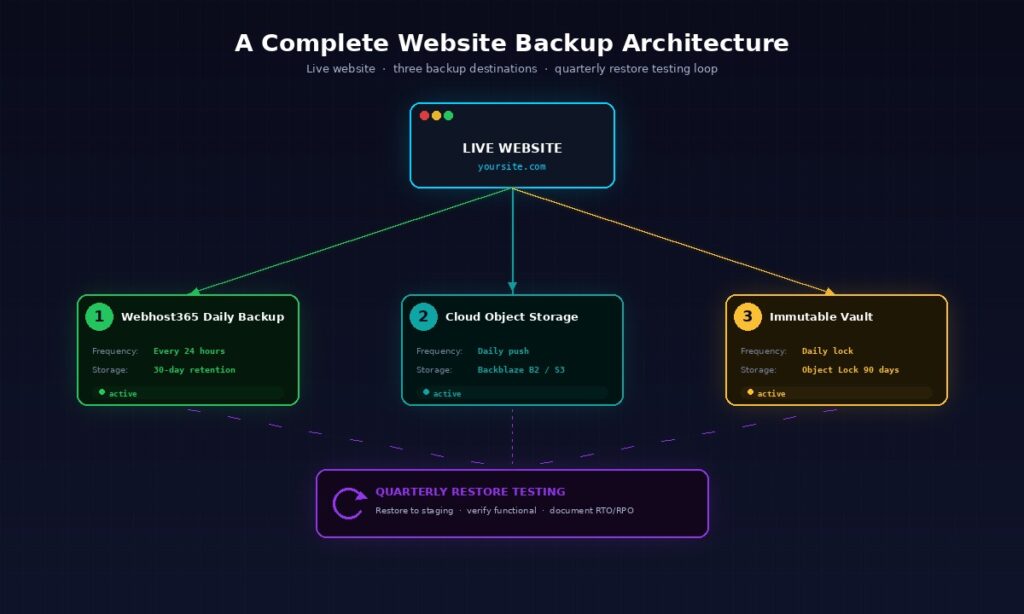
Daily backups run automatically on every hosting tier from shared hosting at $1.49 per month through bare metal servers at $89 per month. The backup runs nightly during off-peak hours, captures both your files and your databases together as a single coherent snapshot, and stores the result on infrastructure separate from the live hosting servers. From your perspective, this means a 24-hour worst-case RPO is included with every plan at no extra cost.
The 30-day retention window is calibrated specifically for realistic malware discovery timelines. Many competitors run 7-day retention as their default, which is short enough that sophisticated malware can compromise every backup before you notice the infection. The 30-day window covers the typical discovery range for everything from accidental deletions (noticed within hours) to subtle defacement (noticed within days) to dormant ransomware (noticed within weeks). For most realistic disaster scenarios, 30 days is enough.
One-click restore from your control panel handles most restoration scenarios without requiring a support ticket. The restore interface lets you choose a backup date, preview what is in that backup, and restore either the full site or specific files and databases as needed. For complex scenarios — partial restoration with custom file selection, point-in-time database recovery, or migration to a different hosting account — Webhost365 support can perform the restore manually and typically completes the work within hours rather than days.
Backup storage lives on separate infrastructure from your live hosting servers. This is the structural reason why a hosting incident affecting your live server does not also destroy your backups. From a 3-2-1 framework perspective, the Webhost365 backup counts as one of your two media types and as the off-site copy from your perspective as a customer, since it survives any incident affecting your live hosting account.
The honest framing is that this satisfies the on-site copy and one of the off-site copies of the 3-2-1 rule. For full 3-2-1 compliance, add a second off-site copy via a backup plugin pushing to cloud storage you control. The combination of Webhost365 daily backups (managed for you, 30-day retention) plus UpdraftPlus or BackWPup pushing weekly backups to your own Backblaze B2 account (under your control, indefinite retention) achieves complete 3-2-1 compliance for free, with the only ongoing cost being a few cents per month in B2 storage.
Higher-tier plans extend the backup feature in ways that matter for specific workloads. Business Hosting at $12.95 per month includes priority support that handles complex restoration scenarios faster, which matters when downtime directly costs revenue. Bare Metal Servers can be configured with custom retention windows and continuous database replication on request, which matters for mission-critical applications with strict RPO requirements. The base 30-day daily backup is sufficient for most sites, and the upgrades exist for the cases where it is not.
Frequently asked questions
What is the 3-2-1 backup rule?
The 3-2-1 backup rule is a data protection framework that recommends keeping three copies of your data, stored on two different types of media, with at least one copy stored off-site. It was created by photographer Peter Krogh in 2009 and is now the de facto standard for backup strategy, endorsed by CISA and most enterprise security frameworks. For websites, the practical interpretation is your live site plus a host-managed backup plus a cloud-storage backup you control yourself.
How often should I back up my website?
Most websites should back up files daily and databases at least daily, with hourly database backups for any site processing transactions or user data. Personal blogs with infrequent updates can get away with weekly file backups but should still run daily database backups because comments, sessions, and other dynamic data accumulate constantly. WooCommerce stores and SaaS applications should run hourly database backups because every missed hour represents lost orders or lost user data that cannot be recovered from any other source.
Is my hosting provider’s backup enough?
Hosting provider backups are a critical safety net but not a complete strategy. Host-side backups typically have short retention windows (often 7 days), are designed for infrastructure recovery rather than granular file restoration, and disappear if your hosting account gets suspended or compromised. The 3-2-1 rule exists specifically to handle scenarios where the hosting provider becomes part of the problem. Use the host backup as one layer of your strategy, and add a second off-site backup to cloud storage you control independently.
What is the difference between 3-2-1 and 3-2-1-1-0?
The 3-2-1-1-0 backup rule extends the original 3-2-1 with two additional requirements: one immutable or air-gapped copy that cannot be modified or deleted (the extra 1), and zero errors during recovery testing (the 0). The extra 1 protects against ransomware that specifically targets backup files, and the 0 ensures backups actually work when needed. Modern enterprise backup vendors recommend 3-2-1-1-0 as the baseline for critical data, while 3-2-1 remains sufficient for less critical workloads.
Where should I store off-site backups?
Cloud object storage providers are the standard answer for website off-site backups. Backblaze B2 at roughly $0.005 per GB per month is the price leader and supports immutability via Object Lock. AWS S3 is the most widely supported but more expensive. Wasabi offers fixed pricing with no egress fees. Any of these works for the off-site layer of a 3-2-1 strategy. Choose based on which one your backup tool integrates with most easily, since integration friction is what causes backup setups to fail in practice.
How much does a website backup strategy cost?
A complete 3-2-1 backup strategy for a typical WordPress site costs between $0 and $5 per month total. Webhost365 includes daily backups with 30-day retention on every plan from $1.49 per month at no additional cost. Adding a second off-site backup via a free plugin like UpdraftPlus pushing to Backblaze B2 costs roughly $0.025 per month for 5 GB of storage. Even with longer retention multiplying the storage requirement, the math stays under $5 per month for almost every site that is not running a massive media library.
How do I back up a WordPress site?
The simplest WordPress backup approach uses a plugin like UpdraftPlus, BackWPup, or BackupBuddy. Install the plugin, configure it to run daily backups of files and database, and set a remote storage destination like Backblaze B2 or Google Drive. The plugin handles the rest automatically. Combine this with your hosting provider’s automated daily backup (Webhost365 includes this on every plan) for two-layer protection that satisfies most of the 3-2-1 framework without command-line configuration.
Do I need to back up my database separately?
Database backups are usually included in any complete website backup, but understanding what is being backed up matters because database backups should run more frequently than file backups on most sites. Files change rarely (theme updates, plugin updates, new uploads). Databases change constantly (every comment, order, session, page view). A backup tool that runs files and database together at the same daily schedule is fine for most sites, but high-activity sites benefit from separate hourly database backups in addition to the daily full backup.
How long should I keep website backups?
A reasonable retention policy keeps 7 daily backups, 4 weekly backups, and 12 monthly backups, which provides 30 days of recent history plus three months of weekly snapshots plus a year of monthly checkpoints. Long retention matters because malware can remain undetected for weeks, and short retention windows can leave every available backup infected by the time you discover the breach. Webhost365 sets a default 30-day retention period on every plan to match realistic malware discovery timelines.
How do I test if my backup actually works?
Restore your backup to a staging environment quarterly and verify the site comes back functional. Most WordPress hosts (including Webhost365) provide one-click staging environments specifically for this purpose. Restore files first, then database, then configuration, then DNS. Walk through critical user flows like login, content publishing, and checkout to verify everything works. Time the entire process so you know your real Recovery Time Objective. Quarterly testing catches backup configuration problems before disaster strikes, which is the entire point.
Webhost365 plans with daily backups and 30-day retention
Every Webhost365 hosting plan includes daily automated backups with 30-day retention as standard — not as a paid add-on, not gated behind a higher tier, not limited to 7 days like most competitors. Shared Hosting from $1.49 per month, WordPress Hosting from $2.49 per month, Cloud Hosting from $3.49 per month, Linux VPS from $4.99 per month, Business Hosting from $12.95 per month, and Bare Metal Servers from $89 per month all include the same backup architecture and 30-day retention window. Combine the included daily backup with a free plugin pushing to your own cloud storage and you have full 3-2-1 compliance for under $5 per month total. Browse all hosting plans to find the tier that fits your site.