
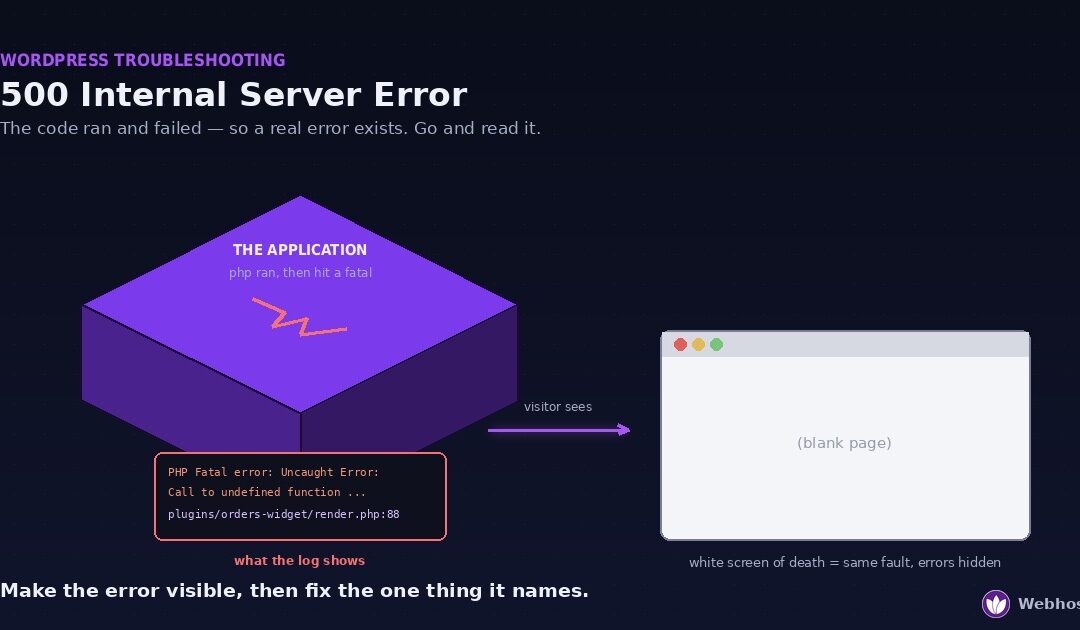
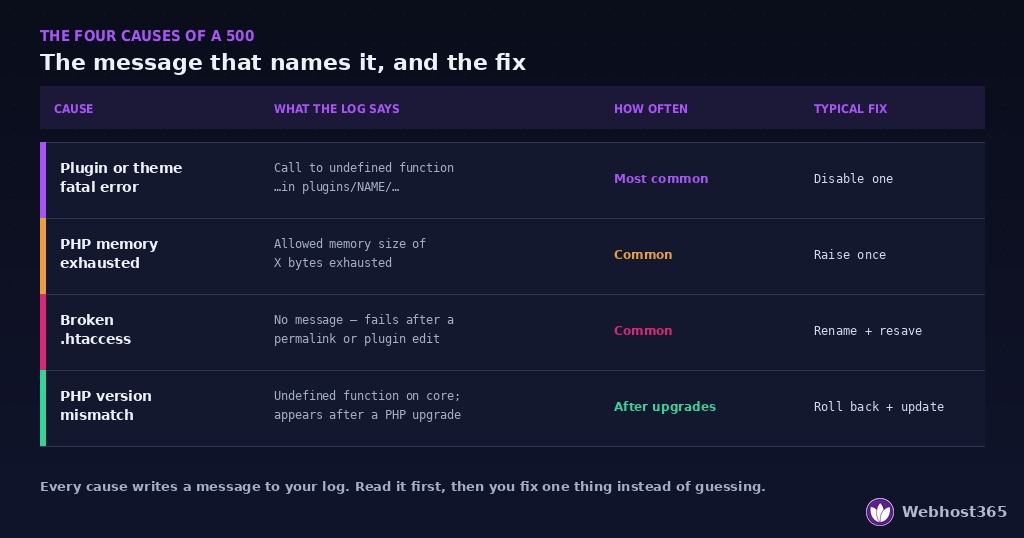
A 500 Internal Server Error means your website’s code ran and then failed. The server has no useful page to send back, so it returns a generic error instead. A blank white page is the same fault with error display switched off. Four causes cover almost every case: a plugin or theme fatal error, exhausted PHP memory, a broken .htaccess file, or a PHP version mismatch.
Here is where most guides go wrong. They tell you to deactivate every plugin, switch to a default theme, then turn things back on one at a time. That approach is slow. It breaks a working site further. Above all, it is guessing.
There is a better first move. Because a 500 means the code actually ran, it produced a real error message. That message names a file and a line number. Find it, and the guessing stops.
So this guide starts by making the error visible. Then it fixes the one thing the error names.
What a 500 Error Means (and Why the Page Is Sometimes Blank)
Your web server hands each request to an application. For WordPress, that application is PHP. The code runs, builds a page, and hands it back.
Sometimes the code stops partway. It hits a fatal error and dies. Now the server has nothing to send, so it falls back to a generic message.
The word “generic” matters here. Your server is not hiding the cause from you. It genuinely does not know what went wrong inside your code — it only knows the code failed.
How a 500 differs from a 502 or a 504
People confuse these three constantly. However, each one points at a different place in the stack.
A 500 means the application ran and failed. The problem sits in your code, your plugins, or your configuration.
A 502 means a proxy could not get a usable reply from the application behind it. Our 502 Bad Gateway guide covers that one in full.
A 504 means the proxy got no reply at all in time. The application is alive, just too slow.
So a 500 is the most “yours” of the three. Something inside your own site broke. That sounds worse, but it is actually good news. You can read the error and fix it yourself.
Why the page is sometimes blank instead
Many WordPress sites show a plain white page rather than an error. People call this the white screen of death. Yet it is the same event as a 500.
One PHP setting explains the difference. display_errors controls whether PHP prints errors to the browser. Production servers switch it off, and rightly so. Error text can leak file paths, database names, and plugin internals to strangers.
With display switched off, PHP fails silently. The page stops building, nothing gets sent, and your browser renders an empty document. Same fatal error, no visible message.
Therefore the next section matters more than any fix in this guide. The error exists either way. You simply have to go and look at it.
First: Make the Error Visible
You need the real error message before you change anything. Three routes get you there. Start with whichever matches the access you have.
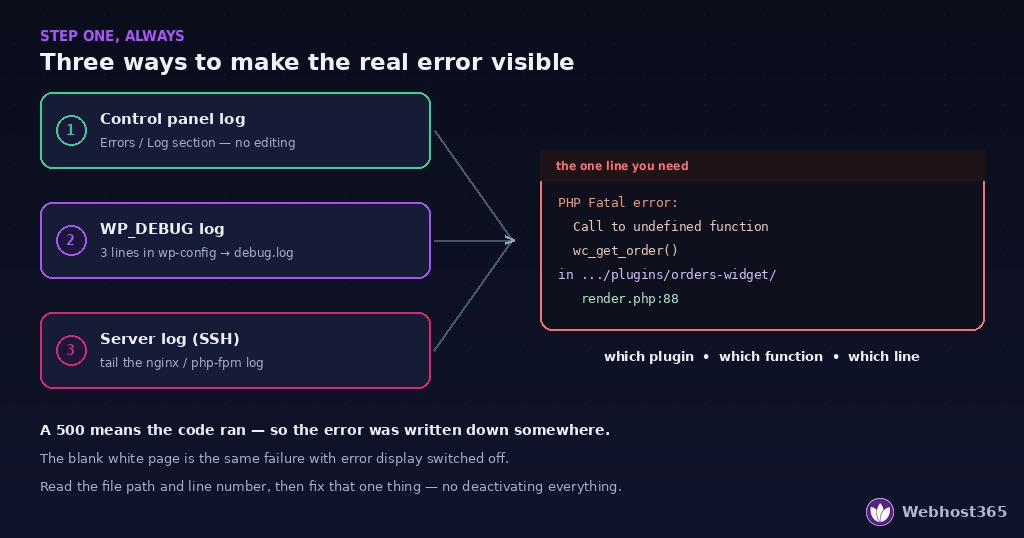
Route 1: your hosting control panel
This route is fastest, and it needs no file editing at all.
Most control panels expose an error log. Look for a section named Errors, Error Log, or Logs. Open it, then read the most recent entries.
A fatal error appears with a timestamp, a message, a file path, and a line number. That is everything you need.
If your panel shows no logs, ask support for the PHP error log for your account. That request is entirely reasonable, and a competent host answers it in minutes.
Route 2: WordPress debug logging
If you run WordPress and can edit files, this route gives the cleanest output.
Add three lines to wp-config.php, above the line that tells you to stop editing:
php
define( 'WP_DEBUG', true );
define( 'WP_DEBUG_LOG', true );
define( 'WP_DEBUG_DISPLAY', false );
Now reload the broken page once. WordPress writes the error to wp-content/debug.log. Open that file and read the last entry.
The WordPress debugging handbook documents every debug constant if you want finer control.
Route 3: the server error log
With SSH access, go straight to the source:
bash
sudo tail -50 /var/log/nginx/error.log          # nginx
sudo tail -50 /var/log/php-fpm/www-error.log    # php-fpm pool
Paths vary by stack. If neither file exists, ask your control panel where it writes logs, or search the PHP-FPM config:
bash
grep -ri "error_log" /etc/php-fpm.d/ 2>/dev/nullReload the broken page, then run the command again. The newest lines describe your failure.
One safety rule before you continue
Log the error. Never display it.
Notice that WP_DEBUG_DISPLAY is set to false above. That choice is deliberate. Printing PHP errors to the browser exposes file paths and internals to every visitor, and attackers read those pages with real interest.
Also remove the debug constants once you have your answer. A debug log left running on a busy site grows fast and can fill your disk.
How to Read the Error You Just Found
You have a log entry now. It probably looks intimidating. However, it follows a fixed shape, and once you know the shape you can read any of them.
Here is a typical fatal error:
PHP Fatal error:  Uncaught Error: Call to undefined function wc_get_order()
in /home/user/public_html/wp-content/plugins/orders-widget/includes/render.php:88
The four parts that matter
Every fatal error carries the same four pieces of information.
The type. “Fatal error” means execution stopped. Warnings and notices do not stop a page, so ignore those for now. Look for the word “Fatal”.
The message. This describes what went wrong. In the example, the code called a function that does not exist.
The file path. This tells you who is responsible. Read it from the right: the file sits inside plugins/orders-widget/, so that plugin owns the failure.
The line number. Here it is line 88. You rarely need to open the file, but developers will ask for this number.
What the common messages actually mean
Four messages cover most fatal errors you will meet.
“Call to undefined function” — code expected something that is missing. Usually one plugin depends on another that got deactivated or updated.
“Allowed memory size of X bytes exhausted” — this is not a code bug. Skip to Cause 2 below.
“Cannot redeclare function” — two copies of the same code are loaded. Often a plugin was installed twice under different folder names.
“syntax error, unexpected…” — someone edited a file and broke it. Frequently this follows a manual edit to functions.php.
Turn the path into an action
The file path is your entire diagnosis. Read the folder immediately after wp-content/.
If it says plugins/something/, that plugin is at fault. Go to Cause 1.
If it says themes/something/, your theme is at fault. The same fix applies.
If the path points at a WordPress core file, the cause is usually still a plugin. Core rarely breaks on its own, so check what you changed most recently. A core file that changed when nobody was working is also a sign of a hack — our hacked-site recovery guide covers that case.
And if the message mentions memory, stop reading here. That belongs to the next cause.
Cause 1: A Plugin or Theme Fatal Error
This cause is the most common by a wide margin. It also has the clearest fix, because your log already named the culprit.
Something changed to trigger it. Usually a plugin updated. Sometimes a plugin it depended on was deactivated, or a PHP upgrade broke code that had worked for years.
Fix the named plugin, not all of them
Standard advice says deactivate everything. Ignore that advice. You know which plugin failed, so deal with that one.
If your admin area still loads, the fix takes seconds. Go to Plugins, find the named plugin, and deactivate it. Your site should return immediately.
Then check whether the site actually needs that plugin today. Many sites carry plugins nobody has used in two years.
When you cannot reach wp-admin
A fatal error often takes the admin down with the front end. In that case, disable the plugin from the file system instead.
Connect by FTP, SFTP, or your control panel’s file manager. Navigate to wp-content/plugins/. Find the folder your error named, then rename it:
orders-widget → orders-widget-OFFWordPress cannot find the plugin now, so it deactivates it automatically. Reload your site.
Over SSH the same move is one command:
bash
mv wp-content/plugins/orders-widget wp-content/plugins/orders-widget-OFFRename the folder back later if you want to restore the plugin.
Decide what happens next
Your site works again. Now choose one of three paths.
Roll back the plugin if the update caused it. Most plugin pages offer previous versions, and a rollback buys you time.
Report it to the developer with the exact error line. Include your PHP version and the plugin version. Good developers ship a fix within days.
Replace or remove it if the plugin is abandoned. A plugin without updates for two years will break again, so treat this outage as advance warning.
One habit prevents most repeats. Update plugins on a staging site first, not on the live one. The fatal error still happens — it just happens somewhere nobody can see.
Cause 2: PHP Ran Out of Memory
This cause announces itself. The log entry says so directly:
PHP Fatal error:  Allowed memory size of 134217728 bytes exhausted
(tried to allocate 262144 bytes) in /home/user/public_html/wp-content/plugins/big-importer/import.php
The number looks dramatic. In fact, 134217728 bytes is just 128 MB written out fully. Your script hit its memory ceiling and PHP stopped it.
What the limit actually is
PHP gives every script a memory budget. The memory_limit setting caps how much one script may allocate. It protects the server: one greedy page cannot eat the RAM that every other site on the machine needs.
Note that this is a per-script limit. It is not your server’s total RAM. A server with 4 GB of memory can still fail a script at 128 MB, because the ceiling applies to each request on its own.
How to raise it
First, try the WordPress constant. Add one line to wp-config.php, above the stop-editing line:
php
define( 'WP_MEMORY_LIMIT', '256M' );For most WordPress sites, 256M is a sensible ceiling. Reload the failing page and check the log again.
If the error persists, the server-level limit sits below your new value. Raise it in your hosting panel next. Look for PHP Settings, PHP Options, or MultiPHP INI Editor, then set memory_limit to 256M. No panel option? Ask your host — this is a routine request.
When raising it is the wrong move
Here is the honest part most guides skip. A limit you keep raising is not a limit problem. It is a leak.
Look at the file path in your error message. It names the script that consumed the memory. Because of that, you already know which plugin to question. A page builder needing 512 MB to render a page is telling you something, and the message is not “buy more memory.”
Therefore treat one raise as reasonable and two as a warning. After that, replace the hungry plugin or move its heavy work to a scheduled task. Our RAM guide explains how script limits and real server memory fit together.
Cause 3: A Broken .htaccess File
This cause has a distinctive trigger. The error appears right after you changed permalinks, installed a security plugin, migrated the site, or edited the file by hand.
.htaccess is a small configuration file in your site’s root folder. Apache and LiteSpeed servers read it on every request. One malformed line makes the server refuse to serve the site at all, and the refusal arrives as a 500.
One scope note first. Nginx ignores .htaccess completely. So if your stack runs Nginx alone, skip this cause. LiteSpeed and Apache both honour the file, which covers most shared WordPress hosting.
The ten-second test
You do not need to read the file to test it. Rename it instead.
Using FTP or your file manager, find .htaccess in the site root. Rename it:
.htaccess → .htaccess-OFFNow reload your site. If the site returns, the file was your problem. If nothing changes, rename it back and move on to the next cause.
Enable hidden files in your file manager first, because names starting with a dot are hidden by default.
Rebuild it cleanly
Do not repair the broken file line by line. Let WordPress write a fresh one instead.
Log in to wp-admin, open Settings, then Permalinks. Change nothing. Simply click Save Changes. WordPress writes a new, valid .htaccess with its standard rules.
One caveat matters here. Your old file may have carried custom rules — redirects, security blocks, caching directives. The fresh file does not include them. So keep the renamed file, copy any custom rules back one at a time, and reload after each one. The rule that breaks the site again is your culprit.
Cause 4: A PHP Version Mismatch
This cause has a clear timeline. The site worked yesterday. Your host upgraded PHP overnight, or you changed the version in your panel. Now the site throws a 500.
Old code met new PHP. A function the plugin relied on was removed, or a syntax the theme used no longer parses. The code that ran fine for years suddenly cannot run at all.
How to confirm it
Your error log names the cause again. Watch for two message types.
A “Call to undefined function” on a core PHP function points here. The function existed in the old version and was removed in the new one.
A deprecation notice that escalated to a fatal points here too. Newer PHP versions turn some old warnings into hard errors.
Check your current PHP version in your hosting panel. Then note what it was before the change. A jump from PHP 7.4 to 8.2, for example, breaks a lot of older code.
Roll the version back, then plan
Most panels let you switch PHP versions in a dropdown. Set it back to the previous version. Your site should return at once.
However, treat that rollback as a deadline, not a fix. Old PHP versions stop receiving security patches. Running one to keep a broken plugin alive trades a visible problem for an invisible one.
So use the breathing room deliberately. Update the plugin or theme that broke, because a current version almost always supports current PHP. If the developer has vanished, replace the component. Then move your PHP version forward again and confirm the site holds.
One note for shared-hosting users. You usually control your own PHP version from the panel, even on shared plans. If you cannot find the setting, your host can switch it for you in minutes.
When It Is Your Host’s Fault
A 500 is usually your site’s own code. That makes this section shorter than it was for the database and gateway errors. Still, some 500s are genuinely not yours, and you should know which.
The cases that point at the host
Four situations move the blame to the platform.
A PHP upgrade you did not request. Your host changed the version and did not warn you. The break is real, but the trigger was theirs.
File permissions changed. A platform migration or a security sweep reset ownership on your files, and the server can no longer read them. You did not touch anything.
The disk filled up. A full disk produces 500s across every site on the server. You cannot fix a disk you do not control.
Every site on the account broke at once. One site failing is your code. All of them failing together is the environment they share.
What to send in the ticket
Give your host the evidence, not just the symptom. A specific ticket gets a specific reply.
Include the exact error line from your log. Add the time the site broke. State whether other sites on the account also failed, and list what you already ruled out.
Then ask three direct questions. Did anything change on the server in this window? Are my files readable by the web server user? Was there a PHP, disk, or permissions change on my account?
What a good answer looks like
A competent host replies fast and explains plainly. If they upgraded PHP, they say so and offer a rollback path. If permissions moved, they fix them and tell you why it happened.
What you should not accept is a reflex “clear your cache and check again” for an error the cache cannot cause. We hold ourselves to the opposite standard. Our support team reads the actual error before replying, because a 500 has a real cause and the log already holds it.
Preventing 500 Errors
You cannot stop every 500. You can make them rare, and make the rest easy to read. Four habits do most of the work.
Update on staging first. Most 500s arrive with an update. A staging site runs the update on a copy, so a fatal error happens where no visitor sees it. You fix it there, then push the working version live.
Update one thing at a time. Batch updates hide their culprit. When five plugins update together and the site breaks, you cannot tell which one did it. Update singly, and the cause is never in doubt.
Keep a log route ready. Know before an outage where your error log lives. Bookmark the control-panel log page, or keep the WP_DEBUG lines handy. A 500 is far less stressful when you already know where to look. A keyword-based uptime monitor also catches the white screen, because a blank page still returns a 200.
Watch the PHP deadline. PHP versions reach end of life on a schedule. Your host announces upgrades in advance. Read those notices, test your site on the new version early, and the upgrade never surprises you.
None of these takes long. Together they turn a 500 from an emergency into a note in your log.
Final Thoughts
Here is the whole method in three steps. A 500 means your code ran and failed. So a real error message exists — go and read it. Then fix the one thing it names.
That is the entire difference between this guide and the deactivate-everything approach. You are not guessing which plugin broke. Your log already told you, with a file path and a line number.
The white screen works the same way. The error is still there; error display is simply switched off. Turn on logging, reload the page once, and the cause appears.
And if the log points at the server rather than your site, that is a clean answer too. Send your host the error line and the time. On managed hosting, reading that log and acting on it is the job they took on — here included.
And when you are not even sure the error is a 500, the 5-minute site-down diagnosis sorts out which failure you have first.
FAQ
A 500 error means your website’s code ran and failed. Four causes account for almost every case: a plugin or theme fatal error, exhausted PHP memory, a broken .htaccess file, or a PHP version mismatch. The error is generic because the server only knows the code failed, not why. The real cause sits in your error log, which names the exact file and line that broke.
A blank white page is the same event as a 500 error, with one difference: error display is switched off. This is called the white screen of death. Production servers hide PHP errors from visitors for security, so the page fails silently instead of showing a message. Turn on debug logging in wp-config.php, reload the page once, and the error appears in wp-content/debug.log.
Work from the file system instead. Connect by FTP or your control panel’s file manager. If a plugin caused the error, rename its folder inside wp-content/plugins to disable it. If .htaccess caused it, rename that file in your site root and reload. Your error log tells you which of the two to try first, so read the log before changing anything.
A brief 500 does little harm. Search engines retry pages that return server errors, so a short outage rarely costs rankings. A 500 that persists for days is different. If crawlers repeatedly find the error, they may drop the affected pages from the index until the site recovers. The priority is fixing the error quickly, not the SEO impact itself.
Yes, and it is the single most common cause. An update can introduce code that conflicts with your PHP version, another plugin, or your theme. The fix is to deactivate the named plugin, then roll it back to the previous version or report the error to its developer. Updating plugins on a staging site first prevents this from reaching your live site.
A 500 Internal Server Error means the application ran and failed — the problem is inside your code or configuration. A 502 Bad Gateway means a proxy could not get a usable response from the application behind it, so the failure is one layer further out. In short, a 500 is your site’s own code, while a 502 points at the connection between the proxy and the application.