
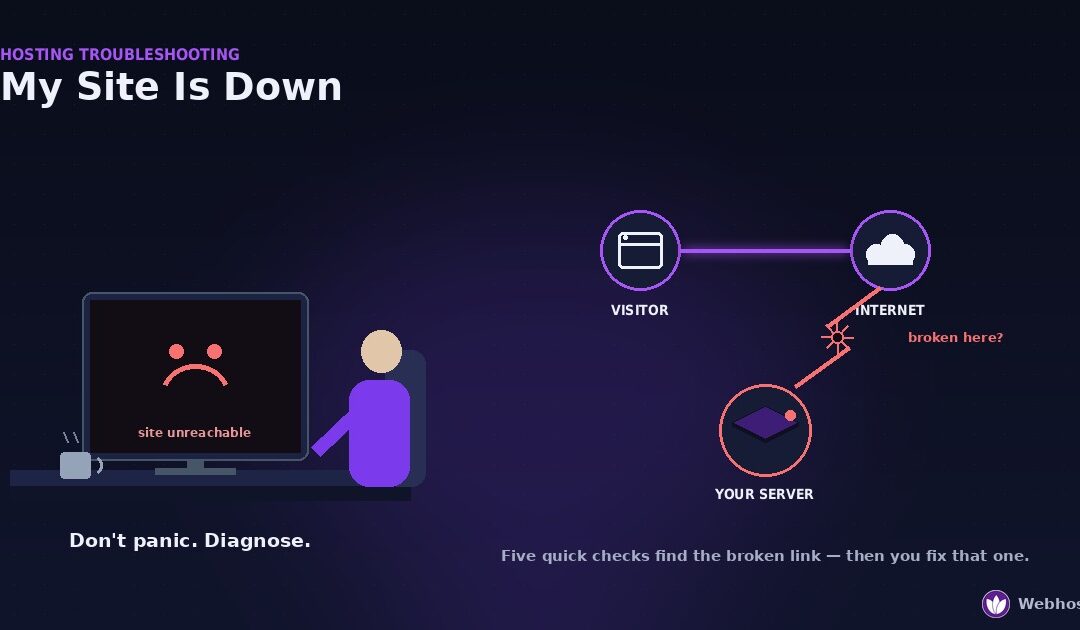
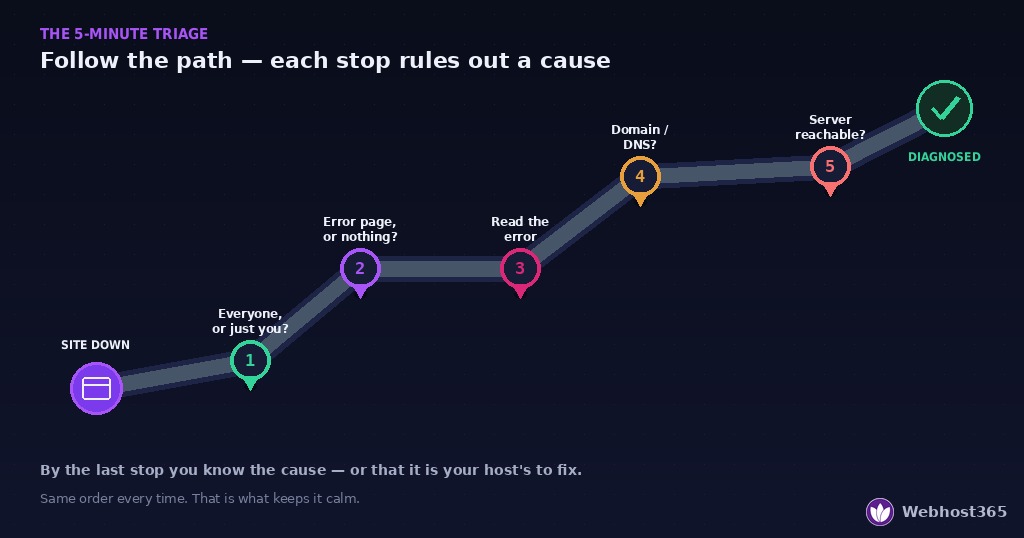
When your site is down, work through five checks in order before you change anything. Is it down for everyone, or just you? Does it show an error, or nothing at all? What does the error say? Did the domain or DNS break? Is the server even reachable? Each check rules out a whole category of problem. Together they tell you what broke — and exactly where to fix it.
Panic is the real enemy here. A down site feels like an emergency, so people start editing files at random. That makes things worse. It also wastes the first ten minutes on the wrong cause.
So take a breath. Your site being unreachable does not mean your data is gone. Most outages trace back to one of five things, and you can identify which in about five minutes.
This guide is the map. It sorts “down” into categories fast, then points you to the exact fix for your case.
Before You Panic: What “Down” Actually Means
“Down” is not one problem. It is at least five, and they have almost nothing in common.
Your domain could have expired. Your DNS could point nowhere. Your server could be overloaded, or switched off, or perfectly healthy while your own network blocks it. Each of these looks identical from your chair — a site that will not load — yet each needs a completely different fix.
That is why guessing fails. The single most useful thing you can do in the first five minutes is not a fix at all. It is a diagnosis.
Why a calm sequence beats a fast reaction
Most people react to a down site by trying things. They clear the cache, restart a plugin, reboot the server. Sometimes one works by luck. Usually it just adds a new variable to an already confusing situation.
A fixed sequence avoids that trap. Because you check the same things in the same order every time, you never skip the cheap checks to chase an expensive one. Furthermore, each check you complete removes a whole category from suspicion.
By the end of five checks, you will know one of two things. Either you know exactly what broke and where to fix it. Or you know it is your host’s problem, and you know precisely what to tell them.
Both outcomes are wins. Neither requires you to guess.
Check 1: Is It Down for Everyone, or Just You?
Start here, always. This check is free, takes ten seconds, and rules out an entire class of problem in one move.
A site can look down when it is running perfectly. The fault sits on your side — your network, your device, or your connection. Before you touch anything on the server, rule that out.
Test from outside your own network
There are two easy ways to check. Use either, or both.
First, open the site on a different network. Switch your phone to mobile data, turn off Wi-Fi, and try to load the page. If it works on mobile data but not on your Wi-Fi, the problem is local to your network.
Second, use an outside checker. A tool like isitdownrightnow.com loads your site from its own servers, far from your network. If the checker reaches your site while you cannot, the outage is yours, not the site’s.
If it is only down for you
Good news first: your server is fine. The fault is somewhere between your device and the internet. Four causes cover almost all of these.
Your DNS cache may be stale. Your computer remembers an old server address. Flushing the DNS cache, or simply rebooting, usually clears it.
A VPN or proxy may be routing you badly. Turn it off and try again.
A firewall or security tool may be blocking the site. Check anything you installed recently.
Your browser cache may be serving a broken version. Try an incognito window, or a different browser entirely.
Work through those four, and a “just me” outage is usually solved in a minute.
If it is down for everyone
Now you have confirmed a real outage. The server, the domain, or the network path is genuinely failing for visitors. That is what the remaining four checks diagnose.
Move to Check 2. Do not change anything on the server yet.
Check 2: An Error Page, or Nothing at All?
You have confirmed the site is down for everyone. Now look closely at how it fails. This single distinction splits the remaining causes in half.
There are two very different kinds of “down.” One shows you a message. The other shows you nothing. They point at opposite parts of the system.
A visible error means the server is answering
Sometimes a down site still shows something: a “500 Internal Server Error”, a “502 Bad Gateway”, a database message, or a styled error page. That is better news than it looks.
An error page means your server is alive and responding. It received the request, tried to build the page, and failed at a specific step. So the problem sits in the software, not the connection.
Because the server is talking to you, it is also telling you what went wrong. The next check reads that message and routes you straight to the fix.
Nothing at all means the request is not arriving
The other kind of failure shows no message. The browser spins, then times out. You see “this site can’t be reached”, “took too long to respond”, or a blank connection error.
That pattern means your request never reached a working server. Something earlier in the chain broke. The likely causes are DNS, the domain itself, or a server that is switched off or unreachable.
So a blank timeout and an error page send you down different paths. If you see an error, go to Check 3 next. If you see nothing, skip ahead to Checks 4 and 5.
A quick way to tell them apart
Not sure which you are seeing? Look at the browser tab and the page together.
An error page usually has words on it, often a number like 500 or 502. A failed connection usually has no site content at all — just the browser’s own “can’t reach this page” screen. When in doubt, treat a numbered error as Check 3 and a pure timeout as Checks 4 and 5.
Check 3: Read the Error — and Jump to the Fix
You saw an error page in Check 2. Now read it. The exact wording tells you which failure you have, and each one has its own detailed fix.
This is where the hub hands off. Below, each common error maps to the guide that solves it in full. Find your message, then follow the link.
The error-to-fix map
| What you see | What it means | Where to fix it |
|---|---|---|
| 500 Internal Server Error or a blank white page | Your site’s code ran and failed | 500 error guide |
| 502 Bad Gateway or 504 Gateway Timeout | A proxy could not get a good reply from the server behind it | 502 error guide |
| Error establishing a database connection | WordPress cannot reach its database | database error guide |
| 403 Forbidden | The server refuses to serve the page — usually permissions or a security rule | 403 guide |
| A blank white page, no message | The same as a 500, with error display switched off | 500 error guide |
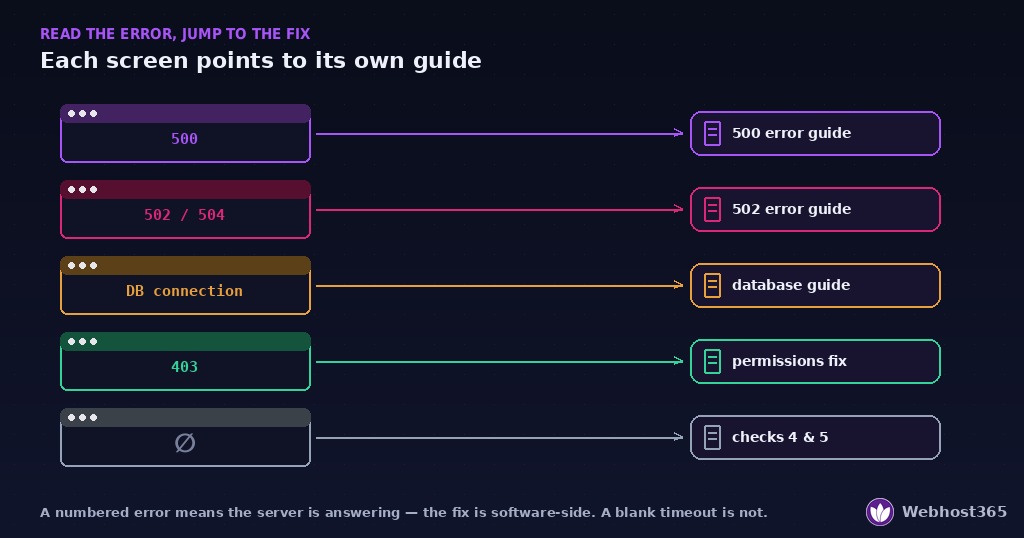
Each linked guide follows the same method this cluster uses. First it helps you find the real cause. Then it fixes that one thing, instead of guessing.
A note on the 403 Forbidden
A 403 is the odd one out. It means the server is healthy and deliberately refusing the request.
The usual causes are simple. A file permission is wrong, a security plugin added a block, or an .htaccess rule denies access. Check what you changed most recently — a new security plugin or a permissions edit is the common trigger. Our 403 Forbidden guide identifies which of five components refused the request.
When the site is up, but wrong
Sometimes the site is not down at all. Instead, it redirects to spam pages, shows content you never wrote, or triggers browser security warnings. That is not an outage. That is a hack.
Do not start deleting files. Our hacked-site recovery guide gives the order that works: confirm, isolate, assess, restore from a clean backup, harden, then clear Google’s warnings..
If your error is not in the table
Some errors are rarer, but the principle holds. Any numbered HTTP error means the server is responding, so the fix is software-side.
Read the number and search it alongside your platform. Meanwhile, if the site shows no error at all, you are in the wrong check — move to Check 4, because your request is not reaching the server.
Check 4: Did the Domain or DNS Break?
You reached this check because the site shows nothing — no error, just a timeout or a “can’t reach this page” screen. That points away from your server’s software and toward the address system that leads visitors to it.
Three things live in this category. Your domain registration, your DNS records, and your SSL certificate. Any one of them can take a healthy server offline.
An expired domain
This cause is common and easy to miss. Domains renew on a fixed date, and a lapsed renewal pulls your site offline within hours.
Check your domain’s status first. Look up its expiry date in your registrar account, or run a quick WHOIS lookup. An expired or “pending delete” status is your answer.
The fix is renewal, and speed matters. Most registrars restore a recently expired domain immediately after payment. However, a domain left to expire for weeks can enter a costly redemption period, so act fast. Our domain expiration guide explains each stage and how to get the domain back.
A changed or broken DNS record
DNS turns your domain into a server address. When a record is wrong, visitors get sent nowhere.
Think about recent changes. Did you move hosts, edit an A record, or update your nameservers in the last day or two? DNS changes take time to spread worldwide, so a site can work in one country and fail in another during that window.
Our guide to DNS records explains what each record does. For a down site, focus on the A record and the nameservers, because those two decide where your domain points.
An expired SSL certificate
Sometimes the site half-loads, then shows a security warning. The browser blocks the page and warns about an untrusted connection. That is an SSL problem, not a server crash.
Certificates now expire every 200 days at most, and the largest issuer no longer emails reminders. Most hosts renew them automatically, but a failed auto-renewal leaves visitors staring at a scary warning. Typical messages include “Your connection is not private” or NET::ERR_CERT_DATE_INVALID — our SSL error guide decodes every one of them. Check the certificate’s expiry date, then renew or reissue it. Every Webhost365 plan includes free SSL with automatic renewal, which removes this failure mode entirely.
Or: has the hosting account been suspended?
One more administrative cause belongs in this check. A suspended hosting account takes a healthy site offline instantly.
Try logging in to your hosting control panel. A suspension notice, or credentials that suddenly fail, is your answer. Then check your email, including spam, for a notice from your host.
Three things cause most suspensions. An unpaid invoice is the most common, and paying it usually restores service within minutes. Resource overuse is second — the site outgrew a limit, so upgrade or optimise. Policy violations are rarer and need a direct conversation with support.
If the domain and DNS are fine
You checked them all and found nothing wrong. The domain is registered, the records point correctly, the certificate is valid, and the account is active. Then the address system is not your problem.
One check remains. Move to Check 5 and find out whether the server itself is reachable.
Check 5: Is the Server Even Reachable?
This is the deepest check, and you only need it if the first four came up empty. The site shows nothing, the domain is fine, and DNS is correct — yet nothing loads. So now you test the server directly.
The goal is simple. Find out whether your server answers at all when you knock on its door.
Ping the server
Ping is the simplest reachability test. It asks the server to reply, and times the response.
Open a terminal and run one line:
bash
ping yoursite.comReplies mean the server is online and reachable. “Request timed out” or “100% packet loss” means it is not answering. Note that some servers block ping on purpose, so a failed ping alone is not proof — it is one signal among several.
Check whether the web port responds
Ping tests the server. This tests the website service specifically. A server can be up while its web server is down.
Run a port check for HTTPS:
bash
curl -I https://yoursite.com
nc -zv yoursite.com 443
A response header or a “succeeded” message means the web service is listening. A refused connection means the server is up but not serving web traffic. A timeout means nothing is getting through at all.
Reading the three outcomes
Each result points somewhere specific. Learn to tell them apart.
“Connection refused” — the server is on, but nothing is listening on that port. The web server process is likely stopped. On a VPS you can restart it; on shared hosting, that is your host’s job.
“Timed out” — packets are vanishing. A firewall is blocking you, or the server is offline. This one usually means a host-side outage.
“Host not found” — you are back to DNS. The name does not resolve, so return to Check 4.
When the server is simply unreachable
If the box does not answer and DNS is correct, the problem is host-side. You have done everything you can from outside.
Do not keep digging. This is the moment to open a ticket, and the next section tells you exactly what to put in it.
When It Is Your Host (And What to Ask)
Sometimes the five checks all point one way. The site is down for everyone, the domain and DNS are fine, and the server will not answer. That is a host-side outage, and it is not yours to fix.
This is not a failure on your part. You did the diagnosis, and the diagnosis says the problem lives on infrastructure you do not control. Now your job changes from fixing to reporting.
How to be sure it is the host
A few signs confirm a host-side outage. Any one of them shifts the problem to the platform.
Your control panel is also down. If you cannot reach your hosting dashboard either, the whole server or network is affected, not just your site.
Every site on your account is down. One site failing is usually your code. All of them failing together is the environment they share.
The server fails every reachability test. Ping times out, the port refuses or hangs, and DNS is confirmed correct. Nothing you can reach is broken, because you cannot reach the server at all.
The three questions to ask
A vague ticket gets a vague reply. Give your host specifics, and ask three direct questions.
First: is there a known outage on my server right now? Second: is my account hitting any limits, and can you show me the numbers? Third: if this is server-side, what caused it and what prevents a repeat?
Include the times you saw the outage and the results of your checks. A ticket that shows your work gets escalated faster, because it saves the engineer the first twenty minutes.
What a good host does
A competent host answers a total outage in minutes, not hours. They keep a status page that tells you whether the problem is already known. When the fault is theirs, they explain it plainly instead of asking you to “clear your cache and try again.”
We hold ourselves to that standard. Our support team answers around the clock, and when an outage is ours, we say so and explain what happened.
After It Is Back: Stop It Happening Again
Your site is up again. Before you move on, spend a few minutes making the next outage less likely — and less surprising. Four habits do most of the work.
Monitor your uptime. You should hear about an outage from a robot, not an angry customer. A monitoring service checks your site every minute and alerts you the moment it drops. That alone turns a two-hour outage you discovered late into a five-minute one you caught early.
Keep real backups. A backup that includes both files and database means the worst outage is still recoverable. Confirm your backups run automatically and store off the server. Then test a restore once, while nothing is wrong.
Use staging for risky changes. Most self-inflicted outages arrive with an update or an edit. A staging site lets you break a copy instead of the live site, so visitors never see the failure.
Put renewals on a calendar. Domain and SSL expiry take down healthy servers for no good reason. Set reminders ahead of both dates, or enable auto-renewal, and remove two whole categories from this guide forever.
Final Thoughts
Here is the whole method, short enough to remember under pressure. When your site goes down, run five checks in order.
One: is it down for everyone, or just you? Two: an error page, or nothing at all? Three: read the error and jump to its fix. Four: did the domain or DNS break? Five: is the server even reachable?
Each check rules out a category. By the end, you either know exactly what broke, or you know it is your host’s problem and precisely what to ask. Neither answer needs guessing, and neither needs panic.
That calm sequence is the entire point. A down site feels like chaos, but it is really just five questions with clear answers. Work them in order, and you will fix it — or hand it off — faster than you could have by rushing.
FAQ
Test from outside your own network. Load the site on mobile data with Wi-Fi off, or use an outside checker that loads your site from its own servers. If the site works elsewhere but not for you, the problem is local: usually a stale DNS cache, a VPN, a firewall, or your browser cache. If it fails everywhere, the outage is real and lives on your server, domain, or DNS.
A blank timeout means your request never reached a working server. A visible error, by contrast, means the server answered and failed at a step. So “nothing at all” points at the address system or the server’s reachability, not its software. Check whether the domain expired, whether DNS records are correct, and whether the server responds to a ping. An error page with a number points somewhere different, toward a software fault.
Yes, and it is a common cause people overlook. A domain renews on a fixed date, and a lapsed renewal pulls the site offline within hours, no matter how healthy the server is. Check the expiry date in your registrar account or with a WHOIS lookup. Most registrars restore a recently expired domain immediately after payment, so renewing quickly usually brings the site straight back.
A short outage does little harm. Search engines retry unreachable pages, so a few hours rarely affects rankings. A prolonged outage is different. If crawlers repeatedly find the site down over days, they may reduce how often they crawl it and eventually drop pages from the index. The priority is restoring the site quickly and setting up monitoring so the next outage is short.
Outages often have no action on your part behind them. A domain or SSL certificate can expire on its own schedule. Your host can have a server or network problem. A traffic spike or a bot flood can overwhelm your plan’s limits. Because “nothing changed on my end” points away from your own edits, start with the domain, DNS, and server-reachability checks rather than your site’s files.
Send a specific ticket. Include the exact times you saw the outage, whether other sites on your account were also down, and the results of your own checks. Ask three direct questions: is there a known outage, is my account hitting limits, and what caused it. A ticket that shows your diagnosis gets escalated faster than “my site is down, please help”, because it saves the support engineer the first round of questions.
If your site goes down more than once or twice a year for server-side reasons — hardware failures, resource throttling, unexplained errors — the problem is the provider’s infrastructure, not your website. Run the five checks each time and keep notes: a pattern of host-side outcomes is your answer. Migrating takes a few hours once, and the uptime improvement is permanent.