
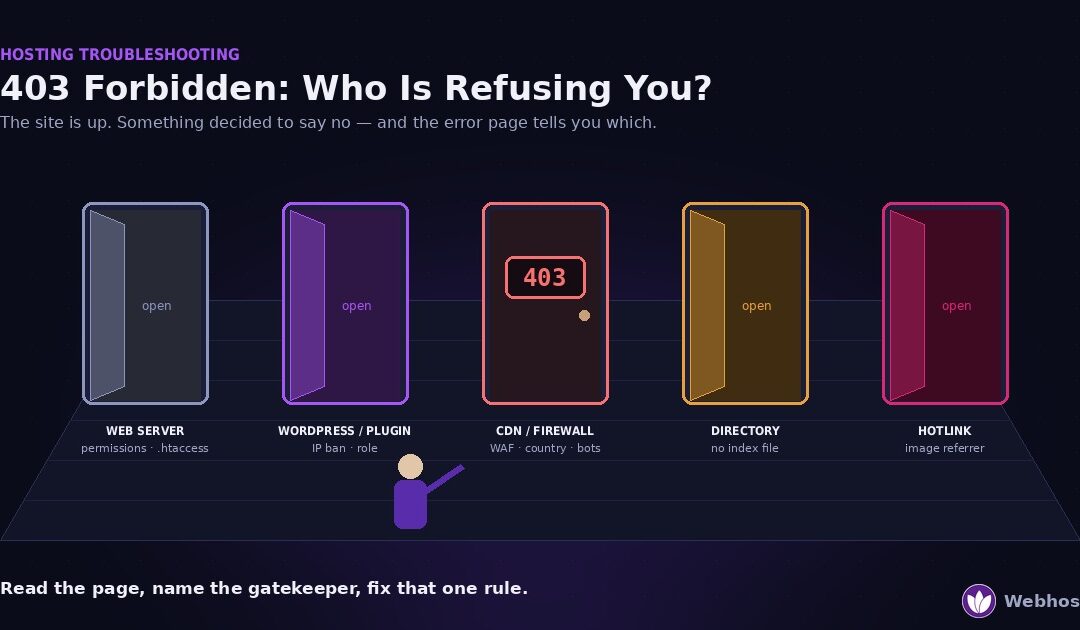
A 403 Forbidden means the server understood your request and refused it on purpose. The site is up, so nothing has crashed. Something simply decided you may not see this page. Five things can make that decision — the web server, WordPress or a security plugin, a CDN or firewall, a directory with no index file, or hotlink protection — and the error page itself tells you which one did.
That last point is the whole method. Most guides treat a 403 as one problem with ten possible fixes, and they tell you to try all ten. However, five different components can say no, and each one leaves a different fingerprint on the error page. So we read the page first, name the author, and then apply the one fix that author needs.
In addition, this guide covers the 403 nobody sees. In 2026, a growing share of these refusals go to bots rather than people — and if your firewall is refusing Google’s crawler, you will never see the error at all. Section 3 shows you how to check.
What a 403 Actually Means
HTTP status codes come in families, and a 403 belongs to the polite one. The server received your request, understood it completely, and declined. That makes it different from every other error in this cluster.
How it differs from its neighbours
A 401 Unauthorized means “log in first”. The server would serve the page to the right person, and you have not proved you are that person yet.
A 404 Not Found means “nothing here”. The address does not match anything the server has.
A 403 Forbidden means “I know exactly what you asked for, and the answer is no”. The page exists. A rule stands between you and it.
Meanwhile, the 500-family errors mean something broke. A 500 error means the site’s own code failed, and a 502 Bad Gateway means a proxy could not reach the server behind it. Those are faults. A 403 is a decision.
Why that distinction is good news
Because a 403 is a decision, the fix is never a repair. Nothing needs restarting and nothing needs restoring. Instead, you find the rule that made the decision and change it.
That rule lives in one of five places, and each place announces itself differently. Read the next section with your error page open beside it.
First: Who Refused You?
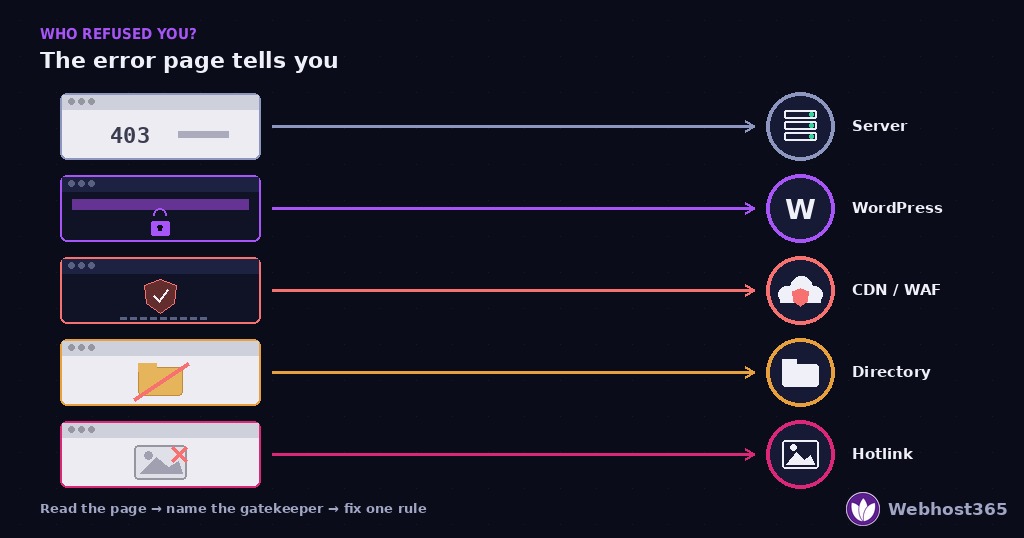
Open the 403 page and read it closely. The words on it, the styling, and any code number identify the component that blocked you. Then jump to that component’s section.
The five fingerprints
| What the error page looks like | Who refused you | Go to |
|---|---|---|
| Plain text: “403 Forbidden” with “nginx” beneath, or “You don’t have permission to access this resource” (Apache and LiteSpeed) | The web server — a permissions or .htaccess rule | Cause 1 |
| A page in your site’s own theme, or a message such as “Your IP has been blocked” or “Sorry, you are not allowed to access this page” | WordPress or a security plugin | Cause 2 |
| A CDN-branded page: “Error 1020 Access denied”, “Sorry, you have been blocked”, a challenge screen, or a Ray ID at the bottom | The CDN or firewall in front of the site | Cause 3 |
| “Index of /” followed by “Forbidden”, usually on a folder address | A directory with no index file | Cause 4 |
| The page loads, but images are broken — often only when viewed from another site | Hotlink protection | Cause 5 |
Two patterns are worth knowing. First, a plain, unstyled page almost always means the web server itself, because it refused before WordPress or any plugin ran. Second, a page with a code number or a Ray ID almost always means the edge, because your own server does not generate those.
When the page gives you nothing
Occasionally the browser shows only a blank page with “403” in the tab. In that case, open the address in a private window, then check whether the site’s other pages load. A single forbidden page on a working site points at Cause 1 or Cause 4. Every page forbidden points at Cause 2 or Cause 3.
Everyone, Just You, or Just Bots?
Before you change a rule, find out who it applies to. A 403 can refuse everyone, refuse only you, or refuse only automated visitors. The fix is different for each, and the third case is invisible unless you look.
Refused for everyone
Load the page from another network — your phone on mobile data is ideal. If it fails there too, the rule applies to all visitors. That usually means the web server or a CDN rule, so Cause 1 or Cause 3 is likely.
Refused only for you
If the page works on mobile data but fails on your usual connection, the rule targets your address or your session. Common triggers are a security plugin that locked your IP after failed logins, a country block that caught your VPN, or a firewall rate limit you tripped while testing. Cause 2 or Cause 3 applies, and the fix starts with finding your own IP address in the block list.
Refused only for bots
This is the case that costs sites the most, because nobody sees it. Your visitors get the page. Your firewall refuses Google.
To check, open Google Search Console and run URL Inspection on the affected page. Then choose “Test live URL”. If Google reports a 403 while your browser gets the page, your firewall or security plugin is blocking Googlebot. The same test applies to your uptime monitor: if it reports downtime while the site works, a rule is refusing the monitor, not the site.
Furthermore, this case is becoming more common. Section 9 explains why, and what changes on September 15.
Cause 1: The Web Server Said No
A plain, unstyled 403 means the web server refused you before WordPress ever ran. Three things make it do that: file permissions, an .htaccess rule, or a security module on the server. Because the page carries no branding, this is also the easiest author to confirm.
File permissions and ownership
Every file on a Linux server has permissions and an owner. If the web server user cannot read a file, it returns 403 rather than serving it. For WordPress, the safe values are 644 for files and 755 for folders.
Permissions rarely change on their own. Instead, they break after a site migration, a restore from backup, or an upload with the wrong tool. So if the 403 started right after one of those, check ownership first:
bash
ls -la /path/to/site | head
find /path/to/site -type f -exec chmod 644 {} \;
find /path/to/site -type d -exec chmod 755 {} \;
The first line shows who owns the files. If that user is not the one your web server runs as, fix ownership before touching permissions, because the wrong owner produces a 403 even with perfect permissions.
An .htaccess deny rule
Apache and LiteSpeed read .htaccess on every request, and one line in it can refuse everyone. Open the file in your site root and look for these:
apache
deny from all
Require all denied
Order deny,allow
A deny from all with no matching allow line refuses every visitor. Sometimes the rule is intentional — for example, the isolation step in our hacked-site recovery guide uses exactly this to take a site offline. However, a rule left behind after a repair, or one added by a security plugin, refuses visitors you meant to allow. Comment it out with a leading #, reload, and see if the 403 clears.
A server security module
Many hosts run ModSecurity, a filter that inspects requests for attack patterns and refuses matches with a 403. It is valuable, but it produces false positives. A form submission containing SQL-like text, a long URL, or a plugin that posts unusual data can all trip a rule.
The fingerprint is a 403 on one action rather than one page: saving a post works, but saving a post that contains a code snippet does not. On managed hosting, ask your host for the rule ID that fired — Section 8 covers that conversation. On a VPS, the module’s audit log names the rule, and our Linux VPS hardening guide covers tuning it rather than disabling it.
Cause 2: WordPress or a Security Plugin Said No
A 403 wearing your site’s own theme, or carrying a message such as “Your IP has been blocked”, comes from inside WordPress. The server served the request, and then a plugin or a permission check refused it. This cause is the one that most often refuses only you.
Login lockouts and IP bans
Security plugins ban an IP address after repeated failed logins. That protects you against brute-force attacks, which is exactly why our hacked-site guide recommends it. Yet the same rule catches you when you mistype a password three times, or when someone else on your office network does.
The fix depends on whether you can still reach the dashboard. If you can, open the plugin’s blocked-IP list and remove your address. If you cannot, disable the plugin from the file system: connect by FTP and rename its folder inside wp-content/plugins/. WordPress deactivates a plugin it cannot find. Log in, remove the ban, then rename the folder back.
Wrong user role or capability
“Sorry, you are not allowed to access this page” is a different refusal. It means WordPress recognises you but your role lacks the capability for that screen. An Editor cannot open plugin settings, and an Author cannot see other people’s drafts.
That is usually correct behaviour. However, it becomes a problem after a migration or a plugin update that reset roles. Ask an administrator to check your role under Users, or, if you are the only user and locked out, reset the role directly in the database’s wp_usermeta table.
Rules protecting wp-admin
Some plugins and some hosts add extra protection in front of /wp-admin/ and /wp-login.php: a second password prompt, a country restriction, or an allowlist of IP addresses. Because those rules run before the login form, they refuse you with a 403 and no explanation. If you recently travelled, changed internet provider, or started using a VPN, your address changed and the allowlist did not. Add the new address, or disable the restriction until you are back on a fixed IP.
Cause 3: The CDN or Firewall Said No
A branded error page — “Error 1020 Access denied”, “Sorry, you have been blocked”, a challenge screen, or a Ray ID at the bottom — means the edge refused the request before it reached your server. Your server never saw it. Restarting anything on the origin will change nothing, because the decision happened somewhere else.
Find the rule that fired
Every edge block is logged, and the log names the rule. On Cloudflare, open the affected site, then Security → Events. Search for the Ray ID from the error page, or filter by time and by the Block action. The matching entry shows the rule name, the request, and the reason.
That lookup is the entire diagnosis. Without it, owners loosen rules on a hunch and usually loosen the wrong one. With it, the fix is editorial: narrow the rule’s expression, add an exception for the address or path, or conclude the block was correct.
The rules that catch the wrong people
Four rule types produce most accidental 403s. Country blocks are the bluntest, because they include your own travellers and every customer on a foreign VPN. Managed WAF rules flag request patterns, so a form that posts code or a plugin that uses unusual headers can match. Rate limits trip when you test a page repeatedly, or when an uptime monitor checks too often. Bot rules refuse anything that does not look like a browser — which is fine for scrapers and a disaster for search crawlers.
In addition, a CDN sometimes refuses because it cannot verify the visitor, not because a rule matched. A challenge page that never resolves usually means the visitor’s browser blocks the scripts the challenge needs.
Allowlist the visitors you actually want
Once the events log names the rule, create an exception rather than deleting the rule. Allow verified search crawlers explicitly — most edges provide a “verified bots” category for exactly this. Allow your uptime monitor’s IP addresses. Then re-run the URL Inspection test from Section 3 to confirm Google gets a 200. A firewall that refuses scrapers but admits Googlebot is the goal, and it is a ten-minute configuration once you know which rule was in the way.
Causes 4 and 5: No Index File, and Hotlink Protection
The last two authors are quick to confirm and quick to fix. Both produce a 403 that has nothing to do with security.
A directory with no index file
Visit a folder address such as yoursite.com/uploads/ and you may see “Index of /” followed by “Forbidden”. The server found the folder, found no index.html or index.php inside it, and is configured not to list contents. So it refuses.
That refusal is correct and deliberate. Listing folder contents to strangers is a security risk, and the Options -Indexes line that prevents it belongs in every .htaccess. Therefore the fix is not to allow listings. Instead, add an empty index.html to any folder people legitimately visit, or link to a real page rather than a folder.
If your homepage itself returns this error, the site’s index.php is missing or renamed. Check the site root — a migration or a cleanup sometimes leaves it behind.
Hotlink protection
Hotlink protection stops other sites from embedding your images at your bandwidth’s expense. It works by refusing image requests whose referrer is not your own domain. However, it also refuses your own images when they load from a domain it does not recognise.
The fingerprint is specific: the page loads, but images show as broken, and they break only in some contexts. Common triggers are a new CDN domain, a staging subdomain, an email newsletter, or a mobile app. Add each legitimate domain to the protection’s allowlist, and include the blank-referrer case, because many privacy browsers send no referrer at all.
When It’s Your Host
Some 403 authors sit where you cannot see them. On managed and shared hosting, the security module, the edge rules, and account-level blocks belong to the platform. You get the refusal without the reason.
How to tell
Two signs point at the host. First, a 403 on a specific action — saving a post with code in it, uploading a certain file type, submitting a long form — while everything else works. That pattern is a host-managed security module matching a rule. Second, a plain 403 on every page with a clean .htaccess, correct permissions, and no plugin involved. That pattern is an account-level block or suspension.
What to ask
Send the exact time, the URL, and what you were doing when the refusal happened. Then ask two questions. Which rule matched this request, and can you show me the rule ID? And can that rule be tuned for my account rather than switched off?
A good host answers both in one reply, because the module logs every match with its ID. Tuning one rule keeps the protection and removes the false positive. Disabling the module entirely, which some hosts offer as the quick fix, trades a nuisance for an exposure.
On our platform, edge rules run inside Orbit CDN and are managed for you, with verified search crawlers allowed by default. So a 403 on a managed plan is worth a ticket, because it is either a tunable rule or a mistake on our side — and our support team will tell you which.
Accidental 403s in 2026: Check Who You Are Blocking
A 403 used to be rare, because most sites refused almost nobody. That has changed. In 2026, refusing automated traffic is the default posture of much of the web, and the rules that do it are broader than most owners realise.
How the defaults changed
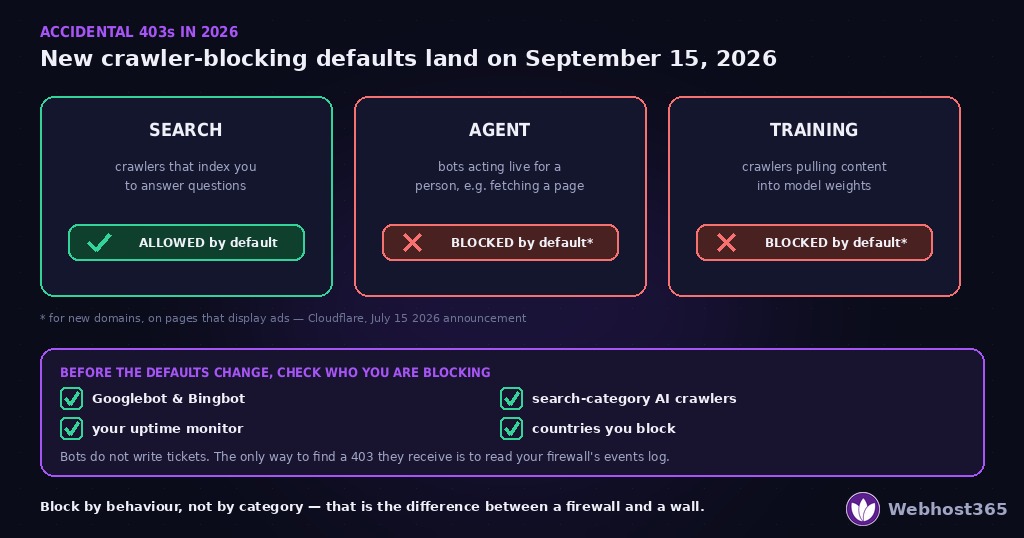
On July 1, 2025, Cloudflare began blocking AI crawlers by default on every new domain, becoming the first infrastructure provider to do so. Cloudflare serves roughly a fifth of the public web, so a large share of sites started refusing a whole class of visitors without any owner touching a setting.
Then, on July 15, 2026, Cloudflare split AI crawlers into three categories — Search, Agent, and Training — and announced new defaults. From September 15, 2026, new domains block Training and Agent crawlers by default on pages that display ads, while Search crawlers stay allowed. In other words, the refusal is becoming more precise, but it is also becoming universal.
Why this matters for a 403 you never see
The rules that stop scrapers do not know the difference between a scraper and a visitor you want. A bot rule set too broadly refuses Googlebot and Bingbot. A country block refuses your customers on holiday. A rate limit refuses your own uptime monitor, which then reports an outage that is not happening. And an AI rule that blocks the Search category refuses the crawlers that would otherwise cite your site in an answer.
None of those refusals produce a complaint, because bots do not write tickets. The only way to find them is to look. So before September 15, and every few months after, audit four things in your firewall’s events log: Googlebot and Bingbot, the search-category AI crawlers, your uptime monitor’s addresses, and any country you block. Our guide to hosting and SEO covers the crawlability side in more depth.
The one-line rule
Block by behaviour, not by category. A rule that refuses “anything that is not a browser” catches every crawler you need. A rule that refuses “requests exceeding 100 per minute from one address” catches the scraper and admits everyone else. Precise rules are more work to write, and they are the difference between a firewall and a wall.
Final Thoughts
A 403 is a decision, not a fault. So the method is short. Read the error page, because its wording names which of five components refused you. Check whether the refusal hits everyone, only you, or only bots. Then change the one rule that author needs changed — a permission, an .htaccess line, a plugin’s block list, a firewall exception, an index file, or a hotlink allowlist.
And take five minutes for the refusal you cannot see. Run URL Inspection on a key page, and read your firewall’s events log for the crawlers and monitors you want admitted. In 2026, the most expensive 403 is the one your site serves to Google while every human visitor gets the page.
FAQ
The server understood your request and refused it deliberately, so a rule is in the way rather than a fault. On your own site the usual authors are file permissions or an .htaccess deny rule left after a repair, a security plugin that banned your IP after failed logins, or a firewall rule at your CDN that caught your address, your VPN, or your country. Read the error page first: a plain page means the web server, a themed page means WordPress, and a branded page with a Ray ID means the CDN.
A 404 means the server found nothing at that address. A 403 means the page exists and the server refused to serve it. That difference decides the fix: a 404 needs the right address or a redirect, while a 403 needs a rule changed — a permission, an .htaccess line, a plugin block, or a firewall exception. A 403 also confirms the site is healthy, because the server answered.
Identify the author first. If the page is plain, check file permissions (644 for files, 755 for folders) and look for a deny from all line in .htaccess. If the page uses your theme or mentions a blocked IP, a security plugin locked you out — remove your address from its block list, or rename the plugin’s folder over FTP to disable it. If the page carries a Ray ID or “Access denied”, the block is at your CDN, and its events log names the rule.
Error 1020 means a firewall rule at the Cloudflare edge matched the request and refused it before it reached the website’s server. The rule can be a country block, a WAF managed rule, a rate limit, or a bot rule. As a visitor, switch networks or disable a VPN, and send the site owner the Ray ID from the page. As the owner, open Security → Events, search for that Ray ID, and the entry names the exact rule to adjust.
Yes, if search engines receive it. A page that returns 403 to Googlebot drops out of the index once Google confirms the refusal is persistent, even though human visitors see the page normally. This happens most often when a firewall’s bot rule is set too broadly. Test with URL Inspection in Search Console: if Google reports a 403 while your browser gets the page, allowlist verified search crawlers in your firewall.
Because the rule that refuses them matches something about their connection, not about the page. Country blocks refuse visitors on foreign networks or VPNs, IP bans refuse addresses that failed logins, and rate limits refuse anyone who requests too quickly. Find the visitor’s IP or Ray ID in your firewall or security plugin’s log, and the entry shows which rule they matched.