
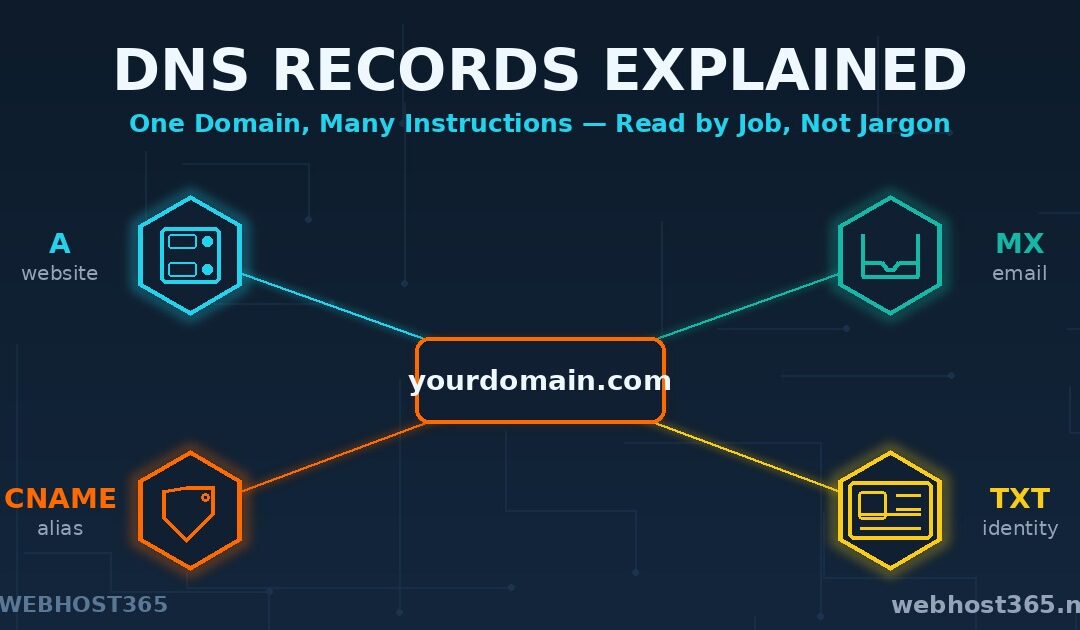
DNS records are the instructions that tell the internet where everything attached to your domain lives — your website, your email, and the proof that the domain is really yours. When someone types your domain, visits your site, or sends you an email, their computer first reads these records to find out where to go. Get them right and everything just works. Get one wrong and your site vanishes or your mail bounces, usually with no obvious clue why.
Most guides hand you an alphabet — A, AAAA, CNAME, MX, TXT — and ask you to memorise definitions. This one does the opposite. We start from the job you actually need done — point a domain at a server, route email, verify ownership — and show you which record does it. By the end you will be able to open any DNS panel, read every line, and know what each one is for and how to change it without breaking anything.
What Are DNS Records?
A DNS record is a single typed instruction stored in your domain’s zone — and the zone is simply the full list of those instructions for one domain. When a visitor’s computer needs to reach you, it asks the internet’s directory system for your zone and reads the relevant line. There is no magic here, just a lookup table that the whole internet agrees to consult.
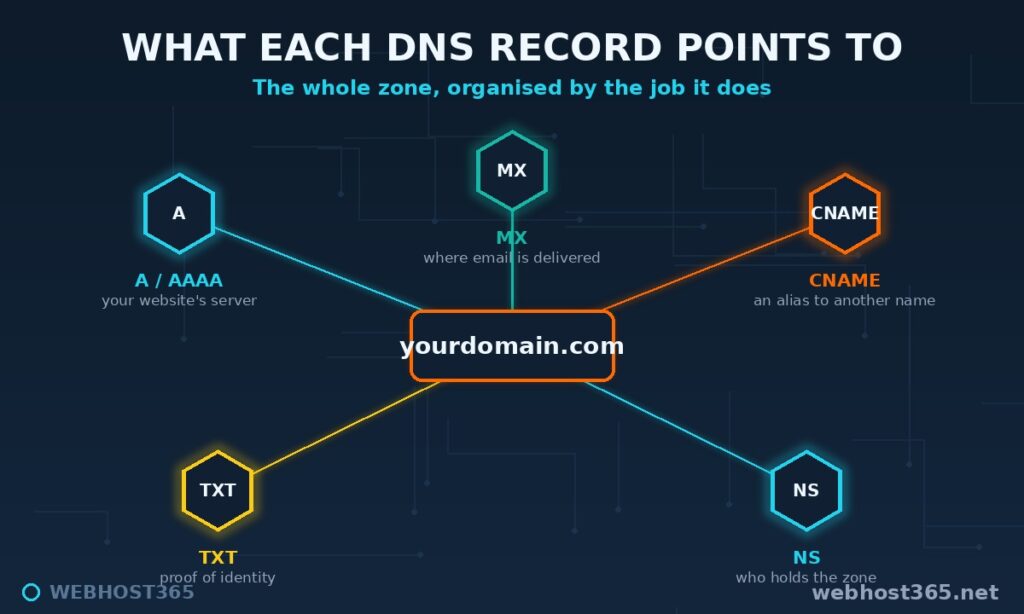
Every record, whatever its type, has the same four parts. A real line looks like this:
www.example.com. 3600 IN A 203.0.113.10Reading left to right: the name is what the record applies to (www.example.com). The TTL is how many seconds the answer may be cached before it must be looked up again (3600, one hour). IN just means “internet class” and you can ignore it. The type is the record’s job (A). And the value is the answer that job returns (the IP address 203.0.113.10). Name, type, value, lifetime — learn those four columns and every record in any panel becomes readable, because they are all just variations on this one shape.
The machines that read your records are called resolvers, and they cache what they find for the length of the TTL. That caching is what makes the internet fast, and also what makes DNS changes take time to appear — a tension we will return to in detail, because it explains most of the “I changed it but nothing happened” confusion. If a term in this article is unfamiliar, our web hosting glossary keeps short definitions on hand.
The rest of this guide walks the record types in the order you actually meet them, grouped by what they accomplish.
Where Your Website Lives: A and AAAA Records
The A record is the most fundamental instruction in DNS: it maps a name to an IPv4 address, the numeric location of the server holding your website. When your domain’s A record points at 203.0.113.10, every visitor’s browser is told to fetch your site from that address.
example.com. 3600 IN A 203.0.113.10The AAAA record does exactly the same job for IPv6, the newer addressing scheme with far more available addresses. The two are not rivals; a well-configured domain publishes both, so visitors reach you over whichever network path they have.
example.com. 3600 IN AAAA 2001:db8::10Two practical points follow from this. First, a name can have more than one A record, and resolvers hand them out in rotation — a simple form of load distribution called round-robin. Second, and more useful to know: changing your A record is how a website migration actually happens. You move the site to a new server, then repoint the A record at the new IP, and visitors follow within one TTL. That single line is the switch that moves your whole site, which is why our website migration guide treats the A record change as the moment of truth.
One subtlety worth flagging early: the IP in your A record is not always your origin server. If your site sits behind a CDN or a reverse proxy, the A record points at that front layer instead, and the proxy quietly forwards traffic to the real server behind it. The visitor only ever sees the address in the A record.
Nicknames and Aliases: CNAME Records
A CNAME record points one name at another name instead of at an IP address. It is an alias — a nickname that says “for this name, go look up that name and use whatever you find there.” The everyday example is the www version of a site: a CNAME makes www.example.com an alias of example.com, so both resolve to the same place and you only maintain the address in one spot.
www.example.com. 3600 IN CNAME example.com.CNAMEs are how you connect a subdomain to a service hosted elsewhere — pointing shop.example.com at a platform’s domain, or status.example.com at a status-page provider. The provider gives you a target, you create the CNAME, and your branded subdomain quietly serves their infrastructure.
But CNAMEs carry two restrictions that trip up nearly everyone, so learn them now. First, you cannot put a CNAME at the root, or apex, of your domain — example.com itself with no subdomain in front. Second, a CNAME cannot coexist with any other record at the same name; if a name has a CNAME, it can have nothing else. That clashes with the fact that your apex usually needs other records, like MX for email, which is exactly why the apex CNAME is forbidden. When you genuinely need apex-level aliasing — pointing your bare domain at a platform — providers offer a workaround under names like ALIAS, ANAME, or CNAME flattening, which behaves like a CNAME but resolves to an IP behind the scenes so the rules are not broken. If your panel offers one of those at the apex, that is what it is for.
Where Your Email Goes: MX Records
An MX record — Mail Exchanger — tells the world which server should receive email for your domain. When someone emails you, their mail server reads your MX records to find out where to deliver the message. No MX record, no reliable inbound mail.
example.com. 3600 IN MX 10 mail.example.com.The number before the hostname is the priority, and it works backwards from how people expect: lower wins. You can publish several MX records, and sending servers try the lowest-numbered one first, falling back to higher numbers only if it is unreachable. That is how email achieves failover — a backup mail server at priority 20 quietly waits for the primary at priority 10 to have a bad day.
Two rules keep MX records out of trouble. An MX must point to a hostname that has its own A or AAAA record — never directly to an IP address, and never to a CNAME. Both are forbidden by the mail standards, and both cause intermittent delivery failures that are miserable to diagnose. Where that receiving hostname should actually live — your own server, your host, or a dedicated email provider — is a separate decision we work through in email hosting vs web hosting.
Your Domain’s Identity Papers: TXT Records
The TXT record holds free-form text, which makes it the most overloaded record type in DNS. Its modern job is proof: proving you control the domain, and proving your email is genuine. When Google, Microsoft, or a SaaS tool asks you to “verify your domain,” they hand you a unique string to publish as a TXT record; seeing it appear confirms you hold the keys.
example.com. 3600 IN TXT "google-site-verification=Xa1b2C3..."The bigger job is email authentication. SPF, DKIM, and DMARC — the three records that decide whether your mail reaches the inbox or the spam folder — are all published as TXT records. They are the reason a domain’s TXT entries quietly multiply over time. Because they are involved enough to deserve their own treatment, we cover them end to end in SPF, DKIM, and DMARC explained; for the purposes of this guide, the thing to remember is that they live here, in TXT. One rule worth carrying over from that guide: a domain may have only one SPF record, so new senders are added inside the existing line, never as a second one.
A small technical note that occasionally bites: a single TXT string maxes out at 255 characters, and longer values (some DKIM keys) are split into several quoted chunks that resolvers stitch back together. Your panel usually handles this for you, but it explains why a long key looks like several strings in quotes.
Who Answers for Your Domain: NS Records
NS records — Name Server — name the servers that hold the authoritative copy of your zone. They are the most foundational records of all, because they decide who answers every other question about your domain. Your domain registrar publishes NS records pointing at a set of nameservers, and those nameservers are where your actual zone — all the A, MX, TXT, and CNAME records above — lives and is edited. Moving a domain to a different registrar does not change these records by itself, though some registrars apply their own defaults on arrival — our domain transfer guide explains how to avoid that.
example.com.   86400   IN   NS   ns1.webhost365.net.
example.com.   86400   IN   NS   ns2.webhost365.net.
This is where the single most common DNS confusion comes from, so it is worth stating plainly. Changing your nameservers moves the entire instruction sheet to a new location. Editing a record changes one line on the sheet. If your NS records point at your host’s nameservers, you edit your records at the host — and any changes you make back at the registrar’s DNS panel do nothing, because that is no longer where your zone lives. Whenever someone says “I changed my DNS record and nothing happened,” the first question is always: where do your NS records actually point, and is that where you made the change?
The Supporting Cast: SOA, SRV, CAA, and PTR
Four more record types round out a typical zone. You will touch them rarely, but recognising them stops you deleting something important.
The SOA record (Start of Authority) holds administrative metadata about the zone — its primary nameserver, a contact address, and the timers that govern how secondary servers refresh. Every zone has exactly one, created automatically, and you almost never edit it by hand.
The SRV record points a specific service to the right host and port — used by applications like VoIP, chat, and some Microsoft services that need to find not just a server but a particular port on it. If an application’s setup guide asks for an SRV record, it tells you exactly what to enter.
The CAA record (Certification Authority Authorization) lists which certificate authorities are allowed to issue SSL certificates for your domain. It is a security guardrail: with a CAA record present, a certificate authority you have not authorised will refuse to issue a certificate for your name, which blocks a whole class of misissuance.
The PTR record handles reverse DNS — mapping an IP address back to a hostname, the opposite of an A record. You do not set it in your own zone; the owner of the IP address does, which for most people means the hosting provider. It matters mainly for mail: receiving servers check that a sending IP has matching forward and reverse DNS, and a mismatch hurts deliverability, which is why it surfaces in the email authentication discussion.
TTL and Propagation: Why DNS Changes Take Time
You edit a record, hit save, and… the old value is still there an hour later. Nothing is broken. You are watching TTL and propagation do exactly what they are designed to do.
TTL — time to live — is the number of seconds each record tells resolvers they may cache the answer before asking again. A record with a TTL of 3600 will be remembered for an hour by every resolver that looked it up. That caching is what keeps DNS fast and the internet’s directory servers from collapsing under repeated questions. The cost is that a change cannot reach anyone still holding a cached copy until that copy expires.
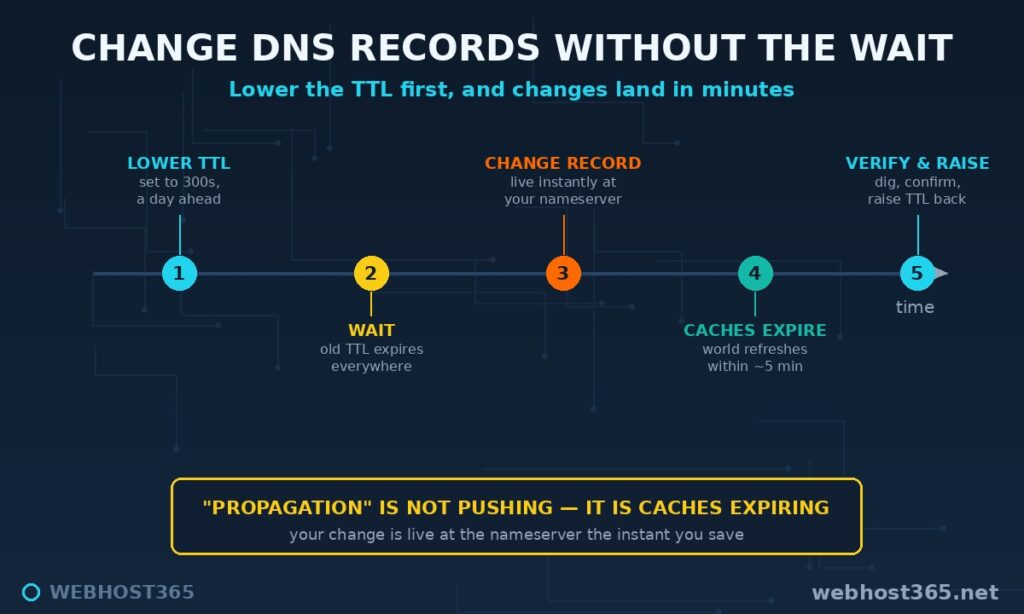
“Propagation” is the popular name for this wait, and the name is misleading. Nothing is being pushed anywhere. Your change is live at your nameservers instantly; the delay is simply the world’s resolver caches expiring on their own schedules, one TTL at a time. Nobody is propagating — everybody is just remembering the old answer until it times out.
The professional move turns this from a gamble into a plan. A day before a known change, lower the record’s TTL to 300 seconds. Wait for the old, longer TTL to expire so the short one is in force everywhere. Then make your real change, and it now reaches the world within five minutes instead of a day. Verify it from several vantage points before raising the TTL back up:
dig +short example.com
dig +short MX example.com
Run those against your own resolver, then against public ones, to confirm the new value is being served consistently rather than from a cache near you. Once it looks stable everywhere, raise the TTL back to an hour or more so day-to-day lookups stay fast.
How to Edit DNS Records Safely
On Webhost365 hosting, your records live in the DirectAdmin DNS management screen, where every entry appears as a row with the same four columns from earlier in this guide: name, type, value, and TTL. Reading the screen is now just reading those columns. Editing it is adding, changing, or removing a row.
Safe edits follow a short discipline that prevents nearly every DNS disaster. Record the current values before you touch anything — a screenshot or a copied line is enough to undo a mistake instantly. Lower the TTL ahead of any planned change, as described above, so errors can be corrected quickly rather than lingering for a day. Change one thing at a time, because a batch of simultaneous edits turns debugging into guesswork. And verify with dig before you declare success, rather than trusting that saving the form was enough.
The one rule that overrides all of these: confirm where your zone actually lives before editing. If your NS records point at our nameservers, edit here; if they point elsewhere, edits made here do nothing. This is the single check that resolves most “my change had no effect” support tickets.
Common DNS Record Mistakes
Most DNS problems are a handful of mistakes repeated. Knowing them by name is most of the cure.
A CNAME at the apex is the classic error — the root of your domain cannot be a CNAME, and trying breaks email and other records that must coexist there. Use your provider’s ALIAS or flattening option instead. Pointing an MX record at an IP address, or at a CNAME, is the next most common; MX must target a real hostname with its own A or AAAA record. Publishing a second SPF record, rather than adding to the one you have, produces a permanent error that scores worse than no SPF at all.
The subtler ones catch experienced people too. Editing records at your registrar while your nameservers point at your host means your careful changes land in a zone nobody is reading. Deleting records you do not recognise is tempting and dangerous — a DKIM key looks like a long string of gibberish and is doing essential work. Some panels expect a trailing dot on hostnames and treat its absence as a relative name, quietly turning mail.example.com into mail.example.com.example.com. And changing several records at once while a 24-hour TTL is in force means any mistake is stuck for a full day. None of these are exotic. They are simply the places DNS is unforgiving, and a calm, one-change-at-a-time approach avoids all of them.
DNS Records in Practice: Five Everyday Recipes
Most real DNS work is one of a few recurring tasks. Here is the record each one touches.
To point a domain at new hosting, change the A record (and AAAA, if you have one) to the new server’s IP. This is the core of any migration, walked through fully in our website migration guide.
To verify domain ownership for Google, Microsoft, or a SaaS tool, add the TXT record they give you and wait for it to resolve. Nothing else on your domain is affected.
To move email to a new provider, update the MX records to the new provider’s hostnames and add the SPF, DKIM, and DMARC TXT records they supply — the full process is in SPF, DKIM, and DMARC explained.
To connect a subdomain to an external app or platform, create a CNAME pointing the subdomain at the target the provider gives you, or an A record if they supply an IP.
To put your site behind a CDN, point the relevant record at the CDN’s edge — an A record to the edge IP, or a CNAME, depending on the provider. What that edge is doing for you is covered in what is a CDN.
If a DNS change has taken your site offline, our 5-minute site-down diagnosis walks you through confirming it — and a certificate that covers the wrong hostname produces a similar failure, which our SSL error guide explains.
Frequently Asked Questions
DNS records are instructions stored against your domain that tell the internet where your website, email, and other services live. Each record has a name, a type that defines its job, a value that answers it, and a TTL that controls caching. Together they make a domain name actually do something.
Usually minutes to a few hours, governed by the TTL on the record being changed, with a worst case of 24 to 48 hours for fully cached records worldwide. Lowering the TTL to 300 seconds a day before a planned change makes updates take effect within minutes. There is no manual way to force every resolver to refresh sooner.
An A record points a name directly at an IP address; a CNAME points a name at another name, which is then resolved in turn. Use an A record for the destination itself, and a CNAME to alias one name onto another. A CNAME cannot be used at the root of a domain.
Yes. Multiple A records for the same name cause resolvers to hand out the addresses in rotation, a basic form of load distribution called round-robin DNS. It spreads traffic but does not check whether each server is healthy.
TTL, time to live, is how many seconds resolvers may cache a record before looking it up again. Lower values make changes take effect faster but slightly increase lookup traffic; higher values are more efficient but slower to update. Adjusting TTL around planned changes is a standard professional practice.
You edit them wherever your nameservers point, which is shown by your NS records. For Webhost365 hosting that is the DirectAdmin DNS management screen; if your nameservers point elsewhere, you edit there instead. Editing in the wrong place is why changes sometimes appear to do nothing.
Yes. At minimum you repoint the A and AAAA records to the new server, and if email moves too, the MX and authentication records. Lower the TTL beforehand so the switch is quick and any rollback is painless.
Conclusion
DNS stops being mysterious the moment you read it by job rather than by jargon. A record for where your website lives, CNAME for an alias, MX for where email goes, TXT for proving who you are, NS for who holds the authority, and TTL for how long any answer is remembered. Six ideas, and you can read and edit any zone with confidence.
Domains registered or transferred to Webhost365 come with all of this managed in the same DirectAdmin panel as your hosting, so your records and your site live in one place. And if a domain stops resolving because the registration lapsed rather than a record breaking, our domain expiration guide explains how to recover it. Hosting plans start at $1.49/mo and include full DNS control from day one. Whether you are pointing a domain at a new server or chasing an email problem into its TXT records, you now know exactly which line to read and how to change it safely.
If a DNS change has taken your site offline, our 5-minute site-down diagnosis walks you through confirming it and fixing it.