
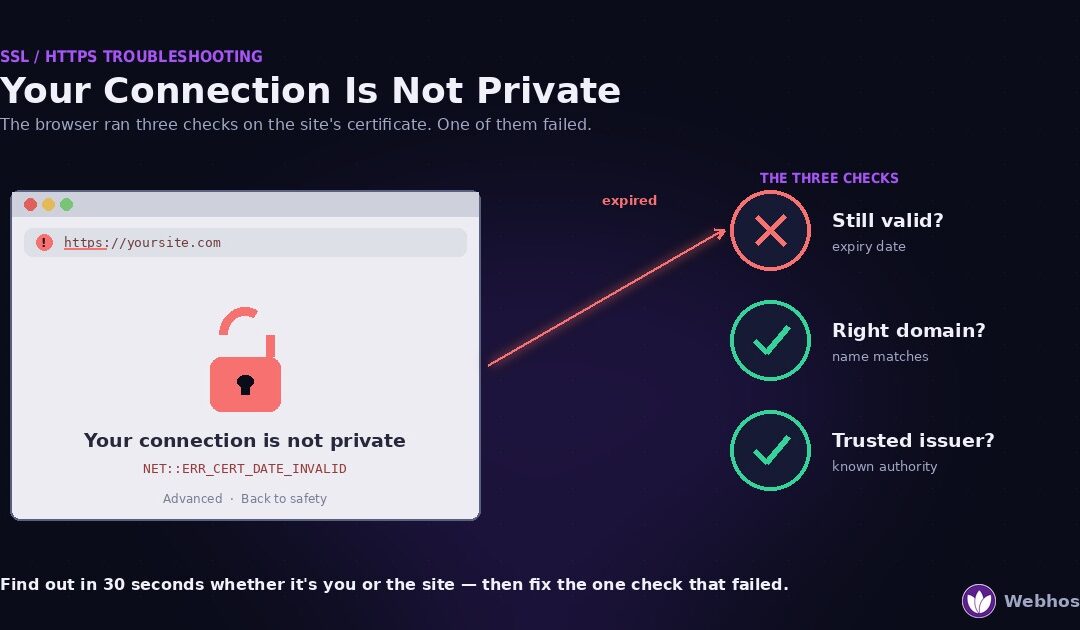
“Your connection is not private” means your browser checked the website’s SSL certificate and found a problem. Either the certificate has expired, it covers a different domain, or the browser does not trust the authority that issued it. In most cases the site’s certificate broke, not your device. A thirty-second test below tells you which.
Most guides make one mistake. They give visitors and site owners the same list of fixes. As a result, half the advice is useless to whoever is reading. So we split the two audiences first, then give each one only the fixes that apply.
In addition, this guide does two things others skip. First, it decodes every certificate error string your browser can show. Second, it explains why this warning is more common in 2026 than it was a year ago. If you own a website, that second part matters most.
What the Warning Actually Means
The padlock in your address bar is your browser’s verdict. Before it shows that padlock, the browser runs three checks on the site’s SSL certificate. If any check fails, you see the warning instead.
Check one: is the certificate still valid?
Every certificate carries an expiry date. After that date, the browser refuses it, even if nothing else changed. Expiry is the most common failure by a wide margin, so we return to it in Cause 1.
Check two: does it match this domain?
A certificate lists the exact hostnames it covers. For example, a certificate for example.com does not automatically cover www.example.com or shop.example.com. The names must match, in the same way your DNS records must point each hostname to the right server.
Browsers ship with a list of certificate authorities they trust. Therefore a certificate from anyone else fails this check. Self-signed certificates fail it too, because nobody the browser trusts vouched for them.
Why the browser blocks the page instead of just warning
Any one failure produces the same result: the page stops loading. That feels dramatic, but the logic is sound. A certificate is the site’s proof of identity. If the proof fails, the browser cannot confirm you reached the real site rather than an imposter on the same network. So it withholds everything, including your passwords, until you decide.
In addition, a broken certificate costs the site itself. Google treats HTTPS as a ranking signal, so a certificate failure hurts search visibility as well as trust. Our guide to hosting and SEO covers that side.
What “Proceed anyway” really does
Most browsers hide a “Proceed to site (unsafe)” link behind an Advanced button. Clicking it fixes nothing. Instead, it tells the browser to skip the identity check and connect regardless. On your own site, during a repair, that is acceptable. On a site that takes logins or payments, it is not, because anyone between you and the site could read what you send.
First: Is It You, or the Site?
Before you change anything, answer one question. Is the warning about this site, or about your device? The test takes thirty seconds.
Open two other HTTPS websites you trust — your bank, a major news site, anything with a padlock you have seen before. Then compare.
If every site shows the warning
The problem is on your side. No certificate authority breaks three unrelated sites at once. In other words, your device is failing the check. Four causes explain nearly all of these cases.
First, your clock may be wrong. Certificates carry dates, so a device set to the wrong year sees every certificate as expired. Second, you may be on public Wi-Fi that intercepts pages until you log in. Third, your antivirus may be scanning HTTPS traffic by swapping in its own certificate. Finally, your browser may have cached a bad decision.
Section 4 walks through each fix in order. The rest of this guide is for site owners, so feel free to skip it.
If only this site shows the warning
The problem is the site’s certificate. Nothing on your device will change that, because the fix belongs to whoever runs the site.
If that is you, read on. The warning page contains an error code, and that code names your exact cause. However, if the site is not loading at all rather than showing this warning, start with our 5-minute site-down diagnosis instead.
If it is someone else’s site, you have two options. Wait, because owners usually fix certificate failures within hours of noticing. Or contact them, because you may be the first to notice.
Why this test matters more in 2026
Certificate failures used to be rare, because a certificate lasted more than a year. That changed on March 15, 2026, when the CA/Browser Forum capped certificate lifetimes at 200 days. As a result, every site now renews at least twice a year, and every renewal is a chance to fail. Section 9 explains the full timeline. For now, simply know that this warning is spreading, and that it is rarely the visitor’s fault.
The one shortcut worth knowing
Owners often check their own site and see it working, while visitors see the warning. That happens because certificates can differ between www and non-www, and browsers cache trust decisions.
So always test from a device you have not used, on a different network. Your phone on mobile data is perfect. Whatever that device shows is what your visitors see.
Read the Error Code
Every browser hides a code somewhere on the warning page. Chrome prints it below the main message in small grey text. Firefox reveals it after you click “Advanced”. Safari shows it under “Show Details”.
That code is the whole diagnosis. So find it first, then look it up in the table below. Each row names the cause and sends you to the right fix.
The SSL error code decoder
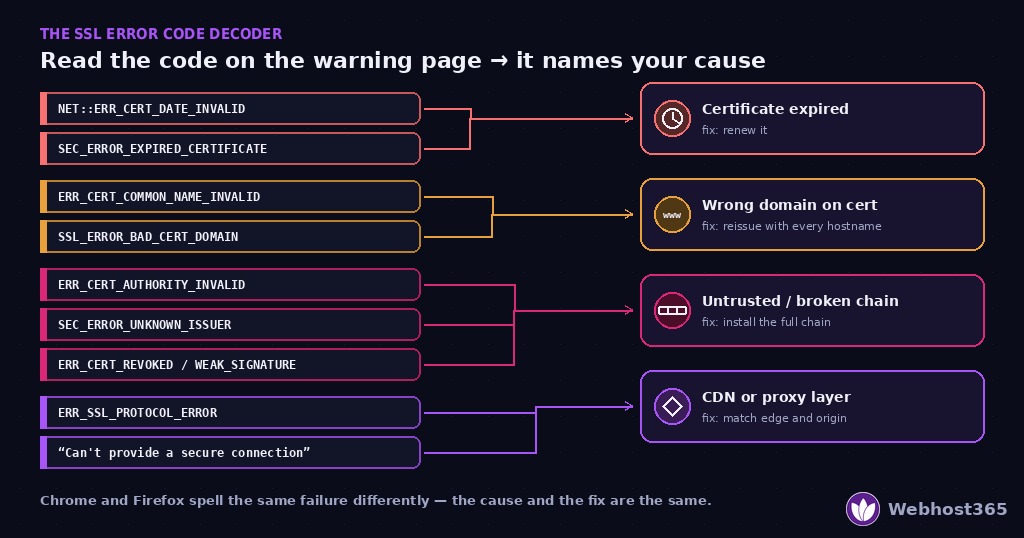
| Error code you see | What it means | Who fixes it | Go to |
|---|---|---|---|
| NET::ERR_CERT_DATE_INVALID (Chrome) / SEC_ERROR_EXPIRED_CERTIFICATE (Firefox) | The certificate has expired — or your device clock is wrong | Site owner (or you, if your clock is wrong) | Cause 1 |
| NET::ERR_CERT_COMMON_NAME_INVALID (Chrome) / SSL_ERROR_BAD_CERT_DOMAIN (Firefox) | The certificate covers a different domain name | Site owner | Cause 2 |
| NET::ERR_CERT_AUTHORITY_INVALID (Chrome) / SEC_ERROR_UNKNOWN_ISSUER (Firefox) | The browser does not trust the issuer — self-signed, or a missing intermediate certificate | Site owner | Cause 3 |
| NET::ERR_CERT_REVOKED | The issuer cancelled this certificate, usually after a key compromise | Site owner | Cause 3 |
| ERR_SSL_VERSION_OR_CIPHER_MISMATCH | The server only offers outdated encryption the browser refuses | Site owner | Cause 3 |
| ERR_SSL_PROTOCOL_ERROR | The connection failed before any certificate check — often a reverse proxy or port problem | Site owner | Cause 4 |
| NET::ERR_CERT_WEAK_SIGNATURE_ALGORITHM | The certificate uses an obsolete signing method (SHA-1) | Site owner | Cause 3 |
| ERR_CERT_SYMANTEC_LEGACY | A certificate from a distrusted legacy authority | Site owner | Cause 3 |
| “This site can’t provide a secure connection” | Encryption negotiation failed entirely — frequently a CDN or origin mismatch | Site owner | Cause 4 |
Two patterns stand out. First, almost every code belongs to the site owner, which confirms the split from Section 2. Second, the one exception is the date error, and it is also the code visitors see most, because a wrong device clock triggers it instantly.
Reading the certificate directly
Site owners can skip the warning page and inspect the certificate itself. Click the padlock or the warning icon in the address bar. Then choose “Certificate”, or “Connection is not secure” followed by “More information”.
Three fields matter. Valid from / Valid to shows whether it expired. Subject Alternative Names lists every hostname it covers. Issuer names who signed it. In short, those three lines map directly onto Causes 1, 2, and 3.
The one-command version
With SSH access, one command prints all three fields:
bash
echo | openssl s_client -connect yoursite.com:443 -servername yoursite.com 2>/dev/null | openssl x509 -noout -dates -subject -issuerThe output shows the expiry dates, the subject, and the issuer on three lines. Whichever line looks wrong is your cause. Also note the -servername flag: without it, a server hosting several sites may hand you the wrong certificate, and you will chase a problem that does not exist.
If You’re Just Visiting: The Four Fixes
You ran the test in Section 2, and every site fails. Therefore this section is yours. Work through the four fixes in order, because the first one solves most cases.
Fix 1: Correct your date and time
A wrong clock makes every certificate look expired. It happens after a dead laptop battery, a factory reset, or a restored virtual machine.
First, open your date and time settings. Then switch on automatic time synchronisation. Finally, restart the browser and reload the page. On Windows, check the year specifically, because a clock that reset to 2010 is a classic cause.
Fix 2: Complete the Wi-Fi login page
Public networks intercept your first page to show a login or terms screen. Until you accept, encrypted sites fail, because the network is standing between you and them.
The trick is to open a plain, non-HTTPS page. Many people use neverssl.com for exactly this purpose. The login screen appears, you complete it, and then your original site loads normally.
Fix 3: Turn off HTTPS scanning in your antivirus
Some security suites decrypt your traffic in order to inspect it. To do that, they swap in their own certificate, which browsers correctly treat as an imposter.
Look for a setting named “HTTPS scanning”, “SSL inspection”, or “encrypted connections scanning”. Switch it off, then reload. If the warning clears, the antivirus was the cause, not the website. In addition, consider whether you need that feature at all, because browsers already block malicious sites on their own.
Fix 4: Clear the browser’s memory of the site
Browsers remember earlier security decisions. As a result, a site that failed once can keep failing from cache, even after the owner fixed it.
Open a private or incognito window and load the site. If it works there, clear the cookies and cache for that site in your normal window. Then reload once more.
What not to do
Never click “Proceed anyway” on a site that asks for a password or a card number. Never install a certificate that a pop-up or an app tells you to trust. Above all, never disable certificate checking in your browser settings, because that removes the protection for every site, permanently.
If all four fixes fail and every site still shows the warning, the problem sits deeper in your device or network. That is a job for your IT support, not for a website owner.
Cause 1: The Certificate Expired
This is the site-owner cause we see most, and in 2026 it is growing. The code confirms it: NET::ERR_CERT_DATE_INVALID in Chrome, SEC_ERROR_EXPIRED_CERTIFICATE in Firefox. The certificate was valid yesterday, and today it is not.
Confirm the expiry in ten seconds
First, click the padlock or warning icon and open the certificate details. Then read the “Valid to” line. A date in the past is your answer.
Alternatively, run the openssl command from Section 3. The notAfter line shows the same date. Either way, if that date has passed, nothing else in this guide applies to you — skip straight to the fix below.
Why it expired without warning
Owners rarely let a certificate expire on purpose. Instead, an automatic renewal failed quietly, and nobody noticed until visitors did. Three things cause that.
First, the renewal job stopped running. A server migration, a control-panel change, or a disabled cron job can all break it silently. Second, the domain’s DNS changed, so the renewal check could not prove you still own the domain. Third, a firewall or a new CDN blocked the validation request.
In addition, there is a reason silent expiry became more common last year. Let’s Encrypt stopped sending expiry-reminder emails on June 4, 2025. Because Let’s Encrypt issues the majority of free certificates on the web, millions of site owners lost the warning they had relied on. In other words, if your renewal fails today, the browser warning is often the first notice you get.
Renew or reissue the certificate
On managed hosting, open your control panel and find the SSL section. Most panels offer a “Renew” or “Reissue” button that requests a fresh certificate within a minute. So try that first.
On a VPS running Certbot, run the renewal by hand and read the output:
bash
sudo certbot renew --dry-run
sudo certbot renew
The dry run reports exactly why renewal fails, which is usually a DNS or firewall problem. Fix that cause, then run the real renewal. Finally, reload the web server so it picks up the new certificate.
Verify from the outside
A renewed certificate can still fail if the web server kept serving the old one. Therefore, always check from a device that has never loaded the site. Your phone on mobile data works well.
Also confirm the new expiry date, not just the missing warning. A certificate renewed today should show a “Valid to” date roughly six months out under the current 200-day cap. If it still shows the old date, the server has not reloaded.
Cause 2: The Certificate Covers the Wrong Domain
The code here is NET::ERR_CERT_COMMON_NAME_INVALID in Chrome, or SSL_ERROR_BAD_CERT_DOMAIN in Firefox. The certificate is valid and trusted. However, it was issued for a different hostname than the one your visitor typed.
The www trap
This cause has one dominant trigger. A certificate covers example.com, but a visitor types www.example.com, or the other way round. To a browser, those are two different names.
Consequently, the site works for half your visitors and fails for the rest. Owners often miss it, because they always type the version that works.
Other ways the name can mismatch
A new subdomain is the second trigger. You launched shop.example.com, but the certificate never included it. Similarly, a wildcard certificate for *.example.com covers shop.example.com but not example.com itself, and not api.shop.example.com either.
Migration is the third. After you move a website to a new host, the new server may present a default certificate for a completely different domain. Visitors see a name they do not recognise, and the browser blocks the page.
Confirm which names the certificate covers
Open the certificate details and find “Subject Alternative Names”. That list is the complete set of hostnames the certificate protects. If the name in your address bar is missing from it, you have found the cause.
The openssl command from Section 3 shows the same list under subject. In short, compare that list with every hostname your site actually uses.
Fix: reissue with every hostname included
Request a new certificate that lists every name you serve. For most sites that means both example.com and www.example.com, plus any subdomains that carry real traffic.
On managed hosting, the panel usually adds the www variant automatically, so check the box if it offers one. With Certbot, list the names explicitly:
bash
sudo certbot --nginx -d example.com -d www.example.com -d shop.example.comThen, in addition to the certificate, set a redirect so one hostname is canonical. Sending example.com to www.example.com, or the reverse, means visitors land on the name you actually maintain. That single redirect prevents most repeat occurrences.
Cause 3: The Browser Does Not Trust the Certificate
The codes here are NET::ERR_CERT_AUTHORITY_INVALID in Chrome and SEC_ERROR_UNKNOWN_ISSUER in Firefox. The certificate exists, it has not expired, and it names the right domain. However, the browser cannot trace it back to an authority it trusts.
Three ways trust breaks
First, the certificate is self-signed. Someone generated it on the server itself, so no trusted authority ever vouched for it. Self-signed certificates are fine for testing, but every public browser rejects them.
Second, the chain is incomplete. A public certificate is not trusted on its own. Instead, it links to an intermediate certificate, which links to a trusted root. If the server sends only its own certificate and forgets the intermediate, some browsers cannot complete the chain.
Third, the root itself is no longer trusted. Browsers occasionally retire an authority, and ERR_CERT_SYMANTEC_LEGACY is the famous example. Similarly, NET::ERR_CERT_WEAK_SIGNATURE_ALGORITHM means the certificate uses SHA-1, a signing method browsers abandoned years ago.
Why it works in one browser but not another
An incomplete chain produces a confusing symptom. The site loads in Chrome but fails in Firefox, or works on your laptop but fails on a phone.
That happens because some browsers cache intermediate certificates from other sites they have visited. As a result, they quietly fill the gap your server left. Other browsers do not, so they fail. In other words, “it works for me” proves nothing here.
Confirm the chain
The openssl command from Section 3 shows the issuer. For a fuller view, ask it to print the whole chain:
bash
echo | openssl s_client -connect yoursite.com:443 -servername yoursite.com -showcerts 2>/dev/null | grep -E "s:|i:"A healthy chain shows two or three certificates, each one’s issuer matching the next one’s subject. If you see only one certificate, the intermediate is missing. Also, any free online SSL checker will flag “chain incomplete” in plain language if you prefer a browser tool.
Fix: install the full chain
The fix depends on how you installed the certificate. On managed hosting, reissue the certificate through the panel, because the panel installs the chain correctly by default. Certbot also installs the full chain automatically, so a missing intermediate there usually means a manual config edit pointed at the wrong file.
Check that your web server uses the “fullchain” file rather than the bare certificate:
nginx
ssl_certificate     /etc/letsencrypt/live/yoursite.com/fullchain.pem;
ssl_certificate_key /etc/letsencrypt/live/yoursite.com/privkey.pem;
Then reload the web server and test again from a fresh device. For a self-signed certificate on a public site, the only fix is to replace it with one from a real authority — which every hosting plan now includes for free.
Cause 4: The CDN or Proxy Layer
The codes here are ERR_SSL_PROTOCOL_ERROR and “This site can’t provide a secure connection”. Unlike the first three causes, the certificate itself may be perfectly fine. The problem sits in the layer between your visitor and your server.
Two certificates, one connection
Many sites today run behind a CDN or a reverse proxy. That means every visit involves two encrypted hops. The visitor connects to the edge, and the edge connects to your origin server.
Each hop needs its own valid certificate. Therefore, a healthy certificate at the edge can hide an expired or mismatched one at the origin, and the visitor sees a gateway error rather than a certificate warning. If you have already read our 502 Bad Gateway guide, the shape will feel familiar, because it is the same edge-versus-origin fault.
The three usual mistakes
First, the origin certificate expired while the edge certificate stayed valid. The CDN refuses the connection to your server, and visitors get a protocol or gateway error. Check the origin certificate directly, with the CDN bypassed, using the openssl command against your server’s real IP address.
Second, the edge is set to a “flexible” mode that talks to your origin over plain HTTP. That mode hides certificate problems, but it also leaves half the journey unencrypted. Set the edge to full, strict validation, then fix whatever it reveals.
Third, the origin listens on the wrong port, or the firewall blocks the CDN’s addresses. In that case the edge cannot even start the handshake. ERR_SSL_PROTOCOL_ERROR is the typical result, and the fix is a firewall rule or a port correction, not a certificate.
Confirm which layer failed
Test the two hops separately. First, load the site normally and note the error. Then test the origin directly, bypassing the CDN — most providers document a way to do this, or you can point openssl at the origin IP with the -servername flag.
If the origin passes and the public URL fails, the edge configuration is the cause. If the origin fails too, fix the origin certificate first, because the edge is only reporting what it found.
Fix: match the layers
Renew or reissue the origin certificate so it is valid and covers the right hostname. Then set the edge to strict validation and reload. Finally, test from a fresh device on a different network, because CDNs cache TLS decisions at the edge for a while.
On a platform where the CDN is built in, such as Orbit CDN on our managed plans, the origin certificate and the edge certificate renew together, so this class of mismatch does not arise.
Why This Warning Is Getting More Common in 2026
If you feel you are seeing this warning more often than you used to, you are right. Two changes in the last eighteen months made expired certificates far more likely. Neither one made the news for most site owners.
Certificates now last half as long
For years, a public SSL certificate could last 398 days. In practice, that meant one renewal a year. Then, in April 2025, the industry body that sets certificate rules voted to shorten that dramatically.
The CA/Browser Forum’s ballot SC-081v3 passed with no votes against. It sets a three-step schedule:
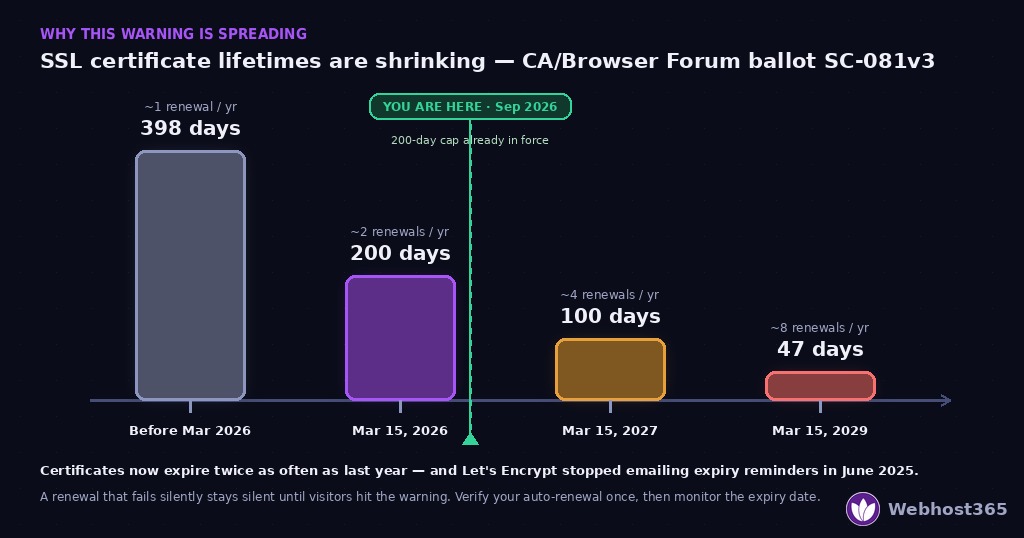
| From this date | Maximum certificate lifetime | Renewals per year |
|---|---|---|
| Before March 15, 2026 | 398 days | about 1 |
| March 15, 2026 (in force now) | 200 days | about 2 |
| March 15, 2027 | 100 days | about 4 |
| March 15, 2029 | 47 days | about 8 |
The first step is already live. As a result, every certificate issued since March 2026 lasts 200 days at most, and DigiCert notes that the schedule makes automation essential rather than optional. In other words, a site that renewed once a year now renews twice, and by 2029 it will renew roughly every six weeks.
The warning emails stopped
The second change compounds the first. Let’s Encrypt, which issues most of the free certificates on the web, ended its expiry-reminder emails on June 4, 2025. We covered the detail in Cause 1.
Put the two together. Certificates expire twice as often, and the most common issuer no longer warns you when one is about to. Consequently, a renewal that fails silently now stays silent until visitors hit the warning page. That combination is why this error is spreading, and why manual renewal is finished as a practice.
What this means for you
If you own one site, the message is simple. Automatic renewal is now the only safe option, and you need to verify once that it actually works. If you manage many sites, treat certificate expiry as a monitored metric, because the renewal count is about to multiply.
For visitors, the message is even simpler. A site showing this warning has usually missed a renewal, not been hacked. However, the advice from Section 4 still stands: do not proceed on a site that asks for a password.
Preventing It, and When It’s Your Host
Fixing a certificate once takes minutes. Never seeing the warning again takes three habits. All three matter more now than they did a year ago.
Verify your auto-renewal once
Almost every modern setup renews certificates automatically. Yet automatic does not mean verified. A renewal job can exist and still fail every time, and nobody sees it until the certificate expires.
So test it once, deliberately. On a VPS, run the Certbot dry run from Cause 1 and read the result. On managed hosting, check the certificate’s “Valid to” date a week after a renewal was due. If the date moved, renewal works. If it did not, open a ticket now, while the current certificate is still valid.
Monitor the expiry date
Because the reminder emails are gone, set up your own. A certificate monitoring service checks your site daily and alerts you weeks before expiry. Several offer a free tier for a small number of domains. Our uptime monitoring guide explains how to set that check up alongside the others.
In addition, put the milestone dates on your calendar. March 15, 2027 halves the lifetime again to 100 days. Any renewal process that struggles today will break outright then.
Keep the chain and the names in sync
Two of the four causes come from configuration, not expiry. Therefore, whenever you add a subdomain, migrate a server, or change your CDN, add a certificate check to the task. One openssl command after the change catches the mismatch before your visitors do.
When it is your host’s job
On managed hosting, the certificate is part of what you pay for. Issuing, renewing, and installing the chain belong to the platform, not to you. For example, every Webhost365 plan includes free SSL with automatic renewal, so a customer should never see this warning on their own site.
If you do see it on a managed plan, open a ticket with three facts: the exact error code, the “Valid to” date from the certificate details, and the time you first saw the warning. Then ask two questions. Why did automatic renewal fail? And what prevents it next time? A good host answers both in the first reply, because a certificate failure is a platform fault and they will know exactly what happened.
Final Thoughts
Here is the whole method in four steps. First, test two other HTTPS sites to learn whether the warning is about your device or this site. Second, if it is the site, read the error code and look it up in the decoder. Third, apply the one fix that code names: renew, add the missing hostname, install the full chain, or align the CDN with the origin. Finally, verify from a fresh device on a different network.
Then take the 2026 lesson seriously. Certificates now expire every 200 days, and the most common issuer no longer sends reminders. So automatic renewal is not a convenience anymore; it is the only defence. Verify yours once, monitor the expiry date, and the warning becomes something you read about rather than something your visitors see.
And if you are on managed hosting, renewal is not your job at all. On our plans it runs automatically on every site, and our support team reads the actual error code before replying — because a certificate failure has a real cause, and the code already names it.
FAQ
The warning itself is not an attack. It means the browser could not verify the site’s identity, so it refuses to send your data until you decide. On a site you own or a blog you are reading, the risk is low. However, on any site that takes a password or a payment, treat it seriously, because an invalid certificate means someone between you and the site could read what you send. Do not proceed on those sites until the owner fixes the certificate.
Because that site’s certificate is the problem, not your device. A wrong device clock or a bad network breaks every HTTPS site at once. A single failing site points at an expired certificate, a certificate issued for a different hostname, or a broken certificate chain on that server. Only the site owner can fix it, so your options are to wait or to let them know.
Chrome shows this code when the certificate’s validity dates fail the check. Usually the certificate has expired, which is the site owner’s problem. Sometimes, though, the visitor’s device clock is set to the wrong date, which makes every certificate look expired. If you see this code on several sites, fix your clock. If you see it on one site, the owner needs to renew.
You can, but it does not fix anything. It tells the browser to skip the identity check and connect regardless. That is acceptable on your own site while you repair the certificate, or on a site where you enter nothing sensitive. It is not acceptable on a site that asks for a login or a card number, because anyone positioned between you and the site could read the connection.
Automatic renewal fails silently more often than people expect. The renewal job may have stopped after a migration or a control-panel change, a DNS change may have broken the domain validation, or a firewall or new CDN may have blocked the validation request. In addition, Let’s Encrypt stopped sending expiry-reminder emails in June 2025, so a failed renewal no longer triggers a warning. Run the renewal by hand once and read the output; it names the cause.
Since March 15, 2026, a public certificate can last at most 200 days, so most sites renew roughly twice a year. That limit drops to 100 days on March 15, 2027, and to 47 days on March 15, 2029, under the CA/Browser Forum’s approved schedule. In practice, this means manual renewal is no longer workable, and every site needs verified automatic renewal.