
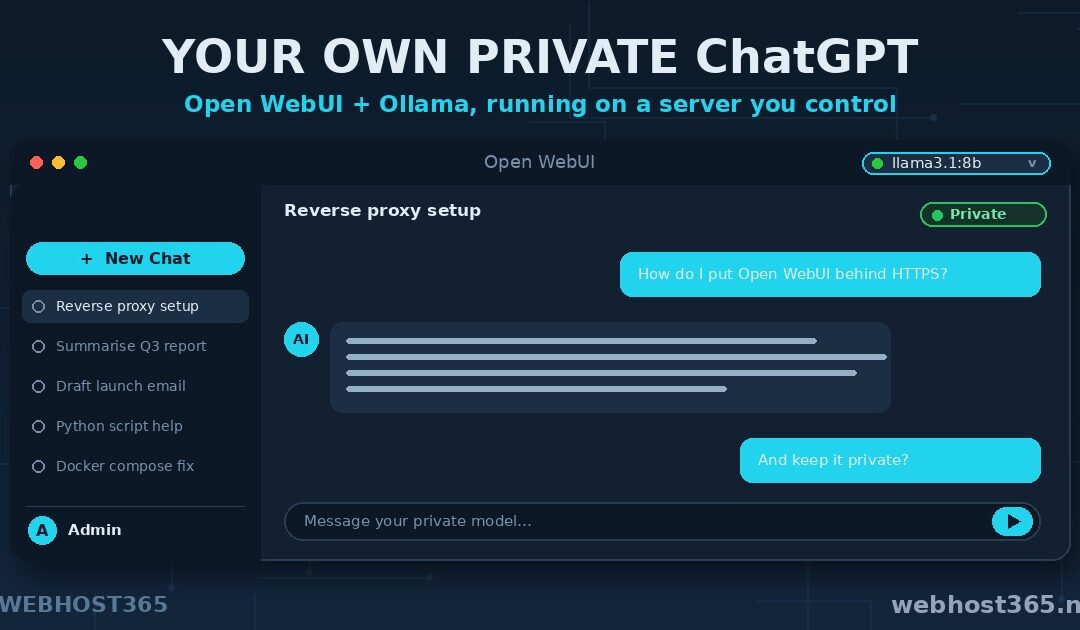
A self-hosted ChatGPT is simpler to build than it sounds: two free tools on one server. Open WebUI gives you the familiar chat window, Ollama runs the model behind it, and a VPS you control holds them both. The result looks and feels almost exactly like the ChatGPT you already know — a clean chat box, conversation history, multiple models to pick from — with one decisive difference. Every message stays on your server. Nothing you type is sent to a third party, and nothing you discuss is used to train someone else’s model.
That difference is why people build this. The chat experience is no longer the hard part; open-source tools have closed that gap. What you gain by hosting it yourself is ownership — of your conversations, your documents, your costs, and your rules. This guide walks the whole build from an empty server to a working private ChatGPT, including the security step that matters most when a tool holds everything you type into it.
What You Are Actually Building
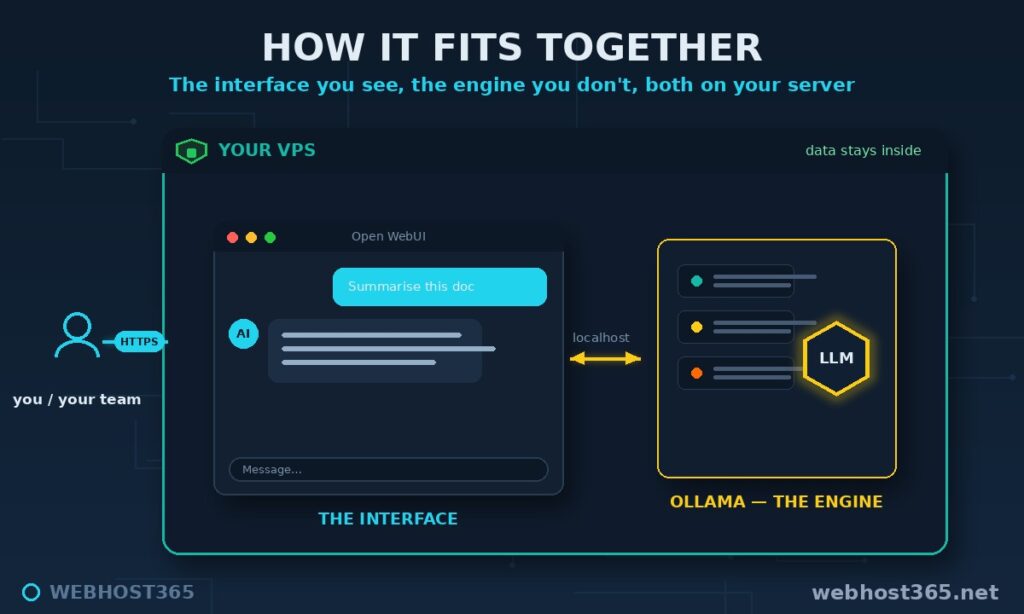
Three pieces stack together, and the moment you see how they fit, the rest of this guide is just following steps.
Open WebUI is the face. It is the browser interface — the chat window, the message history, the model dropdown, the user accounts. If you have used ChatGPT, you already know how to use Open WebUI, because it deliberately mirrors that experience. On its own, though, it cannot think; it is a front end waiting for a model to talk to.
Ollama is the engine. It is the piece that actually runs the language model, loading it into memory and generating the responses. We covered Ollama in depth in its own guide, and here it sits quietly in the background doing the heavy lifting while Open WebUI does the talking. The two connect over a simple local link: Open WebUI sends your message to Ollama, Ollama generates the reply, Open WebUI shows it to you.
The VPS is the home. Both pieces run on one server that you control, which is the entire point — because everything lives on that one box, nothing leaves it. Your prompts, the model’s answers, any documents you feed it: all of it stays inside a boundary you own. That is the architecture in a sentence: a familiar face, a capable engine, and a private home for both.
Why Self-Host Your ChatGPT
Privacy is the real reason, so let us start there. When you use a hosted AI service, every prompt and every document you share travels to a company’s servers, governed by their terms rather than yours. A self-hosted ChatGPT inverts that completely. Your conversations never leave your machine, your sensitive documents stay on infrastructure you control, and nothing you type becomes training data for a model you do not own. For anyone handling client information, internal strategy, or regulated data, that is not a nice-to-have — it is the whole decision.
Cost is the second reason, and it compounds over time. Hosted AI tools bill per seat or per message, so the cost climbs with every user and every conversation. A self-hosted ChatGPT runs on a flat monthly server bill that does not move whether one person uses it or a whole team does. Past a modest level of usage, a fixed server is simply cheaper, and we worked through exactly where that crossover falls in our guide to self-hosted versus API cost.
Control is the third. You choose which models to run, you decide who has access, and no provider can change the pricing, retire a feature, or alter the terms underneath you. Your tool behaves the same tomorrow as it does today.
One honest caveat keeps this guide trustworthy. A model you run yourself on a CPU server is not a frontier model, and for the very hardest reasoning tasks the big hosted services still lead. The right way to think about it is by job, as our overview of hosting AI applications lays out: for chat, drafting, summarising, answering questions about your own documents, and the broad middle of everyday AI work, a self-hosted ChatGPT is genuinely capable — and it is private and flat-cost in a way no hosted service can match.
What a Self-Hosted ChatGPT Needs
Before the build, three things need to be in place, and none of them is exotic.
The first is a VPS with enough RAM for your model, because as always with local AI, memory is the spec that decides what you can run. For a self-hosted ChatGPT that most people and small teams will be happy with, the sweet spot is a 16GB plan — the m4.xlarge at $79.99 a month — which comfortably runs a capable 7–8B model with room for real conversations. Smaller experiments fit on less; larger models want more. The full model-to-plan mapping lives in our best VPS for Ollama guide, and it applies here unchanged, because the engine underneath is the same.
The second is Docker, which is how we install Open WebUI cleanly in a single command without wrestling dependencies. Most Linux VPS images either include it or install it in one line. The third is a domain name pointed at your server, which you will need for the HTTPS step later — a private chat tool should never run on plain, unencrypted HTTP.
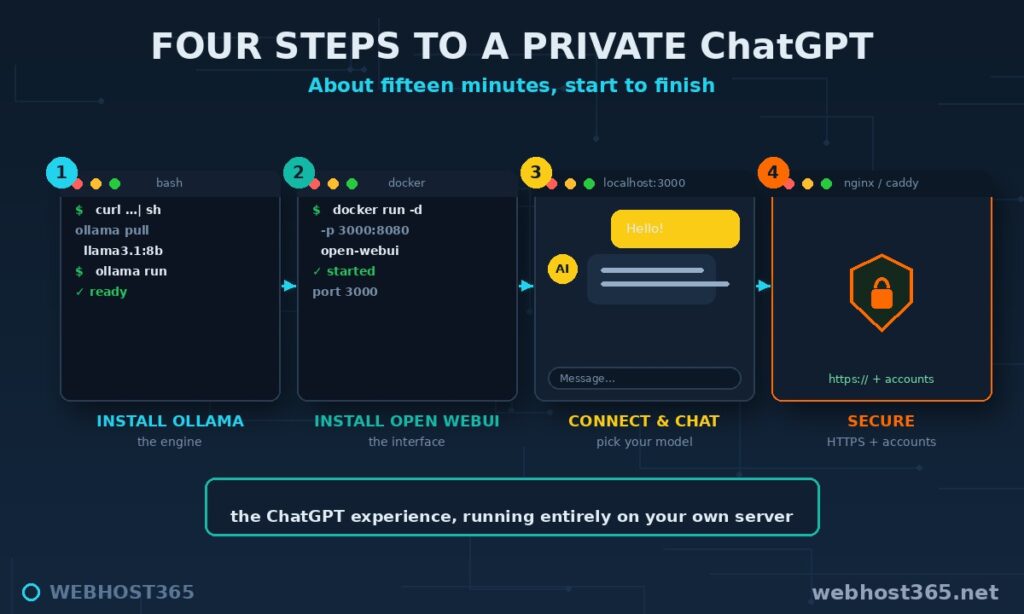
With a 16GB VPS, Docker ready, and a domain in hand, the build itself takes about fifteen minutes across four steps: install the engine, install the interface, connect them, and lock it down.
Step 1: Install the Engine (Ollama)
Ollama is the model engine, and getting it running is a single command on your VPS:
curl -fsSL https://ollama.com/install.sh | shOnce it is installed, pull a model to run. A 7–8B model is the right first choice on a 16GB server — capable enough for real work, small enough to leave headroom:
ollama pull llama3.1:8bConfirm it works by chatting at the command line for a moment:
ollama run llama3.1:8bType a question, get an answer, and you have proven the engine works. Ollama now listens quietly in the background on the server’s local port 11434, ready for Open WebUI to connect to it. That is all this step needs; the hardware side and model choices are covered fully in the Ollama hosting guide if you want the depth.
Step 2: Install the Interface (Open WebUI)
Open WebUI is the chat window, and Docker installs it in one command. This is also the step with the single detail that trips most people up, so we will handle it directly: the Open WebUI container has to be able to reach Ollama running on the host machine. The flag that makes that work on Linux is included below.
docker run -d -p 3000:8080 \
  --add-host=host.docker.internal:host-gateway \
  -v open-webui:/app/backend/data \
  --name open-webui \
  --restart always \
  ghcr.io/open-webui/open-webui:main
Reading the important parts: -p 3000:8080 exposes the interface on port 3000, --add-host=host.docker.internal:host-gateway is the line that lets the container find Ollama on the host, the -v flag gives Open WebUI a permanent home for its data so nothing is lost on restart, and --restart always brings it back automatically after a reboot. Open WebUI detects Ollama at host.docker.internal:11434 on its own, so no extra configuration is usually needed. The official setup options are documented at Open WebUI’s docs, and Docker itself at docs.docker.com if you are new to it. Give the container a few seconds to start, and the interface is live.
Step 3: First Login and Talking to Your Model
Open a browser and go to your server’s address on port 3000. Open WebUI greets you with a sign-up screen, and here is the one thing to know: the very first account you create becomes the administrator and owner of the instance. Create it, and you are in.
Inside, it will feel immediately familiar — a chat box in the centre, a history panel on the side, and a model selector at the top. Click the model dropdown and choose the model you pulled in Step 1; it appears automatically because Open WebUI is already talking to Ollama. Type your first message, and the reply comes back generated entirely on your own server. That is the moment it clicks: the ChatGPT experience you know, running on a box you own, with not a single word leaving your infrastructure. The next step makes sure it stays that way.
Step 4: Lock It Down
Right now your self-hosted ChatGPT is working but exposed — reachable over plain HTTP on port 3000, which is fine for a five-minute test and unacceptable for a tool that holds your conversations. This step is not optional, and it takes two moves.
First, put it behind a reverse proxy. Instead of letting people hit port 3000 directly, you route traffic through a proxy that adds HTTPS encryption and presents a single clean front door at your domain. This is the same pattern every production web service uses, and our guide to what a reverse proxy is explains the why in full; in practice, a proxy like Nginx or Caddy handles the certificate and forwards requests to Open WebUI on the inside. Once it is in place, you reach your ChatGPT at https://your-domain.com, encrypted end to end, and you close port 3000 to the outside world entirely.
Second, shut the front door behind you. By default Open WebUI lets anyone who finds the URL register an account. After you have created your own administrator account, disable open sign-ups in the admin settings so no stranger can register. From then on, you add users deliberately, by invitation. Encrypted transport plus closed registration is the minimum bar for a tool full of private conversation — clear both and your instance is genuinely yours.
Turning Your Self-Hosted ChatGPT Into a Team Tool
A self-hosted ChatGPT is not limited to one person at a terminal. Open WebUI is built for shared use, and three features turn it from a personal toy into something a whole team relies on.
User accounts come first. As the administrator, you create accounts for colleagues, each with their own login and private chat history, all sharing the one instance and the one flat server bill. A ten-person team pays for the server, not for ten seats. Role controls let you decide who can do what.
Document chat is the feature that wins people over. Open WebUI lets you upload your own files and ask questions against them, so the model answers from your documents rather than its general training — a private, built-in version of retrieval-augmented generation. If you want to build that capability out properly across a larger knowledge base, our self-hosted RAG guide goes deeper, and the same server can host the AI agents that act on what they retrieve. The same model can also drive private AI automations in n8n, turning chat into hands-off workflows. Finally, model switching lets you keep several models installed and pick the right one per task from the dropdown — a small fast model for quick questions, a larger one for harder work.
Choosing the Right Model and Plan
The rule from the engine side carries straight over: RAM decides what you can run. A 7–8B model on the 16GB m4.xlarge is the comfortable everyday choice for a self-hosted ChatGPT, handling chat, drafting, summarising, and document questions at a usable pace for a person or a small team. Step up to a 32GB plan for 13–14B models, and to the 64GB and 128GB tiers for the largest models, remembering that on CPU the big ones suit patient, lower-concurrency use rather than instant replies for a crowd.
The honest guidance is to start at the sweet spot and climb only if your testing shows you need to. Most teams find a good 7–8B model does the daily work well, and the money saved by not over-buying is better spent elsewhere. The complete sizing breakdown, tier by tier, is in the best VPS for Ollama guide, and you can see the full plan ladder on the Linux VPS 365 page when you are ready to choose.
Self-Hosted ChatGPT Mistakes to Avoid
A handful of errors account for nearly every stuck setup, and all are easy to sidestep.
The most common is Open WebUI not reaching Ollama — a blank model dropdown or a connection error. It is almost always the host-networking detail from Step 2: the --add-host flag that lets the container find Ollama on the host. Add it and the model appears. The second is exposing ports to the internet — leaving port 3000 or Ollama’s own port open to the world instead of closing them behind the reverse proxy. The third is undersizing RAM, where the model simply refuses to load because it does not fit; match the plan to the model with comfortable headroom.
The last two are about discipline. Skipping HTTPS on a tool full of private conversations defeats the entire privacy purpose of self-hosting, so never run it on plain HTTP beyond the first test. And leaving sign-ups open after setup lets strangers who find your URL create accounts on your instance — close registration the moment your own account exists. Avoid those five and the build holds up in production.
Frequently Asked Questions
It is a private AI chat tool you run on your own server instead of using a hosted service. Open WebUI provides the chat interface and Ollama runs the model behind it, so the experience resembles ChatGPT while every conversation stays on infrastructure you control.
Yes. Open WebUI is open-source and free to run, and Ollama is free as well. Your only cost is the VPS the two run on, which is a flat monthly bill regardless of how much you use them.
No. A 7–8B model runs well on a CPU server with enough RAM, which suits a person or a small team comfortably. A GPU only becomes necessary for serving large models to many users at high speed.
Yes. Everything runs on your own server, so prompts, responses, and uploaded documents never leave your infrastructure. Nothing you type is sent to a third party or used to train an outside model, which is the main reason teams self-host.
A 16GB plan, such as the m4.xlarge at $79.99 a month, is the sweet spot for running a capable 7–8B model with room for context. Smaller models run on less, while larger models need 32GB and up.
Yes. Open WebUI supports multiple user accounts with separate logins and private histories, all sharing one instance and one flat server bill. As administrator, you invite users and control access.
For everyday work — chat, drafting, summarising, and answering questions about your own documents — a good open model is genuinely capable. For the hardest reasoning and broadest knowledge, frontier hosted models still lead, so the best choice depends on your task.
Conclusion
A self-hosted ChatGPT comes down to three pieces working together: Open WebUI as the familiar face, Ollama as the engine, and your VPS as the private home that keeps every conversation in-house. The build is about fifteen minutes, the experience is the chat interface everyone already knows, and the payoff is ownership — of your data, your costs, and your rules.
The 16GB Linux VPS 365 m4.xlarge at $79.99/mo runs it comfortably for a person or a small team, with plans from $4.99/mo to start smaller and higher tiers when your models grow. Pair this with our best VPS for Ollama sizing guide and the cost comparison against hosted APIs, and you have the full picture: what to run, what it costs, and how to give it a private home.