
Google Photos hands you 15 GB for free, and then the meter starts. The storage you share across Gmail and Drive fills up faster every year, the upsell to a paid tier arrives on schedule, and somewhere in the fine print your decade of family photographs is being scanned to train machine-learning models you never agreed to. The uncomfortable truth most people never quite face: the memories you uploaded are not really yours anymore. They live inside someone else’s pricing model, under someone else’s policy, one terms-of-service change away from being held hostage.
Self-hosted Immich is the way out, and it has become genuinely good. Immich is an open-source photo and video platform that replicates the Google Photos experience almost feature for feature — automatic background backup from your phone, face recognition, an AI-powered search that finds “beach sunset” without a single tag, shared albums, and a timeline that organizes your life chronologically — except it all runs on a server you own. This guide walks through standing it up on a VPS: the Docker Compose setup, the mobile app, the AI features, and the one responsibility self-hosting hands you that you must not skip. Budget about an hour from a blank server to your photos syncing privately.
Why Self-Host Your Photos?
Three reasons, and for most people the first one is emotional before it is technical.
Privacy comes first. Your photographs are the most personal data you own — faces of your children, where you live, where you travel, who you spend time with. With self-hosted Immich, every image and the AI that analyzes it stay on infrastructure you control; nothing is uploaded to a corporation’s servers to be mined, profiled, or used as training data. The face recognition and smart search still work beautifully, but the intelligence runs on your box, for your eyes only.
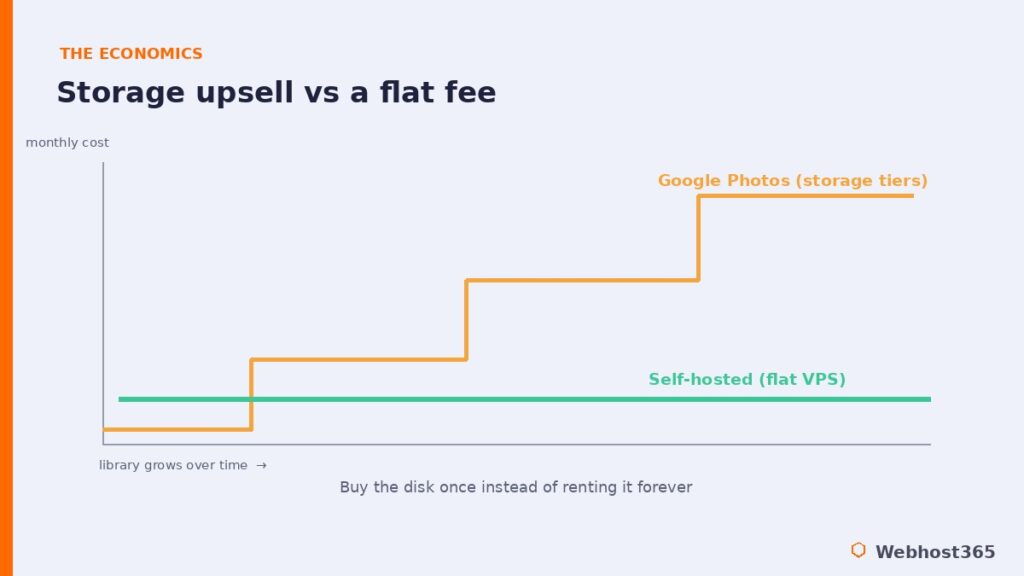
Cost is the second, and it inverts the cloud model. Photo services bill you for storage that only ever grows, so the longer you use them the more you pay, forever. A VPS costs a flat monthly fee, and the storage you buy is yours — when your library outgrows it, you upgrade the disk once rather than paying a rising subscription in perpetuity. It is the same flat-versus-metered logic that makes self-hosting a backend like Supabase compelling, applied to the most sentimental data you have.
Ownership is the third. Your library lives on your disk, in standard files you can copy, move, and back up with ordinary tools. There is no account to be suspended, no policy change that locks you out, no service shutdown that strands your memories. Immich has become the fastest-growing project in this entire space precisely because it delivers all of that without asking you to compromise on the experience.
The honest counterpoint belongs right here, because it is important. A managed cloud service gives you zero operations and battle-tested redundancy that a single VPS does not match on its own — and Immich’s own developers are refreshingly direct that you should never make it your only copy of your photos. Self-hosting wins decisively on privacy, cost over time, and ownership; it asks in return that you take backups seriously, which is a section we will treat as non-negotiable later. If you want a photo service you never have to think about and you trust the provider with your data, managed cloud is the pragmatic call. For everyone who wants their memories under their own roof, read on.
What Immich Actually Is
Immich is not a single program; it is a small set of services working together, and seeing the shape of it makes the setup steps obvious.
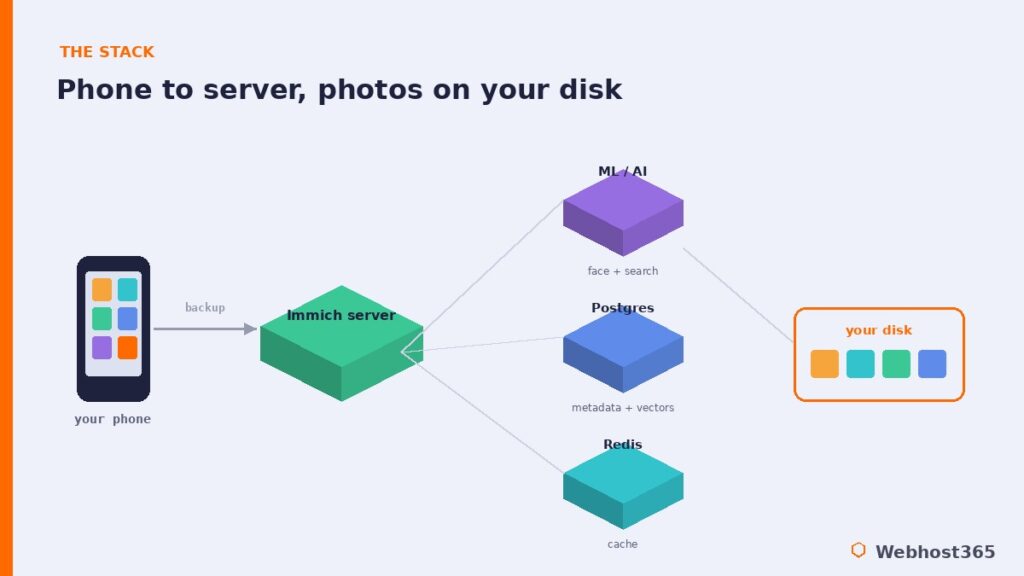
At the center is the Immich server, which handles uploads, the web interface, and the API your phone talks to. Alongside it runs a dedicated machine-learning container — this is where the magic lives, performing face recognition and the CLIP-powered semantic search that lets you type “dog at the beach” and actually find it, all locally. Underneath sits PostgreSQL with a vector extension, storing your metadata and the searchable embeddings of every image, and a Redis-compatible cache that keeps everything responsive. Your actual photos and videos live as ordinary files in a folder you choose, not buried inside a database.
The piece that makes Immich a true Google Photos replacement rather than a web gallery is the mobile app. Available for iOS, Android, and F-Droid, it backs up your camera roll automatically in the background, exactly the way Google Photos does — and that single feature, which we will set up in its own step, is what turns this from a project into something your whole family actually uses. The official Immich documentation covers the full Docker Compose deployment, and the rest of this guide is the practical, secured path through it.
Sizing the VPS
Because Immich runs several services at once — including that machine-learning container — it needs more room than a single-purpose app, and the photo library only grows over time. The official guidance is a clear floor: a minimum of 4 GB of RAM and 2 CPU cores, 6 GB recommended, and 8 GB with 4 cores for a genuinely smooth experience once face recognition and smart search are working across a large library. Storage is the other axis: budget for your library’s size plus roughly 10 to 20 percent overhead for thumbnails and video transcodes.
| VPS 365 tier | Specs | Best for |
|---|---|---|
| t3.small — $9.99/mo | 3 core / 6GB / 55GB NVMe | A modest library, getting started |
| c4.medium — $19.99/mo | 4 core / 8GB / 80GB NVMe | The sweet spot: smooth ML, room to grow |
| c4.large — $39.99/mo | 6 core / 12GB / 160GB NVMe | Large libraries and multiple users |
The honest read: the 6 GB t3.small runs everything and suits a modest library you are just starting, but the machine-learning features breathe easier with more headroom. For most people the 8 GB c4.medium is the sweet spot — comfortable AI performance and 80 GB of NVMe to grow into — and if you are migrating years of a large family library or serving several people, the 12 GB c4.large with 160 GB is the one that will not feel tight. The same sizing logic we laid out for AI workloads in our guide to the best VPS for Ollama applies here: RAM headroom for the ML container and fast NVMe storage matter far more than raw core count, and storage is the dimension you will keep growing.
Step 1: Prepare the VPS and Install Docker
Start with a fresh Ubuntu VPS, because the entire Immich stack is containerized. Install Docker from its official repository — and this matters more than it looks:
sudo apt update && sudo apt upgrade -y
curl -fsSL https://get.docker.com | sh
sudo usermod -aG docker $USER
Log out and back in for the group change to take effect, then verify:
docker --version
docker compose version
That second command is the one to check carefully. Immich requires the modern Compose plugin, invoked as docker compose with a space — the deprecated docker-compose with a hyphen is not supported and is the single most common reason an install fails on day one. If you installed Docker from Ubuntu’s own package manager rather than the official repository, you likely have the wrong version; the install script above gives you the correct one. Our full walkthrough on how to deploy Docker on a VPS covers this in more depth if you want it.
Now the security gate, and it is not optional here of all places. This server is about to hold years of your most personal photographs. A box that exposed is not somewhere to cut corners, so before going further, work through our guide on how to secure your Linux VPS: SSH keys, a default-deny firewall, and fail2ban are the thirty-minute baseline. Hardening the server that holds your family’s memories is part of the job, not an afterthought.
Step 2: Download and Configure Immich
Immich publishes a ready-made Docker Compose file with every release. Create a directory for it, then pull down the two files you need — the compose file and the example environment file:
mkdir ~/immich-app && cd ~/immich-app
wget -O docker-compose.yml https://github.com/immich-app/immich/releases/latest/download/docker-compose.yml
wget -O .env https://github.com/immich-app/immich/releases/latest/download/example.env
Open the .env file and set a few values that matter. Give DB_PASSWORD a strong, unique value rather than the placeholder. Set UPLOAD_LOCATION to where your photos will live and DB_DATA_LOCATION to where the database stores its files. And pin IMMICH_VERSION to a specific release rather than leaving it floating — Immich ships quickly, and pinning a version means an update happens when you choose it, after reading the release notes, not by surprise.
One configuration detail catches people out and is worth getting right the first time: DB_DATA_LOCATION must sit on a filesystem that supports Unix ownership and permissions — EXT4, ZFS, BTRFS, or XFS. It will not work on NTFS or exFAT/FAT32, which is a trap mostly for people pointing it at a mounted network share or external drive. On a standard Linux VPS your disk is already EXT4, so this simply works, but never point that database directory at a network share. And set both UPLOAD_LOCATION and DB_DATA_LOCATION to real, permanent paths outside any temporary directory, because these folders are your photos and your database — they must persist.
Step 3: Launch Immich and Create Your Account
With the files in place and the .env configured, starting Immich is one command from inside your immich-app directory:
docker compose up -dThe first run pulls several images — the server, the machine-learning container, PostgreSQL, and the cache — so it takes a few minutes. When it settles, confirm everything came up healthy:
docker compose psYou want every service showing as running or healthy. If one is stuck restarting, its logs name the reason — docker compose logs immich-server is the place to look first, and the cause is almost always a value missed in .env. Once the stack is up, open your server’s address on the Immich web port in a browser. The very first account you register becomes the administrator, so create yours immediately; leaving registration open would let anyone who finds your server claim it. The machine-learning container quietly downloads its models the first time those features run, so face recognition and search become smarter in the minutes after your first uploads rather than instantly.
Step 4: Set Up Mobile Backup
This is the step that turns Immich from a piece of software into the thing your family actually relies on, because automatic phone backup is the entire reason Google Photos became indispensable. Install the Immich app from the App Store, Google Play, or F-Droid, and on first launch it asks for your server URL — the same address you used in the browser — and your login.
Once you are in, enable backup. The app lets you choose exactly which albums sync or simply back up everything, and you can restrict uploads to Wi-Fi so you are never burning mobile data on a thousand holiday photos. Turn on background backup and the app behaves just like Google Photos: new pictures upload quietly on their own, with no thought required.
One practical tip for the first sync. If you are bringing over a large existing camera roll, the initial upload can take hours and runs as a background job — start with a single small album to confirm everything works end to end, then enable the full backup and let it run overnight. After that first push, you will genuinely forget it is happening, which is exactly the point.
Step 5: Expose It Safely, Then Turn On the AI
Right now your Immich is reachable on a raw port, which is fine on your own network but wrong for something you will reach from your phone anywhere. The correct way to expose it is behind a reverse proxy that terminates HTTPS on port 443 and forwards to Immich locally. This gives you a real TLS certificate, an encrypted connection for every photo your phone sends, and a single clean entry point — never publish Immich’s raw ports straight to the internet. If the concept is new, our reverse proxy explainer covers what it does and why it belongs in front of an app like this. SSL is not optional here: you are transmitting personal photographs, and they must travel encrypted.
With the door secured, the intelligence is already waiting. Immich’s machine-learning container powers two features that feel like magic and run entirely on your server. Face recognition automatically groups photos by person, so you can browse everything of one family member with a tap, and you can name faces to refine it. Smart search lets you describe what you are looking for in plain language — “birthday cake,” “snow,” “my dog at the beach” — and the CLIP model finds matching images without you ever having tagged a thing. Every bit of that analysis happens locally, on hardware you own, which is the whole promise of self-hosted Immich made concrete: the same intelligence Google runs on your photos in their cloud, running instead on your box, for nobody’s benefit but yours.
Step 6: Back Up Your Library
This step is not optional, and it is the one piece of advice Immich’s own developers repeat most insistently: Immich is under active development, and you should never make it your only copy of your photos. Self-hosting hands you ownership, and ownership includes the responsibility cloud services quietly handled for you. Treat this section as the price of admission, not an afterthought.
There are two distinct things to protect, and you need both. The first is your photo and video files themselves, living in the UPLOAD_LOCATION folder you set earlier — these are ordinary files, so any file-backup tool copies them. The second is the database, which holds your albums, your face-recognition data, and the metadata tying everything together; back it up with the database dump method described in the official documentation, because the files alone will not restore your organized library without it.
The discipline that matters is keeping a copy somewhere other than the VPS itself. VPS 365 includes free automated backups and one-click live snapshots, which protect you against a mistake or a failed update on the server — a genuinely valuable safety net. But a true backup also lives off the machine: a copy pulled down to a computer at home, or pushed to separate object storage, so that losing the server never means losing the memories. Our website backup strategies guide lays out the 3-2-1 approach worth following here, and its core rule applies with full force to irreplaceable photos: a backup you have never restored is only a hope, so test a restore before you ever need one.
The Honest Limits
A guide that only sells you the upside is not worth trusting, so here is the straight version. Immich moves fast, and that speed occasionally brings breaking changes between releases — which is exactly why you pinned IMMICH_VERSION and why reading the release notes before an upgrade is a habit, not a suggestion. It is built for individuals and families, not enterprises: there is no granular role-based access control or corporate asset-management workflow, so it is the wrong tool for a business digital-asset library. The machine-learning features are wonderful but genuinely want RAM, so undersizing the box shows up as sluggish search. And the whole bargain is that updates, security, uptime, and backups are now yours to own.
None of that is a dealbreaker for the audience Immich is built for, but it is honest. If you need zero maintenance, guaranteed redundancy with no effort, and never want to think about a server, a managed photo service remains the pragmatic choice. Self-hosted Immich wins decisively on privacy, long-term cost, and ownership of your most personal data — and for a great many people, that is the entire point.
Conclusion: Your Memories, Your Server
Self-hosted Immich gives you the Google Photos experience almost feature for feature — automatic mobile backup, face recognition, plain-language search, shared albums, a beautiful timeline — running entirely on a server you own, for a flat fee that does not climb every time your library grows. Download the compose file, configure a handful of values, launch the stack, set up your phone, secure it behind a reverse proxy, and back it up properly: roughly an hour of work to take your memories off someone else’s cloud for good. The intelligence that makes the experience feel magical runs on your hardware, for your eyes only.
What it rests on is a VPS with enough room for the stack and the library. Our Linux VPS 365 plans fit it precisely: the c4.medium at $19.99 per month with 8 GB of RAM and 80 GB of NVMe is the comfortable sweet spot for smooth AI features and room to grow, while the c4.large at $39.99 with 12 GB and 160 GB suits large family libraries and multiple users. Every plan includes full root access, KVM virtualization, free automated backups, and one-click snapshots — the right foundation for irreplaceable data — and your renewal price never moves from your signup price. Spin up a box and bring your photos home this weekend.
FAQ: Self-Hosted Immich
Yes. Immich is fully open source and free to run; your only cost is the server it lives on. On a VPS you pay a flat monthly fee no matter how many photos you store, with no per-gigabyte upsell — when your library outgrows the disk, you upgrade the plan once rather than paying a forever-climbing subscription.
The official minimum is 4 GB of RAM with 2 CPU cores, 6 GB recommended, and 8 GB with 4 cores for smooth performance with machine-learning features and a large library. For storage, plan for your library’s size plus roughly 10 to 20 percent overhead for thumbnails and video transcodes, and choose a plan you can grow into.
It delivers the same core experience, but with one rule: never make it your only copy. Immich’s own developers advise keeping an independent backup, since the project is under active development. Run it alongside a proper backup strategy — files plus database, with an off-server copy — and it is an excellent, private replacement.
Yes. Immich has native mobile apps for iOS, Android, and F-Droid, and they handle automatic background backup of your camera roll just like Google Photos. You point the app at your own server, log in, enable backup, and new photos sync on their own, with an option to restrict uploads to Wi-Fi.
Yes. You can export your library from Google Takeout and import it into Immich, and the project provides tooling to bring large existing collections in. The initial import of a big library takes time and runs in the background, so it is best started with a small test batch and then left to process overnight.
For individuals and families it is excellent and widely used in daily life. It is not designed for enterprise asset management, lacking the access controls a business needs, and it expects you to handle updates and backups. For the personal and family use it was built for, paired with real backups, it is a polished, dependable Google Photos alternative.