
WordPress and Claude are a natural pair, and almost nobody is using them together properly. Most “AI in WordPress” content is about adding a chatbot to your homepage or auto-generating filler posts. What we are going to do in this guide is different: connect Claude Desktop directly to your WordPress site through the Model Context Protocol, so that the AI can read drafts, edit posts, manage media, suggest taxonomies, and run real editorial work through plain conversation — on your infrastructure, with your tools, with the audit trail your business actually needs.
This is the third article in our MCP series. We have already covered how to self-host an MCP server on a VPS and how to build a custom MCP server from scratch. This guide picks the most useful real-world example of all: connecting Claude to WordPress using the AI Engine plugin, which ships a production-grade MCP server you can enable in two clicks. The plugin handles the protocol layer; the article handles everything you need to make it work safely, securely, and in the way a serious WordPress operator would run it.
We use this exact setup in production at Webhost365 — Claude Desktop is connected to the WordPress site you are reading right now, and the article you are currently reading went through that workflow on the way to publication. The patterns here are not theoretical; they are the ones that ship our blog. By the end of this guide you will have Claude Desktop connected to your own WordPress site, authenticated properly, scoped to the right access level, and ready to do work that previously took half an hour of clicking around the admin panel.
Why Connect WordPress to Claude
The point of connecting Claude to WordPress is not novelty. It is the elimination of work that nobody enjoys doing — the high-volume, low-skill, repetitive tasks that consume a disproportionate share of every editor’s, marketer’s, and site owner’s week. With the right MCP setup, that work moves from twenty minutes of clicking through the admin panel to a thirty-second natural-language conversation.
A few use cases that justify the setup on their own:
Editorial automation with a human gate. Drafting, rewriting, and structural editing of posts is the use case we run ourselves. Claude reads a draft, suggests structural improvements, applies them after we approve, and queues the post for publication — without the editor ever opening the WordPress admin. The human review gate stays where it belongs (publish, taxonomy assignment, featured images), but the friction in between gets removed.
Content audits at scale. A WordPress site with two hundred posts is a content audit waiting to happen. Stale titles, thin content, missing meta descriptions, broken internal links, outdated screenshots. Asking Claude “list every post in the Hosting category last updated before 2024 and tell me which ones need a refresh” turns a half-day audit into a five-minute conversation, with results that feed straight back into edits.
Bulk taxonomy and metadata cleanup. Every WordPress site eventually accumulates messy categories, duplicate tags, inconsistent slugs, and orphaned attachments. Claude can identify the problems and propose specific corrections, often catching patterns a human would skim past. The actual writes happen through MCP tool calls with the kind of structured output that makes review easy.
SEO operations across hundreds of posts. With AI Engine’s SEO Engine extension, Claude can read existing meta titles and descriptions, identify ones that are too long, too short, or duplicated across pages, and suggest replacements in your voice. Schema markup gaps, missing alt text, internal link opportunities — the kind of work that compounds across a whole site rather than improving one post at a time.
Media library management. Alt text is the single most-neglected accessibility and SEO field on most WordPress sites. Claude can read every image in your media library, generate appropriate alt text from filename, post context, and visual content where available, and write it back. The same applies to image titles, captions, and filename hygiene.
WooCommerce operations. Product descriptions, category cleanup, inventory status checks, order pattern analysis — all available through AI Engine’s WooCommerce MCP tools (in the Pro tier). For e-commerce sites with hundreds of SKUs, this is the difference between a content team that scales and one that drowns in product work.
Honest counter-list of what still needs human review: actually publishing posts, deleting anything in bulk, changing user permissions, modifying site settings, anything that touches payment processing or customer data. Claude can prepare and stage all of these; the green light should still come from a person. The point of the integration is to remove tedium, not to remove judgement.
The Two Approaches: Hosted MCP vs Self-Hosted via AI Engine
There are two practical ways to get Claude talking to WordPress in 2026. Knowing the difference matters because the wrong choice is hard to unwind once you have wired your workflows around it.
Hosted MCP services route requests through a third party. You point Claude at the hosted provider’s URL, the provider holds your WordPress credentials, and the provider executes the actual REST API calls against your site. The setup is fast — sometimes a single sign-in flow — but the data plane is no longer yours. Every tool call, every draft Claude reads, every customer record it touches passes through the provider’s infrastructure. For a hobby blog this is fine. For anything with regulated data, sensitive editorial drafts, or customer information, it is a non-starter.
Self-hosted MCP via a WordPress plugin is the other path. You install a plugin on your WordPress site that ships its own MCP server, enable it, and connect Claude directly. There is no middleman — Claude talks to your WordPress installation, your WordPress installation talks to Claude, and the only third party in the loop is the AI provider itself (whichever model Claude is running). The plugin we use, and the one this article walks through, is AI Engine by Meow Apps. The free tier of the plugin ships the entire MCP server we are going to use; no paywall sits between you and a working setup.
Here is the comparison most readers actually need:
| Factor | Hosted MCP service | Self-hosted via AI Engine |
|---|---|---|
| Setup time | Minutes | 15–30 minutes |
| Where data lives | Third-party infrastructure | Your WordPress server |
| Monthly cost | Per-call or per-seat pricing | Flat — included in your existing WordPress hosting |
| GDPR / HIPAA fit | Depends on provider | Inherits your site’s posture |
| Plugin ecosystem | Limited to provider’s offerings | Anything that hooks into AI Engine |
| Vendor lock-in | High — protocol is open but data sits with vendor | None — plugin is GPL, MCP is open |
| Custom tools | Whatever provider exposes | Anything you can code as a WordPress extension |
| Auth control | Provider’s flows | Your WordPress users and roles |
A genuinely honest note on when hosted services are still the right call. If you run a small personal blog, you do not employ developers, and your content is entirely public, the friction of a self-hosted setup may not pay back. Sign up for a hosted service, point it at your blog, and move on. The benefits of self-hosting are real but they compound with scale, sensitivity, and customisation needs. If none of those apply to you, do not over-engineer.
For everyone else — businesses, agencies, publications, e-commerce sites, anyone running WordPress as a serious working surface — self-hosted via AI Engine is the path that scales and the path this article covers from here on.
What AI Engine’s MCP Server Exposes
AI Engine’s MCP server is not a thin wrapper over the WordPress REST API. The plugin authors made a deliberate decision to ship purpose-built tools designed for AI consumption — tools that have rich context in their descriptions, sensible defaults, and the kind of safety annotations that prevent Claude from accidentally deleting your site. Their explicit comparison is with Automattic’s MCP Adapter, which exposes the raw REST API and leaves the AI to figure out what is safe; AI Engine’s approach gives Claude tools that read like a helpful colleague’s interface rather than a developer’s debugging console.
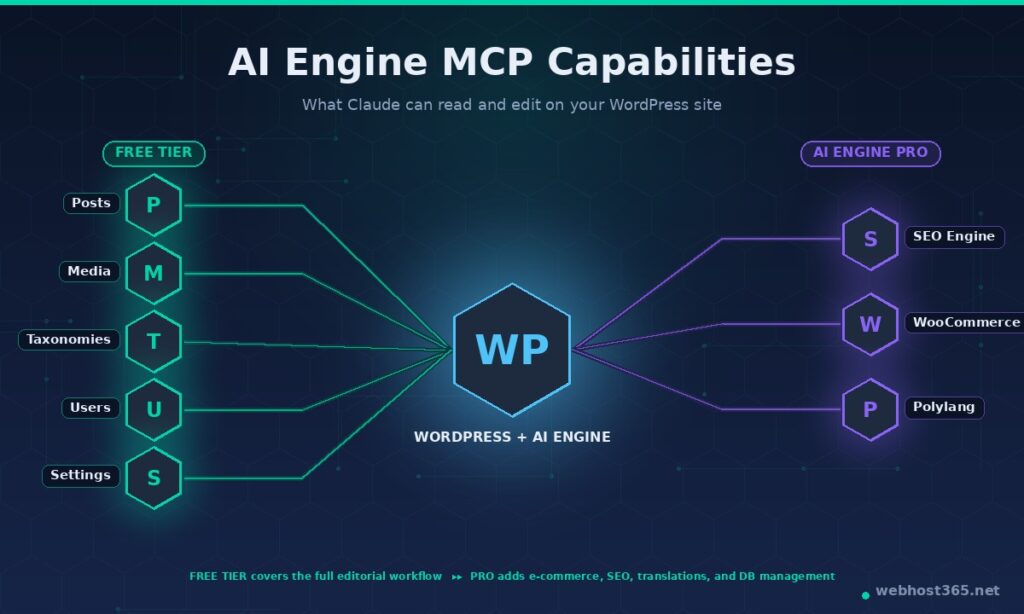
The free tier of AI Engine ships everything you need for a complete editorial workflow:
- Posts — read any post by ID or query, list posts by filter (status, category, date, author), create new drafts, update existing posts (title, content, excerpt, status, slug), delete with confirmation. The search tool understands meta queries and taxonomy filters, so “find every post in the Hosting category that mentions Bunny CDN” is a single call.
- Media — list, search, upload, attach to posts, update alt text, generate captions, delete with confirmation. This is the surface that turns a half-day alt-text cleanup into a thirty-minute job.
- Taxonomies — read and modify categories, tags, and any custom taxonomies. Create new terms, merge duplicates, reassign posts in bulk.
- Users and roles — read user data with permissions, see who has what role, identify orphaned accounts. Write operations are scoped behind the calling user’s actual capability.
- Site settings — read general settings (title, tagline, timezone, language) by default; write operations are opt-in and locked down by access level.
Authentication is handled two ways. Bearer Token is the simplest path — generate a token in AI Engine’s settings, hand it to Claude Desktop, and every request carries it. Best for headless or single-user setups. OAuth is the recommended path for Claude Desktop in production — the user signs in through their WordPress account, approves the requested scopes, and Claude receives a short-lived token. No shared secret to lose, no rotation pain, and the AI’s actions are attributed to a real WordPress user in the audit log.
If you outgrow the free tier, AI Engine Pro adds another layer of tools through its plugin extensions:
- SEO Engine — meta titles, meta descriptions, schema generation, audit tools, internal link suggestions, all as MCP tools Claude can invoke directly.
- Social Engine — schedule and publish to social channels from natural-language prompts.
- Polylang integration — translation tools for multilingual sites.
- WooCommerce tools — products (list, search, create, update), orders, inventory, customers. The single biggest reason an e-commerce site might want Pro.
- Plugin, theme, and database management — install plugins, switch themes, run database queries. Powerful and dangerous; lock these behind tight access controls.
For the workflow this article documents, the free tier is sufficient. The Pro extensions are worth knowing about, but most readers will get a working MCP-powered editorial workflow without paying for anything beyond their existing WordPress hosting.
Prerequisites and Pre-Setup
The setup needs five things in place before we start touching the plugin. None of them are heavy; most readers will have everything except possibly HTTPS already configured.
A WordPress site you control. WordPress 6.x or later, hosted anywhere you can install plugins. Managed hosts, our Linux VPS 365, shared hosting plans — anything that lets you upload a plugin will work. The plugin is the same regardless of host; only the deployment-around-it changes.
HTTPS on the WordPress site. This is non-negotiable for OAuth, and you should have it anyway. If your site is not yet on HTTPS, install a Let’s Encrypt certificate before going further — every modern hosting control panel does this in two clicks. Without HTTPS, OAuth will refuse to complete and you will be stuck with Bearer Token auth, which is fine for headless work but not the right choice for a Claude Desktop setup.
A WordPress user with the right role. For the rest of this guide, we assume you are connecting Claude as a user with the Administrator role — that gives the full MCP toolset without permission errors. For production setups where the AI does not need everything, create a dedicated WordPress user with the Editor role and give Claude that account’s credentials. Less access, smaller blast radius, cleaner audit trail. We will come back to this in the security section.
Claude Desktop installed and signed in. Available for macOS, Windows, and Linux. Free tier works for everything in this guide; Pro is needed for higher rate limits and longer conversations, but not for MCP itself. Cursor, Claude Code, and ChatGPT Desktop also work — the setup steps differ slightly per client but the WordPress side is identical.
Ability to install plugins. If you are on a managed host that restricts plugin installs (a small subset of WordPress.com plans, for example), MCP will not work for you the way this article describes. The fix is moving to a host that gives you plugin control — most do, and a VPS-based WordPress install gives you both control and headroom to grow the AI stack alongside the site.
One quick note on local vs production WordPress. The plugin and the setup steps are identical whether your WordPress is a localhost instance on your laptop or a production site on a public domain. What changes is the security posture: a local instance accepts more relaxed auth because there is no public attack surface; a production instance needs OAuth, scoped users, and the security hardening covered later. If you are testing for the first time, do it on a staging copy first — every MCP integration deserves a dry run before it touches the site that pays your bills.
With those pieces in place, the actual plugin setup takes roughly fifteen minutes. The next section walks through every step.
Step-by-Step Setup
Five sub-steps take you from a clean WordPress install to a working Claude Desktop connection. Allow about fifteen minutes the first time you do this; subsequent connections on other sites take about three.
Step 1: Install AI Engine and Basic Configuration
In the WordPress admin, go to Plugins → Add New and search for “AI Engine”. The plugin you want is AI Engine – The Chatbot, AI Framework & MCP for WordPress by Jordy Meow / Meow Apps. The icon is a stylised “AI” mark; the active installs count is well above 100,000, which is the easy way to spot the right one. Install it, activate it.
After activation, you will see a new top-level Meow Apps menu item in the WordPress sidebar. Open it and click AI Engine to land on the plugin’s dashboard. The first-time onboarding will offer to walk you through chatbot setup and AI provider configuration — skip both for now. This is the single most common point of confusion: people assume MCP requires an AI provider (OpenAI key, Anthropic key, and so on) configured inside the plugin. It does not. The MCP server is the protocol layer; Claude brings its own model. You only need to configure an AI provider in AI Engine if you also want to use the plugin’s chatbot or content-generation features, which are independent of MCP.
Close the onboarding wizard, or click through it without filling anything in. You are now ready to enable the MCP server.
Step 2: Enable the MCP Server
Navigate to Meow Apps → AI Engine → Settings, then click the MCP tab in the settings panel. You will see a toggle labelled Enable MCP Server. Turn it on.
For an OAuth connection from Claude Desktop, this is the only switch you need.
Below the toggle, the MCP Features section controls which tool groups the server exposes. WordPress (posts, media, taxonomies, users, settings) is on by default. The optional groups — Plugins, Themes, Polylang, WooCommerce — can be enabled when your workflow needs them. Leave them off until you have a reason to expose them; fewer tools means a smaller surface for mistakes.
Access control works differently per authentication method, and the distinction matters. OAuth connections inherit the role of the WordPress user who signs in — an Editor-role user gives Claude Editor-level access, nothing more. Bearer Tokens carry their own Access Level, chosen when you generate the token: Read-Only, Read-Write, or Admin. Step 3 walks through both paths.
Step 3: Set Up Authentication
The two authentication paths solve different problems and you should pick based on which client is connecting.
Bearer Token is a single static credential. AI Engine generates a long random string; you copy it; you paste it into the client’s config; every request that client makes carries the token. Simple, fast, headless-friendly. The downside is that the token is a shared secret — if it leaks, you have to rotate it, and every place using it has to be updated. Best for Claude Code (terminal-based), CI pipelines, custom scripts, and single-user development setups.
OAuth is the modern path. The user (you, in Claude Desktop) clicks “Connect”, gets redirected to your WordPress login page, signs in with your existing WordPress credentials, approves the requested scopes, and Claude receives a short-lived access token tied to your WordPress user account. No shared secret to lose. Every action Claude takes is attributed to your actual WordPress identity in the audit log. The recommended path for Claude Desktop in production.
For this guide, we will set up OAuth because it is what Claude Desktop expects and what most readers should use. If you are connecting Claude Code or a headless client instead, scroll down to the Bearer Token note at the end of this step.
AI Engine ships OAuth 2.1 support built in — no separate plugin, no third-party service, and no token to generate. If you are connecting Claude Desktop, there is nothing more to configure on the WordPress side. Just note your MCP endpoint URL, shown in the MCP settings panel:
https://yourdomain.com/wp-json/mcp/v1/httpClaude Desktop needs this URL in the next step.
For Bearer Token users (Claude Code, headless setups): click Generate New Token in the same panel and choose an Access Level for it — Read-Only, Read-Write, or Admin. Start with Read-Only and raise it only when the workflow needs writes. Copy the token and store it somewhere safe — AI Engine will not show it again. You will paste it into your client’s config in Step 5.
Step 4: Connect Claude Desktop
Connecting Claude Desktop takes three clicks and needs no config file. Open Claude Desktop and go to Settings → Connectors, then click Add custom connector. Give it a readable name, such as My WordPress — this is what you will see whenever Claude is about to use a tool from this server — and paste your MCP endpoint URL:
https://yourdomain.com/wp-json/mcp/v1/httpReplace yourdomain.com with your actual WordPress domain, then confirm. Claude Desktop opens your browser and sends you to your WordPress site. If you are not already logged in, the standard wp-login.php screen appears first. Sign in with the dedicated MCP user you created earlier. You will then land on an approval screen showing which app is asking, which user you are signed in as, and what role that user holds. Click Approve, and the connection completes.
One note on older tutorials: you may find guides that have you editing claude_desktop_config.json by hand. That file is only for local stdio MCP servers. AI Engine’s MCP server is a remote Streamable HTTP server, so the Connectors panel is the correct path — and the same connector automatically appears in claude.ai and Claude Cowork as well. The plugin’s official connection guide covers the same flow with screenshots.
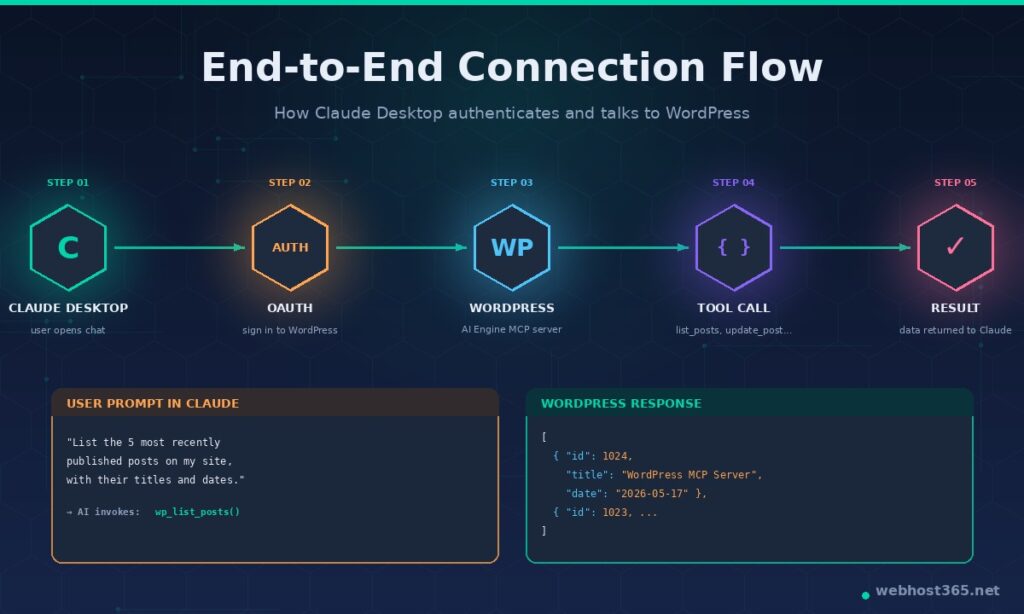
To verify everything is wired correctly, start a chat with a simple read-only prompt:
“List the five most recently published posts on my WordPress site, with their titles and publish dates.”
Claude should recognise that the WordPress MCP server has the right tool, invoke it, and return the list. The first time this works is a small but satisfying milestone — your AI assistant is now reading from your actual WordPress site, on your infrastructure, through a connection you control.
Step 5: Connect Claude Code (Brief)
If you also want to use Claude Code (the terminal-based assistant) against the same WordPress site, the setup is essentially the same with a different config file location. Claude Code reads its MCP servers from a project-level .mcp.json file, or from a global config at ~/.claude/mcp.json. The JSON shape is identical to Claude Desktop’s. Bearer Token works better than OAuth here because Claude Code does not have a browser to complete the OAuth flow; either generate a dedicated Bearer Token for command-line use or share the one from Step 3 across both clients.
A typical Claude Code MCP entry looks like this:
json
{
  "mcpServers": {
    "wordpress": {
      "type": "http",
      "url": "https://yourdomain.com/wp-json/mcp/v1/http",
      "headers": {
        "Authorization": "Bearer YOUR_TOKEN_HERE"
      }
    }
  }
}
Restart Claude Code after editing the config, and the WordPress tools should be available alongside whatever other MCP servers you have configured. The same pattern works for Cursor, VS Code with the MCP extension, and ChatGPT Desktop — the file paths differ but the structure is the same.
With the connection live, the rest of the article is about using it properly: which workflows pay back the setup cost, how to lock down access, and where things tend to go wrong.
Real-World Use Cases — Our Editorial Workflow at Webhost365
This section is the one that matters most, because it is the one a competitor cannot copy. Everything above is documentation; what follows is what we actually do.
We use a self-hosted MCP server, powered by AI Engine, to drive most of the editorial work behind this blog. Claude Desktop is connected to our WordPress site through OAuth, authenticated as a dedicated MCP user account that holds the Editor role (not Administrator — more on that in the security section). The MCP server runs on the same VPS as the WordPress site itself, so there is no public network hop between them; Claude talks to a public HTTPS endpoint, AI Engine handles the request internally, and the actual database calls never leave the box.
The workflow we run looks roughly like this. A draft article gets written in a Markdown file and dropped into a shared folder. Claude reads the file, calls the WordPress MCP server to find related published posts, suggests internal links inline, applies the changes after we approve them, and creates a new draft in WordPress with the cleaned-up content. From there, Claude generates a meta title and meta description, suggests appropriate categories and tags based on what already exists in the taxonomy (no inventing new tags — that would create the thin-archive problem we have flagged before), and writes alt text for any images we have already uploaded to the media library. The human gate is between the draft being ready and the post going live: a real editor reviews the structure, the suggested internal links, and the metadata, makes any final calls, and clicks Publish. Claude never publishes posts. That gate is deliberate.
The tools we trust Claude with autonomously are the ones where mistakes are cheap and reversible: reading posts, listing media, querying taxonomies, drafting new content into the database. The tools we keep on a tight leash are the ones where mistakes cost us: publishing, bulk deletions, settings changes, and anything in the user-management surface. WordPress role scoping makes this easy — our MCP user holds the Editor role, which means destructive operations on settings or other users fail at the WordPress permission layer even if the AI tried to invoke them. Defence in depth: the AI is well-behaved, and the underlying system would refuse the call anyway.
Resource usage on the WordPress side stays unremarkable. AI Engine’s MCP traffic shows up as ordinary REST API calls in the access log; we see roughly 80–200 KB per editorial session passing through the endpoint. CPU and memory footprints on the WordPress side are within the noise floor of normal admin usage. The much heavier load — running the AI model itself — happens at Claude’s end, not ours, which is the entire point of the protocol.
We have been bitten exactly once. Early in the rollout, before we had the access-level locked down, Claude was asked to “clean up the tags” and proceeded to do exactly that — merging several duplicates into canonical versions, which was correct, but also removing two tags it judged to be redundant, which was correct in spirit and wrong in execution because both still had associated posts that we had not yet retagged. We caught it in the audit log within an hour, restored from a backup, and changed two things: moved the connection from an Administrator account to a dedicated Editor-role MCP user, and added an explicit rule to our editorial prompts that taxonomy deletions always require human confirmation regardless of how confident the AI is about the merge being correct. That single incident is the reason this article includes a strong recommendation for scoped users and dedicated MCP accounts. The lesson cost us about ninety minutes; you can have it for free.
The cumulative time savings are the part that justifies the setup. A typical 3,000-word technical article like this one used to involve roughly forty-five minutes of post-writing WordPress work — slug, meta, categories, tags, internal link suggestions, alt text on images, formatting fixes, schedule. That figure is now closer to eight minutes of human time plus a few minutes of Claude doing its work in the background. Across the volume of content we ship, the math compounds quickly. The setup is a few hours’ work; it pays for itself in roughly the first week of normal use.
Security and Access Control
A WordPress MCP server is an internet-facing endpoint that grants programmatic access to your site. The security posture you bring to it should be the same one you bring to any other authenticated API on a production WordPress install — minimum privilege, rotation discipline, audit visibility, and a habit of asking “what is the worst this credential could do if it leaked tomorrow?”. The good news is that AI Engine and WordPress together make most of the right choices easy.
Use OAuth over Bearer Token where the client supports it. Bearer tokens are simple, but they are a single shared secret that lives in plaintext inside a config file on disk. OAuth tokens are short-lived, scoped to the user that authorised them, and revocable from the WordPress side without anyone needing to update a config. Claude Desktop, Cursor, and ChatGPT Desktop all support OAuth; reach for Bearer Token only when the client requires it (Claude Code in headless mode, CI pipelines, custom scripts).
Create a dedicated WordPress user for MCP. Reusing your editor account for AI access is convenient and wrong. The right pattern is a separate WordPress user — call it mcp-claude or ai-editor or whatever fits your conventions — with the lowest role that gets the job done. For pure editorial work, the Editor role is enough; for read-only research, a custom role with read capability is even tighter. This gives you three immediate wins: the AI’s actions are clearly attributed in audit logs (you can see exactly what the MCP user did versus what your human editors did), revoking access is one click (delete or disable the user), and a compromised AI credential cannot escalate beyond the role you assigned.
Scope the access to the work. For OAuth connections, the WordPress role of the signing-in user is the access control — an Editor-role MCP user cannot touch settings or other users, because WordPress refuses. For Bearer Tokens, AI Engine adds its own three-tier Access Level on top (Read-Only, Read-Write, Admin), chosen when the token is generated. Start at Read-Only for any new token; raise to Read-Write only when you need writes; never issue an Admin token unless you have a specific reason and you are paying attention. The Connected Apps panel in the MCP settings lists every OAuth grant — which client, which WordPress user, when it was authorised, when it was last used — and revokes any of them in one click.
Application passwords are a separate thing. WordPress has a feature called Application Passwords that lets you generate per-app credentials for the REST API. Some readers will mix these up with AI Engine’s Bearer Token. They are unrelated — Application Passwords authenticate against the WordPress REST API directly; the AI Engine Bearer Token authenticates against the plugin’s MCP endpoint. You do not need Application Passwords for an MCP setup with AI Engine. If you find yourself reading documentation that mentions them in this context, you are probably looking at instructions for a different plugin or for raw REST API integration.
Rotate tokens on a schedule. Bearer Tokens that never rotate are the single most common credential leak path in any API setup. Pick a cadence that matches your risk profile — every 90 days for production, every 30 days for sensitive setups — and put it on the calendar. AI Engine’s regenerate-token flow takes about ten seconds; the only real cost is updating the client configs that use the old token.
Read the audit log. AI Engine logs every tool invocation with the authenticated user, the tool name, the input arguments, and the timestamp. The log lives at Meow Apps → AI Engine → Insights in the WordPress admin. Make a habit of reviewing it weekly; the first time something unexpected appears in the log is also the first time you will appreciate having the log at all. Our own incident from the previous section was caught because the audit log made the taxonomy deletions obvious within minutes of starting a routine review.
Network-level controls for the paranoid. If you want belt and braces, restrict the MCP endpoint at the web server level — Nginx or Apache can require an IP allow-list before requests even reach WordPress. This is overkill for most setups, but it is the right choice when the MCP user has write access to anything sensitive and you have a small, known set of operator IPs. For the deeper version of this conversation — operating-system-level hardening, firewall rules, audit logging at the VPS layer — see the MCP Server Hosting guide, which covers VPS-level security in depth for any MCP server on your infrastructure, AI Engine or otherwise.
The pattern across everything in this section is the same: assume the credentials will eventually leak, make sure the blast radius when they do is small, and keep enough visibility that you will notice quickly. None of these practices add meaningful friction to the day-to-day workflow; all of them mean that the day something does go wrong, you are dealing with an annoyance rather than an incident.
Common Pitfalls
A short list of the failures that cost the most time, in roughly the order new builders hit them.
Claude Desktop says it couldn’t reach the MCP server. First, open the MCP endpoint directly in a browser — https://yourdomain.com/wp-json/mcp/v1/http should return a JSON response rather than a 404 or a WordPress error. A 404 means the MCP server is not actually enabled; go back to Step 2 and toggle it on. If the endpoint responds but the connector still fails, the usual culprits are a security plugin or WAF blocking the /.well-known/ OAuth discovery paths, a hosting firewall filtering REST API requests, or a 2FA plugin intercepting the login flow. Allow-list the MCP and /.well-known/ paths and try again. For Claude Code, also check the .mcp.json syntax — a missing comma silently breaks the whole mcpServers block.
OAuth redirects fail with a callback URL mismatch. This happens when your WordPress site URL setting does not match the URL Claude is connecting to. Check Settings → General in WordPress — the “WordPress Address (URL)” and “Site Address (URL)” fields must be the exact HTTPS URL you are using, including or excluding www consistently. If you have one as https://yourdomain.com and the other as https://www.yourdomain.com, the OAuth callback breaks. Pick one, set both fields to it, save, and try the connection again.
HTTPS is missing on the WordPress site. OAuth will refuse to complete over plain HTTP, full stop. The symptom is an OAuth flow that starts, sends you to WordPress, but never returns a token to Claude. If your site is not on HTTPS, install a free Let’s Encrypt certificate before anything else; every modern hosting control panel does this in a couple of clicks. Bearer Token works over HTTP for testing, but the token will travel in plaintext on every request, which is the kind of decision that ends up in a postmortem six months later.
Claude connects but tool calls fail with permission errors. The WordPress user the MCP server is authenticated as does not have the capability the tool needs. An Editor-role user trying to modify site settings will fail; a custom role missing edit_posts cannot create drafts. The fix is either raising the user’s role (carefully) or scoping the workflow to what the existing role can actually do. AI Engine’s audit log shows which tool failed and which capability was missing — read it before guessing.
Claude does not see new tools after a plugin update. MCP clients cache the server’s capability list at session start. If AI Engine adds new tools in an update (it ships them often), Claude Desktop will continue to use the old cached list for the rest of the current session. Open a new chat, or fully restart Claude Desktop, and the new tools appear. This bites everyone exactly once.
Tool calls work in the Inspector but not in Claude Desktop. Unusual but real. The MCP Inspector and Claude Desktop both speak the protocol, but they handle authentication differently — particularly with OAuth. If the Inspector works and Claude Desktop does not, the issue is almost always at the OAuth callback layer. Check the WordPress site URL settings as described above, and clear Claude Desktop’s cached authentication state by removing the connector in Settings → Connectors, restarting Claude Desktop, and adding it fresh.
Application passwords keep showing up in tutorials. Some online walkthroughs for connecting AI to WordPress use Application Passwords against the WordPress REST API directly, without involving AI Engine at all. If you find a guide that has you generating an Application Password and pasting it into Claude’s config, you are reading instructions for a different (and worse) integration approach. AI Engine’s MCP server uses its own Bearer Token system; ignore the Application Password path entirely when following this article.
The SSE transport is deprecated. AI Engine used to offer Server-Sent Events as a transport option for MCP; this is scheduled for removal in July 2026. If you see SSE-related settings anywhere in the plugin, ignore them — Streamable HTTP is the standard now, and that is what every modern client uses.
The pattern across all of these is the same: the integration is well-behaved when each layer is configured correctly, and almost every “weird” failure traces back to a misconfiguration at the auth layer, the URL layer, or the plugin enablement step. Once you have walked the failure path once, the same mistakes are quick to spot the next time.
Hosting Considerations — Where Does WordPress + MCP Run Best?
There are three practical deployment models for WordPress + MCP, and the right one depends on what you are already running and how much control you want over the AI surface.
Model A: Existing WordPress hosting with MCP on the same site. The simplest path. Your WordPress is wherever it already lives — shared hosting, our WordPress hosting plans, a managed host, anywhere that lets you install plugins. AI Engine runs on the same WordPress install, the MCP endpoint is part of the WordPress site itself (yourdomain.com/wp-json/mcp/v1/http), and there is nothing else to deploy. Best for: individual operators, small editorial teams, anyone with one or two WordPress sites who wants Claude integration without rearchitecting anything.
Model B: WordPress on managed hosting, dedicated MCP server on a VPS. A separation-of-concerns setup. WordPress stays on whatever hosting it already lives on; the MCP server is something custom you build yourself (per the Build Your Own MCP Server guide) that wraps the WordPress REST API and runs on its own VPS. More complex, more flexible, and the right choice when you want MCP tools that go beyond what AI Engine ships — custom workflows, custom approval gates, integrations with non-WordPress systems alongside the WordPress one. Best for: agencies running many client WordPress sites through a single MCP endpoint, businesses with bespoke editorial pipelines, anyone who has hit the limits of what plugins can do.
Model C: WordPress and MCP on a single VPS, full control. What we run at Webhost365. WordPress and AI Engine live on a Linux VPS 365 instance; the MCP endpoint is part of the WordPress site as in Model A, but the underlying infrastructure is yours top to bottom. AMD EPYC processors, NVMe SSD, root access, the integrated Bunny CDN handling static assets, and the headroom to add a vector database, a self-hosted LLM, or anything else the AI stack grows into. Best for: serious WordPress operators who want operational control, businesses subject to compliance requirements that benefit from inheriting an ISO 27001 hosting environment, and anyone who is building a content engine that will scale beyond what shared hosting comfortably supports.
The honest decision matrix: if you are just starting and want to feel out the workflow, Model A is right. If you are running a content operation that ships meaningful volume, Model C is where you end up. Model B is the path for agencies and businesses with specific custom needs; most readers will not need it.
Our Linux VPS 365 starts at $4.99/mo and clears the bar for either Model A or Model C with room to grow. The same VPS that hosts WordPress will comfortably run AI Engine alongside a self-hosted RAG setup, a local LLM, or an n8n automation pipeline — which is the configuration most teams converge on once the AI stack is doing real work.
Frequently Asked Questions
No. WordPress.com’s free and lower-tier plans do not allow custom plugin installation, which means AI Engine cannot be installed at all. The Business plan and above support custom plugins; the MCP setup works identically on those. For everyone else, the path is moving WordPress to self-hosted (with any host that supports plugins) or stepping up to a WordPress.com Business plan. Self-hosting is almost always the better choice for anyone running WordPress as a serious working surface.
Yes. ChatGPT Desktop added MCP client support in early 2025, and AI Engine explicitly lists ChatGPT as a supported client alongside Claude Desktop, Claude Code, and Cursor. The setup pattern is the same — paste the MCP endpoint URL, authenticate (OAuth or Bearer Token), and the WordPress tools appear in ChatGPT’s connector list. The user experience differs slightly between clients (ChatGPT surfaces tools through a custom GPT or connector flow rather than the desktop config file), but the WordPress side is identical regardless of which client connects.
Yes, with the AI Engine Pro tier. The free tier exposes the core WordPress MCP tools (posts, media, taxonomies, users, settings), which covers most editorial workflows but does not touch WooCommerce. AI Engine Pro adds dedicated WooCommerce MCP tools — products (list, search, create, update), orders, inventory levels, and customer data — designed for AI consumption with the same purpose-built approach as the core tools. If you run a WooCommerce store and want Claude to handle product operations through natural conversation, the Pro tier is the path.
For editorial workflows on a content site, yes. The MCP server, all core tools (posts, media, taxonomies, users, settings), both authentication methods, and the audit log are all in the free tier. We run our own production setup on the free tier for everything in this guide. The Pro tier is worth paying for when you need the WooCommerce tools, the SEO Engine integration, the Social Engine scheduling tools, the Polylang translation tooling, or the advanced plugin/theme/database management. None of those are required for a working editorial MCP setup; all of them add real value if your workflow needs them.
Not directly. Each Claude Desktop user authenticates with their own WordPress account through OAuth, and each user’s actions are attributed to their own WordPress user in the audit log. That is the right design — sharing an MCP connection across multiple humans would make the audit log meaningless. The cleaner approach for multi-user setups is to create one WordPress user per Claude operator, each with appropriate role and access level, and have each operator authenticate through OAuth on their own machine.
WordPress 6.4 or newer is the practical minimum for current AI Engine versions. The plugin’s requires field on WordPress.org tracks this and updates as the codebase advances; check the plugin’s WordPress.org listing for the most current requirement. If your WordPress install is on an older version, update before installing AI Engine — running production WordPress more than two versions behind the current release is its own security problem regardless of the MCP setup.
Yes, with one caveat. AI Engine can be activated at either the network level or per-site, and the MCP server runs per-site (each site has its own endpoint, its own settings, its own audit log). For multisite networks, the cleaner pattern is per-site activation with each site’s MCP server having its own dedicated user and access level; network-level activation works but couples all your sites’ MCP behaviour together, which is rarely what you actually want. Multisite-specific WordPress operations (network admin, super-admin functions) are not exposed through MCP — those remain manual administration tasks.
Automattic’s MCP Adapter (shipped primarily for WordPress.com’s hosting service) exposes the raw WordPress REST API through MCP — essentially a thin protocol wrapper over the existing API endpoints. AI Engine takes a deliberately different approach: the MCP tools are purpose-built for AI consumption, with rich descriptions, sensible defaults, and safety annotations that prevent destructive operations from happening accidentally. The practical difference shows up in how Claude behaves when using the two — AI Engine’s tools are more interpretable, less error-prone, and faster for the AI to use effectively. For self-hosted WordPress, AI Engine is the more capable choice; the MCP Adapter is mainly relevant if you are on WordPress.com.
Conclusion
Connecting Claude Desktop to WordPress through MCP is the kind of upgrade that pays for itself in the first week of normal use. The setup is fifteen minutes; the payback is the steady elimination of the friction-heavy work that drains editorial teams. AI Engine makes the path short — install the plugin, enable the MCP server, set the access level, authenticate through OAuth, and Claude is reading and editing your WordPress site through natural conversation. There is no third-party middleman, no per-call cost, no vendor lock-in, and the entire data plane stays on infrastructure you control.
This article completes the MCP series we have built across the blog. The hosting guide covers deploying any MCP server in production on a VPS — the foundation underneath every serious self-hosted MCP setup. The build-your-own guide covers writing custom MCP servers from scratch when AI Engine’s tools, or any other plugin’s tools, do not cover the workflow you actually need. Together with this WordPress integration guide, you have a complete picture of MCP from blank folder to live editorial workflow — host, build, integrate.
If you are ready to take the WordPress + MCP setup to a production environment that gives you genuine operational control, our Linux VPS 365 is what we run ourselves — AMD EPYC processors, NVMe SSD storage, integrated Bunny CDN, ISO 27001 environment, starting at $4.99/mo. Or if you want WordPress hosting that is already optimised for serious WordPress operations, our WordPress hosting plans cover the same ground for sites that do not need a full VPS. Either path supports the workflow this article covers; the choice is whether you want a single managed surface or a VPS where the entire AI stack — MCP, vector databases, local LLMs, automation pipelines — has room to grow alongside the WordPress install.
The real value of MCP is the integrations that no public AI model could have known about on its own. Your WordPress site, your editorial conventions, your taxonomy, your media library, your customer data — these are the materials that make Claude genuinely useful instead of generically clever. The work pays for itself the first time a draft moves from idea to scheduled in a single conversation instead of an hour of clicking through admin panels.