
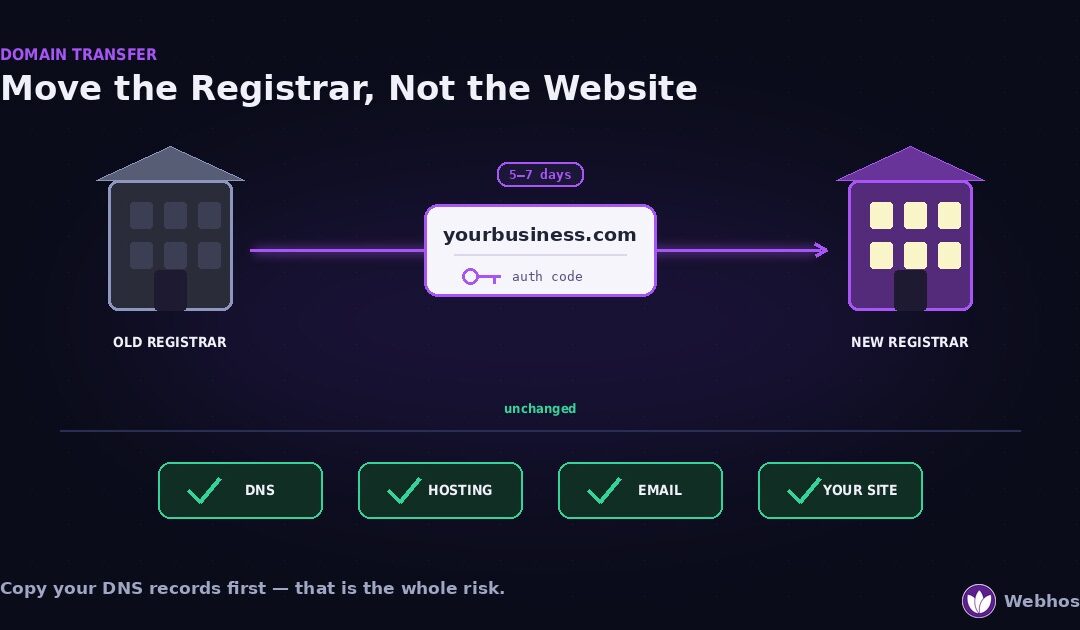
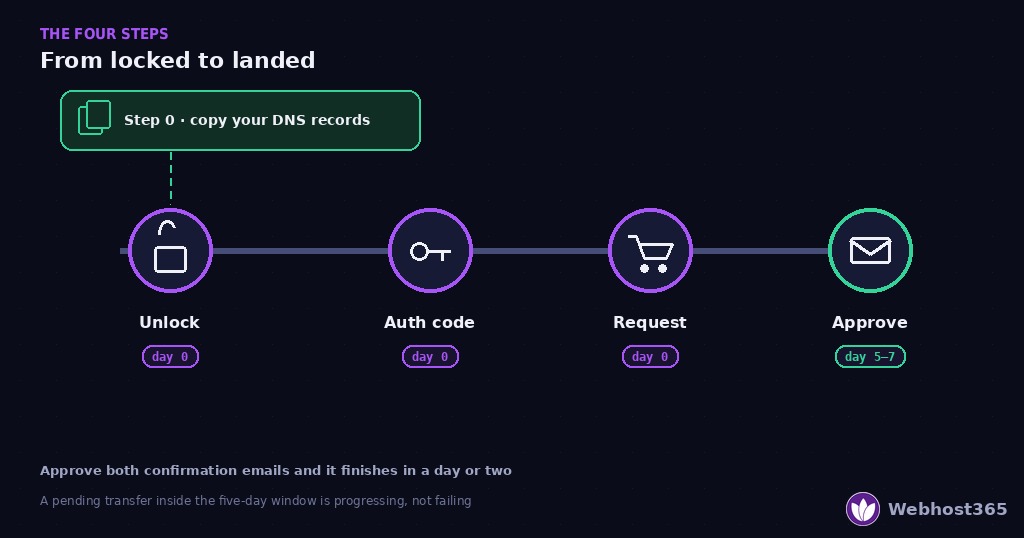
Transferring a domain moves who manages and bills it, not where it points. So your website and email keep working, provided you copy the DNS records before you start. Four steps: unlock the domain, get the authorization code, request the transfer at the new registrar, approve the confirmation email. Most transfers finish in five to seven days and add a year to the expiry.
Two things stop people from moving a domain they are unhappy with. The first is the fear that the site will go dark mid-transfer. The second is not knowing what to do when the transfer is refused. Most guides answer neither, because most are written by registrars who would rather you stayed.
We should disclose our position: we are a host, and a transfer here is a customer for us. So every rule below is cited to ICANN, the body that writes the transfer rules, rather than asserted by us. You can check each one at the source.
What a Domain Transfer Actually Changes
The word “transfer” causes most of the confusion, because three different moves get called by the same name. Separating them takes ten seconds and prevents the wrong plan.
Three different moves
A registrar transfer changes which company manages and bills your domain. This is what this guide covers, and it is the only one ICANN’s transfer policy governs.
A change of registrant changes who legally owns the domain — the name, organization, or email on the registration. It can happen at the same registrar, and it triggers a lock that blocks registrar transfers, which Section 6 explains.
A hosting migration moves your website’s files and database to a different server. That is entirely separate, and our website migration guide covers it. You can do one without the other, in either order.
What moves, and what does not
In a registrar transfer, three things change: the company on record, the billing relationship, and the panel where you manage the domain.
Four things do not change: your DNS records, your hosting, your email, and your website content. The domain keeps pointing wherever it pointed before, because the transfer does not touch the records that decide that.
The one real risk
There is a single exception, and it explains the checklist in the next section. Some registrars apply their own default nameservers to a domain when it arrives. If that happens and your records were not preserved, the domain suddenly points at a parking page instead of your site.
That is why step one is copying your DNS records, not unlocking the domain. Take a copy first, and even the worst case becomes a five-minute repair rather than an outage. Our DNS records guide explains what each record does if the list looks unfamiliar.
Before You Start: The Five-Minute Checklist
Almost every failed transfer fails for one of five reasons, and all five are visible before you begin. Check them in this order.
1. Copy every DNS record
Open your current DNS management screen and record everything: A records, CNAMEs, MX records for email, and TXT records including SPF, DKIM, and any verification strings. A screenshot works. An exported zone file is better.
Do this even if you expect the records to survive, because a two-minute copy removes the only real risk in the whole process.
2. Check the registrant email
The transfer confirmation goes to the registrant email on the domain, not to your account login. If that address is a former employee’s, an old agency’s, or a mailbox you no longer open, the transfer stalls at the approval step.
Update it now — but note the timing trap. Changing registrant details triggers a 60-day lock at many registrars, so if the email needs changing, do it and then wait, or use the opt-out if your registrar offers one. Section 6 covers that in full.
3. Check how close the expiry is
Most registrars refuse transfers for domains expiring within about 15 days, and a transfer near expiry risks the domain lapsing mid-process. If yours is close, renew first, then transfer. The renewal is not wasted, because the transfer adds its own year on top.
If the domain has already expired, stop here. A domain in redemption cannot be transferred at all — our domain expiration guide covers recovery first.
4. Confirm the domain is outside its 60-day locks
Three situations block a transfer for 60 days: a new registration, a previous transfer, and a recent change of registrant. ICANN documents all three in its transfer policy overview. Check the domain’s creation date and last-updated date in a WHOIS lookup. If either is within 60 days, wait.
5. Unlock the domain
Finally, turn off the registrar lock. In WHOIS it appears as clientTransferProhibited. Registrars must give you a reasonable way to remove it, and it is usually a toggle in the domain’s settings.
With those five done, the transfer itself takes about ten minutes of work spread over a week of waiting.
Step 1: Unlock and Get the Authorization Code
Two things must be true before any registrar will accept a transfer request: the domain must be unlocked, and you must hold a valid authorization code. Both live at your current registrar, and both take minutes.
The registrar lock
Nearly every domain carries a registrar lock by default. It is a safety feature, and it does exactly what it says — no transfer request will process while it is on.
In a WHOIS lookup it appears as clientTransferProhibited. In your registrar’s panel it is usually a toggle labelled “Domain lock,” “Transfer lock,” or “Theft protection.” Switch it off, then re-run a WHOIS lookup and confirm the status changed, because some panels show the toggle as off while the registry still holds the lock.
ICANN requires registrars to give you a reasonable way to remove the lock. So if you cannot find the switch and support will not do it, that is not a normal situation — Section 7 explains what to do about it.
The code goes by several names: authorization code, auth code, AuthInfo code, EPP code, or transfer code. They all mean the same thing. It is a unique string that proves you control the domain, and the gaining registrar cannot start a transfer without it.
You request it from your current registrar. Most panels reveal it instantly, and some email it to the registrant address on file, which is another reason that address must be one you can read.
Three things that go wrong with codes
Copy-paste errors. Codes often contain characters that look alike, and a trailing space copied from a panel will fail silently. Paste it into a plain text editor first and check what you actually copied.
Expiry. Some registrars issue codes that expire after a set period. If your transfer request is rejected days after you fetched the code, request a fresh one before assuming something worse.
Delays. A registrar that takes days to release a code is not following the spirit of the rules. ICANN’s registrant FAQ sets out what registrars must do around transfers, and unreasonable delay in supplying a code is worth raising in writing.
Step 2: Request the Transfer and Approve It
With the domain unlocked and the code in hand, the rest happens at the new registrar. This is the part that costs money and takes a week of waiting, and almost all of that wait is out of your hands.
Place the order
At the gaining registrar, choose the transfer option, enter the domain and the authorization code, and pay. Our domains page runs the same flow, with the transfer price shown next to registration and renewal.
One reassuring detail: a transfer includes a year of registration. That year is added to your existing expiry date, not instead of it. So a domain expiring in eight months becomes one expiring in twenty. You do not lose the time you already paid for.
The two confirmation emails
Both registrars contact the registrant address. The gaining registrar asks you to confirm you want the transfer, and the losing registrar usually offers you a chance to approve or cancel it.
Approve both promptly. Approving at both ends is what turns a seven-day transfer into a two-day one. Ignoring the losing registrar’s email does not stop the transfer, but it does mean waiting out the full window.
The five-day window
Here is the part almost nobody explains, and it prevents the most common mistake. Once a valid request is submitted, the losing registrar has five calendar days to approve it or deny it with a stated reason. If the window passes with no action, the registry completes the transfer automatically.
Therefore a transfer sitting in “pending” for three days is not a failed transfer. It is a transfer in progress. The mistake to avoid is cancelling it out of impatience, because cancelling resets everything and you start over with a new code.
What “pending transfer” looks like
During the window, WHOIS shows the domain with a pendingTransfer status. Your site keeps working normally throughout, because nothing about DNS has changed.
When it completes, you receive a confirmation, the registrar of record changes in WHOIS, and the domain appears in your new account. That is the moment to run the checks in the next section.
Step 3: Verify Nothing Broke
The transfer completed and the domain is in your new account. Spend five minutes confirming that everything still points where it should, because this is the window where the one real risk shows up.
Check the nameservers first
Open the domain in your new registrar’s panel and look at the nameservers. They should be exactly what they were before the transfer.
If they now read something like ns1.newregistrar.com, the registrar applied its defaults and your domain is pointing at its parking page rather than your host. Paste your original values back — the ones you copied in the checklist — and the site returns within the hour. This is the whole reason step one existed.
Then check the records themselves
Nameservers decide who answers DNS queries. The records decide what those answers are. If your DNS was hosted at the old registrar rather than at your host, those records may not have travelled.
Compare the live records against your copy: A records for the site, MX records for email, and the TXT records that carry SPF, DKIM, and any service verifications. Missing TXT records are the quiet failure here, because email keeps arriving while your outgoing mail slowly starts landing in spam folders.
Test from outside
Finally, verify from a device that has not visited the site recently. Load the site on a phone using mobile data, send an email to an address at the domain, and reply from it.
Also click the padlock and confirm the certificate is still valid. A transfer does not touch certificates, but this is a convenient moment to check, and our SSL error guide covers anything that looks wrong. If the site does not load at all, work through the 5-minute site-down diagnosis rather than assuming the transfer caused it.
The 60-Day Locks That Block Transfers
Three situations stop a transfer for 60 days, and all three catch people by surprise. Understanding them turns “my transfer was refused” into “I need to wait until the fourteenth.”
The three locks
New registration. A domain registered within the last 60 days cannot move to another registrar. This stops someone registering names fraudulently and immediately scattering them across registrars.
Previous transfer. A domain that changed registrar within the last 60 days cannot move again. Same reasoning, applied to stolen domains.
Change of registrant. Changing the registrant’s name, organization, or email address triggers a 60-day lock at many registrars. ICANN documents all three, and notes that some registrars offer an opt-out for this third one — but only if you choose it before making the change, and only if the registrar offers it at all.
The practical rule
Never edit registrant details in the weeks before a planned transfer. That single habit avoids the most frustrating version of this problem, where you tidy up your contact information on Monday and discover on Tuesday that you cannot move the domain until November.
If you must fix the registrant email to receive the transfer confirmation, do that first and accept the wait. A 60-day delay is better than a transfer that stalls because the approval email went somewhere you cannot reach.
A change is coming, but plan for today’s rules
ICANN’s policy-development process has approved a review of the transfer policy that would replace these 60-day locks with a shorter one and remove the change-of-registrant lock entirely. That review has been accepted at council level, and implementation across registrars follows separately.
As of September 2026, registrar documentation still describes the 60-day locks as current, so plan around them. If your registrar tells you a lock no longer applies, that is good news for your transfer — but do not build a schedule on it until you have confirmed it with them directly.
When a Transfer Is Refused: What Your Registrar May and May Not Do
A refused transfer feels final. It usually is not. ICANN’s Transfer Policy lists the specific reasons a losing registrar is permitted to deny a transfer — and, just as importantly, the reasons it is not permitted to use.
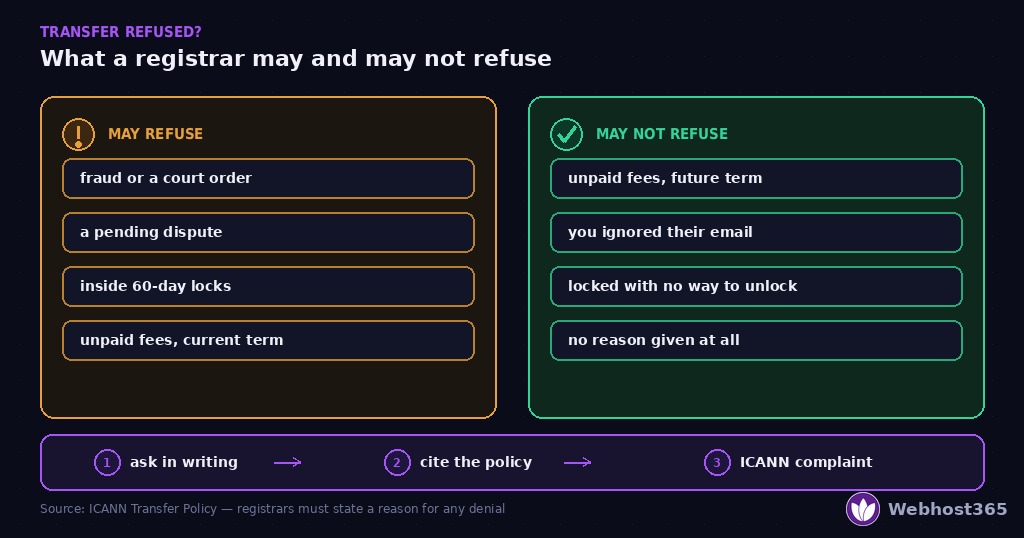
Registrars must also state a reason when they deny a request. “Transfer denied” with no explanation is itself outside the rules.
The decoder
| The reason you were given | Is it legitimate? | Your move |
|---|---|---|
| Evidence of fraud, or a court order | Yes | Resolve the underlying issue; this is not a transfer problem |
| A pending UDRP or other dispute | Yes | Wait for the dispute to conclude |
| Within 60 days of registration or a previous transfer | Yes | Wait out the window, then resubmit |
| A 60-day change-of-registrant lock you did not opt out of | Yes | Wait it out; opt out before the next change |
| Unpaid fees for the current registration term | Yes | Pay what is genuinely owed, then resubmit |
| The domain is locked, and you were never given a way to unlock it | No | Cite the policy; registrars must provide a reasonable way to unlock |
| Nonpayment for a future registration period | No | You do not have to renew early to leave; cite the policy |
| You did not respond to the losing registrar’s retention email | No | Silence is not consent to stay; the transfer should proceed |
| No reason was given at all | No | Request the reason in writing; registrars must state one |
Those “No” rows come directly from the ICANN Transfer Policy, which lists instances when a change of registrar may not be denied, including nonpayment for a future period, no response from the registrant, and lock status where the holder had no reasonable opportunity to unlock.
The escalation path
Work it in order, and keep everything in writing.
First, ask for the reason in writing. A support ticket, not a phone call. You want a record, and the request itself resolves many cases.
Second, cite the policy. If the stated reason appears in the “No” column, reply naming the Transfer Policy and asking them to reconsider. Most registrars comply at this point, because the rule is not ambiguous.
Third, file a complaint. ICANN operates a transfer complaint process for registrants whose transfer was inappropriately denied. Its registrant FAQ points to it directly. Filing is free, and registrars take it seriously because their accreditation depends on compliance.
One practical note on timing: none of this pauses your domain’s expiry date. If the refusal is happening close to renewal, renew at the current registrar while you argue. Losing the domain to expiry during a dispute is a far worse outcome than paying one more year where you did not want to.
Transfers That Fail for Ordinary Reasons
Most failed transfers are not disputes. They are small mechanical problems, and each has a five-minute fix. Work down this list before assuming your registrar is obstructing you.
The code was wrong or stale
The most common failure by far. A trailing space, a mistaken character, or a code that expired between fetching and using it.
Request a fresh code, paste it into a plain text editor to inspect it, then submit again. If the new code fails immediately with the same error, the problem is elsewhere in this list.
The lock was still on
You toggled the lock off in the panel, but the registry still shows clientTransferProhibited. Some panels save the setting without pushing it, and some apply a separate lock at the registry level.
Re-run a WHOIS lookup and read the status yourself rather than trusting the panel. If the lock persists after you have switched it off, that becomes a support ticket, and Section 7 covers what to say.
The confirmation email went nowhere
The transfer is waiting for an approval sent to the registrant address on file. If nobody reads that mailbox, the request eventually times out.
Check the address in WHOIS. If it is wrong, you are in the change-of-registrant trap from Section 6: fix it, accept the lock, and transfer afterwards.
The domain is too close to expiry, or already expired
Most registrars refuse transfers within roughly 15 days of expiry, because the risk of the domain lapsing mid-process is real. Renew first, then transfer, and remember the transfer adds its own year regardless.
If the domain has already expired, no transfer is possible until it is restored. Registries block transfers during redemption entirely, so our domain expiration guide is the right starting point.
The request timed out
If a transfer sits pending for longer than the five-day window and then cancels, something in the chain did not respond. Start over with a fresh code, and this time approve both confirmation emails as soon as they arrive.
Should You Transfer at All?
An honest section, and one where our interest is obvious: transfers bring us customers. So here is the case both ways.
Good reasons to move
Consolidation. Domains scattered across four registrars mean four renewal calendars and four chances to miss one. Expiry is the single most common cause of an avoidable outage, as our expiration guide sets out.
Renewal pricing you can see. Some registrars advertise a low first year and a renewal several times higher, without showing the second number until it arrives. We publish both prices side by side on the domains page for exactly that reason, and the same principle applies to hosting — our article on renewal price hikes explains the pattern.
Management in one place. If your hosting is here and your domain is elsewhere, every DNS change is a two-panel job. One account removes that friction.
Support that answers. If getting a straight answer about your own domain takes days, that is a reason.
Bad reasons to move
One bad support interaction is not a reason to move a domain, because moving costs a year of registration and a week of attention. Neither is a small price difference on a single domain, once you count the renewal price at the destination.
What to check before you commit
Compare the renewal price, not the transfer price — the same check that matters when choosing any new domain. Confirm the destination supports the features you rely on: DNS record types you use, WHOIS privacy on your extension, and any registrar-level locks you want. And check that support is reachable before you need it, not after.
Transferring a .in domain carries one extra step: the registry can re-run identity verification after a contact change. Our guide to .in domain registration explains what to confirm once the transfer completes.
Final Thoughts
The sequence is short enough to remember. Copy your DNS records. Unlock the domain. Get the authorization code. Request the transfer and approve both emails. Then verify the nameservers, the records, and the site from a fresh device.
Nothing goes down if the order is right, because a transfer changes who manages the name rather than where it points. And if a registrar refuses without a valid reason, you are not stuck: ICANN’s policy names the reasons that do not count, and a written request citing it resolves most cases.
If you are moving a domain to us, our domains page runs the transfer flow, and our support team will walk through the DNS copy with you before you start. That is the step worth getting right, and it is the one people skip.
FAQ
No, provided your DNS records are preserved. A transfer changes which company manages and bills the domain, not where the domain points, so your site and email keep working throughout. The one risk is a new registrar applying its own default nameservers on arrival. Copy every DNS record before you start, and if the nameservers do change, pasting the originals back restores the site within the hour.
Usually five to seven days. Once a valid request is submitted, the losing registrar has five calendar days to approve or deny it, and the registry completes the transfer automatically if that window passes without action. Approving the confirmation emails at both ends shortens the process to a day or two. A transfer sitting in “pending” inside that window is progressing normally, so cancelling it only resets the clock.
It is a unique string that proves you control the domain, and the new registrar cannot start a transfer without it. It goes by several names — authorization code, auth code, AuthInfo code, EPP code, or transfer code — and they all mean the same thing. You request it from your current registrar, which usually reveals it in the panel or emails it to the registrant address. Codes can expire, so fetch a fresh one if a transfer fails days later.
Three ICANN rules block transfers for 60 days: a new registration, a previous transfer, and a change to the registrant’s name, organization, or email address. Some registrars let you opt out of the third one, but only if you choose that before making the change. Check the domain’s creation and last-updated dates in a WHOIS lookup; if either is within 60 days, you need to wait.
Only for reasons ICANN’s Transfer Policy permits, such as evidence of fraud, a court order, a pending dispute, unpaid fees for the current term, or an active 60-day lock. The policy also lists reasons that are not permitted, including nonpayment for a future registration period, no response to a retention email, and lock status where you were never given a reasonable way to unlock. Registrars must state a reason for any denial, and ICANN accepts complaints when a transfer is refused improperly.
No. A transfer includes one year of registration, and that year is added to your existing expiry date rather than replacing it. A domain with eight months remaining becomes one with twenty months after the transfer completes. The only case worth watching is a domain very close to expiry, where most registrars refuse the transfer entirely — renew first, then move.