
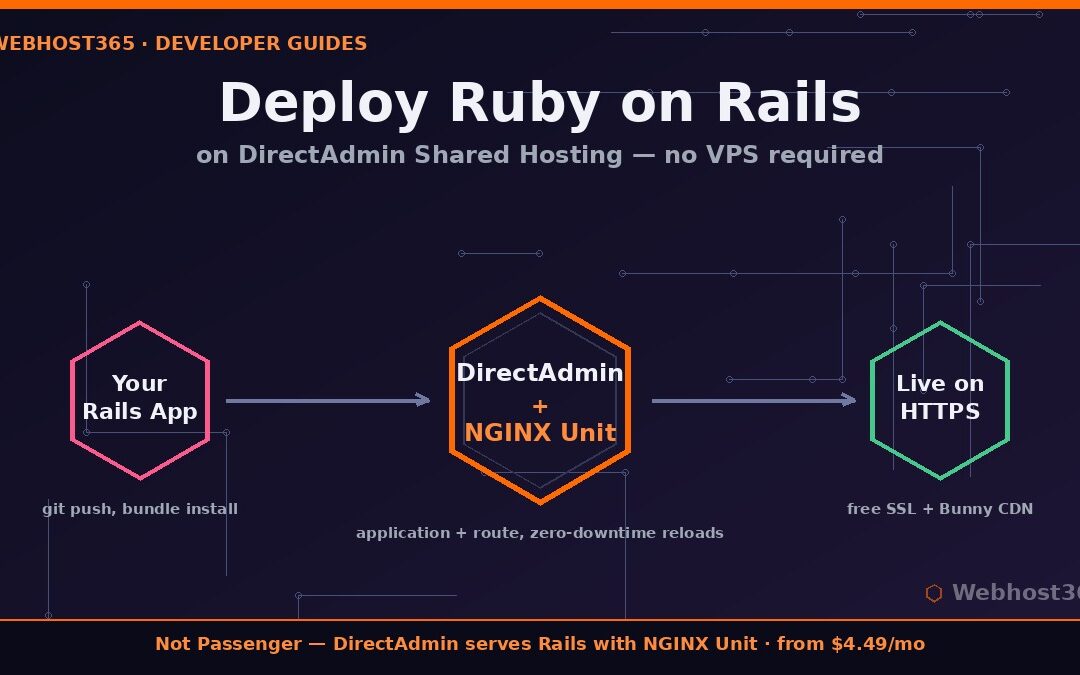
“Rails needs a VPS” is one of those pieces of hosting folklore that refuses to die. It was true a decade ago, when shared platforms had no sane way to run a persistent Ruby process. It is not true anymore. A typical Rails application — a portfolio, a client dashboard, an API backend, a small SaaS — runs perfectly well on modern shared hosting, and the monthly bill is a coffee, not a car payment.
The reason most developers never find this out is that almost nobody documents the actual path. This guide is that documentation: the complete sequence to deploy Ruby on Rails on a DirectAdmin shared hosting account, from empty account to live application, with every command shown and the platform-specific quirks explained honestly. The mechanism we use is the one DirectAdmin itself ships for exactly this purpose, and it is genuinely better than what most tutorials assume exists.
What You Need Before Starting
Three things, none of them exotic. First, a hosting plan with SSH access — on our Ruby Hosting plans it is included at every tier, and you will use it for gems and migrations. Second, a domain already pointed at the account. Third, basic comfort in a terminal: if you can cd, ls, and edit a file, you are qualified.
This guide is part of our DirectAdmin deployment series. If your stack is different, we have the same walkthrough for Django, Laravel, and Node.js with Express — the platform mechanics rhyme, but each language has its own traps.
Step 1: Understand How DirectAdmin Serves Ruby
Here is the part that makes this guide different from every Rails tutorial you have read: DirectAdmin does not use Phusion Passenger. If you arrived expecting a “Setup Ruby App” icon or the famous tmp/restart.txt trick, forget both — those belong to a different control panel ecosystem, and following them here leads nowhere.
DirectAdmin’s native mechanism is NGINX Unit, a polyglot application server that runs your Ruby process and routes requests to it. The model has exactly two moving parts, documented in the DirectAdmin Nginx Unit guide: an Application (your Rails app, identified by its directory and its config.ru entry script) and a Route (the rule connecting your domain to that application). You create both from the panel under Advanced Features → Nginx Unit, and DirectAdmin manages Unit’s configuration behind the scenes. Two properties of this setup are worth appreciating before we use it. Unit reloads configuration without dropping requests, so deploys do not mean downtime. And it runs multiple Ruby versions side by side, which is how the platform supports the latest 3.x releases simultaneously.
With the concept clear, verify your tools over SSH:
ruby -v
gem -v
You should see a Ruby 3.x version. Because this is shared hosting, gems install into your home directory rather than system-wide, so set that up once:
echo 'export GEM_HOME=$HOME/.gem' >> ~/.bashrc
echo 'export PATH=$HOME/.gem/bin:$PATH' >> ~/.bashrc
source ~/.bashrc
gem install bundler
If gem install bundler completes and bundler -v answers, your Ruby environment is ready. Everything from here on is ordinary Rails work.
Step 2: Put Your Rails Application on the Server
You are either deploying an existing application or starting fresh; both end at the same place — your app living under your domain’s directory with its gems installed.
For an existing app, clone it straight from your repository over SSH:
cd ~/domains/yourdomain.com
git clone https://github.com/you/yourapp.git app
cd app
For a brand-new application, generate it locally on your machine first and push it to a repository, then clone as above. Developing locally and deploying through git is the habit that will save you the most pain long-term, as the official Rails guides recommend throughout.
Now install the gems in deployment mode, which respects your Gemfile.lock exactly and skips the groups a production server never needs:
bundle config set --local deployment true
bundle config set --local without 'development test'
bundle install
One shared-hosting honesty note: gems with heavy native extensions occasionally need a compiler flag or a system library that is not present. If bundle install fails on a specific gem, the error names it — and that exact error message plus the gem name is precisely what your host’s support ticket should contain. On our platform the common Rails stack (pg/mysql2, nokogiri, bcrypt, puma as a dependency) builds cleanly out of the box.
Step 3: Database Configuration
Rails wants a production database, and DirectAdmin makes creating one a one-minute panel task. In your user panel, open MySQL Management, create a database, and create a user with full privileges on it. DirectAdmin prefixes both with your account name, so note the full names exactly as shown: something like youruser_railsapp and youruser_railsuser.
Back over SSH, point your application at it. Open config/database.yml and set the production block:
production:
  adapter: mysql2
  database: youruser_railsapp
  username: youruser_railsuser
  password: <%= ENV["RAILS_DB_PASSWORD"] %>
  host: localhost
  encoding: utf8mb4
Keep the password out of the file itself; we will supply it as an environment variable in the next step, alongside the rest of the production settings. Make sure the mysql2 gem is in your Gemfile, then run the migrations:
RAILS_ENV=production RAILS_DB_PASSWORD=yourpassword bin/rails db:migrateIf the migrations run, your database layer is done, and you have already cleared the hurdle that generates the most support tickets in Rails deployments everywhere.
Step 4: Create the Unit Application and Route in DirectAdmin
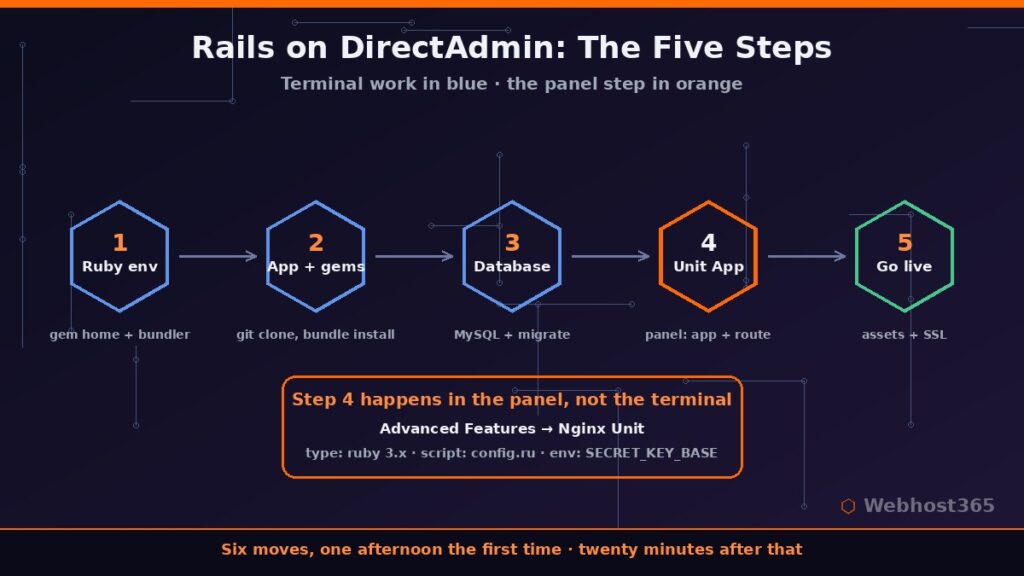
This is the step where your app goes from files on disk to a running process, and it happens in the panel, not the terminal. Open Advanced Features → Nginx Unit in your DirectAdmin user panel.
First, create the Application. The form asks for a handful of values, and these are the ones that matter: set the type to Ruby and pick your 3.x version; set the path to your application directory (/home/youruser/domains/yourdomain.com/app); set the script to config.ru, the Rack entry point every Rails app ships with; and set processes to 1 on an entry plan, since one Rails process serves a small application comfortably within a 1GB memory allowance.
Still in the application form, add your environment variables. Three are essential for production:
RAILS_ENV=production
SECRET_KEY_BASE=paste-the-value-below
RAILS_DB_PASSWORD=yourpassword
Generate the secret on the server — never reuse one from a tutorial:
cd ~/domains/yourdomain.com/app
bin/rails secret
Copy the output into SECRET_KEY_BASE. A missing or wrong secret is the single most common cause of a Rails app that boots and then refuses every request, so treat this value with respect.
Second, create the Route: choose your domain, point it at the application you just created, and save. DirectAdmin pushes the configuration to Unit, and because Unit applies changes with zero-downtime reloads, the same flow handles every future deploy. Whenever you pull new code or change an environment variable, a save in this interface restarts your application gracefully — this replaces the tmp/restart.txt habit from Passenger platforms entirely.
Step 5: Assets, SSL, and Going Live
Three finishing moves separate “deployed” from “production-ready.”
Compile your assets. Rails serves CSS and JavaScript from precompiled bundles in production:
RAILS_ENV=production SECRET_KEY_BASE=yourvalue bin/rails assets:precompileThe compiled files land in public/assets, and Unit’s configuration serves your public/ directory as static content while passing everything else to Rails — exactly the split the framework expects.
Enable HTTPS. In DirectAdmin, SSL Certificates → Let’s Encrypt issues a free certificate in under a minute, and it is included on every plan. Then enforce it at the application level in config/environments/production.rb:
config.force_ssl = trueSave in the Unit interface to restart, and load your domain. If you see your application over HTTPS, you are live. As a final touch, our plans include Bunny CDN at no cost, which is a natural fit for that public/assets directory — fingerprinted Rails assets are immutable by design, making them the perfect CDN payload for visitors far from the server.
Troubleshooting the Five Classic Failures
Every Rails deployment on shared hosting fails in one of a handful of predictable ways. Here are the five we see most, in symptom → cause → fix format.
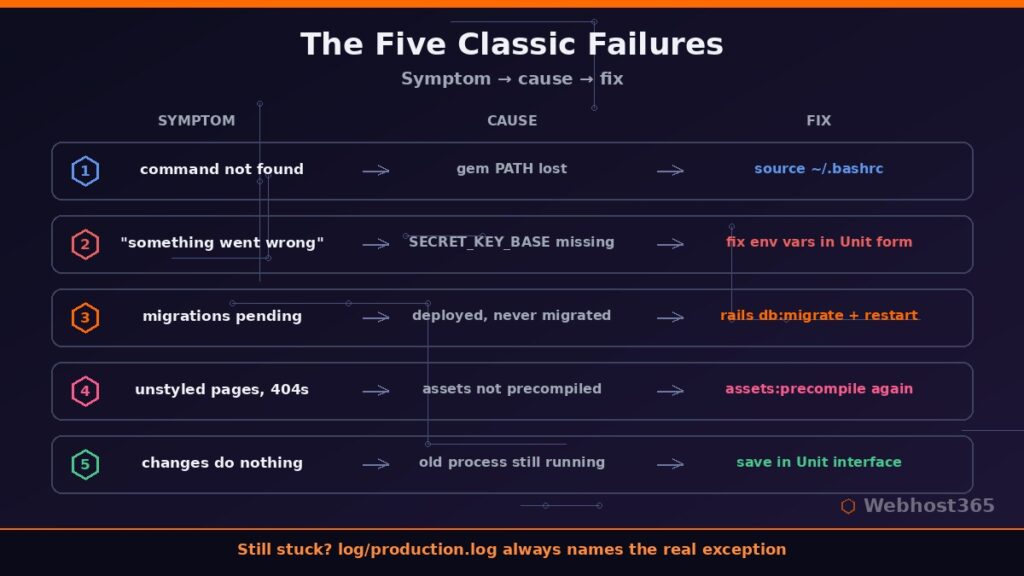
The terminal says “command not found” for bundler or rails. Your shell session lost the gem path. Cause: the GEM_HOME export from Step 1 is missing from the current session. Fix: run source ~/.bashrc, and confirm the two export lines actually exist in the file.
The app boots, then every request returns “something went wrong.” This is the production error page hiding the real problem. Cause: nine times out of ten, a missing or mistyped SECRET_KEY_BASE; the rest are database credentials. Fix: re-check the environment variables in the Unit application form, regenerate the secret with bin/rails secret if in doubt, and read log/production.log, which always names the actual exception.
Visitors see a migrations-pending error. Cause: you deployed new code containing migrations but never ran them. Fix: RAILS_ENV=production bin/rails db:migrate over SSH, then save in the Unit interface to restart.
The app works but looks unstyled, and the browser console shows asset 404s. Cause: assets were never precompiled, or were compiled before the latest changes. Fix: rerun assets:precompile from Step 5; the fingerprinted files in public/assets must match what your templates reference, which a fresh compile guarantees.
You changed code or variables and nothing happened. Cause: the running Ruby process predates your change — processes do not reread files. Fix: save the application in the Nginx Unit interface, which performs a graceful reload. The pattern matches the official NGINX Unit guide for Rails: the process restarts, requests keep flowing.
If a failure does not match these five, log/production.log over SSH is the source of truth. Read the bottom of it before anything else.
The honest summary of how to deploy Ruby on Rails on DirectAdmin: verify your Ruby 3.x environment, install gems per-user with bundler, configure the database, create a Unit Application and Route in the panel, precompile assets, and switch on SSL. Six moves, one afternoon the first time, twenty minutes every time after. The folklore about Rails demanding a VPS dissolves the moment you see NGINX Unit serving your app — and when an application genuinely outgrows shared hosting, that is a scaling milestone worth celebrating, with a Linux VPS one migration away.
Everything in this guide runs as written on our Ruby Hosting plans: all the latest and popular Ruby versions, NGINX Unit ready at user level, SSH on every tier, free SSL, and Bunny CDN included. Luna at $4.49 per month hosts your first Rails app on 10GB of NVMe; Solstice at $7.49 doubles everything for a second project; Astra at $22.49 carries an agency’s portfolio. Annual plans include a free domain, and your renewal price stays exactly what you signed up at. Deploy Ruby on Rails this weekend — the server is the easy part now.
FAQ: Deploying Ruby on Rails on DirectAdmin
Yes. Modern DirectAdmin shared hosting runs Rails through NGINX Unit, a native application server that manages your Ruby process and routes requests to it. A typical small-to-medium Rails application fits comfortably in an entry plan’s resources, and SSH access covers gems, migrations, and logs.
Neither. DirectAdmin uses NGINX Unit instead of Phusion Passenger, and Unit replaces the standalone Puma server role in production by running your Rack application directly from config.ru. Puma can remain in your Gemfile for local development without affecting the deployment.
Use the newest 3.x version your gems support — current Rails releases target modern Ruby 3.x, and our platform offers the latest and popular versions side by side. Pin the version in your Gemfile so the server and your development machine agree.
Save the application in DirectAdmin’s Nginx Unit interface (Advanced Features → Nginx Unit). Unit performs a graceful, zero-downtime reload of your process. The tmp/restart.txt method from Passenger-based hosts does not apply here.
The production error page is hiding the real exception, which is recorded in log/production.log. The most common cause is a missing or incorrect SECRET_KEY_BASE environment variable, followed by wrong database credentials and unrun migrations — all three are fixed in minutes from the panel and SSH.