
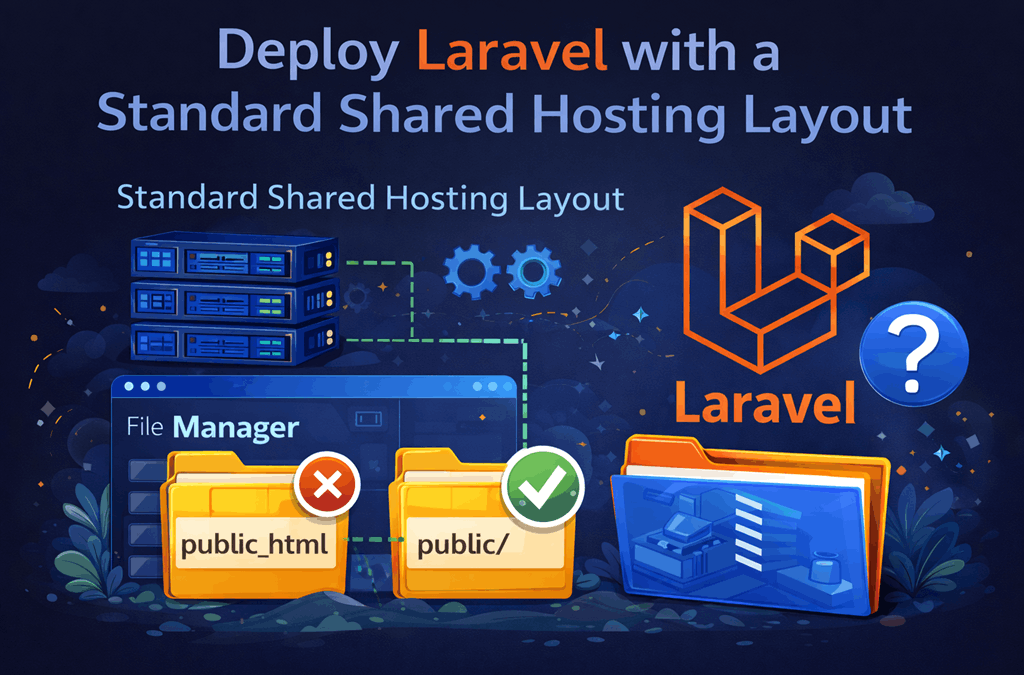
If you want to run Laravel on shared hosting, DirectAdmin can absolutely be a workable option, but only when the server is configured the right way. The important part is not just the control panel itself. What matters is whether your hosting provider has enabled the application stack needed to serve Laravel correctly. DirectAdmin’s own documentation points to Nginx Unit as its modern application server layer, and NGINX Unit has an official Laravel how-to built specifically around Laravel’s public directory and index.php entry point.
That makes Laravel a very natural next step in the content cluster you are already building. You already covered How to Deploy Django on DirectAdmin Shared Hosting, How to Deploy Flask or FastAPI on DirectAdmin Shared Hosting, and How to Deploy Node.js or Express on DirectAdmin Shared Hosting. Laravel completes the framework coverage by targeting PHP developers who want a cleaner, more modern deployment path on DirectAdmin shared hosting.
In this guide, I’ll show you how to prepare a Laravel app for DirectAdmin, how to check whether your account supports the right deployment method, and how to configure the public path, environment settings, and dependencies so the application can run properly in production. Laravel’s current deployment documentation also emphasizes checking server requirements and preparing the app for production before launch, which fits perfectly with this shared hosting workflow.
Yes, you can run Laravel on DirectAdmin shared hosting, but only if the hosting server supports the correct PHP application setup. DirectAdmin’s official documentation explicitly highlights Laravel as one of the frameworks that can run through its Nginx Unit integration, and the official NGINX Unit Laravel guide shows that Laravel should be served from the app’s public directory using index.php.
This is the part many users miss. Laravel is not like a simple static website or a plain PHP script dropped into public_html. A Laravel app depends on Composer-managed packages, environment configuration, and a public web root that points to the framework’s public folder. Laravel’s official documentation also continues to define production deployment around proper server requirements, configuration, and environment handling, so the hosting panel must allow that structure instead of forcing everything into a flat old-style shared hosting layout.
So the real answer is: yes, if your DirectAdmin host supports the correct Laravel-friendly structure and routing. If your provider has enabled DirectAdmin Nginx Unit, Laravel is a strong fit. If your account only behaves like a basic PHP file hosting space with no app-aware routing or no workable Composer workflow, deployment becomes much harder. For readers comparing frameworks on the same platform, you can also see our guides on deploying Django on DirectAdmin shared hosting, deploying Flask or FastAPI on DirectAdmin shared hosting, and deploying Node.js or Express on DirectAdmin shared hosting.
What You Need Before You Start
Before you begin, make sure your hosting account is actually suitable for Laravel. The most important requirement is a DirectAdmin plan that can handle Laravel’s structure correctly. Laravel’s official deployment documentation says the current framework requires PHP 8.3 or higher along with standard extensions such as cURL, DOM, Fileinfo, Mbstring, OpenSSL, PDO, Session, Tokenizer, and XML. If your hosting plan does not meet those requirements, the application may fail before deployment even begins.
You should also have a domain or subdomain already added in DirectAdmin, access to File Manager or SFTP, and ideally SSH access so you can run Composer and Artisan commands more easily. Laravel’s official installation documentation still assumes a workflow built around PHP, Composer, and the Laravel installer or Composer-based project creation, which means Composer access is especially important for real deployments.
Check with hosting provider
Your Laravel project itself should be ready for production. That means the application files are uploaded cleanly, the .env file is prepared with the correct database and app values, and the app is structured so the web root points to the public directory. Laravel’s configuration documentation explains that environment-driven settings are stored in .env, and it specifically warns that APP_DEBUG should always be false in production because leaving debug mode enabled can expose sensitive values to end users.
You should also confirm that your host supports a practical Composer workflow. Laravel depends heavily on Composer packages, so shared hosting without Composer or without host assistance can be limiting. If your project is simple and your provider offers the right tools, shared hosting can still work well. If you already know the application will need more control, queues, or heavier background processing, that is usually where moving to a VPS becomes the better long-term option, and our guide on How to Self-Host n8n on a VPS with Docker Compose shows what that upgrade path looks like.
Check Whether Your DirectAdmin Account Supports Laravel
The easiest first check is inside DirectAdmin itself. Look for Nginx Unit, an application manager, or any Laravel-friendly app deployment tool in the user area. DirectAdmin’s platform documentation specifically presents Nginx Unit as its polyglot application layer and points users toward framework-based app hosting there. NGINX Unit’s own Laravel guide then shows the exact structure Laravel expects once that support exists.
If you do not see any app deployment features, ask your hosting provider a direct question before uploading anything: Does my DirectAdmin plan support Laravel deployments with the public directory mapped correctly and Composer available? That one question can save a lot of time, especially on low-end shared plans that support PHP sites in general but do not provide a clean Laravel deployment path.
Before you upload anything, make sure the Laravel app itself is ready for production. Laravel’s official installation documentation says a standard Laravel project depends on PHP, Composer, and the framework files being installed in the normal project structure. That means your application should already include the usual folders such as app, bootstrap, config, public, resources, routes, storage, and vendor after dependencies are installed. (laravel.com)
Your .env file also needs attention before deployment. Laravel’s configuration documentation explains that environment values are loaded from the environment and .env file, and it specifically warns that APP_DEBUG should always be false in production because debug mode can expose sensitive values to end users. Before going live, confirm values such as APP_NAME, APP_ENV=production, APP_DEBUG=false, APP_URL, database credentials, mail settings, and any cache or session settings your app relies on. (laravel.com) (laravel.com)
It is also smart to confirm that your Laravel version matches the PHP version available on the hosting account. Laravel 13 requires PHP 8.3 or higher, so using an older shared hosting PHP build can break the app before it even starts. (laravel.com)
If your app stores uploaded files, caches compiled data, or writes logs, the writable directories matter too. Laravel’s normal production structure relies heavily on storage and bootstrap/cache, so these must be writable in the hosting environment for the application to function properly. This becomes especially important on shared hosting, where restrictive permissions often cause the first deployment issues. (laravel.com)
Upload Your Laravel Project to DirectAdmin
Once the app is ready, upload the project to your DirectAdmin hosting account using whichever method your plan supports. For most users, the easiest method is to compress the Laravel project into a zip file on a local machine, upload it through DirectAdmin File Manager, and extract it in the target folder. If your plan supports SSH, Git, SFTP, or FTP, those can also work well for larger projects or repeated updates.
Keep the upload clean. You do not want random local files, test backups, IDE folders, or development junk sitting in the application directory. On shared hosting, a cleaner structure makes debugging easier and reduces the chances of routing or permissions mistakes.
If your host provides DirectAdmin Nginx Unit, you will usually upload the app first and then create the application from User Level → Advanced Features → Nginx Unit → Create application. DirectAdmin’s documentation says application creation happens through templates and then prompts you to create the suggested route after saving. (docs.directadmin.com)
A good deployment habit is to use a subdomain first, such as laravel.yourdomain.com or app.yourdomain.com, instead of replacing the main site immediately. That gives you a safe environment to test routes, environment variables, database access, and permissions before moving the production domain.
Install Dependencies with Composer
Laravel depends on Composer, so this is one of the most important parts of the deployment. Laravel’s official installation documentation uses Composer-based project creation, and Laravel’s deployment guidance assumes the application’s dependencies are installed properly before launch. (laravel.com) (laravel.com)
If your hosting plan includes SSH access, move into the Laravel project directory and run:
composer install --no-dev --optimize-autoloaderThat is a common production-friendly approach because it installs the required packages without development dependencies and optimizes the autoloader for deployment. Composer’s own CLI documentation explains both the install command and the autoloader optimization option. (getcomposer.org)
If your host does not provide SSH, ask whether Composer is available through the panel or whether their support team can run Composer for you. This is one of the practical differences between beginner-friendly shared hosting and developer-friendly shared hosting. Laravel itself is not the problem here. The limitation is whether the host gives you a real Composer workflow.
After dependencies are installed, do not forget that Laravel also relies on the vendor directory generated by Composer. If that directory is missing or incomplete, the framework will not boot correctly.
Configure the Laravel Public Path Correctly
This is the most important Laravel deployment detail on shared hosting. Laravel should not be served from the root of the project folder. It should be served from the public directory. The official NGINX Unit Laravel how-to explicitly configures the application with the web root set to /path/to/app/public/ and the script set to index.php. (unit.nginx.org)
That matters because public/index.php is Laravel’s web entry point. If the domain is pointed at the wrong folder, you can end up with broken routing, exposed framework files, missing assets, or 403 and 404 errors. On a proper Laravel deployment, the browser should only reach the public directory, not the full application root.
This is also where Laravel differs from simpler PHP applications. A plain PHP script may work directly inside public_html, but Laravel expects the front-facing web root to be separated from the rest of the framework. That is one reason app-aware routing through DirectAdmin Nginx Unit is such a good fit when the host supports it. DirectAdmin’s platform docs explicitly list Laravel among the frameworks that run well with Nginx Unit. (docs.directadmin.com)
If your host cannot map the site correctly to Laravel’s public folder, deployment becomes much less clean and often less secure. In that case, you need to ask the provider whether they support Laravel properly on the plan or whether a VPS would be the better option.
Before You Move to the Deployment Method
At this stage, your Laravel project should be uploaded, Composer dependencies should be installed, and the app should be ready to serve traffic from the public directory. The next step is the actual deployment method inside DirectAdmin: creating the Laravel application through Nginx Unit if it is available, or using a more traditional shared hosting structure if your provider does not expose Unit directly.
If you are comparing framework-specific deployment paths on the same platform, you can also see our guides on How to Deploy Django on DirectAdmin Shared Hosting, How to Deploy Flask or FastAPI on DirectAdmin Shared Hosting, and How to Deploy Node.js or Express on DirectAdmin Shared Hosting. If your app is already reaching the limits of shared hosting and you need more flexibility, How to Self-Host n8n on a VPS with Docker Compose shows the kind of setup that makes more sense once you move beyond panel-managed deployments.
Method 1: Deploy Laravel with Nginx Unit in DirectAdmin
If your hosting provider exposes Nginx Unit in DirectAdmin, this is usually the cleanest way to deploy Laravel on shared hosting. DirectAdmin documents Nginx Unit as its application deployment layer, and DirectAdmin’s platform documentation explicitly includes Laravel among the supported frameworks. NGINX Unit’s official Laravel how-to shows the core structure very clearly: the application should be configured as a PHP app, the web root should point to the Laravel public directory, and the script should be index.php.
Inside DirectAdmin, the practical flow is simple. Upload your Laravel project first, then open User Level → Advanced Features → Nginx Unit → Create application. From there, create the app using the PHP/Laravel-compatible setup your host provides, then make sure the application points to the correct directory. The most important detail is that the public-facing root must be your project’s public folder, not the project root itself. That is the same structure shown in the official NGINX Unit Laravel example.
Check These options
When you save the application, DirectAdmin can suggest a route for the app. Accept or adjust that route so the selected domain or subdomain reaches the Laravel application correctly. If your route is wrong, the app may not load even if the code and dependencies are fine. DirectAdmin’s Nginx Unit documentation centers the setup around application creation plus route creation, so those are the first two places to check if something breaks.
A good first deployment target is a subdomain such as laravel.yourdomain.com. Test the app there before replacing the main site. That gives you room to verify routing, assets, environment settings, and database connectivity without risking downtime on the primary domain. If you have already followed our guides on How to Deploy Django on DirectAdmin Shared Hosting, How to Deploy Flask or FastAPI on DirectAdmin Shared Hosting, or How to Deploy Node.js or Express on DirectAdmin Shared Hosting, this is the same basic idea: stage first, then switch production traffic after testing.
Not every DirectAdmin server exposes Nginx Unit directly to end users. On some plans, you may still be deploying Laravel in a more traditional shared-hosting layout. In that case, the key rule does not change: the web-facing document root still needs to map to Laravel’s public directory, because that is where index.php lives and where the framework expects web requests to enter. The official NGINX Unit Laravel guide reflects that same requirement by setting the root to /path/to/app/public/ and the script to index.php.
If your host allows the domain or subdomain document root to be changed, point it to the Laravel public folder. If the provider forces everything into a fixed public_html layout, the deployment becomes less clean and may require provider-specific adjustments. That is not a Laravel limitation as much as a hosting-layout limitation. Laravel’s deployment documentation assumes a proper production setup with the framework structured normally and the environment configured correctly.
This is why asking the host a direct question is so useful: Can this DirectAdmin plan point a domain or subdomain to Laravel’s public directory cleanly?
If the answer is no, you can still sometimes make it work, but the setup is usually more fragile and less ideal than a proper app-aware configuration through Nginx Unit.
Set the Environment File for Production
Before going live, make sure your .env file is correct for production. Laravel’s configuration documentation says the debug option respects the APP_DEBUG value from your environment, and Laravel’s deployment and error-handling docs both state that APP_DEBUG should always be false in production because leaving it enabled can expose sensitive configuration values to end users.
At minimum, confirm values such as:
APP_ENV=productionAPP_DEBUG=falseAPP_URL=https://yourdomain.com- database connection settings
- mail settings
- cache and session settings if your app uses them
Laravel’s configuration docs also explain that once configuration is cached, the framework no longer loads .env during requests in the usual way, which is why getting environment values right before caching is so important.
If the app connects to a database, double-check the database host, username, password, and database name before testing the site. A large share of “Laravel is broken on shared hosting” cases are really just incorrect environment values. Laravel’s production docs emphasize proper deployment preparation for exactly this reason.
Generate the Application Key and Optimize Laravel
If the application key has not been created yet, generate it before launch. Laravel uses the application key as part of its encryption and session handling, so a missing key can cause immediate runtime problems. The usual command is:
php artisan key:generateLaravel’s deployment documentation also recommends caching and optimizing production files during deployment. In Laravel 13, the docs say you can use the single php artisan optimize command to cache configuration, events, routes, and views as part of the deployment process. Laravel also documents php artisan config:cache as a standard production deployment step.
A practical production sequence looks like this:
php artisan key:generate
php artisan optimize
If you prefer the more granular commands, Laravel documents these as well:
php artisan config:cache
php artisan route:cache
php artisan view:cache
Laravel’s documentation is clear on one especially important point: after running config:cache, the .env file is no longer loaded in the normal way during requests, so you should only call env() from configuration files and make sure your production environment values are already correct before caching.
Configure Permissions for Storage and Cache
Laravel also needs the storage and bootstrap/cache directories to be writable in production, because that is where the framework stores logs, compiled files, and cached data during normal operation. If those directories are not writable, the application may load with 500 errors, fail to write logs, or break when caching configuration and views. This requirement follows naturally from Laravel’s normal project structure and deployment behavior.
On shared hosting, exact permission handling depends on how the provider runs PHP and owns the files. Because of that, it is usually best to follow the host’s recommended permissions model instead of forcing broad permissions manually. The main goal is simple: Laravel must be able to write to the directories it uses at runtime, without making the whole project unnecessarily open. This is also one more reason Nginx Unit-style app-aware hosting tends to feel cleaner than older shared-hosting layouts.
Connect the Domain or Subdomain
A subdomain is usually the safest way to launch a Laravel app for the first time. Instead of replacing your main site immediately, deploy the project to something like app.yourdomain.com or laravel.yourdomain.com, test everything there, and only switch the main domain after the app is working properly. This fits well with the routing model used by DirectAdmin Nginx Unit and with the official NGINX Unit Laravel setup, which is built around a defined application root and route.
Whether you are using Nginx Unit directly in DirectAdmin or a more traditional shared-hosting layout, the important rule stays the same: the public web path must reach Laravel’s public directory, because that is where index.php lives and where the framework expects browser traffic to enter. If the domain points to the wrong folder, you will usually see broken routing, 403 or 404 errors, or a Laravel app that looks uploaded but does not actually run.
Before putting the main domain on the app, test the subdomain carefully. Open the homepage, a couple of dynamic routes, and any static assets such as CSS or JavaScript bundles. If you are building a broader DirectAdmin deployment cluster, this same “test on a subdomain first” approach also works well with How to Deploy Django on DirectAdmin Shared Hosting, How to Deploy Flask or FastAPI on DirectAdmin Shared Hosting, and How to Deploy Node.js or Express on DirectAdmin Shared Hosting.
Test Your Laravel App
Once the app is reachable from the chosen URL, test more than just the homepage. Open a few internal pages, submit a form if the app has one, and confirm the database connection works. Laravel’s deployment documentation emphasizes production preparation and optimization, which is a reminder that a successful deployment is not just about getting one page to load. The app should behave correctly across routes, configuration, and cached settings.
Also test static assets and any uploaded files. Because Laravel serves web traffic through the public directory, missing CSS or JavaScript often points to an incorrect public path, a bad asset URL, or an incomplete deployment rather than a framework problem. The official NGINX Unit Laravel how-to is useful here because it reinforces the exact structure Laravel expects in production.
If you ran php artisan optimize or php artisan config:cache, test the app again after those commands. Laravel’s deployment docs state that optimize caches configuration, routes, events, and views, while the configuration docs explain that once config is cached, .env is no longer loaded in the normal way during requests. That means a small mistake in the environment file can look fine before caching and then break after optimization.
Common Errors and How to Fix Them
One of the most common Laravel deployment problems on shared hosting is a 403, 404, or blank page caused by the wrong document root. Laravel should be served from the public directory, not the project root. The official NGINX Unit Laravel guide explicitly sets the app root to /path/to/app/public/ and the script to index.php, which is the model you want your hosting setup to follow.
Another common issue is a 500 error caused by a bad .env file. In production, Laravel expects values like APP_ENV, APP_DEBUG, APP_URL, and database credentials to be correct. Laravel’s configuration docs are very clear that APP_DEBUG should be false in production, and once configuration is cached, incorrect environment values become even more disruptive because the app is no longer reading .env in the normal way during requests.
If the site fails with missing package or autoload errors, check Composer first. A Laravel app depends on Composer-installed packages in the vendor directory, so an incomplete composer install can stop the framework from booting. Composer’s CLI documentation also supports using composer install --no-dev --optimize-autoloader as a production-friendly install pattern.
If sessions, encryption, or logins behave strangely, confirm that the application key exists. A missing APP_KEY is a classic Laravel deployment problem and is usually fixed with:
php artisan key:generateLaravel’s deployment documentation also recommends optimization commands as part of production deployment, so it is a good idea to regenerate the key first, then run optimization once the environment is correct.
If the app cannot write logs, cache files, or compiled files, the problem is usually permissions on storage or bootstrap/cache. The exact fix depends on how your hosting provider runs PHP and owns files, but the core issue is simple: Laravel must be able to write to those directories in production. The Unit Laravel how-to also highlights ownership and access considerations so the Unit process can read the application directory.
Shared hosting can be a good starting point for Laravel when the app is relatively small and the hosting provider supports the correct structure. Company portals, admin dashboards, brochure sites with custom logic, small client systems, and lightweight internal tools can all run well on a properly configured DirectAdmin plan. DirectAdmin’s own platform documentation explicitly includes Laravel among the frameworks supported through Nginx Unit, which is a strong sign that this is a real use case rather than a workaround.
Where shared hosting starts to feel limiting is when the Laravel app grows operationally. Laravel’s deployment docs focus heavily on production optimization, caching, and proper environment handling, but larger apps often go beyond that into queues, workers, advanced caching layers, websocket-style features, and more deployment control than a shared panel is comfortable with. That is an inference based on Laravel’s production deployment model and the practical limits of shared environments.
So the practical answer is this: shared hosting is often fine for smaller Laravel projects, but once the application needs deeper control, more predictable scaling, or heavier background processing, you are usually reaching VPS territory. That is the same upgrade path logic behind our guide on How to Self-Host n8n on a VPS with Docker Compose.
DirectAdmin shared hosting is easier to start with because the panel handles much of the deployment surface for you. If your provider has enabled Nginx Unit or another Laravel-friendly layout, you can launch a project without building your own full server stack. That lower complexity is the biggest advantage for beginners, client projects, and smaller apps that do not need advanced infrastructure choices.
A VPS becomes more attractive when you need more control over the runtime, deployment process, services, and scaling. Laravel’s deployment documentation centers production readiness around optimization and proper server preparation, and that usually becomes easier to manage when you control the server directly instead of relying on a shared panel’s allowed features.
A simple rule works well here: start on shared hosting if your Laravel app is small and your DirectAdmin plan supports it properly, but move to a VPS once the app needs more flexibility than the panel can comfortably provide. If you are comparing framework-specific workflows on the same platform, it also helps to read How to Deploy Django on DirectAdmin Shared Hosting, How to Deploy Flask or FastAPI on DirectAdmin Shared Hosting, and How to Deploy Node.js or Express on DirectAdmin Shared Hosting.
Final Thoughts
You can absolutely deploy Laravel on DirectAdmin shared hosting, but the clean result depends on whether the server is configured to support Laravel the right way. The most important requirements are a compatible PHP environment, a workable Composer flow, a correct .env setup, and a public web root that points to Laravel’s public directory. DirectAdmin’s Nginx Unit stack and NGINX Unit’s official Laravel guide both support that model clearly.
The safest way to launch is to upload the app, install dependencies, configure the environment carefully, test on a subdomain, and only then move the main domain onto the project. That process reduces the most common Laravel shared-hosting mistakes and gives you a much cleaner production rollout.
Frequently Asked Questions
Yes, if your hosting provider supports the right Laravel-friendly structure. DirectAdmin’s documentation lists Laravel among the frameworks supported with Nginx Unit, and NGINX Unit has an official Laravel how-to built around the framework’s public directory and index.php entry point.
Does DirectAdmin support Laravel officially?
DirectAdmin’s platform documentation explicitly lists Laravel among the frameworks it supports through Nginx Unit.
In most real deployments, yes. Laravel depends on Composer-managed packages. so either you need SSH access to run Composer yourself, or your provider needs to offer a supported Composer workflow. Laravel’s own installation and deployment documentation assumes Composer is part of the normal workflow.
Laravel should point to the public directory, not the project root. NGINX Unit’s official Laravel guide explicitly uses /path/to/app/public/ as the root and index.php as the script.
Why is my Laravel site showing 404 or 500 in DirectAdmin?
The most common reasons are a wrong public path, a broken .env file, missing Composer dependencies, a missing application key, or permissions problems in storage and bootstrap/cache.
It can be enough for smaller apps and moderate workloads, especially if the host supports Laravel properly. Larger apps that need more operational control are usually better on a VPS. That is a practical inference from Laravel’s production deployment model and the normal limits of shared hosting.
Move when your app needs more control over runtime behavior, services, deployment flow, or scaling than the shared hosting panel comfortably allows. For that kind of setup, see How to Self-Host n8n on a VPS with Docker Compose.