
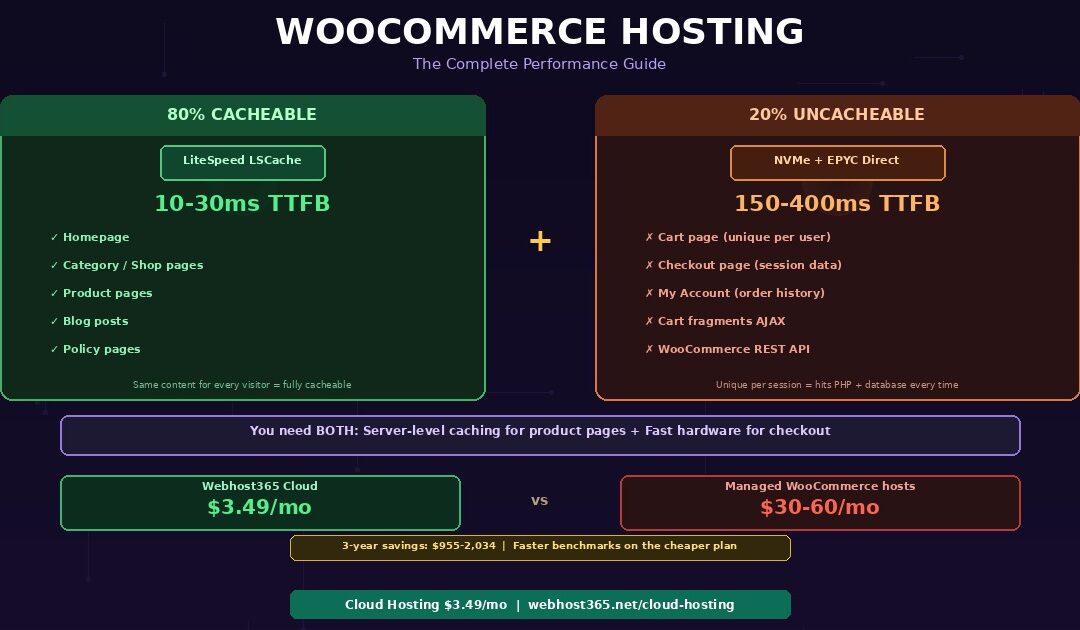
WooCommerce hosting requires faster hardware than a standard WordPress blog because online stores run 3 to 5 times more database queries per page, serve pages that cannot be fully cached, and process payment transactions that demand consistent low-latency server response. A WordPress blog post renders from a handful of database queries and is cached after the first visit — every subsequent visitor receives a stored HTML copy in milliseconds. A WooCommerce product page queries product data, price calculations, stock status, variations, related products, reviews, and dynamic cart state — 40 to 100 database queries per page load. Cart and checkout pages are unique per user session and bypass page caching entirely, which means every checkout interaction hits PHP and the database directly.
This architectural difference is why a hosting plan that runs a blog perfectly can make a WooCommerce store feel sluggish. However, the fix is not expensive managed WooCommerce hosting at $30 to $60 per month. The fix is the right combination of server-level caching for the 80 percent of pages that can be cached (homepage, categories, product pages) and fast uncached performance for the 20 percent that cannot (cart, checkout, my-account).
Webhost365 Cloud Hosting at $3.49 per month delivers both. LiteSpeed with LSCache handles cached pages in 10 to 30 milliseconds. NVMe SSD on AMD EPYC Gen 4 processors handles uncached database queries in under 1 millisecond of storage access time. Bunny CDN with 119 edge locations serves product images globally. The three-year total cost is $125.64 — compared to $1,080 to $2,160 on managed WooCommerce hosts that often run slower infrastructure underneath the management layer.
This guide explains why WooCommerce is architecturally different from a WordPress blog, what your hosting must handle that generic WordPress hosting cannot, which plan matches your store’s size, and how to optimise both server and site for the fastest possible checkout experience.
Why WooCommerce is slower than a WordPress blog
WooCommerce transforms WordPress from a content publishing platform into a transactional e-commerce application. That transformation introduces five performance challenges that standard WordPress hosting is not designed to handle. Understanding these challenges is essential before choosing a WooCommerce hosting plan — because the right plan addresses all five, while the wrong plan addresses none.
Database queries multiply on every product page
A WordPress blog post typically requires 10 to 20 database queries to render: the post content, metadata, author information, comments, sidebar widgets, and menu structure. A WooCommerce product page requires 40 to 100 or more queries. The product title, description, and images come from the posts table. Price, sale price, and tax class come from the postmeta table. Stock status and quantity require separate lookups. Each product variation — every size, colour, and material combination — triggers its own query. Related products, upsells, and cross-sells each generate additional queries. Review ratings are calculated from the comments table. The mini-cart widget queries the session to display the current cart total.
A category page displaying 20 products multiplies this further. Each product thumbnail, price, rating, and stock badge requires its own database lookups. A busy category page can trigger 200 to 400 queries — all of which must complete before the page renders.
On NVMe SSD storage, each query completes in microseconds and the total storage access time for 100 queries is under 1 millisecond. On HDD storage, each query takes 5 to 10 milliseconds — and 100 queries at 5 milliseconds each equals 500 milliseconds of server time consumed purely by storage access before any PHP processing or content rendering begins. SATA SSD, the same 100 queries take approximately 10 milliseconds total — five times slower than NVMe but dramatically better than HDD. Storage type is the single largest variable in WooCommerce page load time, and it is determined entirely by your hosting plan.
Cart, checkout, and my-account pages cannot be cached
This is the core insight that separates WooCommerce hosting from standard WordPress hosting. Page caching — whether through LiteSpeed LSCache, WP Super Cache, or W3 Total Cache — stores a rendered HTML copy of a page and serves that identical copy to every subsequent visitor. Caching works brilliantly for blog posts, product pages, and category pages because every visitor sees the same content.
Cart pages, however, display each visitor’s unique items, quantities, and totals. Checkout pages contain personalised shipping addresses, payment fields, and order summaries. My-account pages show individual order history, saved addresses, and subscription details. These pages must be generated fresh on every request because the content is unique per user session. Page caching cannot help here — and any cache that tried would serve one customer’s cart to another customer.
Consequently, approximately 20 percent of your store’s traffic bypasses caching entirely and hits PHP plus the database directly on every request. Your server’s uncached performance — determined by CPU clock speed, RAM availability, and NVMe storage latency — determines your checkout experience. Slow uncached performance means slow checkout. Slow checkout means abandoned carts. Abandoned carts mean lost revenue. Research consistently shows that each additional second of checkout load time increases cart abandonment by 7 to 10 percent.
This is why choosing WooCommerce hosting based on cached page benchmarks alone is misleading. A hosting plan might serve product pages in 30 milliseconds from cache but take 3 seconds to process the checkout because the uncached hardware is weak. Both numbers matter, and the uncached number determines your conversion rate.
WooCommerce plugins add cumulative weight
A minimal WooCommerce store requires WooCommerce core, a payment gateway plugin (Stripe, PayPal, or Razorpay), and a theme. In practice, most real stores run 15 to 30 plugins: SEO (Yoast or Rank Math), analytics (Google Analytics, MonsterInsights), email marketing (Mailchimp, Klaviyo), advanced product filters, wishlists, product bundles, subscriptions, invoicing, live chat, social proof notifications, shipping calculators, and tax automation.
Each plugin loads PHP files on every request, adds its own database queries, enqueues CSS and JavaScript assets, and consumes server RAM. Individually, the impact of each plugin is small. Cumulatively, 25 plugins can add 200 to 500 milliseconds to uncached page loads and consume 200 to 400 MB of additional RAM.
On shared hosting with 512 MB to 1 GB of RAM and hidden CPU throttling policies, the combined plugin load exceeds available resources during traffic spikes. The result is 503 errors during your busiest sales periods — exactly when uptime matters most. On Cloud Hosting with dedicated resources, the allocated CPU and RAM are reserved for your account and cannot be consumed by neighbouring sites, which means traffic spikes and plugin load are handled consistently without throttling.
Product images are large and numerous
A typical product listing includes 3 to 8 images: a main product photo, gallery images showing different angles, and variation-specific images for each colour or style option. A store with 500 products carries 1,500 to 4,000 images. Each product page loads its gallery images at full resolution for the zoom functionality that customers expect. Category pages simultaneously load thumbnail versions of 12 to 20 products.
Without a CDN, every image downloads from your origin server. A visitor in Mumbai loading images from a server in Europe adds 150 to 300 milliseconds of network latency per image request. A product page loading 8 images without a CDN can spend 1 to 2 seconds on image delivery alone — time that has nothing to do with your server speed and everything to do with geographic distance.
With Bunny CDN and 119 edge locations, product images load from the nearest cache node in single-digit milliseconds regardless of the visitor’s location. The CDN also reduces bandwidth consumption on your origin server, which means more server resources are available for the uncacheable PHP and database operations that cart and checkout require. On Webhost365, Bunny CDN is included free on every plan — no separate account, no configuration, no monthly add-on fee.
Payment processing adds external latency you cannot eliminate
Every checkout completion triggers external API calls to your payment processor — Stripe, PayPal, Razorpay, or your payment gateway of choice. These API calls add 200 to 800 milliseconds per transaction. This latency is external to your server and outside your control. You cannot speed up Stripe’s API response time through hosting changes.
What you can control is the server-side processing time that precedes and follows the payment call. The total checkout experience — the time between clicking “Place Order” and seeing the confirmation page — equals your server processing time plus the payment API time plus your server’s response rendering time. On fast hosting with NVMe and LiteSpeed, the server-side contribution is 100 to 200 milliseconds before and after the payment call. On slow hosting with HDD and Apache, the server-side contribution is 500 to 2,000 milliseconds.
The difference is stark. On fast hosting, a Stripe checkout completes in approximately 1 to 1.5 seconds total (200ms server + 500ms Stripe + 200ms render). On slow hosting, the same checkout takes 2.5 to 4 seconds (1000ms server + 500ms Stripe + 1000ms render). The customer perceives the entire duration as “checkout speed” without distinguishing between server time and payment time — and the 2 to 3 extra seconds on slow hosting are the seconds that trigger cart abandonment.
The WooCommerce hosting requirement you cannot skip — caching what you can, speeding up what you cannot
WooCommerce stores need two speed strategies running simultaneously. Server-level caching handles the 80 percent of traffic that hits cacheable pages. Fast hardware handles the 20 percent that hits uncacheable pages. Every hosting decision for WooCommerce comes down to whether the plan supports both — and most plans only deliver one or the other.
What you CAN cache — and how LiteSpeed handles it
Your homepage, category and shop pages, individual product pages, blog posts, about pages, contact pages, and policy pages all display the same content to every visitor. These pages are fully cacheable. On a typical WooCommerce store, they account for approximately 80 percent of total page views because most visitors browse products before adding anything to the cart.
LiteSpeed with LSCache caches these pages at the server level — before PHP starts, before WordPress loads, before WooCommerce initialises. A cached product page responds in 10 to 30 milliseconds. The free LiteSpeed Cache WordPress plugin manages cache lifecycle automatically. When you add a new product, the relevant category page cache clears and regenerates on the next visit. When you update a price, the product page cache refreshes. also When a sale starts, sale badges appear on the next uncached request. stock runs out, the product page updates without manual cache purging.
This automation matters for WooCommerce specifically because product data changes frequently — prices fluctuate, stock counts decrease with every order, sale events start and end. A caching system that requires manual purging every time inventory changes is unworkable for an active store. LiteSpeed’s WooCommerce-aware cache integration handles all of this without intervention.
On Webhost365 Cloud Hosting and WordPress Hosting, LiteSpeed caching is active by default. No performance plugins stacking on top of each other. No conflicting cache configurations. also No manual setup.
What you CANNOT cache — and why your server hardware determines checkout speed
Cart pages, checkout pages, my-account pages, AJAX cart fragment requests, WooCommerce REST API endpoints, and the WordPress admin dashboard all generate unique content per request. These pages bypass page caching entirely. Every request goes through the full processing pipeline: Nginx or LiteSpeed receives the request, passes it to PHP, PHP loads WordPress, WordPress loads WooCommerce, WooCommerce queries the database for session-specific data, renders the output, and sends it back to the visitor.
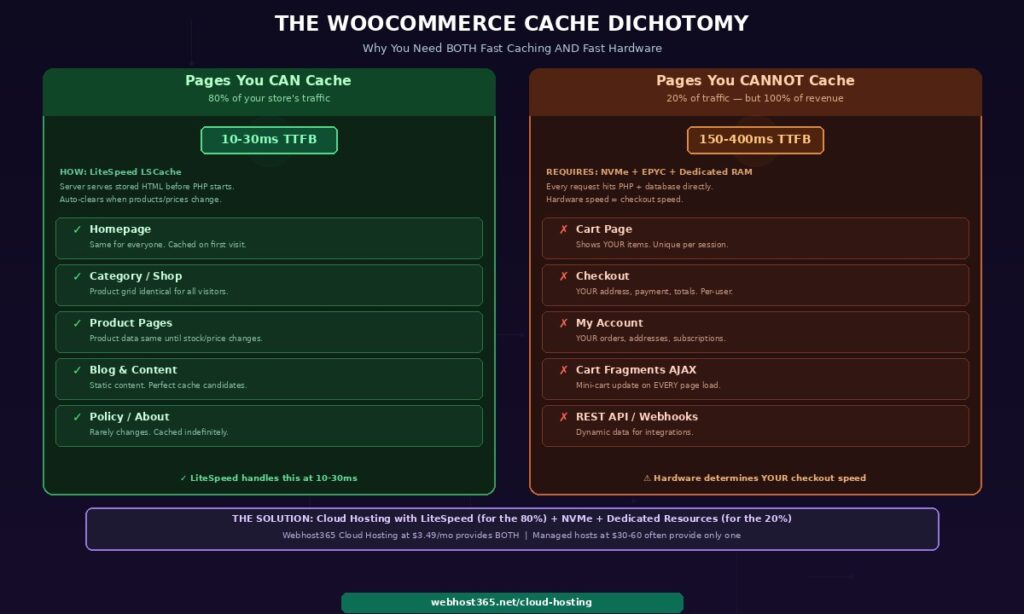
Your server hardware directly determines the speed of every step in this pipeline. NVMe SSD processes the database queries in microseconds instead of milliseconds. AMD EPYC processors execute the PHP code faster than older-generation server CPUs. DDR5 RAM holds WooCommerce’s working data — sessions, transients, product objects — without swapping to disk under load.
Together, uncached WooCommerce pages on Cloud Hosting with NVMe and LiteSpeed load in 150 to 400 milliseconds. On shared hosting with SATA SSD, CPU throttling, and plugin-based caching, the same uncached pages take 800 milliseconds to 3 seconds. That difference determines whether your checkout feels instant or sluggish — and whether customers complete their purchase or abandon the cart.
WooCommerce loads cart fragments via AJAX on every page to update the mini-cart widget in the header — the small icon showing item count and cart total. This request (wc-ajax=get_refreshed_fragments) fires on every single page load for logged-in users and any visitor with an active WooCommerce session (anyone who has added an item to the cart).
The cart fragment request bypasses page cache because it returns session-specific data. On a slow server, this single AJAX call adds 300 to 1,000 milliseconds to every page load — even on pages that are otherwise fully cached and fast. The browser cannot become fully interactive until the cart fragment response arrives because WooCommerce’s JavaScript waits for the AJAX response before finalising the page state.
This is the most common reason a WooCommerce site appears fast in speed tests but feels slow to actual users. Testing tools like GTmetrix load the page without a WooCommerce session, so they see the cached version without cart fragments. Real visitors with items in their cart experience the AJAX delay on every page navigation.
On NVMe hosting with LiteSpeed, the cart fragment response takes 50 to 150 milliseconds — fast enough to be imperceptible. On HDD shared hosting, the same response takes 500 to 1,500 milliseconds — noticeable on every click.
For stores where the mini-cart is not essential on every page, you can disable cart fragments on specific templates and load them only on pages where the mini-cart widget is displayed. The LiteSpeed Cache plugin provides a setting to control cart fragment behaviour without custom code.
Which WooCommerce hosting plan matches your store?
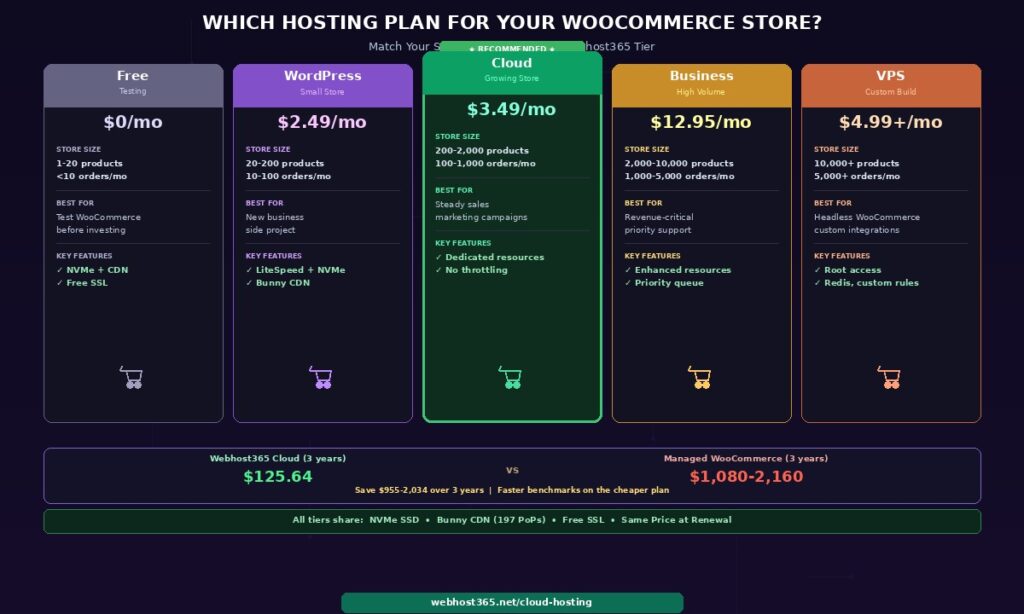
The right hosting plan depends on three factors: your product count (which affects database size and query complexity), your monthly order volume (which determines how frequently uncacheable pages are loaded), and your peak concurrent visitors (which determines how much CPU and RAM you need during traffic spikes and sales events).
Testing and validation — Free Hosting ($0/mo)
| Products | 1-20 |
| Orders/month | Under 10 |
| Best for | Testing WooCommerce before investing. Building your store layout, configuring products, and testing plugins before going live. |
| What you get | 1 GB NVMe SSD, Bunny CDN, free SSL, one-click WooCommerce install. |
| When to upgrade | As soon as you launch to real customers. The free tier has resource limits unsuitable for production checkout processing. |
Small store, new business — WordPress Hosting ($2.49/mo)
| Products | 20-200 |
| Orders/month | 10-100 |
| Best for | New online stores, side businesses, single-product stores, digital product shops. |
| What you get | LiteSpeed with LSCache, NVMe SSD, Bunny CDN, free SSL, daily backups. Product pages cache at 10-30ms. NVMe handles the occasional checkout at full speed. |
| When to upgrade | When traffic regularly exceeds 100 simultaneous visitors, checkout volume exceeds 500 orders per month, or you notice occasional slowdowns during traffic spikes from social media or marketing campaigns. |
Growing store, steady sales — Cloud Hosting ($3.49/mo) — RECOMMENDED
| Products | 200-2,000 |
| Orders/month | 100-1,000 |
| Best for | Established WooCommerce stores with steady daily traffic and regular order flow. Stores running sales events, email campaigns, or social media promotions that create traffic spikes. |
| What you get | Everything in WordPress Hosting plus dedicated cloud resources. Your CPU and RAM allocation is reserved exclusively for your account and cannot be consumed by neighbouring sites. No throttling during Black Friday, flash sales, or viral product moments. |
| Why this is the sweet spot | Cloud Hosting at $3.49 combines LiteSpeed server-level caching (for the 80% cacheable pages) with dedicated resources (for the 20% uncacheable cart and checkout). This dual capability is what managed WooCommerce hosts at $30-60 charge for — except on inferior hardware. The 3-year total cost is $125.64 versus $1,080-2,160 on managed alternatives. |
Established store, high traffic — Business Hosting ($12.95/mo)
| Products | 2,000-10,000 |
| Orders/month | 1,000-5,000 |
| Best for | Revenue-critical stores where downtime and slow checkout directly translate to lost sales. Stores that need priority support response during peak periods. |
| What you get | Enhanced server resources beyond Cloud Hosting, priority support queue with faster response times, advanced DDoS protection. Same NVMe + LiteSpeed + Bunny CDN foundation. |
| When to upgrade | When your store processes high-value transactions where a 15-minute support response versus a 2-hour response materially affects revenue. |
Large catalogue or custom build — Linux VPS (from $4.99/mo)
| Products | 10,000+ |
| Orders/month | 5,000+ |
| Best for | Large product catalogues, headless WooCommerce setups, stores with custom integrations (ERP, POS, warehouse management), multi-store configurations, developers who need root access for custom caching rules and server tuning. |
| What you get | Full root access on NVMe SSD with KVM isolation. Install Redis for object caching, configure custom Nginx or LiteSpeed rules, run background processing workers for bulk order handling, and integrate with external systems via SSH. |
| Why VPS | When standard hosting control panels cannot accommodate your customisation requirements. A Linux VPS gives you the same hardware quality as Cloud and Business hosting with complete control over the software stack. |
The critical detail across every tier: all Webhost365 plans share the same NVMe SSD and Bunny CDN foundation. Moving from WordPress Hosting to Cloud Hosting adds dedicated resources and removes throttling risk. Moving from Cloud to Business adds priority support and enhanced resources. and Moving to VPS adds root access and custom configuration. At no tier do you lose NVMe, CDN, or LiteSpeed — the infrastructure that determines WooCommerce speed remains consistent regardless of the plan you choose.
WooCommerce speed optimisation checklist — server and site level
WooCommerce performance optimisation works at two levels: the hosting infrastructure that your server provides and the site configuration that you control within WordPress. Both matter. The best hosting cannot compensate for a store with 40 unoptimised plugins, and the best optimisation cannot compensate for HDD hosting with no CDN. The checklist below covers both levels, starting with what your hosting should provide and then moving to what you should configure.
Server-level optimisations your hosting should provide
Six server-level features determine the baseline speed of every WooCommerce store. Your hosting plan either includes them or it does not — they cannot be added through WordPress plugins.
LiteSpeed web server with LSCache provides server-level caching that serves product and category pages in 10 to 30 milliseconds. Unlike Apache-based caching through WordPress plugins, LiteSpeed caches at the web server layer before PHP initialises. The LiteSpeed Cache WordPress plugin provides WooCommerce-aware cache management, automatically excluding cart, checkout, and my-account pages from the page cache while caching everything else.
NVMe SSD storage delivers sub-millisecond database access for the 40 to 100 queries each product page generates. The difference between NVMe (0.02ms per query) and HDD (5-10ms per query) compounds across every page load and every checkout interaction. There is no plugin that compensates for slow storage.
PHP 8.2 or higher with OPcache executes WooCommerce code 20 to 30 percent faster than PHP 7.4. OPcache stores pre-compiled PHP bytecode in memory so the server does not reparse WooCommerce’s thousands of PHP files on every request. Both should be enabled by default.
Dedicated cloud resources prevent CPU and RAM throttling during traffic spikes. On shared hosting with hidden “fair use” limits, a flash sale that doubles your traffic can trigger throttling or suspension — exactly when you need maximum performance. Dedicated resources guarantee your allocation regardless of server load.
Bunny CDN serves product images from 119 edge locations worldwide. Without a CDN, product image delivery is limited by the physical distance between your server and each visitor.
Object caching via Redis or Memcached stores frequently-accessed database results in memory. WooCommerce repeatedly queries the same product data, tax rates, and shipping options. Object caching reduces repetitive database queries on uncached pages by 30 to 50 percent, directly improving cart and checkout speed. Object caching is available on Webhost365 VPS and Business plans.
On Webhost365 Cloud Hosting, all of these except object caching are included by default at $3.49 per month.
Site-level optimisations you should configure
Seven WooCommerce-specific configurations improve performance beyond what your hosting provides. These are changes you make inside WordPress and WooCommerce settings, and they apply regardless of which hosting provider you use.
Enable HPOS (High-Performance Order Storage). WooCommerce historically stored order data in the wp_posts table alongside blog posts, pages, and every other WordPress content type. On a store with 10,000 or more orders, the wp_posts table grows to millions of rows, and every order query — the admin orders list, customer order history, revenue reports, and order exports — scans this bloated table. HPOS moves orders to dedicated custom database tables with proper indexing, reducing order query time by 2 to 5 times. Enable it in WooCommerce Settings then Advanced then Features. For existing stores, WooCommerce includes a migration tool that transfers historical orders without downtime. WooCommerce’s documentation recommends HPOS for all new stores.
Manage cart fragment AJAX loading. As discussed above, the wc-ajax=get_refreshed_fragments request fires on every page for users with active sessions. If your theme does not display a mini-cart widget on every page, disable cart fragments on pages where they are unnecessary. The LiteSpeed Cache plugin includes a setting under WooCommerce integration to control this behaviour. Alternatively, load cart fragments only when the user interacts with the cart icon rather than on every page load.
Optimise product images. Compress all product images to WebP format using the LiteSpeed Cache plugin’s image optimisation feature or a dedicated tool like ShortPixel. Set correct dimensions for each image size WordPress generates (thumbnail, medium, large, and WooCommerce-specific sizes) so the browser does not download images larger than needed. Enable lazy loading for below-the-fold images so product gallery images on category pages load only as the visitor scrolls to them.
Audit plugins quarterly. List every active plugin and ask: does this plugin run code on the frontend, or only in the admin? Plugins that add frontend functionality (live chat widgets, social proof popups, tracking pixels, analytics) each add HTTP requests, CSS files, JavaScript files, and PHP execution time to every page load. Deactivate and delete any plugin you do not actively use — inactive plugins sitting in your plugins directory consume no resources, but forgotten plugins that are active and unused add unnecessary overhead. Test each plugin’s individual impact by deactivating one at a time and measuring page load speed before and after.
Use a lightweight WooCommerce-compatible theme. Avoid page-builder themes that add 1 to 3 seconds of render time from their own CSS and JavaScript frameworks. WordPress themes built specifically for WooCommerce performance — Storefront (the official WooCommerce theme), GeneratePress, Kadence, and Flavor flavourflavour flavored Flavor flavour flavoured flavour Flavor Flavor FlavourFlavor FlavourAstra — load in a fraction of the time. The theme determines your frontend rendering speed. No amount of server-level caching accelerates a theme that outputs 2 MB of CSS and JavaScript.
Minimise external scripts. Each analytics tag, chat widget, Facebook Pixel, Google Analytics, hotjar, and marketing tracker adds 100 to 500 milliseconds of load time and an external DNS lookup. Audit your scripts annually and remove any that do not directly contribute to revenue. Consolidate analytics through Google Tag Manager rather than individual plugin installations when possible.
Enable WooCommerce’s built-in performance features. WooCommerce 8.x includes several performance improvements: the new product editor (block-based, faster admin experience), the ability to disable legacy REST API endpoints you do not use, and action scheduler improvements that move background tasks off the main request cycle. Review WooCommerce’s Advanced settings page for any performance features your version supports.
WooCommerce on affordable hosting — why $3.49 beats $30
The hosting industry has convinced store owners that WooCommerce requires $30 to $60 per month “managed WooCommerce hosting.” In reality, the infrastructure that determines WooCommerce speed — server-level caching, NVMe storage, dedicated resources, and a CDN — is available at a fraction of that cost on the right platform. The “managed” premium pays for convenience features that WordPress already provides natively.
What managed WooCommerce hosts charge for
Managed WooCommerce hosting at $30 to $60 per month typically includes automatic WordPress and WooCommerce updates, staging environments for testing changes before going live, daily backups with one-click restore, and “WooCommerce-optimised servers.”
However, automatic WordPress core updates have been a built-in WordPress feature since version 5.5. Plugin auto-updates are also built in. Staging environments are available through free plugins like WP Staging or through cPanel on any hosting that provides it. Daily backups are included on all Webhost365 plans. And “WooCommerce-optimised servers” is a marketing term that typically means Apache or Nginx with a caching plugin configured — not LiteSpeed with server-level caching.
The server hardware underneath managed plans is often identical to the same provider’s cheaper shared hosting tier. The “management” is a software automation layer, not an infrastructure upgrade. You are paying a 10x premium for convenience features that are free elsewhere.
Infrastructure comparison at the WooCommerce workload level
| Feature | Managed WooCommerce host ($30-60/mo) | Webhost365 Cloud ($3.49/mo) |
|---|---|---|
| Web server | Apache or Nginx + caching plugin | LiteSpeed + LSCache (server-level) |
| Storage | SATA SSD (usually unspecified) | NVMe SSD (0.02ms latency) |
| CDN | Cloudflare free tier or paid add-on | Bunny CDN — 119 PoPs, included free |
| Cached TTFB | 80-200ms (plugin caching) | 10-30ms (server-level caching) |
| Uncached TTFB | 400-800ms (SATA + Apache) | 150-400ms (NVMe + LiteSpeed) |
| Resources | Shared with “fair use” limits | Dedicated cloud resources |
| Renewal price | $30-60/mo (same or increases) | $3.49/mo (never changes) |
| 3-year total cost | $1,080-2,160 | $125.64 |
The $3.49 plan produces faster benchmarks than the $30-60 plan on both cached and uncached WooCommerce pages. Cached TTFB is 3 to 6 times faster because LiteSpeed serves at the web server level while Apache-based caching runs through the PHP layer. Uncached TTFB is 2 to 3 times faster because NVMe processes database queries 5 times faster than SATA SSD. The CDN coverage is broader — 119 Bunny CDN edge locations versus Cloudflare’s free tier or a paid add-on that costs more per month than the entire Webhost365 plan.
The speed comes from infrastructure — LiteSpeed, NVMe, dedicated resources, and an integrated CDN — not from the management layer. Paying $30 per month for automatic updates that WordPress provides for free since 2020 is paying a premium for a solved problem. The infrastructure determines your checkout speed. The infrastructure on Webhost365 Cloud Hosting is faster. And it costs $125.64 over three years instead of $1,080 to $2,160.
If you are currently on managed WooCommerce hosting and want to switch, see our step-by-step guide on how to migrate your website without downtime. If your current WooCommerce store is slow and you are not sure whether hosting is the bottleneck, start with our diagnostic guide on why websites load slowly and how to fix each cause.
Host your WooCommerce store on infrastructure built for e-commerce
WooCommerce stores need two things from their hosting: server-level caching for product and category pages, and fast uncached performance for cart and checkout. Both depend on infrastructure — LiteSpeed, NVMe SSD, dedicated resources, and a CDN. Webhost365 includes all four from $3.49 per month on Cloud Hosting, with no price increase at renewal and no managed hosting markup for features WordPress already provides for free.
Free Hosting — $0/mo (test WooCommerce before launching) | WordPress Hosting — $2.49/mo (small stores, LiteSpeed + NVMe + CDN) | Cloud Hosting — $3.49/mo (recommended for most stores, dedicated resources) | Business Hosting — $12.95/mo (high-volume stores, priority support) | Linux VPS — from $4.99/mo (custom/headless WooCommerce) | Compare All Plans
Frequently asked questions
Yes, for small stores with fewer than 200 products and light traffic. WooCommerce on Webhost365 WordPress Hosting at $2.49 per month with LiteSpeed caching, NVMe SSD, and Bunny CDN handles a small store well because the infrastructure compensates for the shared environment. Product pages load from cache in 10 to 30 milliseconds, and the NVMe storage handles uncached cart and checkout queries faster than most dedicated plans on SATA SSD. However, if your store regularly receives more than 50 to 100 simultaneous visitors, processes more than 500 orders per month, or carries more than 1,000 products with multiple variations, Cloud Hosting at $3.49 per month with dedicated resources prevents the CPU throttling and RAM pressure that cause checkout slowdowns during peak traffic on shared plans.
Why is my WooCommerce store so slow?
WooCommerce stores are slow for five specific reasons. First, each product page runs 40 to 100 or more database queries — on HDD or SATA storage, these queries alone consume 200 to 500 milliseconds. Second, cart and checkout pages cannot be page-cached, so every checkout interaction hits PHP and the database directly — if your server’s uncached performance is slow, checkout is slow.
Third, the cart fragment AJAX request fires on every page load for session-active users, adding 300 to 1,000 milliseconds even on cached pages. Fourth, accumulated plugins (15 to 30 on a typical store) each add database queries, PHP execution time, and CSS and JavaScript assets. Fifth, unoptimised product images without a CDN force every visitor to download large files from your origin server. The fix is infrastructure (NVMe plus LiteSpeed plus CDN) combined with site-level optimisation (HPOS, plugin audit, image compression, cart fragment management). For a full diagnostic, see our guide on why websites load slowly.
What are the minimum server requirements for WooCommerce?
WooCommerce officially requires PHP 7.4 or higher, MySQL 5.6 or higher, and WordPress 6.x. However, those are minimums for the software to function, not for a store to perform well. For a WooCommerce store that loads quickly and handles checkout without delays, the practical requirements are PHP 8.2 or higher (20 to 30 percent faster WooCommerce execution), NVMe SSD storage (not SATA, not HDD), at least 1 GB of RAM on shared hosting or 2 GB or more on cloud and VPS, a web server with LiteSpeed or Nginx for efficient PHP processing, and a CDN for product image delivery. Webhost365 Cloud Hosting at $3.49 per month meets all of these requirements with LiteSpeed, NVMe SSD on AMD EPYC Gen 4 processors, dedicated cloud resources, and Bunny CDN with 119 edge locations included.
Does WooCommerce need a CDN?
Yes, especially if your customers are in more than one city or country. A typical WooCommerce product page loads 5 to 15 images — the product gallery, thumbnails for related products, and variation images. Without a CDN, every image downloads from your origin server. A visitor 5,000 kilometres away waits 150 to 300 milliseconds of network latency per image request. With Bunny CDN and 119 edge locations, product images load from the nearest cache node in single-digit milliseconds regardless of where the visitor is located. Beyond speed, the CDN reduces bandwidth consumption on your origin server during traffic spikes and sales events, freeing server resources for the uncacheable cart and checkout processing that requires direct PHP and database access. On Webhost365, Bunny CDN is included free on every plan with zero configuration.
What is HPOS and should I enable it for WooCommerce?
HPOS stands for High-Performance Order Storage. It is a WooCommerce feature that moves order data from the generic wp_posts table to dedicated custom database tables designed specifically for e-commerce transactions. Before HPOS, WooCommerce stored orders alongside blog posts, pages, and every other WordPress content type in a single table. On stores with thousands of orders, this table grows to millions of rows, making every order-related query progressively slower — the admin orders list, customer order history, revenue reports, and data exports all degrade. HPOS reduces order query time by 2 to 5 times through purpose-built tables with proper indexing. It is available in WooCommerce 8.2 and later. Enable it on every new store. For existing stores, WooCommerce provides a migration tool that transfers historical order data to the new tables without downtime or data loss.
How much does WooCommerce hosting cost per month?
WooCommerce hosting on Webhost365 starts at just $2.49 per month for WordPress Hosting. This plan is ideal for small stores and includes LiteSpeed caching, NVMe SSD, and Bunny CDN.
Cloud Hosting costs $3.49 per month. It is the recommended option for most stores, offering dedicated resources and no throttling during sales events.
For high-volume stores, Business Hosting is available at $12.95 per month. It includes priority support and enhanced resources.
In comparison, managed WooCommerce hosting from competitors typically costs between $30 and $60 per month. Despite the higher price, performance is often slower than Webhost365’s $3.49 Cloud plan.
Over three years, Webhost365 Cloud Hosting costs $125.64. Competing managed WooCommerce hosts cost between $1,080 and $2,160. This results in savings of $955 to $2,034. That savings can fund product inventory, marketing, or any other investment that grows your store faster than expensive hosting.