
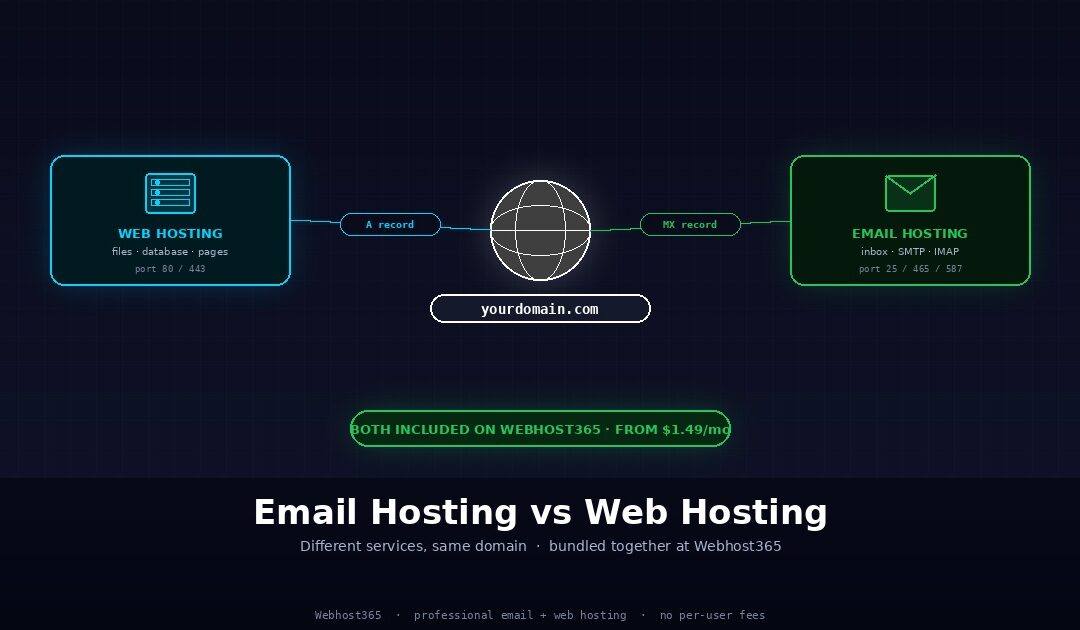
Email hosting and web hosting solve different problems. Web hosting runs your website — the files, database, and content visitors see when they type your domain into a browser. Email hosting runs your inbox — the servers that send and receive messages addressed to you@yourdomain.com. They are technically separate services, but most modern hosting providers (including Webhost365) include professional email hosting free with every web hosting plan from $1.49 per month, which means most small businesses do not need to buy them separately.
This guide explains the technical difference between email hosting and web hosting. It also shows when bundled email included with hosting is enough, when dedicated services like Google Workspace or Microsoft 365 justify their cost, and how SPF, DKIM, and DMARC affect whether professional emails reach the inbox or land in spam. By the end, you will know exactly what email setup fits your business and how much you should reasonably expect to pay for it.
What is email hosting (and how it differs from web hosting)
Email hosting is a service that runs the mail servers handling your custom domain email — sending outgoing messages, receiving incoming messages, storing them on the server, and providing the protocols (IMAP, POP3, SMTP) that email clients use to access them. Web hosting runs the web servers serving your website’s files, databases, and dynamic content. The two services use the same domain (yourdomain.com) but operate independently. Your website can be hosted on one provider while your email runs on another, or both can sit with the same provider in a bundled package.
How web hosting and email hosting use the same domain
The reason email and web hosting can be separate services on the same domain comes down to how the Domain Name System (DNS) works. DNS translates human-readable domain names into machine-readable IP addresses, but it does so differently for different types of traffic. When someone types yourdomain.com into a browser, their computer looks up the A record for that domain — a DNS entry that points to the IP address of your web hosting server. The browser connects to that IP on port 80 (HTTP) or 443 (HTTPS), and your website loads.
When someone sends an email to you@yourdomain.com, their mail server looks up a different DNS entry called the MX record (Mail Exchange record). The MX record points to the IP address of your email hosting server, which is often a completely different machine from your web server. The sending server connects to that IP on port 25, 465, or 587 depending on the protocol, and the email gets delivered.
These two records can point to the same provider (bundled hosting + email) or to different providers (web hosting at one company, email at another). Webhost365’s bundled plans set both A and MX records to point at our infrastructure automatically, which is the simpler default for most users. If you wanted to keep your website on Webhost365 but use Google Workspace for email, you would update the MX record to point at Google’s mail servers while leaving the A record pointing at Webhost365’s web servers. The domain name does not change — only where each type of traffic gets routed.
The technical difference between the two services
Web hosting and email hosting run completely different software stacks even though they share the domain name. A web hosting server runs a web server like LiteSpeed, Nginx, or Apache, paired with a programming runtime (PHP, Node.js, Python) and a database (MySQL, PostgreSQL). The job is to receive HTTP requests, generate HTML responses, and serve files quickly. The performance metric is page load time, and the limiting factors are usually CPU, memory bandwidth, and disk I/O.
An email hosting server runs mail server software like Postfix or Exim for outgoing mail, Dovecot for IMAP and POP3 access, and SpamAssassin or rspamd for spam filtering. The job is to queue, deliver, and store messages reliably across unreliable networks. Email servers spend most of their time waiting on remote mail servers to accept their connections, which means the bottlenecks are completely different from web servers — network reachability, sender reputation, and spam-filter cooperation matter more than raw CPU speed.
Security requirements differ in important ways too. Web hosting needs SSL/TLS certificates to encrypt browser-to-server connections, plus a Web Application Firewall to block common attacks. Email hosting needs SPF, DKIM, and DMARC DNS records to prove that messages claiming to come from your domain are legitimate. These are entirely different problems with entirely different solutions, which is part of why providers historically separated the two services. The convergence of bundled hosting + email is more of a packaging convenience than a technical merger.
Storage patterns differ as well. Web hosting mostly handles read-heavy work. Visitors load pages, and the server reads files and database rows while writing very little back. Email hosting handles more balanced read-write activity: incoming messages write data to disk, outgoing messages write data too, reads update message status, and deletes remove stored messages. The infrastructure tuning for each workload is genuinely different, which is why some hosts that bundle the two cut corners on the email side. Webhost365 runs both on the same modern stack (AMD EPYC processors, NVMe SSD storage) so neither service degrades the other.
Why they get bundled together
Despite these technical differences, hosting providers bundle web hosting and email hosting together for one simple reason: most small business websites need both services on the same domain, and providers can run mail servers alongside web servers at a low marginal cost.
Think about the typical small business launching a website. They register acmewidgets.com, build a brochure site or WooCommerce store, and immediately want professional email at the same domain — info@acmewidgets.com for inquiries, sales@acmewidgets.com for orders, support@acmewidgets.com for customer questions. Buying a separate email service from Google or Microsoft adds friction, complexity, and another monthly bill at exactly the moment they are trying to get something off the ground. The bundled approach gives them everything they need with one provider, one bill, one support team to call when something breaks.
For the hosting provider, running mail servers alongside web servers costs very little once the infrastructure is in place. The same data centre, the same network connectivity, the same operational team can handle both services. Bundling email essentially for free becomes a competitive feature that justifies the customer choosing one provider over another. The combined product is what most people actually need, even if the underlying technologies are separate.
Webhost365 General Hosting from $1.49 per month includes professional email with custom domain on every plan. The bundled email handles unlimited mailboxes (within reasonable storage limits), full IMAP/POP3/SMTP support, automatic SPF/DKIM/DMARC configuration, anti-spam filtering, and webmail access — everything most small businesses need from professional email, without a separate per-user fee. The next section covers when this bundled approach is sufficient, and the section after that covers the genuine cases where dedicated services like Google Workspace earn their cost.
When bundled email hosting (included with web hosting) is enough
Bundled email hosting included with your web hosting plan is sufficient for most small businesses, freelancers, and individual professionals — typically anyone with a team of fewer than 10 people who needs professional custom-domain email without advanced collaboration features. Webhost365 includes free professional email on every plan from $1.49 per month, which covers the vast majority of small business email needs without the additional $6 to $25 per user per month that dedicated services charge. The three subsections below cover what bundled email actually includes, who it fits, and the honest tradeoffs to be aware of before deciding.
What bundled email typically includes
Bundled email on a quality hosting plan covers nearly every feature a small business actually uses day to day. Custom domain addresses are the foundation — you@yourdomain.com, sales@yourdomain.com, info@yourdomain.com, or whatever local parts your business needs. Most hosts allow generous mailbox counts on standard plans, with Webhost365 offering unlimited mailboxes within reasonable storage limits on paid plans.
The access methods cover every modern email workflow. A webmail interface lets you check email from any browser without configuring anything — log in at webmail.yourdomain.com (or similar) and your inbox appears, including a compose window, folders, search, and basic filters. IMAP support means you can also use desktop and mobile email clients like Apple Mail, Outlook, Thunderbird, or the Gmail mobile app, with messages syncing across all your devices. POP3 is supported for users who prefer to download messages locally rather than keeping them on the server. SMTP handles outgoing messages from any client you configure.
Spam and security features are included by default. Anti-spam filtering blocks the obvious junk before it reaches your inbox, antivirus scanning catches malicious attachments, and Webhost365’s network-edge DDoS protection keeps mail servers responsive even under attack. Email forwarders let you route messages between addresses (forward info@yourdomain.com to your personal inbox, or forward all messages from a particular sender into a specific folder). Autoresponders handle out-of-office replies automatically when you are travelling. Storage scales with your hosting plan, which means upgrading your hosting tier also expands your email capacity without separate billing.
Most articles skip one critical detail: Webhost365 automatically configures SPF, DKIM, and DMARC authentication records when you create email accounts on a hosted domain. These records form the technical foundation of email deliverability. Without them, Gmail, Outlook, and other major providers may filter your professional emails as spam. Section 5 covers what these acronyms mean in detail, but the short version is that they are the difference between emails reaching the inbox and emails landing in spam folders, and bundled email on Webhost365 handles all three by default rather than leaving them as manual configuration tasks.
Who bundled email is right for
Solo entrepreneurs and freelancers fit bundled email perfectly. The typical setup is one or two custom email addresses (you@yourbrand.com and maybe hello@yourbrand.com), webmail access for occasional checking, IMAP setup on a phone for daily use, and that is it. Paying $6 per month for Google Workspace when you only need one mailbox and would barely use the collaboration features is paying for power you will never tap.
Small businesses with under 10 employees fit bundled email cleanly because the team is small enough that ad-hoc communication works fine without enterprise collaboration suites. A 5-person agency, a 7-person retail business, an 8-person service company — all of these can run their entire email operation on bundled hosting without hitting any limitations. The team uses email for client communication, internal coordination, and basic file sharing through attachments. Shared calendars and real-time document collaboration are nice to have but not essential at this scale.
WordPress site owners almost always get more value from bundled email than from a dedicated service. Most WordPress sites need email for two specific reasons: contact-form submissions delivering reliably to your inbox, and a couple of professional addresses for business correspondence. Both work perfectly on bundled email, and the contact-form deliverability is actually better on bundled email than on Gmail-routed setups because the mail originates from the same server as the website itself, which simplifies SPF authentication.
Agencies managing client sites are an underappreciated case for bundled email. When you host 20 client sites on resold hosting plans, bundled email lets you set up mailboxes per client without additional billing, separate Google Workspace accounts, or per-user fee tracking. This is also why our best hosting for small business recommendations consistently land on bundled-email tiers rather than separate-service combinations — the operational simplicity matters more than incremental feature gains.
Anyone who would otherwise resort to using a personal Gmail address for business communication should be using bundled email instead. acmewidgets.gmail@gmail.com and similar workarounds signal that the business is not established enough to invest in proper infrastructure, which directly affects how customers perceive credibility. Bundled email at $1.49 per month total for hosting and email solves the credibility problem at less cost than a Netflix subscription.
The honest tradeoffs of bundled email
Bundled email has real limitations worth understanding before committing to it as your only email service.
Storage limits are typically tied to your hosting plan storage. If your plan includes 50 GB of disk space, your email inbox shares that 50 GB with your website files, database backups, and everything else. For most small businesses with light email volume this never matters — typical professional email storage stays well under 5 GB even after years of use, leaving plenty of headroom for the website. For high-volume use cases (heavy attachment exchange, long retention requirements, large team archives), the shared storage can become a constraint sooner than dedicated services that include 30 GB to 5 TB per user.
Collaboration features are basic compared to Google Workspace or Microsoft 365. Bundled email gives you a calendar, contacts, and forwarders. It does not give you Google Docs, Sheets, Drive, Meet, real-time co-editing, threaded chat, or shared workspaces. If your team relies on those features, bundled email cannot replace them — but bundled email also is not trying to. The two products solve different problems, and pretending they are equivalent serves no one.
Mailbox limits exist on most hosting plans, though Webhost365 includes generous limits that rarely matter in practice. Hosts that advertise “unlimited” mailboxes usually have soft caps in their fair-use policies that kick in at the levels where individual users are unlikely to hit them. Read the terms of service before assuming truly unlimited.
If you exceed bundled email’s limits or genuinely need its missing features, dedicated email services are worth the upgrade and exist for good reasons. The next section covers exactly when that crossover point matters, with honest pricing and feature comparisons.
The honest framing: bundled email handles 80% of small business email needs at zero marginal cost. The other 20% of cases — large teams, heavy collaboration, strict compliance, premium support requirements — genuinely benefit from dedicated services and should pay for them. Knowing which bucket you are in is the entire point of this article, which is why the next section walks through dedicated email options with the same honest treatment.
When dedicated email hosting (Google Workspace, Microsoft 365) is worth paying for
Dedicated email hosting services like Google Workspace and Microsoft 365 are worth their $6 to $25 per user per month cost when you need advanced collaboration features (shared docs, video meetings, team calendars), have a team larger than 10 people, deal with strict compliance requirements, or run an organisation where email reliability is mission-critical revenue-impacting infrastructure. For most small businesses, bundled email handles the job; for the cases where it does not, the dedicated services genuinely earn their cost.
Google Workspace — when it makes sense
Google Workspace is the right choice when your team already lives inside the Google ecosystem and uses Gmail, Google Docs, Sheets, Drive, and Google Meet as core daily tools. The integration is genuinely seamless — emails link directly to documents, calendar events tie into Meet calls, drive files attach to messages without download steps, and the entire workflow assumes everyone on the team has access to the same shared environment.
Teams that depend heavily on Gmail-style threaded conversation get more value from Workspace than they realise. The conversation view, label system, search-everything approach, and infinite undo of accidentally sent messages are deeply Gmail-specific behaviours that no other email client fully replicates. Power users who have built their workflow around these features lose productivity when forced onto a different system.
Pricing scales with your team size. Google Workspace starts at $6 per user per month for Business Starter (30 GB per user), $12 for Business Standard (2 TB per user, expanded Meet capacity), $18 for Business Plus (5 TB per user, advanced security), and $25-plus for Enterprise tiers with custom features. The honest tradeoff is that you get a powerful integrated collaboration suite, but $72 to $300-plus per year per user adds up quickly for any team larger than a few people.
The crossover point where Workspace becomes worth the cost over bundled email is usually around 8 to 12 team members, when the collaboration features start saving meaningful coordination time. Below that team size, the productivity gain from Workspace rarely justifies the cost increase. Above it, the operational simplicity of having everyone in one collaboration system tends to dominate.
Microsoft 365 — when it makes sense
Microsoft 365 is the right choice for teams that use Microsoft Office (Word, Excel, PowerPoint) as their primary creative tools and want email tightly integrated with that ecosystem. Outlook is the email client that Office users have built their workflow around for decades — the calendar integration, contact management, meeting scheduling, and shared mailbox features all assume Microsoft 365 in the background.
Enterprise environments with Active Directory, Microsoft Teams, SharePoint, and OneDrive infrastructure need Microsoft 365 because the entire stack is designed to work together. Trying to run email on a different system in a Microsoft-heavy organisation creates synchronisation problems that consume more time than the savings justify. Outlook calendar inviting people across organisations, SharePoint documents linked in emails, and Teams meetings spawned from email threads all rely on the integrated Microsoft cloud.
Microsoft 365 Business plans start at $6 per user per month for Business Basic (web/mobile Office only), $12.50 for Business Standard (full desktop Office apps), and $22 for Business Premium (advanced security and device management). The honest tradeoff matches Workspace — deep integration with Microsoft tools, but linear cost growth with team size that adds up for larger organisations.
For non-Microsoft-centric teams, Microsoft 365 offers little advantage over Google Workspace and rarely beats bundled email on cost. The reason to pick it is specifically the Microsoft ecosystem dependency, not generic email features.
Other dedicated email services worth knowing about
Two other dedicated services deserve mention because they fit specific use cases that Workspace and Microsoft 365 do not serve well.
Fastmail is the privacy-focused dedicated email option at $5 per user per month. The product is built around traditional email done extremely well — fast webmail, excellent IMAP performance, calendar and contact sync, custom domain support, no Google or Microsoft tracking. Teams that value privacy and want a dedicated email service without the broader collaboration suite often pick Fastmail. It does not include document collaboration, video meetings, or shared workspaces, which is the point — it is just email, done very well.
Zoho Mail offers free email for up to 5 users on a custom domain (with limitations), and paid plans starting at $1 per user per month for Mail Lite. For tiny teams with strict budgets, Zoho’s free tier is genuinely usable for basic professional email, and the paid tier scales reasonably for small teams. The product is solid even if the marketing is less polished than Google’s or Microsoft’s.
Proton Mail is end-to-end encrypted email starting at $4.99 per user per month, with custom domain support on paid plans. The use case is specifically privacy and encryption — journalists, security researchers, healthcare practitioners with confidentiality requirements, and anyone who handles sensitive information benefits from native encryption between Proton users. For general business email where encryption is not a primary concern, Proton’s higher cost and smaller ecosystem make it a poor fit.
The honest framing for all of these: they are good products built for specific use cases. The right choice depends on what features your team actually uses day to day, not on which is “better” in abstract reviews. For most small businesses without specific Google, Microsoft, privacy, or encryption requirements, bundled email on quality web hosting is the rational default — and stepping up to a dedicated service should be triggered by a specific need that bundled email genuinely cannot meet.
Bundled vs dedicated email — the comparison that actually matters
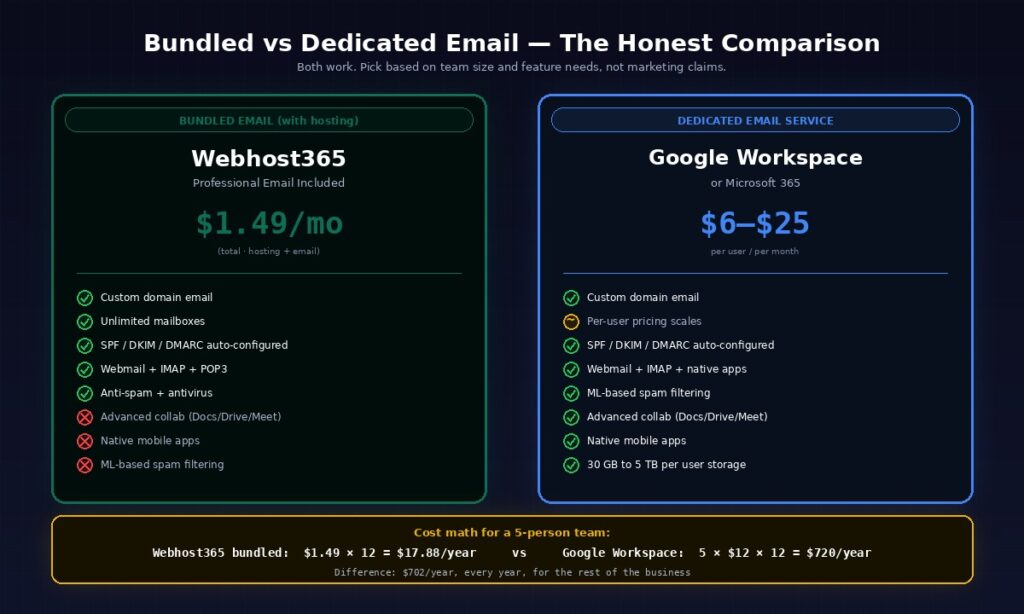
For a small business comparing bundled email (included with hosting) against dedicated email services like Google Workspace, the decision comes down to four factors: team size, collaboration needs, budget, and email volume. Bundled email wins on cost and simplicity. Dedicated services win on features and scale. Most small businesses fit cleanly on the bundled side; the boundary is usually around 10 team members or specific feature requirements.
| Factor | Bundled email (with hosting) | Google Workspace / Microsoft 365 |
|---|---|---|
| Cost | $0 (included) from $1.49/mo total | $6–$25 per user per month |
| Per-user limit | Generous (often 100+ mailboxes) | Per-user pricing scales with team |
| Collaboration features | Basic (calendars, forwarders) | Full suite (docs, meet, drive) |
| Spam filtering | Standard (SpamAssassin) | Industry-leading (ML-based) |
| Mobile apps | Use any IMAP client | Native apps (Gmail, Outlook) |
| Storage | Shared with hosting plan | 30 GB to 5 TB per user |
| Setup | Auto-configured at signup | 15 to 30 min per account |
| Best for | Small business, freelance, teams under 10 | Teams 10+, heavy collaboration |
The cost gap is the part most articles avoid talking about because it embarrasses the dedicated services. Run the math for a typical 5-person agency: Google Workspace Business Standard at $12 per user per month works out to 5 × $12 × 12 = $720 per year just for email. The same team on Webhost365 with bundled email pays $1.49 × 12 = $17.88 per year for hosting plus email combined. The difference is $702 per year, every year, for the rest of the business’s existence.
That gap is real and worth naming honestly. It does not mean Google Workspace is a bad product. It means the additional features Workspace provides (Google Docs, Drive, Meet, real-time collaboration, advanced search, mobile apps) need to be worth $702 per year to a 5-person team, every year. For some teams they are. For most small businesses, bundled email handles the email part while the team uses cheaper or free tools for everything else — which is the rational default unless you specifically need the dedicated features.
The team-size threshold matters because collaboration overhead grows non-linearly. A 3-person team coordinates fine over email and SMS. A 10-person team starts hitting friction with shared documents, meeting scheduling, and project tracking. A 25-person team genuinely needs the integrated collaboration suite that Workspace or Microsoft 365 provides. The crossover point varies by industry and workflow, but the rough rule is that teams under 10 stay on bundled email, teams over 15 usually benefit from dedicated services, and teams between 10 and 15 are judgement calls based on specific use patterns.
The right framing for the decision is not “which is better” but “which fits your specific situation.” Bundled email and Google Workspace solve overlapping but different problems. Picking the wrong one in either direction wastes money — paying for Workspace features you never use is wasteful, and forcing a 30-person team onto bundled email creates coordination friction that costs more than the upgrade would.
Email deliverability — why your professional emails go to spam (and how to fix it)
Email deliverability — whether your messages actually reach the recipient’s inbox or get filtered as spam — depends on three authentication standards working together: SPF (Sender Policy Framework), DKIM (DomainKeys Identified Mail), and DMARC (Domain-based Message Authentication, Reporting, and Conformance). Without these correctly configured, your professional custom-domain emails are likely to be filtered as spam or rejected entirely by Gmail, Outlook, and other major providers — regardless of whether you use bundled email or a dedicated service.
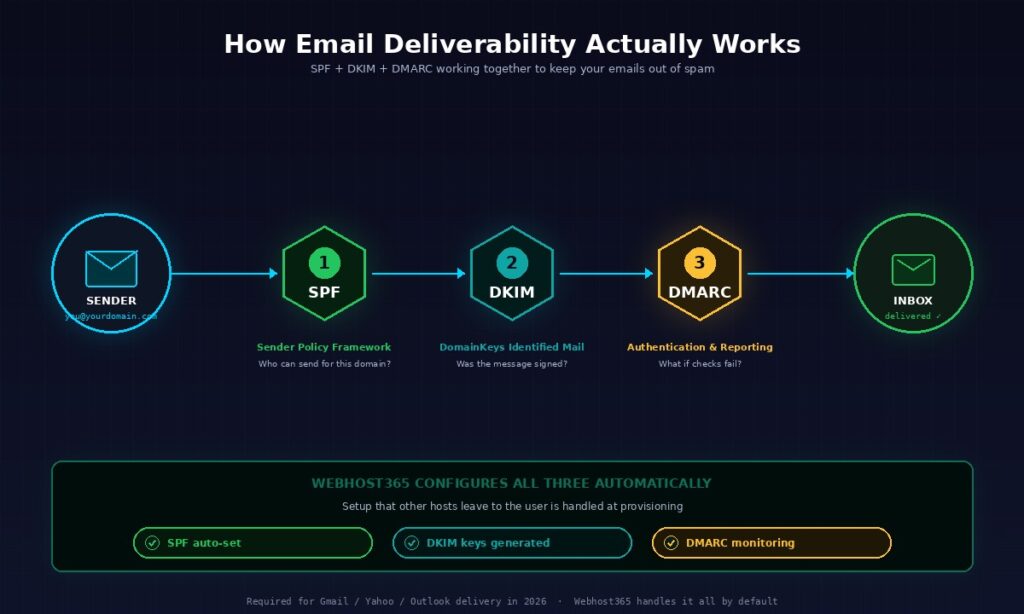
This section explains what each acronym does, why all three matter, and how Webhost365 handles them automatically. The technical detail is genuinely worth understanding because email deliverability is the difference between professional emails reaching customers and silently disappearing into spam folders.
SPF — declaring who can send for your domain
SPF (Sender Policy Framework) is a DNS TXT record that lists which mail servers are authorised to send email from your domain. When a recipient’s mail server receives a message claiming to come from you@yourdomain.com, it checks your domain’s SPF record to see if the sending server’s IP address is in the authorised list. If yes, the message passes SPF authentication. If no, the message gets flagged as suspicious or rejected outright.
The format is a single line that looks like v=spf1 include:_spf.webhost365.net ~all. The v=spf1 declares the SPF version, the include: clause adds Webhost365’s mail server IPs to the authorised list, and the ~all (soft fail) tells receivers to flag rather than reject messages from unauthorised servers. Webhost365 sets up SPF automatically when you create email accounts on a hosted domain, which means most users never need to think about this — but understanding what it does matters for two specific scenarios.
The first scenario is when you also send email through external services like SendGrid, Mailchimp, ActiveCampaign, or Google Workspace. Those services need their mail servers added to your SPF record too. If you send marketing emails through Mailchimp but Mailchimp’s IPs are not in your SPF record, every Mailchimp campaign will fail SPF for half your recipients. The fix is updating the SPF record to include all authorised senders, which Webhost365 support can help with.
The second scenario is when SPF fails silently because of a typo or misconfiguration. The symptom is that your emails consistently land in Gmail’s spam folder while looking fine to other recipients. Tools like mail-tester.com (covered in the setup section) catch this immediately, but most users discover it only after months of low engagement on professional emails.
DKIM — cryptographic signing of outgoing messages
DKIM (DomainKeys Identified Mail) uses a public/private key pair to cryptographically sign every outgoing email. When your mail server sends a message, it adds a digital signature to the headers using a private key that only your server has. The recipient’s mail server reads the signature, looks up the public key (which you publish in DNS), and verifies that the message was actually sent by your server and was not modified in transit.
Without DKIM, sophisticated spam filters mark messages as low trust because there is no cryptographic proof of origin. With DKIM, recipients have a strong signal that messages claiming to come from your domain actually did. This matters more every year as spam filters become more aggressive and more reliant on authentication signals rather than content analysis.
Webhost365 generates DKIM keys and publishes the public key in DNS automatically when you create email accounts. The configuration happens at provisioning, which means new email addresses sign outgoing messages from the first message they send. No manual key generation, no DNS editing, no support tickets — it works from the moment the mailbox exists.
Both SPF and DKIM are required for modern email deliverability. Neither alone is sufficient because they protect against different threats. SPF prevents unauthorised servers from sending mail in your name. DKIM prevents authorised messages from being modified in transit. Together they form the baseline that Gmail and Outlook expect to see on every legitimate business email in 2026.
DMARC — telling receivers what to do with failures
DMARC (Domain-based Message Authentication, Reporting, and Conformance) builds on top of SPF and DKIM by specifying what should happen when messages fail authentication. Without DMARC, individual mail servers make their own decisions about how to treat SPF or DKIM failures — some quarantine, some reject, some accept anyway. With DMARC, you publish an explicit policy that all receivers should follow.
DMARC offers three policy levels. p=none tells receivers to monitor and report failures but deliver messages anyway, which is the right starting point because it lets you see who is sending mail claiming to be from your domain without breaking legitimate email. p=quarantine tells receivers to send failing messages to spam folders, which is appropriate once you have monitored long enough to confirm legitimate senders are correctly authenticated. p=reject tells receivers to refuse delivery entirely, which is the strictest policy and appropriate for established domains with stable sending infrastructure.
A typical DMARC record looks like v=DMARC1; p=quarantine; rua=mailto:dmarc@yourdomain.com. The v=DMARC1 declares the version, p=quarantine sets the policy, and rua= specifies where aggregate reports about authentication results should be sent. The reporting capability is genuinely useful — you receive daily emails listing all senders claiming to be from your domain, including legitimate ones (your mail server, marketing services) and any unauthorised ones (phishing attempts, misconfigured services).
DMARC went from “good practice” to “table stakes” in early 2024 when Google’s bulk sender requirements started requiring valid DMARC records for any domain sending more than 5,000 messages per day to Gmail addresses. Yahoo announced similar requirements simultaneously. Microsoft has signalled they will follow. The practical implication is that any business sending meaningful email volume needs DMARC configured correctly, or their messages start getting rejected at scale.
How Webhost365 handles all three automatically
The reason most small businesses struggle with email deliverability is that SPF, DKIM, and DMARC require DNS configuration that the average buyer has never edited. Hosting providers that leave this configuration to the user end up with most users running email without authentication, which means most professional emails on those hosts go to spam.
Webhost365 handles all three automatically when you provision email accounts. The system sets SPF records when you enable email on a hosted domain and adds all Webhost365 mail server IPs to the authorized list. It generates DKIM keys per domain, publishes them in DNS, and configures outgoing message signing without user intervention. DMARC starts at p=none with reporting enabled, which is the correct starting policy for new domains because it provides authentication signal without breaking legitimate mail flow.
Users who want to tighten DMARC policy to p=quarantine or p=reject can update the DNS record directly through the control panel once they have monitored sending patterns for a few weeks. Most users never need to make this change because the default policy provides authentication while allowing flexibility. The point is that the baseline configuration is correct from day one, rather than being a manual task that most users skip.
The honest framing: this is the industry-standard baseline in 2026, not a special Webhost365 feature. The reason it appears in this article is that other hosts often leave authentication configuration to the user, which is the technical reason their bundled email gets less inbox delivery than it should. Setup that other providers treat as a manual user task is handled at provisioning on Webhost365, which means the average user gets professional email deliverability without ever editing DNS records.
How to set up professional email with your domain (Webhost365 walkthrough)
Setting up professional email with your custom domain on Webhost365 takes under five minutes. After your hosting account is active, log into the control panel, navigate to Email Accounts, click Create Account, choose your local part (the part before the @), set a strong password, and the mailbox is ready immediately. Webhost365 automatically configures SPF, DKIM, and DMARC for the domain on creation — no manual DNS work required. The four numbered steps below cover the complete setup process from creating your first mailbox through verifying that emails actually reach the inbox.
Step 1 — Create your email account
Log into the Webhost365 control panel using the credentials provided in your welcome email. The default control panel for Webhost365 hosting is DirectAdmin, which presents a clean dashboard with sections for files, databases, email, and domain management. Email accounts live under the Email section, typically labeled “Email Accounts” or “Email Manager.”
Click into Email Accounts and select Create Account. A form appears asking for three pieces of information. The local part is the text before the @ symbol — hello, info, sales, support, or your name are common choices for a first business email. Pick something memorable and professional rather than clever; john.smith@yourdomain.com looks more credible to customers than johnny@yourdomain.com even though both work technically.
Set a strong password for the mailbox. Twelve characters minimum, with mixed case, numbers, and symbols, is the baseline for any production email account. Email accounts are common targets for credential-stuffing attacks because compromised email leads to password resets on every other service connected to that address. A weak email password puts your entire online identity at risk. Use a password manager to generate and store the credential rather than typing something memorable.
Set the storage quota for the mailbox. The default is usually appropriate for most users — 1 GB or 2 GB handles years of professional email for typical small business use. Heavy attachment exchange or long retention requirements may need larger quotas, and you can increase them anytime through the same control panel. Click Create, and the account goes live immediately. The new inbox receives emails sent to that address from the next message onward.
Step 2 — Access your email via webmail
The fastest way to use your new email account is through webmail, which is browser-based access that requires no client configuration. Webhost365’s webmail URL is typically webmail.yourdomain.com or yourdomain.com/webmail — both work after DNS propagation, which happens within minutes of email account creation.
Log in with your full email address (you@yourdomain.com, not just the local part) and the password you set in Step 1. Webhost365 includes Roundcube as the default webmail interface, which provides a familiar three-pane email client experience: folder list on the left, message list in the middle, message preview on the right. Roundcube supports rich-text composition, attachments, signatures, contacts, and basic filtering rules.
For users who only check email occasionally or work primarily from web browsers, Roundcube webmail is sufficient on its own. The interface is clean, fast, and works on any device with a browser including phones and tablets. Many small business owners run their entire email workflow through webmail without ever configuring a desktop client, which simplifies device management and avoids local data storage issues.
For heavier email users, the next step covers connecting desktop and mobile clients. Either approach is valid — pick the one that matches how you actually use email.
Step 3 — Connect a desktop or mobile email client (optional)
Most users want their professional email accessible in the same client they already use for personal email. Apple Mail on Mac and iPhone, Outlook on Windows, the Gmail mobile app on Android, Thunderbird on Linux — all of these support custom-domain email through standard IMAP and SMTP protocols.
The connection settings are identical across clients. Add a new account using IMAP (which keeps messages synchronized across devices) rather than POP3 (which downloads messages locally and removes them from the server). The IMAP server is mail.yourdomain.com on port 993 with SSL/TLS encryption. The SMTP server for sending mail is also mail.yourdomain.com on port 465 with SSL/TLS, or port 587 with STARTTLS depending on the client. Username is the full email address (you@yourdomain.com), password is the one you set in Step 1.
These exact values appear in your Webhost365 control panel after creating the email account, available for copy-paste into any client setup wizard. Most modern email clients can autodetect the correct settings from just the email address and password — Apple Mail, Outlook 365, and Gmail mobile all handle the autodetection cleanly. Older or simpler clients may need the values entered manually.
After adding the account, send a test message to your personal email (a Gmail or Outlook address you check regularly) and reply to it. If both directions work — outgoing message arrives in personal inbox, reply arrives in professional inbox — the setup is correct. The test takes 60 seconds and catches almost every configuration mistake. Common failure modes include wrong password (typing error), wrong server address (typo in mail.yourdomain.com), or DNS not yet propagated (wait 15 minutes and retry).
For mobile setup specifically, both iOS and Android handle custom-domain email natively through their built-in mail apps. iOS users add the account in Settings > Mail > Accounts > Add Account > Other > Add Mail Account. Android users add through the Gmail app’s account picker > Add Account > Other (IMAP). Both autodetect server settings from the email address in most cases.
Step 4 — Verify deliverability and DNS authentication
The final step is verifying that messages actually reach the inbox rather than being filtered to spam. Send a test email from your new account to the free deliverability checker at mail-tester.com. Mail-tester provides a unique email address per session, scores your message against multiple deliverability criteria, and produces a detailed report within seconds.
Aim for a score of 9 or higher out of 10. The detailed breakdown shows which authentication standards passed and which failed. SPF should show green with the correct sending IP authorised. DKIM should show green with a valid signature matching your domain’s public key. DMARC should show green with a valid policy alignment. If any of the three fail, the report explains the specific issue and what configuration change would fix it.
A 10/10 score on mail-tester does not guarantee inbox delivery on every recipient — Gmail’s spam algorithms include factors mail-tester cannot measure, particularly sender reputation built up over time. But a low score (under 7) almost guarantees deliverability problems, and the report’s specific feedback tells you exactly what to fix. Webhost365’s auto-configured SPF, DKIM, and DMARC typically produce 9-10 scores immediately after setup, which is the baseline expected for professional email in 2026.
For sites that send marketing emails, transactional notifications, or high-volume correspondence, additional steps strengthen deliverability further. Set up a custom Reply-To address that matches your sending domain. Add a custom From name (Your Business Name <you@yourdomain.com> rather than just the email). Avoid spam-trigger words in subject lines (free, winner, excessive punctuation). Send a few legitimate emails before any marketing campaign to build sender reputation. None of these are strictly required, but each one nudges deliverability in the right direction over time.
Setup is complete. You now have professional email at your custom domain, configured with industry-standard authentication, accessible from web browser and any email client you prefer, with deliverability verified to a 9-plus score on the standard test.
Frequently asked questions
Email hosting runs the mail servers that handle your custom-domain email, including sending, receiving, storing, and providing access protocols like IMAP and SMTP. Web hosting runs the web servers that serve your website’s files, databases, and dynamic content. The two services are technically separate but use the same domain name through different DNS records — A records direct web traffic, MX records direct email traffic. Most modern hosting providers including Webhost365 bundle email hosting free with web hosting plans because most small businesses need both services on the same domain.
Most likely yes — if your hosting plan includes professional email (which Webhost365 does on every paid plan from $1.49 per month), you already have email hosting included and do not need to buy it separately. If your hosting plan does not include email, you would need either a separate email hosting service like Google Workspace or Microsoft 365, or a host that bundles professional email with the web hosting subscription. Using a personal Gmail address for business is technically possible but signals an unestablished business and hurts customer trust.
Yes, but it requires a Google Workspace subscription starting at $6 per user per month rather than the free personal Gmail. Google Workspace gives you Gmail’s interface with your custom domain, plus Google Docs, Drive, Meet, and Calendar integration. The free Gmail product cannot be configured with custom domains. For professional email at $0 marginal cost, bundled email with web hosting (like Webhost365’s included professional email) is the alternative, accessible through any email client including the Gmail mobile app via IMAP.
For pure email functionality (sending, receiving, custom domain, spam filtering, IMAP/SMTP), bundled email and Google Workspace are functionally equivalent on quality hosting providers. Google Workspace differs in collaboration features — Google Docs, Sheets, Drive, Meet, real-time co-editing, advanced search, native mobile apps. If your team uses these collaboration tools heavily, Workspace earns its $6-$25 per user per month cost. If your needs are limited to professional email, bundled email handles the job at zero marginal cost over your hosting plan.
Bundled email included with web hosting costs $0 marginal — you pay only for the hosting plan, which on Webhost365 starts at $1.49 per month total for hosting plus email. Dedicated email services charge per user per month: Google Workspace at $6 to $25, Microsoft 365 at $6 to $22, Fastmail at $5, Zoho Mail at $1 to $4 (with a free tier for up to 5 users). For a 5-person team, the difference between bundled email and Google Workspace Business Standard is approximately $700 per year.
Yes, hosting your website with one provider and email with another is technically straightforward through DNS configuration. The A record for your domain points at your web hosting provider’s IP address, while the MX record points at your email provider’s mail servers. This setup is common when teams want web hosting at one provider for technical reasons but prefer Google Workspace or Microsoft 365 for email collaboration. Webhost365 supports this configuration if you want web hosting with us but email elsewhere.
Emails go to spam when the recipient’s mail server cannot verify your identity through email authentication standards — SPF, DKIM, and DMARC. Without these correctly configured, modern spam filters mark your messages as low trust regardless of content. Other deliverability factors include sender reputation built over time, message content (spam-trigger words, excessive links, suspicious attachments), and sending volume patterns. Webhost365 automatically configures SPF, DKIM, and DMARC when you create email accounts, fixing the most common technical deliverability failure.
Most quality hosting providers including Webhost365 include generous mailbox limits on paid hosting plans, with practical limits well above what any small business needs. The actual number depends on plan tier and storage allocation, since each mailbox uses storage from your overall hosting plan. For most small businesses, the limit is functionally irrelevant — typical professional setups use 5 to 20 email addresses (info, sales, support, individual employees) which fit comfortably on any paid hosting tier.
IMAP keeps your email messages on the server and synchronises them across all your devices — read a message on your phone and it appears as read on your laptop. POP3 downloads messages to a single device and typically removes them from the server, which means a message read on your phone is no longer accessible from your laptop. IMAP is the right choice for nearly every modern user because most people check email from multiple devices. POP3 makes sense only in limited cases, such as archiving messages locally for offline access or using email from a single device when server storage is limited.
Yes, you can keep your email if you switch web hosts, though the process depends on whether your old host bundled email or you used a separate email service. If your old web host bundled email with your hosting plan, moving to a new host requires you to transfer the mailboxes and stored messages. Webhost365’s free migration service handles this automatically along with your website files. If email runs on a dedicated service like Google Workspace, switching web hosts does not affect email at all — only the MX records pointing to your dedicated email provider need to remain unchanged.
Webhost365 plans with professional email included
Every Webhost365 hosting plan includes free professional email with custom domain — not a paid add-on, not a feature gated behind higher tiers. Shared Hosting from $1.49 per month includes professional email with automatic SPF, DKIM, and DMARC configuration. WordPress Hosting from $2.49 per month adds LiteSpeed Enterprise for WordPress performance. Cloud Hosting from $3.49 per month provides scaling and higher uptime SLAs for e-commerce. Linux VPS from $4.99 per month gives you root access for custom applications. Every tier runs the same email infrastructure with the same authentication and the same deliverability. Browse all hosting plans to find the tier that fits your business — and skip the separate email subscription you were about to sign up for.