
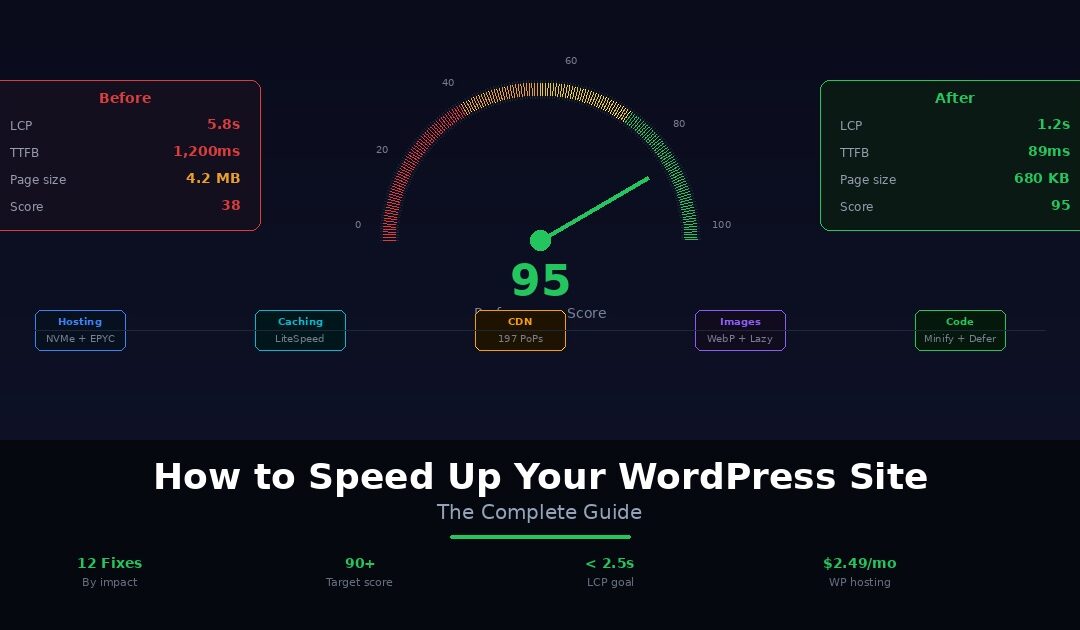
Your WordPress site is slow. You can feel it every time you click a page in the admin panel, and your visitors feel it every time they land on your homepage and wait for content to appear. Google feels it too. Core Web Vitals scores show up as orange or red in Search Console. Your bounce rate keeps climbing. Your rankings are slipping.
Every guide you find tells you to “install a caching plugin” as if that single step will fix everything. It will not. WordPress speed is a stack problem. If your hosting is slow, no caching plugin will save you. If your images are unoptimised, no CDN will compensate. If your theme loads 15 render-blocking scripts, no amount of server-side tuning will make the frontend fast.
This guide covers the 12 optimisations that actually move the needle. They are ordered by impact from highest to lowest. Start at the top, work your way down, and test your site after each change. We skip the filler tips that save 20 milliseconds nobody notices. Instead, every recommendation here targets a specific bottleneck that causes real, measurable slowness on WordPress sites.
We will start by establishing your baseline speed with free testing tools. Then we walk through all 12 fixes, from hosting and caching to image optimisation, CDN configuration, database cleanup, and code-level tuning. After that, we cover a quick wins versus deep fixes priority matrix so you know exactly where to start based on your situation. And we finish with something most speed guides skip entirely: a technical breakdown of how your hosting infrastructure determines the speed ceiling that no plugin can exceed.
By the end, your WordPress site will load faster than 90% of the websites on the internet. Let’s find out what is slowing it down.
Test Your Site Speed Before You Change Anything
Before changing a single setting, establish a baseline. Without numbers to compare against, you have no way to know which optimisations are working and which are wasting your time.
Run your homepage and one inner page through these three free tools:
Google PageSpeed Insights (pagespeed.web.dev) gives you a Performance score from 0 to 100 and real-world Core Web Vitals data from the Chrome User Experience Report. This is the metric Google actually uses for search rankings. Pay close attention to LCP (Largest Contentful Paint), INP (Interaction to Next Paint), and CLS (Cumulative Layout Shift).
GTmetrix (gtmetrix.com) shows waterfall charts so you can see exactly which resources take the longest to load. It also lets you test from different global locations. If your site loads in 1.5 seconds from Dallas but 5 seconds from Mumbai, that tells you a CDN is the missing piece.
WebPageTest (webpagetest.org) provides advanced metrics including TTFB (Time to First Byte), start render time, and a filmstrip view showing how your page loads second by second. TTFB is especially important because it reveals whether your server is the bottleneck before any frontend optimisation even matters.
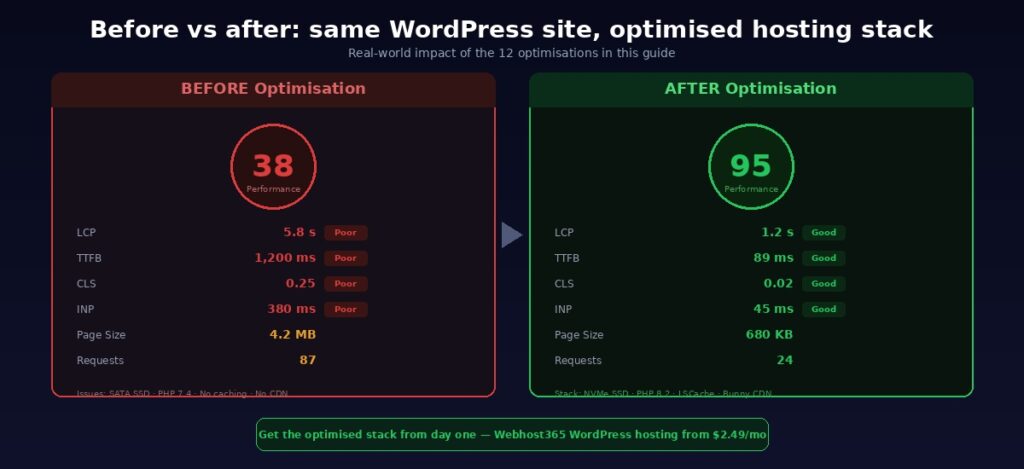
Write down four numbers: your Performance score, LCP time, TTFB, and total page size. These are your baseline. After each optimisation you implement, re-test and compare. If a change does not improve these numbers, it is not worth keeping.
Do not chase a perfect 100. Aim for a Performance score above 90, LCP under 2.5 seconds, and TTFB under 200 milliseconds. Those are the thresholds where Google considers your Core Web Vitals “Good” and where real users experience a genuinely fast site.
Webhost365 Speed Test is the fastest way to get a quick performance snapshot. Enter your URL and get an instant breakdown of load time, page size, and request count. It is a clean, no-signup tool built for quick diagnostics before and after each optimisation.
The 12 Optimisations That Actually Matter (Ordered by Impact)
Not all optimisations are equal. Some cut your load time in half. Others save 50 milliseconds that nobody notices. The list below is ordered by real-world impact, starting with the changes that make the biggest difference and ending with the finishing touches.
1. Start With the Right Hosting
This is the foundation. No optimisation downstream can compensate for a slow server. If your hosting infrastructure is the bottleneck, every caching plugin, image compressor, and code minifier you install is working against a speed ceiling that only better hosting can raise.
What to look for in your hosting stack
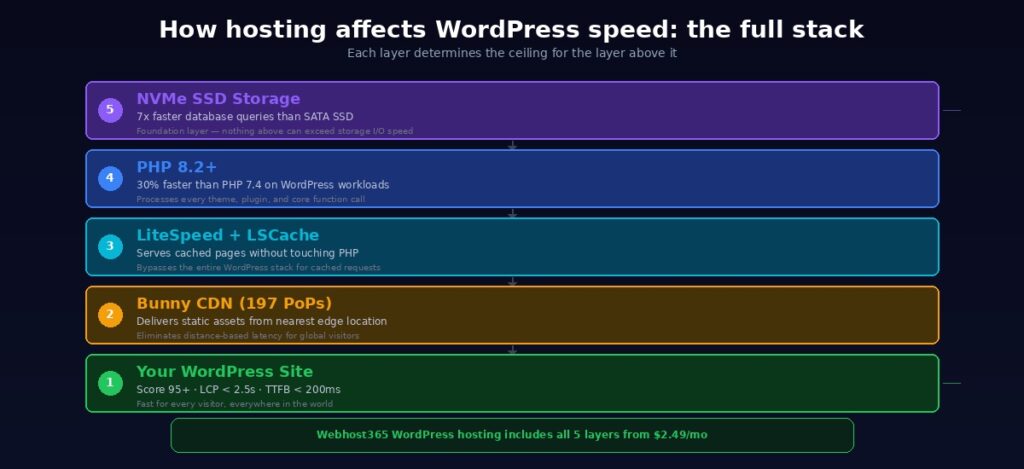
NVMe SSD storage performs random read/write operations 7x faster than SATA SSD. WordPress database queries and file reads run significantly faster on NVMe. If your host still uses SATA drives, your database-heavy pages (WooCommerce products, dynamic archives, search results) are slower than they need to be.
PHP 8.2 or higher processes WordPress workloads roughly 30% faster than PHP 7.4. Check your hosting panel and upgrade if you are running an older version. This single change costs nothing and delivers measurable improvement on every page load.
Adequate RAM prevents throttling under real traffic. WordPress with WooCommerce, a page builder, and 15 active plugins can consume 256 to 512MB per request. Shared hosting plans with 512MB total RAM will struggle the moment multiple visitors arrive simultaneously.
Server-level caching delivers pages without touching PHP at all. LiteSpeed web server with LSCache or Nginx with FastCGI cache serves pre-built pages directly from memory. This is fundamentally faster than plugin-based caching alone.
Built-in CDN eliminates the setup overhead of adding a separate CDN service. If your host includes a CDN, your static assets are delivered globally from day one without DNS changes, plugin configuration, or separate billing.
How to diagnose whether hosting is your bottleneck
Run a TTFB test from multiple locations using GTmetrix or Webhost365 Speed Test. TTFB measures the time before any content starts arriving in the browser. If your TTFB exceeds 600ms on a cached page from any major region, your hosting is the problem. No frontend optimisation can fix a slow server response.
What performance-optimised WordPress hosting looks like
On Webhost365 WordPress hosting, every plan includes NVMe SSD storage, AMD EPYC Gen4 processors with DDR5 RAM, LiteSpeed web server, PHP 8.x, Bunny CDN with 197 global edge locations, free SSL, and one-click WordPress installation. Plans start at $2.49 per month with no renewal price hikes. If your current hosting is the root cause of your speed problems, switching fixes the foundation that every other optimisation builds on.
2. Enable Page Caching
Every time someone visits your WordPress site, the server runs a chain of operations. It queries the database, executes PHP, assembles the HTML, and sends the finished page to the browser. This happens on every single page load for every single visitor. On a busy site, that is thousands of identical pages being rebuilt from scratch every hour.
Caching stores a pre-built version of each page and serves it directly to visitors. The entire PHP and database cycle is skipped. The result is dramatically faster page loads and significantly lower server resource usage.
Server-level caching vs plugin-based caching
Server-level caching is the fastest option. LiteSpeed with LSCache or Nginx with FastCGI cache intercepts the request before WordPress even loads. The cached page is served directly from memory. If your host supports server-level caching, always use it. On LiteSpeed servers (used by Webhost365 WordPress hosting), install the free LiteSpeed Cache plugin to manage cache rules, purging, and exclusions.
Plugin-based caching handles caching through WordPress itself. WP Rocket is the best premium option and works on any server. WP Super Cache and W3 Total Cache are solid free alternatives. These plugins generate static HTML files and serve them instead of running PHP on every request. They are essential if your host does not provide server-level caching.
One caching solution at a time
This is critical. Never run two caching plugins simultaneously. WP Rocket plus LiteSpeed Cache plus W3 Total Cache does not mean triple the speed. It means conflicts, broken pages, and unpredictable behaviour. Pick one caching approach and use it properly.
If your hosting includes LiteSpeed with LSCache, use the LiteSpeed Cache plugin and skip third-party caching plugins entirely. If your host runs Apache or Nginx without built-in caching, WP Rocket is the most reliable choice.
Expected impact
Caching typically reduces page load time by 40 to 60% and cuts TTFB from 800ms or higher down to under 200ms on cached pages. It is the single highest-impact change after hosting itself.
3. Use a CDN for Global Speed
Your WordPress site is hosted on a server in one physical location. Every visitor, no matter where they are in the world, downloads your images, CSS, JavaScript, and fonts from that single location. A visitor in London accessing a server in Dallas waits for every asset to travel 8,000 kilometres and back. Multiply that by 40 to 80 assets per page, and the latency adds up fast.
A content delivery network solves this by caching your static assets on edge servers around the world. Visitors load those assets from the nearest location instead of your origin server. For a detailed breakdown of how CDNs work, read our complete guide on what a CDN is and why your site needs one.
Why CDNs matter specifically for WordPress
A typical WordPress page loads 40 to 80 individual resources. Images, stylesheets, JavaScript files, fonts, and favicon requests all add up. Without a CDN, every one of those requests travels the full distance to your origin server. With a CDN, the majority are served from an edge location milliseconds away. This directly improves two Core Web Vitals that affect your Google rankings: LCP (because your largest image loads faster) and TTFB (because fewer requests hit your origin server). For a deeper look at the connection between CDN and search performance, see our article on how integrated CDNs affect Core Web Vitals.
Standalone CDN vs host-integrated CDN
Standalone CDN services like Cloudflare (free tier available), BunnyCDN, and KeyCDN require you to configure DNS records, install a plugin or modify your WordPress URL settings, set cache rules, and troubleshoot compatibility with your caching plugin. It works, but the setup takes time and occasionally causes conflicts.
Host-integrated CDN eliminates all of that overhead. On Webhost365 WordPress hosting, Bunny CDN with 197 global edge locations is built into every plan. There are no DNS changes, no plugin configuration, and no separate billing. Your static assets are cached and delivered globally from the moment your site goes live.
Expected impact
A CDN typically reduces global page load time by 40 to 70%. For sites with international visitors, this is often the single biggest improvement after hosting and caching. If your audience is concentrated in one region near your server, the impact is smaller but still measurable.
4. Optimise Your Images
Images are the heaviest assets on most WordPress pages. A single unoptimised hero image uploaded straight from a camera or stock photo site can weigh 2 to 5MB. That is more than the rest of the page combined. Multiply that across a homepage with six images, and you are asking visitors to download 10MB or more before the page finishes loading.
Convert to modern formats
WebP delivers 25 to 35% smaller files than JPEG and PNG at equivalent visual quality. Most modern browsers support it, and WordPress 5.8+ handles WebP uploads natively. AVIF compresses even further than WebP but browser support is still catching up. Start with WebP as your default format.
Plugins like ShortPixel, Imagify, and Smush can automatically convert your existing image library to WebP and serve the original format as a fallback for older browsers. LiteSpeed Cache also includes built-in WebP conversion if your host runs LiteSpeed.
Resize before uploading
A hero image displayed at 1200px wide does not need to be 4000px wide. Upload images at the dimensions they will actually display. A 4000x3000px image resized down by the browser still downloads at full size. The browser does the work, but your visitor pays the bandwidth cost. Resize in an image editor before uploading, or use a plugin that generates properly sized variants automatically.
Compress without visible quality loss
Lossless compression removes metadata and redundant data without changing the image. Lossy compression reduces quality slightly for much smaller files. For most WordPress sites, lossy compression at 80 to 85% quality is the sweet spot. The difference is invisible to visitors, but file sizes drop by 50 to 70%.
Handle lazy loading correctly
WordPress enables native lazy loading for images by default since version 5.5. This means images below the fold load only when the visitor scrolls near them. Verify it is active on your site.
However, there is one critical exception. Your hero image and site logo should never be lazy loaded. These are above-the-fold elements that visitors see immediately. Lazy loading them delays your LCP score because the browser waits for a scroll event that never happens. Use your optimisation plugin to exclude above-the-fold images from lazy loading.
Expected impact
Image optimisation alone can reduce total page size by 50 to 70% and significantly improve LCP. On image-heavy pages like portfolios, WooCommerce product listings, and blog archives, the improvement is even more dramatic.
5. Minify and Combine CSS and JavaScript
Every WordPress theme and plugin adds its own CSS and JavaScript files. A typical WordPress site loads 15 to 30 separate stylesheets and scripts. Each file adds overhead: the browser must download, parse, and execute it before rendering the page. Reducing the size and number of these files speeds up rendering for every visitor.
What minification does
Minification strips whitespace, comments, and unnecessary characters from CSS and JavaScript files. A 120KB stylesheet might shrink to 85KB after minification. The code functions identically, but the browser downloads it faster. This is a safe, low-risk optimisation that rarely causes compatibility issues.
Why combining files is no longer always helpful
Older speed guides recommend merging all CSS files into one and all JavaScript files into one. That advice made sense under HTTP/1.1, where each file required a separate connection. Modern servers use HTTP/2 and HTTP/3, which multiplex many requests over a single connection simultaneously. Under these protocols, combining files into large monolithic bundles can actually hurt performance. A single 500KB CSS file blocks rendering until it fully downloads, while five smaller files can load in parallel.
What to do instead
Focus on minification and eliminating render-blocking resources. Run your site through PageSpeed Insights and look for the “Eliminate render-blocking resources” opportunity. It lists the specific CSS and JS files that delay your first paint.
Defer non-critical JavaScript so it loads after the page renders instead of blocking it. Most caching plugins handle this with a simple toggle. WP Rocket, LiteSpeed Cache, and Autoptimize all offer JS defer options.
Inline critical CSS so the browser has enough styling to render above-the-fold content immediately without waiting for external stylesheets. WP Rocket generates critical CSS automatically. LiteSpeed Cache offers a similar feature through its optimisation settings.
Minify CSS and JS through your caching plugin rather than installing a separate minification plugin. One tool handling both caching and minification reduces the chance of conflicts.
Expected impact
Minification typically reduces CSS and JS file sizes by 15 to 30%. Deferring render-blocking JavaScript can improve First Contentful Paint by 200 to 500ms. Together, these changes make the page feel noticeably faster because content appears on screen sooner.
6. Choose a Lightweight Theme
Your theme controls how much HTML, CSS, and JavaScript loads on every single page of your site. A bloated theme with built-in sliders, animations, custom fonts, parallax effects, and page builder functionality can add 500KB to 2MB of overhead before your actual content even loads. That overhead hits every page, every visit, every time.
Why theme weight matters more than theme features
A theme that advertises 50 built-in features sounds impressive. In practice, most sites use five or six of those features. The other 44 still load their CSS and JavaScript on every page. Your contact page loads the slider script. Your blog post loads the portfolio gallery styles. Your checkout page loads the parallax animation library. None of it is needed, but all of it downloads.
Lightweight themes worth considering in 2026
GeneratePress weighs under 10KB and consistently achieves 95+ PageSpeed scores out of the box. It is highly customisable through its modular add-on system, so you only load the features you actually use.
Kadence delivers excellent Core Web Vitals with a flexible block-based design system. It strikes a strong balance between performance and visual customisation.
Astra comes in under 50KB and powers over a million sites. Its starter templates give you professional designs without the performance penalty of a full page builder.
Blocksy is built natively for the WordPress block editor. It performs well by default and integrates cleanly with Gutenberg without adding unnecessary scripts.
Twenty Twenty-Five is the WordPress default block theme. Minimal by design, it is an excellent baseline for developers who want to build custom layouts without inherited bloat.
How to test whether your theme is the problem
If switching themes is not realistic right now, you can still diagnose the impact. Temporarily activate Twenty Twenty-Five (or any default theme) on a staging site and run a speed test. Compare your TTFB, page size, and total request count against your current theme. If the numbers improve dramatically, your theme is a significant bottleneck. That data gives you a clear case for migrating to a lighter option.
7. Audit and Remove Unnecessary Plugins
Every active plugin adds PHP code that WordPress loads and executes on every page request. Some plugins are essential for your site to function. Others sit in the background consuming resources for features you stopped using months ago. The difference between 12 well-chosen plugins and 35 accumulated ones can be hundreds of milliseconds on every page load.
How to find the plugins slowing you down
Go to Plugins in your WordPress admin and look at your full list. For each plugin, ask two questions. Do I actively use this feature? Does this plugin load scripts and styles on every page, including pages where it is not needed?
The second question is the critical one. A contact form plugin that loads its CSS and JavaScript on your homepage, blog posts, and product pages even though the form only exists on your contact page is wasting resources on every other page. Social sharing plugins, form builders, and analytics trackers are common offenders.
Test methodically, not randomly
Deactivate plugins one at a time and run a speed test after each deactivation. This tells you exactly how much overhead each plugin adds. If removing a plugin improves load time and you do not actively use its functionality, delete it permanently. Do not just deactivate it. Inactive plugins still pose a security risk and clutter your admin panel.
Common plugin categories worth auditing
Social sharing plugins often load heavy scripts and stylesheets on every page. Consider replacing them with lightweight alternatives or simple HTML share links that require zero JavaScript.
Slider and carousel plugins inject render-blocking CSS and JS for animations that most visitors scroll past. Replace them with a static hero image where possible. A well-designed static image loads instantly and converts just as well.
Analytics plugins add tracking scripts that can be loaded more efficiently. Google Analytics can be added via a lightweight code snippet in your theme header instead of a full plugin.
Security plugins are important but some add significant processing overhead to every request. Choose one well-maintained security solution, not three overlapping ones.
How many plugins is too many?
There is no universal limit, because plugin quality matters more than quantity. A site with 15 well-coded plugins can outperform a site with 8 bloated ones. That said, a well-optimised WordPress site typically runs 10 to 15 active plugins. If you have 30 or more, there is almost certainly dead weight to remove.
8. Clean Up Your Database
Every action in WordPress writes data to your MySQL database. Publishing a post, saving a draft, receiving a comment, running a WooCommerce order, and updating a plugin option all create database entries. Over months and years, this accumulates into significant bloat that slows down every query.
What clogs your WordPress database
Post revisions are the biggest offender. WordPress saves a new revision every time you click Save Draft or Update. A single post edited 50 times stores 50 complete copies of the content. Across hundreds of posts, that is thousands of rows consuming space and slowing queries.
Auto-drafts are created every 60 seconds while you are editing. Most are never used, but they remain in the database unless manually cleaned.
Trashed posts and spam comments sit in the database indefinitely until you empty the trash. A site that receives 500 spam comments per month accumulates 6,000 junk database rows per year if they are only trashed and never deleted.
Expired transients are temporary cached values stored by plugins and themes. When they expire, many are not cleaned up automatically. They pile up as orphaned rows that serve no purpose.
Orphaned metadata from deleted plugins leaves behind database tables and option rows that nothing references anymore.
How to clean it up
Add this line to your wp-config.php file to limit future revisions to 5 per post instead of unlimited:
define('WP_POST_REVISIONS', 5);For existing bloat, install WP-Optimize or Advanced Database Cleaner. These plugins delete old revisions, auto-drafts, trashed items, spam comments, and expired transients in a few clicks. WP-Optimize can also run MySQL OPTIMIZE TABLE commands to defragment tables and reclaim wasted space.
How often to clean
Run a database cleanup monthly if you publish content regularly. For WooCommerce stores with frequent orders and customer activity, schedule weekly cleanups. Both WP-Optimize and Advanced Database Cleaner support automated scheduling so you can set it and forget it.
Expected impact
Database optimisation rarely produces dramatic frontend speed improvements on its own. However, it typically reduces TTFB by 50 to 100ms and significantly speeds up your WordPress admin panel. Dashboard pages, post lists, and plugin settings all load faster with a clean database.
9. Enable GZIP or Brotli Compression
When your server sends HTML, CSS, and JavaScript files to a visitor’s browser, it can either send them at full size or compress them first. Compression shrinks these text-based files before transmission and the browser decompresses them on arrival. The difference is significant. A 150KB stylesheet compressed with GZIP drops to around 45KB. The same file compressed with Brotli drops to roughly 38KB. Multiply that saving across every text-based resource on the page and your total transfer size drops substantially.
GZIP vs Brotli
GZIP is the standard compression method supported by every browser and server. It has been around for decades and works reliably everywhere. Most hosting providers enable GZIP by default.
Brotli is the newer alternative developed by Google. It compresses 15 to 20% better than GZIP on typical web assets. All modern browsers support Brotli, and adoption has grown rapidly since 2023. On LiteSpeed servers (used by Webhost365 WordPress hosting), Brotli compression is supported natively and typically enabled by default.
How to check whether compression is active
Run your site through GTmetrix or PageSpeed Insights. If either tool flags “Enable text compression” as a recommendation, your server is not compressing text-based resources. This means every HTML page, stylesheet, and JavaScript file is being sent at full size unnecessarily.
You can also check manually. Open your browser’s developer tools, go to the Network tab, click on any HTML or CSS file, and look for content-encoding: br (Brotli) or content-encoding: gzip in the response headers. If neither is present, compression is not active.
How to enable it
On LiteSpeed servers, Brotli is typically enabled at the server level with no configuration needed. On Apache servers, enable GZIP by adding mod_deflate rules to your .htaccess file. Most caching plugins including WP Rocket and W3 Total Cache can add these rules automatically through their settings panel.
Expected impact
Compression typically reduces transfer size by 60 to 70% for text-based assets. This improves load time on every page without changing any content, visuals, or functionality. It is a zero-downside optimisation that should always be active.
10. Implement Lazy Loading for Videos and Iframes
WordPress handles lazy loading for images natively since version 5.5. Embedded videos and iframes are a different story. YouTube players, Vimeo embeds, Google Maps, and other third-party iframes are not lazy loaded by default. Each one pulls in multiple scripts, stylesheets, and preview images from the external service the moment the page starts loading, regardless of whether the visitor ever scrolls down to see them.
Why video embeds are so expensive
A single embedded YouTube video loads the entire YouTube player framework. That includes JavaScript files, CSS, preview thumbnails, and tracking scripts. The total payload is typically 500KB to 1.5MB per embed. A blog post with three embedded videos can add 3 to 4MB of third-party resources that load before the visitor reads a single word. This directly inflates your page weight, delays your LCP, and increases Total Blocking Time.
Google Maps embeds are equally heavy. A single map widget loads the full Google Maps JavaScript API, tile images, and rendering scripts. If your contact page includes a map that visitors rarely interact with, those resources load for nothing on every page view.
How to fix it
WP Rocket includes automatic iframe and video lazy loading. It replaces video embeds with a lightweight placeholder image and play button. The full YouTube or Vimeo player loads only when the visitor clicks play. This single setting can eliminate megabytes of unnecessary third-party resources from your initial page load.
Lite YouTube Embed is a free plugin that replaces YouTube embeds with a facade. Visitors see a static thumbnail with a play icon. Clicking it loads the actual player. The visual experience is nearly identical, but the performance difference is dramatic.
LiteSpeed Cache also offers lazy loading for iframes through its optimisation settings. If you are already using LiteSpeed Cache for page caching on Webhost365, enable this option in the same plugin rather than installing a separate tool.
Expected impact
On pages with multiple video embeds, lazy loading iframes can reduce initial page weight by 2 to 5MB and improve LCP by 500ms or more. Even on pages with a single embed, the saving is meaningful. This is one of the most underused optimisations because most site owners do not realise how much weight a video embed adds behind the scenes.
11. Disable Unused WordPress Features
WordPress loads several default features on every page regardless of whether your site uses them. Individually, each one adds a small amount of overhead. Together, they contribute unnecessary requests and scripts that slow down rendering without providing any value to your visitors.
Features worth disabling
WordPress Emojis load a JavaScript file and stylesheet on every page to render emoji characters. The script is called wp-emoji-release.min.js and it fires on every page load for every visitor. Modern browsers render emojis natively without any help from WordPress. Disabling this removes one script and one stylesheet from every page on your site.
XML-RPC is an older communication protocol used by the WordPress mobile app and some external publishing tools. If you do not use the WordPress mobile app, Jetpack, or third-party tools that publish to your site remotely, XML-RPC is unnecessary. Disabling it also closes a common brute-force attack vector, improving both performance and security.
oEmbed automatically converts pasted URLs into embedded content previews. When you paste a YouTube link into a post, WordPress fetches and displays a preview card. If you embed content manually using shortcodes or blocks, the oEmbed JavaScript is unnecessary overhead on the frontend.
Dashicons on the frontend loads the WordPress admin icon font for logged-out visitors. Unless your theme uses Dashicons in its frontend design, this stylesheet serves no purpose for regular visitors.
jQuery Migrate provides backward compatibility for plugins that rely on older jQuery syntax. If all your plugins and theme are current and maintained, jQuery Migrate loads on every page without ever being called. Removing it shaves one script off every page load.
How to disable them
Perfmatters ($24.95 per year) consolidates all of these toggles into a single clean interface. Enable or disable each feature with a checkbox. No code editing required.
Alternatively, add the code snippets manually to your theme’s functions.php file or a site-specific plugin. Dozens of free tutorials cover the exact snippets for each feature. The advantage of Perfmatters is that it centralises everything in one place and survives theme updates.
Expected impact
Disabling unused features typically saves 50 to 150KB of unnecessary scripts and stylesheets per page. The improvement is modest compared to hosting, caching, or image optimisation. However, these are zero-effort, zero-risk changes that compound with every other optimisation on this list.
12. Update Everything
This is the simplest optimisation on the list and the one most often neglected. WordPress core, themes, and plugins receive regular updates that include performance improvements, security patches, and bug fixes. Running outdated software means missing out on speed gains that developers have already built and shipped.
WordPress core
Each major WordPress release includes meaningful performance improvements. Recent versions have introduced faster database queries, more efficient block rendering, reduced memory usage, and better handling of large media libraries. Staying on a version from two years ago means your site runs slower than it needs to by default, before any plugins or content enter the picture.
PHP version
This deserves special attention because the performance difference is dramatic. PHP 8.2 processes WordPress workloads roughly 30% faster than PHP 7.4. PHP 8.3 adds further improvements on top of that. Check your PHP version in your hosting panel. If you are running anything below 8.2, upgrading is one of the highest-impact changes you can make with zero cost and minimal risk.
On Webhost365 WordPress hosting, PHP 8.x is available on every plan and can be changed with a single click in your control panel. No support ticket required.
Plugins and themes
Outdated plugins can contain inefficient database queries, unoptimised loops, and deprecated function calls that newer versions have cleaned up. Developers regularly profile their code and ship performance fixes alongside feature updates. Staying current ensures you benefit from that ongoing optimisation work.
How to update safely
Enable automatic updates for minor WordPress core releases and plugin security patches. These updates are small, well-tested, and rarely cause issues. For major WordPress core updates, theme updates, and large plugin version jumps, test on a staging environment first. If a major update breaks something, you catch it before your live site is affected.
Schedule a monthly update check. Log into your WordPress admin, review available updates, back up your site, and apply them. Fifteen minutes of maintenance once a month prevents the slow accumulation of technical debt that gradually drags your site speed downward.
Quick Wins vs Deep Fixes: Where to Start
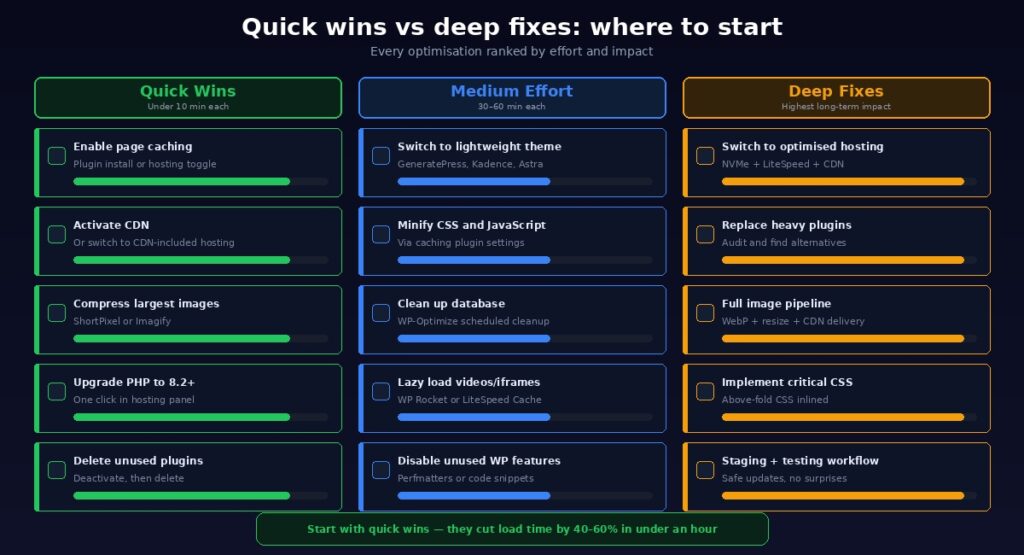
Twelve optimisations is a lot to process at once. You do not need to implement all of them in a single afternoon. The right approach depends on where your site currently stands and how much time you can invest. Here is a prioritised breakdown so you know exactly where to begin.
Quick wins (under 10 minutes each, high impact)
Enable page caching through your hosting panel or a single plugin installation. Activate your CDN, or switch to hosting that includes one. Compress and resize your five largest images using ShortPixel or Imagify. Upgrade your PHP version to 8.2 or higher through your hosting control panel. Delete plugins you have not used in the past three months. These five changes take less than an hour combined and typically cut your load time by 40 to 60%.
Medium effort (30 to 60 minutes each, significant impact)
Switch to a lightweight theme like GeneratePress, Kadence, or Astra. Minify CSS and JavaScript through your caching plugin settings. Clean up your database with WP-Optimize. Enable lazy loading for video embeds and iframes. Disable unused WordPress features through Perfmatters or manual code snippets. Each of these takes a bit more time but delivers measurable improvement when stacked on top of the quick wins.
Deep fixes (may require migration, highest long-term impact)
Switch to hosting built on NVMe SSD, LiteSpeed, and integrated CDN. Audit every plugin and replace heavy ones with lightweight alternatives. Implement a full image optimisation pipeline with WebP conversion, proper sizing, and CDN delivery. These are the changes that separate a site scoring 60 on PageSpeed from one scoring 95. They require more effort upfront but pay off permanently.
Where to start right now
Check your TTFB using Webhost365 Speed Test or GTmetrix. If it exceeds 600ms on a clean, cached page, start with hosting. Everything else is optimisation on top of a slow foundation. If your TTFB is already under 300ms, skip straight to caching, images, and CDN. Those three changes alone deliver the most visible improvement for the least effort.
Compare WordPress hosting plans that include the infrastructure layer most speed guides tell you to configure yourself.
How Hosting Affects WordPress Speed (The Part Most Guides Skip)
Most WordPress speed guides mention hosting in a single paragraph, recommend a provider, and move on. That is like telling someone to “buy a fast car” without explaining what makes a car fast. Understanding how hosting infrastructure affects WordPress performance helps you evaluate any provider objectively rather than relying on marketing claims.
Storage type determines database speed
WordPress stores every post, page, comment, user, option, and plugin setting in a MySQL database. Every page load triggers multiple database queries. On a WooCommerce product page, that number can exceed 50 queries per request. NVMe SSD performs these random read/write operations 7x faster than SATA SSD. The difference is not theoretical. A product archive page that queries 200 items from the database loads measurably faster on NVMe because every single query completes sooner. If your host advertises “SSD storage” without specifying NVMe, it may still be using slower SATA drives.
PHP version determines processing speed
WordPress is built on PHP. Every page request executes PHP code from WordPress core, your theme, and every active plugin. PHP 8.2 processes these workloads roughly 30% faster than PHP 7.4. That means every function call, every loop, every conditional check completes in less time. Across a page load that executes thousands of PHP operations, the cumulative difference is hundreds of milliseconds. If your host defaults to PHP 7.4 or 8.0 and you have not manually upgraded, your site is running with a 30% performance penalty on every request.
Web server software determines caching efficiency
Your web server handles every incoming request before WordPress is even involved. LiteSpeed with LSCache serves cached pages directly from memory without touching PHP or the database. The entire WordPress stack is bypassed for cached requests, delivering pages in single-digit milliseconds. Nginx with FastCGI cache offers similar server-level caching but requires more manual configuration. Apache without caching passes every request through PHP, even for pages that have not changed since the last visit. The web server your host runs sets the ceiling for how fast your cached pages can be served.
CDN integration determines global performance
Without a CDN, every visitor downloads every static asset from your origin server regardless of their location. A visitor in Singapore accessing a server in New York adds 200 to 400ms of latency per request. Across 50 assets per page, that is seconds of accumulated delay.
Most speed guides say “add a CDN” as if it were a simple checkbox. In practice, standalone CDN setup involves DNS configuration, cache rule management, plugin compatibility testing, and sometimes SSL certificate adjustments. Hosting that integrates CDN at the platform level eliminates this entirely. On Webhost365, Bunny CDN with 197 global edge locations is active from the moment your WordPress site goes live. No DNS changes, no plugin setup, no separate billing.
RAM and CPU determine traffic capacity
WordPress with WooCommerce, a page builder, and 15 active plugins can consume 256 to 512MB of RAM per request. On shared hosting with limited resources, a traffic spike means multiple visitors competing for the same pool of RAM and CPU. Response times spike. Pages time out. The site effectively crashes under load. Hosting with dedicated resources provides predictable performance regardless of traffic volume. On Webhost365 WordPress plans, every account gets dedicated AMD EPYC Gen4 CPU cores and DDR5 RAM so your site speed does not depend on what other customers are doing on the same server.
Make Your WordPress Site Fast and Keep It Fast
WordPress speed is not a one-time project. It is a combination of the right hosting foundation, smart caching, optimised images, clean code, and regular maintenance. The 12 optimisations in this guide are ordered by impact so you can start with the changes that make the biggest difference and work your way down the list as time allows.
Test your speed before and after every change. Use Webhost365 Speed Test, PageSpeed Insights, and GTmetrix to track your progress with real numbers rather than guesswork. Aim for a Performance score above 90, LCP under 2.5 seconds, and TTFB under 200 milliseconds.
If your hosting is the bottleneck, no amount of plugin-level optimisation will compensate. Webhost365 WordPress hosting is built for speed from the ground up: AMD EPYC Gen4 processors, NVMe SSD storage, LiteSpeed web server with LSCache, PHP 8.x, Bunny CDN with 197 global edge locations, free auto-renewing SSL, and one-click WordPress installation. Plans start at $2.49 per month with no renewal price hikes. The price you sign up at is the price you pay at every renewal.
Your visitors deserve a fast site. Your search rankings depend on it. Start with the foundation and build from there.
View WordPress Hosting Plans — from $2.49/mo | Compare All Hosting Plans | Cloud Hosting — from $3.49/mo | Test Your Current Speed
Frequently Asked Questions
Why is my WordPress site so slow?
The most common causes are slow hosting infrastructure, unoptimised images, too many active plugins, and a bloated theme. Start by testing your TTFB using Webhost365 Speed Test or GTmetrix. If it exceeds 600ms on a cached page, your hosting is the primary bottleneck. SATA SSD storage, outdated PHP versions, and missing server-level caching are the usual culprits at the infrastructure level. If your TTFB is already fast but pages still load slowly, the problem is likely on the frontend: oversized images, render-blocking scripts, heavy plugins, or a theme loaded with features you do not use.
Does hosting really affect WordPress speed?
Yes, and more than most people realise. Your hosting determines your TTFB, which is the time before any content starts arriving in the browser. NVMe SSD is 7x faster than SATA SSD for the database queries WordPress relies on. PHP 8.2 is 30% faster than PHP 7.4 on WordPress workloads. LiteSpeed web server with LSCache serves cached pages without touching PHP at all. A built-in CDN eliminates latency for international visitors. On Webhost365 WordPress hosting, all of these are included on every plan starting at $2.49 per month with no renewal price hikes.
What is the best caching plugin for WordPress?
It depends on your web server. If your host runs LiteSpeed (as Webhost365 does), use the free LiteSpeed Cache plugin. It leverages server-level caching that is fundamentally faster than plugin-only solutions because cached pages are served directly from memory without executing PHP. If your host runs Apache or Nginx, WP Rocket is the best premium option with automatic critical CSS generation, JavaScript deferral, and lazy loading built in. WP Super Cache is a solid free alternative for simpler sites. The most important rule: never run two caching plugins at the same time. Pick one and configure it properly.