
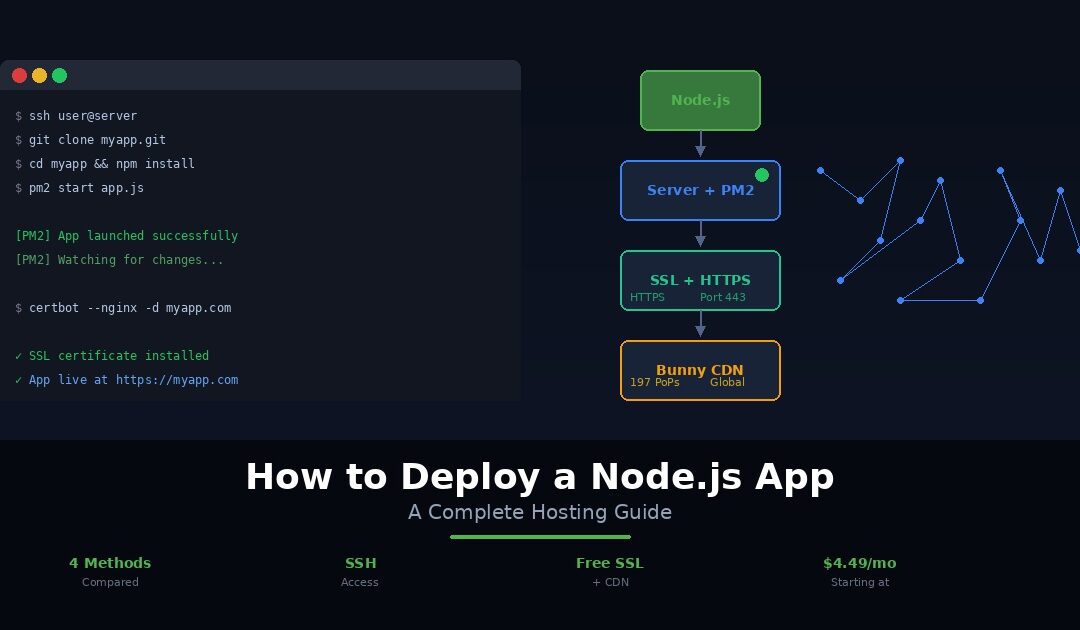
Your Node.js app runs perfectly on localhost. Express serves routes without a hiccup. Your API responds instantly. Your frontend renders exactly the way you designed it. Everything works on your machine. Now comes the part that trips up most developers: getting it live on the internet where real users can actually reach it, deploy Node.js app, yes thats what we will figure out here.
Deployment is where code meets infrastructure. And the number of options is genuinely overwhelming. Should you spin up a VPS and configure Nginx and PM2 yourself? Use a platform like Render or Railway that handles the server for you? Go serverless with AWS Lambda? Or choose managed Node.js hosting that gives you SSH access without the DevOps overhead?
Each path comes with trade-offs in cost, complexity, control, and scalability. Pick the wrong one and you spend more time managing servers than writing code. Pick the right one and your app is live, fast, and reliable without draining your time or your budget.
This guide is built for developers who have a working Node.js app and need to get it into production. We will start with what your app actually needs to run on a live server. Then we will compare four deployment methods side by side with honest pros and cons for each. We will walk through the key steps for the most common approaches. And we will finish with a production-readiness checklist covering the seven things most tutorials skip: process management, environment variables, SSL, logging, monitoring, error handling, and CDN configuration for global performance.
Whether you are deploying an Express API, a Next.js application, a real-time WebSocket server, or a full-stack web app, this guide gives you a clear path from localhost to production.
What Your Node.js App Needs to Run in Production
Before choosing a hosting platform, it helps to understand what your Node.js app actually requires at the infrastructure level. Every deployment method handles these requirements differently. Some make you configure each piece manually. Others handle most of them automatically. Knowing what the pieces are helps you evaluate which approach fits your situation.
A server with Node.js installed. Your app needs a runtime environment running the correct Node.js version. The server must be able to execute npm install to pull your dependencies and node app.js (or your custom start script) to launch the application. Using an LTS (Long Term Support) version is recommended for production stability.
A process manager. Node.js runs as a single process by default. If it crashes, it stays down until someone restarts it manually. In production, you need a process manager like PM2 to restart the app automatically after a crash, manage clustering across multiple CPU cores, and handle log rotation. Without one, a single unhandled exception takes your entire app offline.
A reverse proxy. Your Node.js app typically listens on a port like 3000 or 8080. Visitors expect to reach your site on port 80 (HTTP) or 443 (HTTPS). A reverse proxy like Nginx sits in front of your app, accepts traffic on standard ports, terminates SSL, and forwards requests to your Node.js process.
SSL/TLS certificates. Every production app needs HTTPS. Browsers flag HTTP sites as insecure. APIs that handle authentication or sensitive data require encrypted connections. Let’s Encrypt provides free SSL certificates, and tools like Certbot automate the renewal process.
Configuration and optimization essentials
Environment variables. API keys, database credentials, JWT secrets, and third-party tokens must live in environment variables. Hardcoding them in source code is a security risk. Use a .env file locally and configure environment variables through your hosting platform’s dashboard or server configuration in production.
A database. Most apps need persistent data storage. PostgreSQL, MongoDB, and MySQL are common choices. The database can run on the same server as your app or as a separate managed service.
A domain name. Your app needs a registered domain pointed to your server’s IP address via a DNS A record. Without one, users can only access your app through an IP address, which is impractical for any real project.
A CDN for static assets. If your app serves images, CSS, JavaScript bundles, or fonts, a content delivery network caches and delivers those files from edge servers around the world. This reduces load on your Node.js process and dramatically improves page speed for global visitors.
On a raw VPS, you configure every one of these components yourself. On a PaaS, the platform handles most of them but gives you less control. On managed Node.js hosting, the heavy infrastructure work is done for you while you retain SSH access for deployment and customisation. The method you choose determines how much of this stack you build and how much is built for you.
4 Ways to Deploy a Node.js App
Every deployment method falls into one of four categories. Each offers a different balance of control, complexity, and cost. Here is how they compare, starting with the most hands-on and ending with the simplest.
Method 1: VPS with Nginx, PM2, and Let’s Encrypt
This is the classic developer approach. You provision a virtual private server, SSH in, and configure every layer of the stack yourself. It demands the most effort upfront, but in return, you get complete control over your environment.
Setting up the server
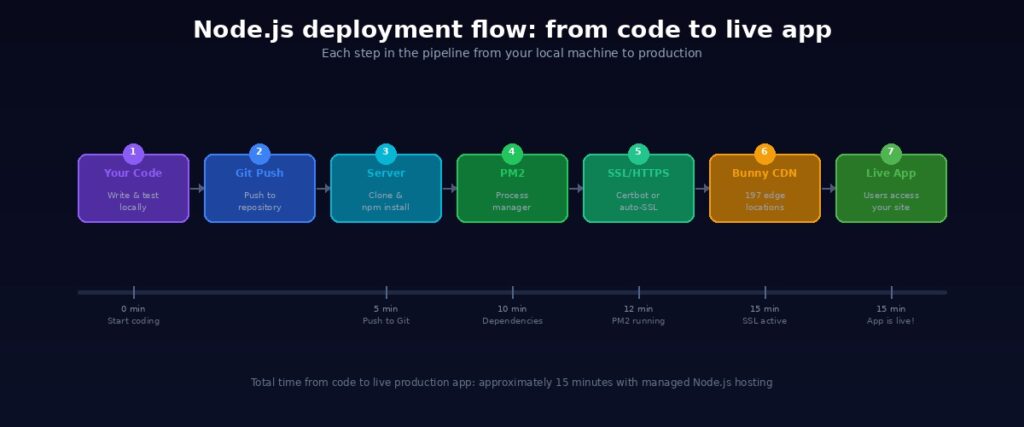
First, provision a VPS from a provider like DigitalOcean, Linode, Vultr, or Webhost365 Linux VPS. Once your server is ready, SSH into it and install Node.js using nvm or NodeSource. Then clone your app from Git or upload it via SFTP. After that, run npm install to pull your dependencies.
Configuring PM2 for process management
Next, install PM2 globally with npm install -g pm2. Start your app using pm2 start app.js --name "myapp" so PM2 manages the process for you. To ensure your app survives server reboots, run pm2 startup followed by pm2 save. As a result, PM2 will automatically restart your app whenever the server restarts or the process crashes.
Setting up Nginx as a reverse proxy
Your Node.js app listens on port 3000 by default, but visitors expect to reach your site on port 80 or 443. Nginx bridges that gap. Install it on your server, then create a configuration block like this:
server {
    server_name yourdomain.com;
    location / {
        proxy_pass http://localhost:3000;
        proxy_http_version 1.1;
        proxy_set_header Upgrade $http_upgrade;
        proxy_set_header Connection 'upgrade';
        proxy_set_header Host $host;
        proxy_cache_bypass $http_upgrade;
    }
}
Replace the port number with whatever port your app runs on. After saving the config, test it with sudo nginx -t and reload Nginx to apply the changes.
Adding SSL and pointing your domain
Before going live, point your domain to the server’s IP address by creating a DNS A record with your domain registrar. Once DNS propagates, install Certbot and run sudo certbot --nginx -d yourdomain.com to generate a free Let’s Encrypt SSL certificate. Certbot automatically configures Nginx to serve traffic over HTTPS and sets up auto-renewal so your certificate stays valid.
Who this method is best for
The VPS approach gives you complete freedom. You can run any Node.js version, any framework, any database, and host multiple apps on a single server. However, that freedom comes with responsibility. You manage updates, security patches, backups, and monitoring entirely on your own. If the server crashes at 3am, you are the on-call engineer. There is also no built-in scaling. Adding capacity means provisioning and configuring additional servers.
Best for: Developers who want full control over every layer of the stack and are comfortable managing server infrastructure long-term.
Method 2: PaaS (Render, Railway, Vercel, Fly.io)
Platform-as-a-Service providers remove server management from the equation entirely. Instead of configuring Nginx, PM2, and SSL certificates, you connect a Git repository and the platform handles deployment automatically. This approach trades control for convenience, and for many projects, that trade-off makes perfect sense.
How PaaS deployment works
The workflow is consistent across most platforms. You connect your GitHub or GitLab repository, configure your build command (typically npm install) and start command (npm start or node app.js), then set your environment variables through the platform’s dashboard. When you click deploy, the platform builds a container from your code, provisions a server, configures SSL, and assigns a URL. From that point forward, every Git push to your linked branch triggers an automatic redeployment. If a build fails, the platform keeps your previous version running so your app stays online.
Comparing the major platforms
Render offers a free tier for web services, making it popular for small Express APIs and simple apps. However, free-tier services sleep after 15 minutes of inactivity. Cold starts take 30 to 60 seconds, which can cause webhook timeouts and poor user experience. Paid plans start at $7 per month and eliminate the sleeping behaviour.
Railway provides $5 of free credit each month, which covers lightweight apps that do not run continuously. Deployment is fast thanks to pre-built templates and a clean dashboard. On the other hand, heavy usage can exhaust the credit before the month ends, pausing your services without warning.
Vercel is optimised specifically for Next.js and serverless functions. It excels at frontend frameworks and static sites with server-side rendering. In contrast, traditional Express backends and long-running Node.js processes are not a natural fit for Vercel’s architecture.
Fly.io deploys Docker containers to edge locations around the world. This gives you better global latency than most PaaS competitors. Nevertheless, the configuration is more complex, and the learning curve is steeper than Render or Railway.
The trade-offs to consider
PaaS platforms make deployment remarkably fast. You can go from a local project to a live URL in under ten minutes. SSL is automatic, logging is built in, and you never touch a server. These advantages make PaaS appealing for prototypes, side projects, and small production apps.
At the same time, the limitations are real. Free tiers come with sleeping instances, credit caps, and cold starts that undermine reliability. Costs scale with usage, so a moderately popular app can quickly outgrow the free tier and land on a $15 to $25 monthly bill. Most platforms also lack a built-in CDN, meaning you need to add Cloudflare or a similar service separately for global performance. Additionally, migrating away from a PaaS requires reworking your deployment configuration since each platform has its own setup.
Best for: Developers who want fast deployment without server management and are building prototypes, side projects, or small production apps where PaaS limitations are acceptable.
Method 3: Serverless (AWS Lambda, Google Cloud Functions)
Serverless takes a fundamentally different approach to hosting. Instead of running your Node.js app as a persistent process on a server, your code executes as individual functions triggered by HTTP requests, events, or schedules. There is no server to manage because the cloud provider handles everything: provisioning, scaling, patching, and availability.
How serverless deployment works
You write your Node.js code as discrete functions rather than a traditional Express application. Each function handles a single route or task. When a request arrives, the cloud provider spins up a container, executes your function, returns the response, and shuts down. Frameworks like Serverless Framework, AWS SAM, or the SST toolkit simplify packaging and deployment. You define your functions in a configuration file, run a deploy command, and the platform creates API endpoints automatically.
Where serverless shines
The pricing model is the biggest draw. You pay per invocation, not per month. If your app receives zero traffic for a week, you pay nothing. When traffic spikes to a million requests, the platform scales instantly without any manual intervention. As a result, serverless is excellent for API endpoints, webhook handlers, scheduled tasks, and event-driven microservices where traffic is unpredictable and idle time is common.
Where serverless struggles
Cold starts are the primary concern. When a function has not run recently, the first invocation takes 100 to 500 milliseconds longer while the provider spins up a container. For APIs that need consistent low-latency responses, this delay is noticeable. Beyond cold starts, serverless is a poor fit for long-running processes, WebSocket connections, and stateful applications. Debugging is also more complex since you cannot simply SSH into a server and check logs. Furthermore, your app architecture must be redesigned around individual functions rather than traditional Express routing patterns. Vendor lock-in is significant too, because migrating from Lambda to Cloud Functions requires meaningful rework.
Best for: API endpoints, microservices, and event-driven architectures where pay-per-use pricing and automatic scaling matter more than consistent latency and architectural simplicity.
Method 4: Managed Node.js Hosting (Simplest Path)
Managed Node.js hosting sits in the sweet spot between a raw VPS and a PaaS. You get SSH access and server-level control like a VPS, but the hosting provider handles the infrastructure layers that consume the most time: reverse proxying, SSL, CDN, and server maintenance. You focus on your code. They focus on keeping the platform fast, secure, and available.
How it differs from a VPS
On a raw VPS, you install Node.js, configure Nginx, set up SSL with Certbot, and manage PM2 yourself. That stack takes 30 to 60 minutes to configure correctly, and you maintain it indefinitely. With managed Node.js hosting, the runtime environment comes pre-configured. Node.js is installed. The reverse proxy handles routing to your app. SSL certificates are provisioned and renewed automatically. You skip the infrastructure setup and go straight to deploying your application.
How it differs from a PaaS
Unlike Render or Railway, managed hosting gives you direct SSH access to your server. You can clone repos, run npm scripts, inspect logs, debug processes, and configure your environment exactly the way you want. There are no sleeping instances, no credit caps, and no cold starts. Your app runs continuously on dedicated hardware with predictable monthly pricing.
Deploying on Webhost365
The process is straightforward. Sign up for a Node.js hosting plan starting at $4.49 per month. Access your server via SSH. Clone your application from Git or upload it through SFTP. Run npm install to pull your dependencies. Start your app, and the hosting environment handles process management and proxying to your domain. Your application is live with HTTPS, a custom domain, and Bunny CDN delivering your static assets from 197 edge locations worldwide.
What comes included
Every Webhost365 Node.js hosting plan includes AMD EPYC Gen4 processors with DDR5 RAM for consistent performance under load. NVMe SSD storage handles fast database queries and file I/O. Unlimited bandwidth means you never worry about traffic limits or overage charges. Bunny CDN is integrated at the platform level, so your JavaScript bundles, images, and static files are cached and served globally without configuring a separate CDN service.
Free SSL certificates are auto-renewing, eliminating the Certbot setup and renewal scripts that VPS deployments require. Annual plans include a free domain. SSH access gives you full deployment control. And 24/7 expert support from engineers who understand Node.js means you are not troubleshooting alone when something goes wrong at midnight.
Importantly, the pricing stays the same at renewal. The $4.49 per month Spark plan renews at $4.49. There are no introductory discounts hiding an inflated renewal rate behind them. You can read more about why transparent pricing matters and how it compares to competitors who raise prices after the first term.
The trade-offs
Managed hosting does not offer Git-push automatic deployment like a PaaS. You deploy manually via SSH, which adds a step compared to Render or Railway. Scaling also requires upgrading your plan rather than happening automatically. For most Node.js apps that do not need instant auto-scaling, a plan upgrade takes minutes and carries over all your files and configuration.
Best for: Developers and freelancers who want SSH-level control without configuring Nginx, SSL, and CDN manually. Ideal for Express apps, APIs, Next.js SSR, real-time WebSocket servers, and any Node.js project that needs reliable, affordable production hosting with predictable costs.
Comparison Table: All 4 Methods Side by Side
Choosing a deployment method is easier when you can see the trade-offs in one view. Here is how all four approaches compare across the factors that matter most when putting a Node.js app into production.
| Method | Setup complexity | Monthly cost | SSL included | CDN included | SSH access | Scaling | Best for |
|---|---|---|---|---|---|---|---|
| VPS + Nginx + PM2 | High | $4–20 | Manual (Let’s Encrypt) | No | Yes | Manual | Full control |
| PaaS (Render, Railway) | Low | $0–7 (free tiers limited) | Yes | No | No | Automatic | Fast deployment |
| Serverless (Lambda) | Medium | Pay-per-use | Yes | No | No | Infinite | APIs, microservices |
| Managed Node.js hosting | Low–medium | $4.49+ | Yes (auto-renewing) | Yes (Bunny CDN) | Yes | Plan upgrade | Control + simplicity |
A few patterns stand out. The VPS approach checks every box on control but demands the most setup and ongoing maintenance. PaaS platforms offer the fastest path to a live URL but strip away SSH access and charge unpredictably as traffic grows. Serverless scales infinitely yet struggles with cold starts and forces you to redesign your app architecture.
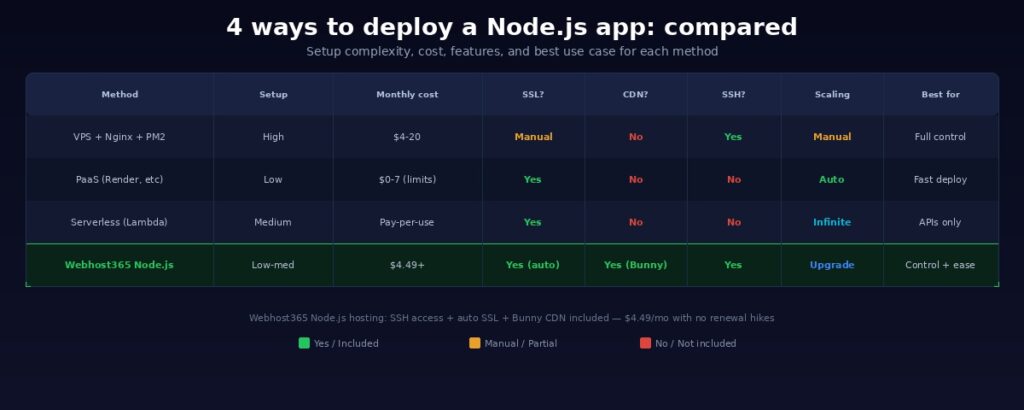
Managed Node.js hosting on Webhost365 is the only option in this comparison that combines SSH access, automatic SSL, and built-in CDN in a single plan. You get the developer control of a VPS without the Nginx and Certbot overhead, and the convenience of a PaaS without the sleeping instances and credit caps.
For a full breakdown of how Webhost365 compares across all hosting types, see every plan side by side.
Production-Ready Checklist: Before You Go Live
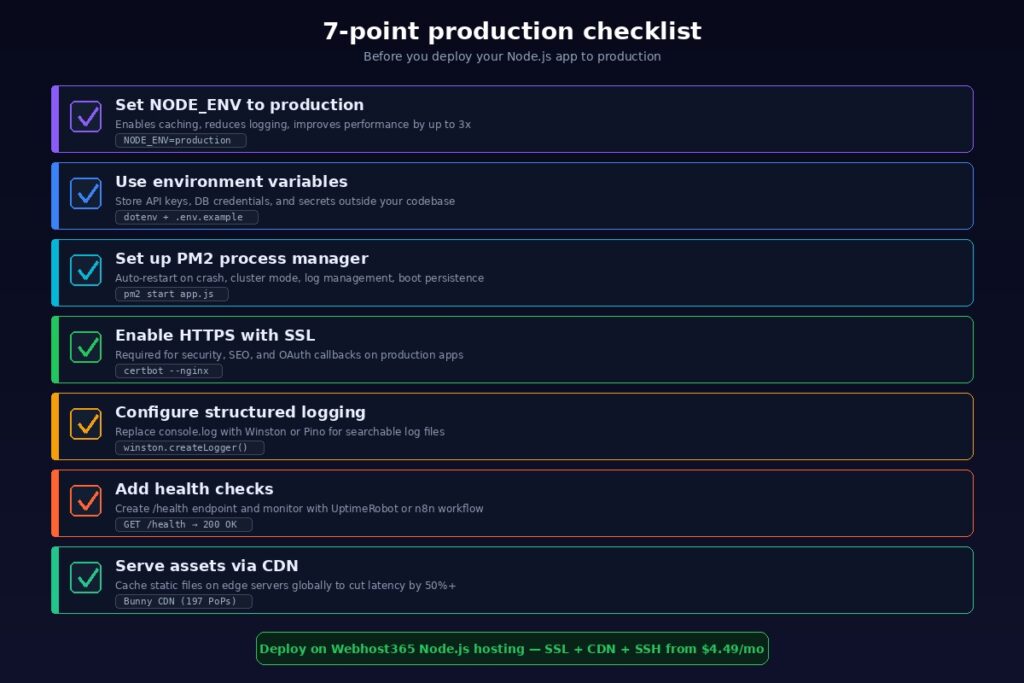
Getting your app running on a server is only half the job. The other half is making sure it stays running, handles errors gracefully, and performs well for every visitor. Most deployment tutorials skip these steps entirely. Do not make that mistake. Run through this checklist before you point real users at your app.
1. Set NODE_ENV to Production
Express and many other Node.js frameworks behave differently based on the NODE_ENV environment variable. When set to production, Express enables view caching, reduces logging verbosity, and serves minified error pages. According to the Express documentation, this single change can improve performance by up to 3x. Set it in your server’s environment variables, not in your source code. On most hosting platforms, you configure this through the dashboard or your .env file.
2. Use Environment Variables for All Secrets
API keys, database credentials, JWT secrets, and third-party tokens must never appear in your source code. Store them in environment variables instead. Locally, use a .env file with the dotenv package. In production, configure them through your hosting platform’s environment settings. Additionally, create a .env.example file in your repository that lists every required variable without exposing actual values. This helps other developers (and your future self) set up the project without guessing which variables are needed.
3. Set Up PM2 for Process Management
A single unhandled exception can crash your entire Node.js app. Without a process manager, it stays down until you notice and restart it manually. PM2 solves this completely. Install it globally with npm install -g pm2, then start your app using pm2 start app.js --name "myapp". PM2 restarts the process automatically after any crash.
Beyond auto-restart, PM2 also enables cluster mode. This distributes incoming requests across all available CPU cores, significantly improving throughput. Run pm2 startup followed by pm2 save to ensure your app launches automatically after server reboots. For monitoring, pm2 monit gives you a real-time dashboard showing CPU usage, memory consumption, and restart counts.
4. Enable HTTPS with SSL
Every production app must run over HTTPS. Browsers display “Not Secure” warnings on HTTP sites. OAuth providers reject callback URLs without HTTPS. Search engines favour secure sites in their rankings. On a VPS, install Certbot and run sudo certbot --nginx -d yourdomain.com to generate a free Let’s Encrypt certificate with automatic renewal. On managed hosting like Webhost365 Node.js plans, SSL is included and renews automatically. There is nothing to install or configure. Either way, make sure all HTTP traffic redirects to HTTPS so no visitor ever lands on an insecure connection.
5. Configure Logging and Error Handling
Replace console.log with a structured logging library like Winston or Pino. These libraries support log levels (info, warn, error), write to files instead of just stdout, and format output in JSON for easier parsing. As a result, you can search, filter, and analyse your logs instead of scrolling through unstructured terminal output.
Equally important is error handling middleware in Express. Add a catch-all error handler that logs the error details and returns a clean response to the client. Without this, unhandled errors leak stack traces to visitors in development mode and return blank 500 responses in production. Neither outcome is acceptable for a live app.
6. Add Health Checks and Monitoring
Create a /health or /status endpoint in your app that returns a 200 OK response. This simple endpoint serves as the heartbeat of your application. Use an uptime monitoring service like UptimeRobot, Pingdom, or even a custom n8n workflow to ping this endpoint every few minutes. If the response fails, you receive an alert before your users start complaining.
Beyond uptime, monitor your server’s CPU usage, memory consumption, and disk space. PM2 provides basic monitoring through pm2 monit. For more detailed insights, tools like Datadog, New Relic, or the free tier of Grafana Cloud give you dashboards and alerting.
7. Serve Static Assets Through a CDN
If your Node.js app serves images, CSS files, JavaScript bundles, or fonts, every one of those requests hits your server. For a visitor in Mumbai accessing an app hosted in Dallas, each static file adds hundreds of milliseconds of latency. A CDN caches these assets on edge servers worldwide and delivers them from the location nearest to each visitor.
On most hosting setups, adding a CDN means signing up for a separate service, configuring DNS, and setting cache rules. On Webhost365 Node.js hosting, Bunny CDN with 197 global edge locations is built into every plan. Your static assets are cached and delivered globally without any extra configuration, separate billing, or DNS changes. This alone can cut your global page load times by 50% or more.
Deploy Your Node.js App Today
Your Node.js app deserves production-grade infrastructure without the DevOps overhead. Whether you are launching an Express API, a Next.js application, a real-time chat server, or a full-stack web app, the right hosting makes deployment straightforward and keeps your app fast, secure, and reliable long after launch day.
A raw VPS gives you maximum control but demands ongoing server management. PaaS platforms offer fast deployment but limit your access and charge unpredictably as you grow. Serverless works for specific architectures but adds complexity and cold-start latency. Managed Node.js hosting gives you the best of both worlds: SSH access and developer control without the Nginx, SSL, and CDN configuration overhead.
Webhost365 Node.js hosting plans give you SSH access, AMD EPYC Gen4 processors, NVMe SSD storage, Bunny CDN with 197 global edge locations, free auto-renewing SSL, and 24/7 expert support. Plans start at $4.49 per month with no renewal price hikes. The price you see today is the price you pay at every renewal.
Your app works on localhost. Now make it work for the world.
View Node.js Hosting Plans — from $4.49/mo | Compare All Hosting Plans | Linux VPS — from $4.99/mo | Cloud Hosting — from $3.49/mo
Frequently Asked Questions
What is the best hosting for a Node.js app?
It depends on your priorities. If you want full server control and are comfortable with Linux administration, a VPS with Nginx and PM2 gives you maximum flexibility. If speed of deployment matters more than server access, a PaaS like Render handles the infrastructure for you. For production apps that need SSH access, built-in CDN, and automatic SSL without the overhead of configuring Nginx and Certbot, managed Node.js hosting on Webhost365 offers the strongest balance of control and simplicity. Plans start at $4.49 per month with AMD EPYC processors, NVMe SSD, and Bunny CDN included.
Traditional PHP-based shared hosting does not support Node.js. Your app needs a hosting environment that provides the Node.js runtime, SSH access, and the ability to run long-lived processes. Standard shared hosting lacks all three. Webhost365 Node.js hosting plans are purpose-built for JavaScript applications. They include SSH access, Node.js script support, NVMe storage, and Bunny CDN on an environment designed specifically for Node.js workloads. If you only need PHP hosting for a WordPress site or a simple website, general hosting at $1.49 per month covers that separately.
Do I need Nginx for a Node.js app?
On a raw VPS, yes. Nginx acts as a reverse proxy between the internet and your Node.js process. It accepts traffic on port 80 and 443, terminates SSL, and forwards requests to your app running on port 3000 or whichever port you configure. Without Nginx, your app cannot serve HTTPS traffic or listen on standard web ports. On managed Node.js hosting platforms like Webhost365, the hosting environment handles reverse proxying and SSL termination for you. You deploy your app, and it is accessible over HTTPS on your domain without touching Nginx configuration files.
How do I keep my Node.js app running after SSH disconnect?
When you start a Node.js app directly with node app.js and then close your SSH session, the process terminates. PM2 solves this. Install it globally with npm install -g pm2, then launch your app using pm2 start app.js. PM2 runs your app as a background daemon that persists after SSH disconnect. To survive server reboots, run pm2 startup followed by pm2 save. These two commands register PM2 as a system service. Your app will restart automatically after any reboot, crash, or unexpected termination.
Is Node.js hosting more expensive than PHP hosting?
Slightly, because Node.js requires a dedicated runtime environment and more server resources than basic PHP shared hosting. On Webhost365, Node.js hosting starts at $4.49 per month and includes a dedicated AMD EPYC CPU core, NVMe SSD storage, SSH access, and Bunny CDN. General PHP hosting starts at $1.49 per month and includes many of the same infrastructure features. The $3 difference reflects the additional resources Node.js applications need. Both plans include free SSL, free domain on annual plans, and no renewal price hikes. For developers running both a Node.js app and a separate website, comparing all available plans helps you find the right combination.
Can I deploy Next.js on Node.js hosting?
Yes. Next.js is a React framework that runs on Node.js. Any hosting environment that supports the Node.js runtime and SSH access can run a Next.js application. Build your project with npm run build, then start the production server with npm start. For process management, use PM2: pm2 start npm --name "nextapp" -- start. This keeps your Next.js app running as a managed background process. On Webhost365 Node.js hosting, this works out of the box. SSL is automatic, Bunny CDN delivers your static assets globally, and SSH gives you full control over your build and deployment workflow.