
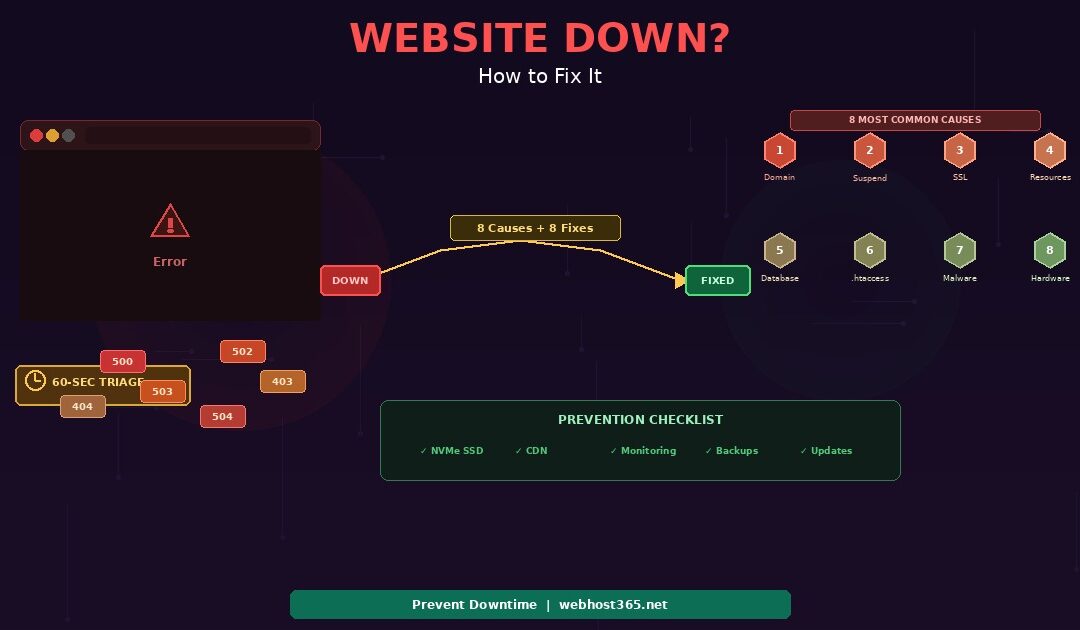
Your website is down and you need it back online as fast as possible. Before diving into server diagnostics, run three quick checks that take less than 60 seconds total. First, verify the site is actually down for everyone and not just your browser or network. Second, confirm your domain has not expired. Third, check whether your hosting account is still active and not suspended.
If all three pass, the problem is on the server. The eight most common causes of a website going down are domain expiration, hosting account suspension, SSL certificate failure, server resource exhaustion, database connection failure, corrupted configuration files, malware or hacking, and server hardware failure. Each cause produces specific symptoms, and each has a specific fix.
This guide walks through all eight in urgency order — fastest fixes first, complex diagnostics last. It includes an HTTP error code reference table so you can diagnose the problem from the error message alone, and it ends with a prevention checklist so your website does not go down again. If your current hosting goes down frequently, the long-term fix is infrastructure that eliminates the most common causes before they happen — NVMe SSD with no mechanical failure points, a CDN that absorbs traffic spikes, and dedicated resources that do not throttle when neighbours on the same server get busy.
Check these 3 things first — 60-second triage when your website is down
Before troubleshooting server issues, rule out the three fastest possible causes. Each check takes under 20 seconds. If one of these is the problem, your site is back online in minutes rather than hours.
Is your site down for everyone or just you?
Go to downforeveryoneorjustme.com and enter your domain name. The tool checks your site from external servers around the world and gives you a clear answer.
If the tool says “It’s just you,” your website is actually running fine. The problem is on your end — your internet connection, a stale DNS cache on your computer, a browser cache issue, or a VPN routing problem. Try clearing your browser cache and reloading the page. Then try a completely different browser. If that does not work, access your site from your phone using mobile data instead of WiFi. If the site loads on mobile data, your WiFi network or ISP is the issue, not your hosting.
However, if the tool confirms “It’s not just you — it really is down,” the problem is on the server side. Skip the remaining browser troubleshooting and proceed to the next checks.
Has your domain name expired?
Domain expiration is one of the most common causes of sudden website outages — and also the most preventable. When a domain expires, DNS stops resolving your domain to your server’s IP address. Visitors see a registrar parking page, a “domain expired” notice, or the browser displays a DNS error like “DNS_PROBE_FINISHED_NXDOMAIN.”
Check your domain’s status by logging into your domain registrar (GoDaddy, Namecheap, Cloudflare, or wherever you purchased the domain). Look for the expiration date. If the domain expired, renew it immediately. DNS restoration after renewal typically takes 1 to 24 hours. To prevent this from happening again, enable auto-renewal on your domain so it renews automatically before the expiration date.
Is your hosting account active and not suspended?
Log into your hosting control panel. If you cannot log in or you see a suspension notice, your hosting account may be inactive. The three most common reasons for suspension are an unpaid invoice, a terms of service violation, or exceeding your plan’s resource limits.
Check your email inbox (including spam folder) for any notices from your hosting provider. If the suspension is billing-related, paying the overdue invoice usually restores service within minutes. If the suspension is resource-related, your site exceeded its CPU, RAM, or bandwidth allocation — you may need to optimise your site or upgrade to a plan with more resources. For terms of service issues, contact your hosting provider’s support team directly.
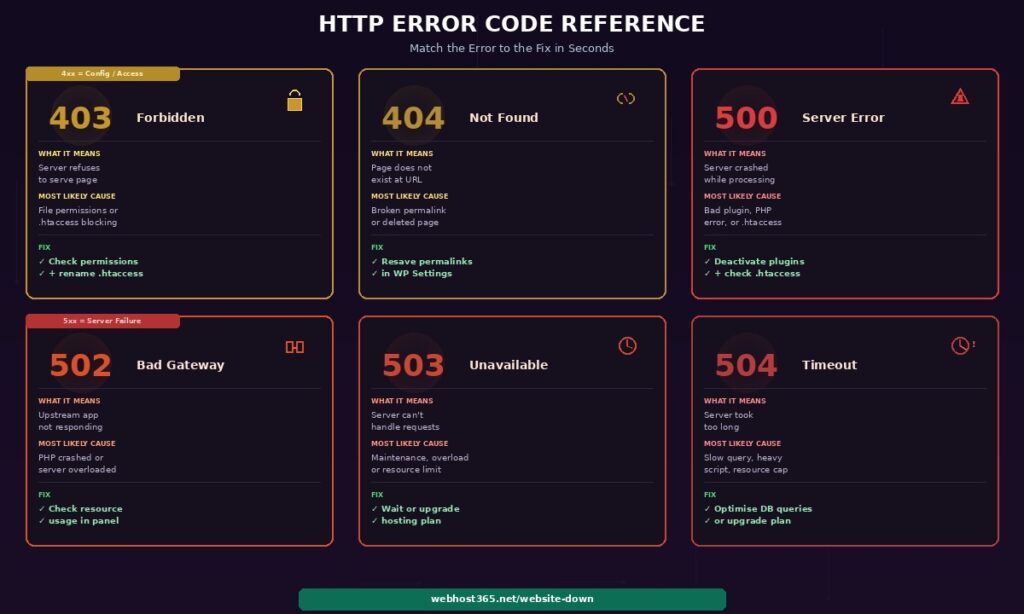
HTTP error code reference — diagnose the problem instantly
If your website displays an error page instead of your content, the HTTP error code tells you exactly which category of problem you are dealing with. Instead of guessing, match the error code to the table below for the cause and fix direction.
| Error code | What it means | Most likely cause | Fix |
|---|---|---|---|
| 403 Forbidden | Server refuses to serve the page | File permissions are wrong or .htaccess is blocking access | See Cause #6 — check file permissions and .htaccess |
| 404 Not Found | The requested page does not exist at this URL | Broken permalink, deleted page, or mistyped URL | Check WordPress Settings then Permalinks and click Save |
| 500 Internal Server Error | Server crashed while trying to process the request | Corrupted .htaccess, bad plugin update, or PHP error | See Cause #5 and Cause #6 — deactivate plugins, check .htaccess |
| 502 Bad Gateway | The upstream application server is not responding | PHP process crashed or server ran out of resources | See Cause #4 — check resource usage in hosting panel |
| 503 Service Unavailable | Server temporarily cannot handle requests | Maintenance mode, server overload, or resource limit hit | See Cause #4 — resource exhaustion or hosting throttling |
| 504 Gateway Timeout | Server took too long to respond | Slow database query, heavy script, or resource starvation | See Cause #4 and Cause #5 — database and resource issues |
Errors starting with 4xx are client-side or configuration issues — the server is running but something prevents it from serving the requested page. Errors starting with 5xx are server-side failures — the server itself encountered a problem while processing the request. As a result, 5xx errors are more likely to indicate hosting infrastructure issues while 4xx errors are more likely configuration mistakes you can fix yourself.
8 causes of website downtime and the exact fix for each
These eight causes cover virtually every scenario where a website goes down. They are ordered from most common and easiest to fix to least common and most complex. Work through them in order — the most likely cause of your outage is near the top.
Cause #1 — Domain expired or DNS is misconfigured
Symptoms: Your site shows a registrar parking page, a “this domain has expired” message, or the browser displays “DNS_PROBE_FINISHED_NXDOMAIN” or “This site can’t be reached.”
What happened: Either your domain registration expired, or someone changed the DNS records so your domain no longer points to the correct server. This also happens after a botched migration where the A record was updated with the wrong IP address.
How to fix it: Log into your domain registrar and check the domain status. If expired, renew immediately. If active, verify the A record points to your hosting server’s correct IP address. You can find your server IP in your hosting control panel. After making DNS corrections, propagation takes 2 to 48 hours. Use whatsmydns.net to monitor propagation progress. For a full DNS walkthrough, see our guide on how to migrate your website without downtime.
Cause #2 — Hosting account suspended or inactive
Symptoms: Your hosting control panel shows a suspension notice, your login credentials no longer work, or your site displays your hosting provider’s default suspension page.
What happened: Your hosting provider deactivated your account. The most common reason is an unpaid invoice — many hosts suspend accounts within 7 to 14 days of a missed payment. Resource overuse is the second most common reason, particularly on cheap shared hosting with hidden “fair use” limits. Terms of service violations (malware on your site, spam activity, prohibited content) are less common but also trigger suspension.
How to fix it: Check your email for a suspension notice that explains the reason. If billing-related, log into your billing portal and pay the overdue amount. Service typically restores within 5 to 30 minutes after payment. If resource-related, contact support to understand which limit you exceeded and whether you need to optimise your site or upgrade your plan. If the issue is recurring resource throttling on cheap hosting, consider migrating to hosting with transparent resource allocation and no hidden limits.
Cause #3 — SSL certificate expired or misconfigured
Symptoms: The browser shows “Your connection is not private,” “NET::ERR_CERT_DATE_INVALID,” or “ERR_SSL_PROTOCOL_ERROR.” The padlock icon in the address bar shows a warning or red indicator. In many cases, the site content is actually fine — but the browser blocks access because the SSL certificate is invalid.
What happened: Your SSL certificate expired and was not renewed, or a certificate renewal failed silently. This is common on hosts that use manually installed SSL certificates rather than auto-renewing ones. It also happens after migration if SSL was not provisioned on the new server.
How to fix it: Check the certificate expiration date in your hosting control panel. If expired, renew or reinstall the certificate. On hosts using Let’s Encrypt, certificates auto-renew every 90 days — if renewal failed, check that your domain’s DNS correctly points to the server and that port 80 is accessible for the ACME verification process. On Webhost365, Let’s Encrypt auto-provisions and auto-renews on every plan. If the certificate is not active within an hour of DNS pointing to the server, contact support.
Cause #4 — Server resource exhaustion (502, 503, 504 errors)
Symptoms: Your site intermittently loads and then fails, returns 502 Bad Gateway, 503 Service Unavailable, or 504 Gateway Timeout errors. The problem often varies throughout the day — working at 3 AM, failing at 3 PM. Sometimes the site loads partially and then stops rendering.
What happened: Your hosting server ran out of CPU, RAM, or I/O capacity. On shared hosting, this happens when neighbouring accounts consume more resources than usual, squeezing your site’s allocation. It also happens during traffic spikes — a social media share, a bot crawl, or a sudden burst of visitors that exceeds your plan’s limits. Some cheap hosts enforce hidden “fair use” CPU caps that trigger 503 errors without warning.
How to fix it immediately: Log into your hosting control panel and check resource usage metrics. If CPU or RAM shows near 100%, identify what is consuming resources. On WordPress, deactivate plugins one by one starting with the most resource-heavy (caching plugins, page builders, analytics, security scanners). Check for a runaway cron job or a stuck PHP process. If your site received a sudden traffic spike, the issue may resolve on its own as traffic normalises.
How to prevent it long-term: If resource exhaustion happens regularly, your site has outgrown its current plan. Upgrade to cloud hosting with dedicated resources that are reserved exclusively for your account. Dedicated resources mean your site’s performance does not depend on what neighbouring accounts are doing. For a detailed comparison, see our guide on cloud hosting versus shared hosting.
Cause #5 — Database connection failure (500 error)
Symptoms: WordPress displays “Error establishing a database connection” or your site shows a 500 Internal Server Error. The site’s HTML structure may partially load, but no dynamic content appears because the database is unreachable.
What happened: WordPress cannot connect to its MySQL database. The most frequent cause is incorrect database credentials in wp-config.php — this happens after migration, after a hosting panel password change, or after a database restore. Less commonly, the database itself may be corrupted, or the MySQL service on the server has crashed.
How to fix it: Connect to your site via FTP or your hosting file manager and open wp-config.php. Verify that DB_NAME, DB_USER, DB_PASSWORD, and DB_HOST exactly match the database credentials in your hosting control panel. Even a single extra space or wrong character breaks the connection. If the credentials are correct, open phpMyAdmin and confirm the database exists and contains your WordPress tables. An empty database means you need to restore from a backup.
If the database exists with data and the credentials match, the MySQL server itself may be down. Contact your hosting provider — this is a server-side issue they must resolve. On NVMe SSD hosting, database corruption from storage failure is extremely rare because solid-state storage has no mechanical components. On HDD hosting, mechanical drive failures are a common cause of database corruption.
Cause #6 — Corrupted .htaccess or configuration file
Symptoms: 403 Forbidden error, 500 Internal Server Error, infinite redirect loop (browser says “this page redirected you too many times”), or a white screen with no error message. These symptoms often appear immediately after installing or updating a WordPress plugin, changing permalink settings, or editing configuration files manually.
What happened: The .htaccess file (Apache servers) or equivalent configuration file contains a syntax error, a conflicting redirect rule, or a corrupted directive. A single misplaced character in .htaccess can take down your entire site.
How to fix it: Access your site files via FTP or your hosting file manager. Navigate to your site root (typically /public_html/). Download the .htaccess file to your computer as a backup. Then rename .htaccess to .htaccess_backup on the server. Reload your site in the browser.
If the site loads after removing .htaccess, the file was the problem. For WordPress, go to Settings, then Permalinks, and click Save Changes. WordPress generates a fresh, clean .htaccess file automatically. If the site still does not load after removing .htaccess, the problem is elsewhere — check wp-config.php for syntax errors, or proceed to Cause #7 to check for malware.
Cause #7 — Malware or hacking
Symptoms: Your site redirects to unfamiliar spam pages, displays content you did not create, Google shows “This site may be hacked” in search results, your hosting provider sends a malware notification, or visitors report security warnings in their browser.
What happened: An attacker gained access to your site files and modified them. The most common entry points are outdated WordPress plugins with known vulnerabilities, weak passwords (especially “admin” as username with a simple password), and compromised FTP credentials. Consequently, the attacker injected malicious code into your theme files, created backdoor files for persistent access, or modified your database to redirect visitors.
How to fix it: First, run a scan at Sucuri SiteCheck to confirm the infection and identify affected files. The fastest and most reliable fix is restoring from your most recent clean backup — cleaning infected files manually is time-consuming and risks missing hidden backdoor files that allow reinfection.
After restoring, immediately change all passwords — hosting control panel, WordPress admin, FTP, database user, and email accounts. Update WordPress core, all plugins, and all themes to the latest versions. Delete any plugins or themes you do not recognise or actively use. Finally, enable two-factor authentication on every account to prevent the same attack vector from working again.
Cause #8 — Server hardware or software failure
Symptoms: Complete site outage with no error page — the browser shows “connection timed out” or “this site can’t be reached.” You cannot access your hosting control panel either. Other sites on the same server are also down. This is the one cause you cannot diagnose or fix yourself.
What happened: The physical server or its operating system experienced a failure. Hardware causes include disk failure (especially common on HDD servers), RAM failure, network equipment failure, or power supply issues. Software causes include a crashed web server process, a kernel panic, or a failed operating system update.
How to fix it: Contact your hosting provider immediately through their support channels. Check their status page or social media accounts for any reported outages affecting your server or data centre. Ask for an estimated time to restoration and whether your data is affected. While you wait, there is nothing you can do on your end except monitor the situation.
How to prevent it: Server hardware failures are the strongest signal that your hosting provider’s infrastructure needs upgrading. NVMe SSD eliminates the mechanical failure mode of HDD storage. Redundant power supplies and RAID storage configurations protect against single-component failures. If your host experiences server failures more than once or twice per year, the infrastructure is the problem — and it will keep happening. Consider migrating to a provider with modern hardware rather than waiting for the next failure.
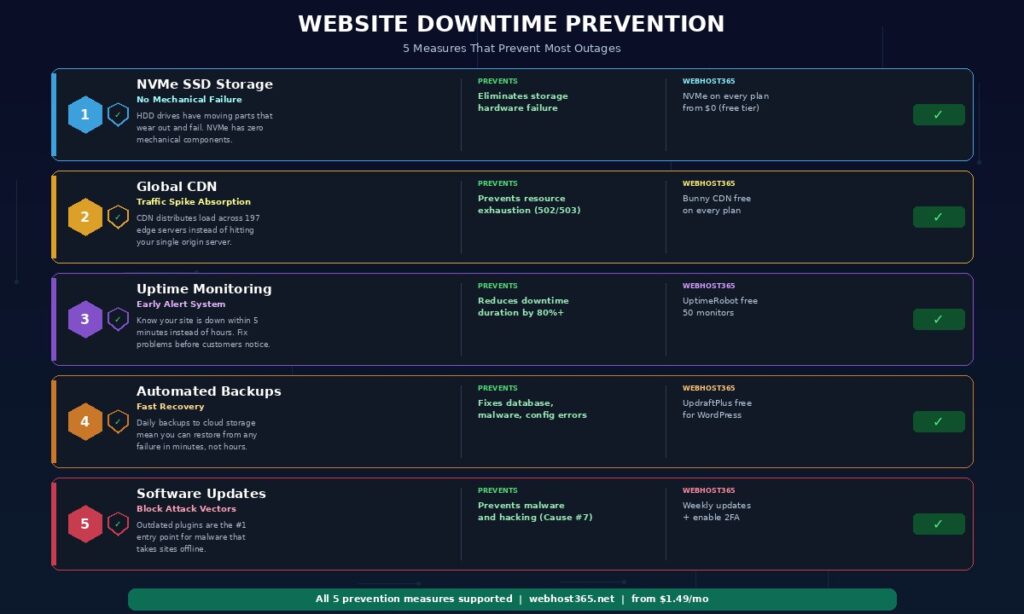
How to prevent your website from going down again
After resolving the immediate crisis, the next step is making sure it does not happen again. Most website downtime is preventable with the right hosting infrastructure and a handful of maintenance habits. The fixes below are ordered by impact — the first two are hosting decisions that eliminate the largest categories of downtime, and the remaining three are maintenance practices that take minutes per week.
Choose hosting infrastructure that prevents the most common failures
Three infrastructure features eliminate the majority of downtime causes covered in this article. NVMe SSD storage has no moving parts, which means it cannot suffer the mechanical read/write head failures that cause data corruption and outages on HDD servers. A CDN like Bunny CDN with 197 edge locations absorbs traffic surges across a distributed network instead of concentrating the load on your single origin server — this prevents the resource exhaustion that causes 502 and 503 errors during traffic spikes. Dedicated cloud resources prevent your site from being throttled when neighbouring accounts on a shared server consume excessive CPU or RAM.
On Webhost365, every plan includes NVMe SSD and Bunny CDN by default. Cloud Hosting and WordPress Hosting add LiteSpeed with server-level caching, which reduces the server load per request and allows the same hardware to handle significantly more concurrent visitors before any resource limit is reached.
Set up free uptime monitoring
You should know your site is down before your visitors tell you — or worse, before you notice hours later. UptimeRobot is a free monitoring service that checks your site every 5 minutes and alerts you via email, SMS, or push notification the moment it detects an outage.
The free plan monitors up to 50 URLs at 5-minute intervals. Set it up in under two minutes: create an account, add your domain as an HTTP monitor, and configure your preferred alert method. From that point on, you receive a notification within 5 minutes of any outage — giving you a head start on diagnosis before customers start complaining. UptimeRobot also tracks your historical uptime percentage, so you have data to evaluate whether your hosting provider’s uptime matches their SLA claims.
Automate daily backups
A recent backup is the fastest fix for database corruption, malware, configuration errors, and failed updates. Without a backup, recovering from these issues requires rebuilding your site from scratch. With a daily backup, you restore the last clean version in minutes.
For WordPress, install UpdraftPlus and configure it to run daily database backups and weekly full-site backups to cloud storage like Google Drive or Dropbox. The free version handles this reliably. Store backups off-server — a backup stored only on the same server that crashed is useless when you need it most. Verify your backups periodically by downloading one and confirming you can restore from it. A backup you have never tested is a backup you cannot trust.
Keep all software updated
Outdated WordPress core versions, plugins, and themes are the number one entry point for malware that takes sites offline. WordPress publishes security updates regularly, and plugin developers patch vulnerabilities as they are discovered. Every day you delay an update is a day your site runs with a known vulnerability that automated attack tools are actively scanning for.
Enable automatic updates for WordPress core minor releases (security patches). Check for plugin and theme updates at least once per week — or enable auto-updates for trusted plugins. Remove any plugins or themes you do not actively use. An inactive plugin sitting in your /wp-content/plugins/ directory is still executable and still attackable. Deleting it removes the risk entirely.
Additionally, check your PHP version in your hosting control panel. Running an end-of-life PHP version means no security patches for PHP itself. Upgrade to the latest stable version your plugins support — PHP 8.2 or higher in 2026.
Use strong passwords and enable two-factor authentication
A single compromised password can give an attacker access to your hosting control panel, WordPress admin, FTP, database, and email. If the same password is reused across those accounts, one breach compromises everything simultaneously.
Use a unique password for each account. Enable two-factor authentication on your hosting control panel, WordPress admin dashboard, domain registrar, and email. With 2FA enabled, an attacker who steals your password still cannot log in without the temporary code from your authenticator app. This single measure prevents the vast majority of unauthorised access that leads to malware, defacement, and site takeover.
Stop fixing downtime. Prevent it.
Downtime costs you visitors, revenue, search rankings, and credibility. Every minute your site is offline, potential customers see an error page instead of your business. Google crawlers encounter failures that reduce your crawl frequency and can temporarily drop your pages from search results.
The best response to a website outage is not a faster fix. It is infrastructure that prevents the outage from happening in the first place. NVMe SSD eliminates mechanical storage failure. Bunny CDN absorbs traffic spikes across 197 edge locations. Dedicated cloud resources prevent throttling from neighbour activity. Server-level caching reduces the load that causes resource exhaustion. Transparent pricing with no surprise suspensions from billing disputes keeps your account active without interruption.
If your current hosting goes down more than once or twice per year, the problem is the infrastructure — and no amount of maintenance or monitoring changes that. Migrating to faster, more reliable hosting takes a few hours once. The uptime improvement lasts permanently.
General Hosting — from $1.49/mo | Cloud Hosting — from $3.49/mo | WordPress Hosting — from $3.49/mo | Linux VPS — from $4.99/mo | Compare All Plans
Frequently asked questions
How do I check if my website is down for everyone?
Visit downforeveryoneorjustme.com and enter your domain. The tool checks your site from external servers and tells you whether the outage is global or limited to your connection. If the tool says the site is up but you cannot reach it, the problem is on your end — clear your browser cache, try a different browser, switch from WiFi to mobile data, or disable your VPN. If the tool confirms the site is down for everyone, the problem is on the server side and you should check your hosting account, DNS configuration, and server status through your hosting control panel.
What does a 500 Internal Server Error mean?
A 500 error means the server encountered an unexpected condition while trying to process the request. It is a generic server-side error that does not specify the exact cause. On WordPress sites, the most common triggers are a corrupted .htaccess file, a plugin that crashes during execution, a PHP syntax error in a theme file, or a database connection failure. To diagnose the cause, connect via FTP and rename .htaccess to .htaccess_backup, then reload the site. If that resolves it, regenerate .htaccess from WordPress Settings then Permalinks. still error persists, rename the /wp-content/plugins/ directory to /wp-content/plugins_backup/ to deactivate all plugins simultaneously. If the site loads after that, reactivate plugins one at a time to identify which one causes the crash.
How long does website downtime affect SEO?
Brief downtime lasting a few minutes to a few hours has minimal SEO impact. Google’s crawlers retry failed requests automatically and do not penalise sites for occasional short outages. Extended downtime of 24 hours or more can cause Google to temporarily de-index affected pages, but they return to search results once the site is back online and re-crawled. However, frequent recurring downtime is genuinely damaging — if Google’s crawlers consistently encounter errors when visiting your site, the search engine reduces crawl frequency and may lower your rankings over time. The SEO fix for recurring downtime is reliable hosting infrastructure: NVMe storage that eliminates mechanical failure, dedicated resources that prevent throttling, and a CDN that absorbs traffic surges that would otherwise overwhelm a single server.
My WordPress site shows “Error establishing a database connection” — how do I fix it?
This error means WordPress cannot communicate with its MySQL database. The most common cause is incorrect database credentials in your wp-config.php file. Connect to your site via FTP or your hosting file manager and open wp-config.php. Check that DB_NAME, DB_USER, DB_PASSWORD, and DB_HOST exactly match the credentials shown in your hosting control panel’s database section. A single extra space, missing character, or wrong value breaks the connection. If the credentials are correct, open phpMyAdmin in your hosting panel and verify that the database exists and contains WordPress tables. An empty or missing database means you need to restore from your most recent backup. If both the credentials and the database check out, the MySQL service on the server may have crashed — contact your hosting provider to restart it.
How do I prevent my website from going down?
Five measures prevent the majority of website downtime. First, choose hosting with NVMe SSD storage and dedicated resources that do not throttle during traffic spikes — these two infrastructure features eliminate the mechanical failures and resource exhaustion that cause most outages. Second, set up a free uptime monitor like UptimeRobot to alert you within minutes of any outage. Third, automate daily backups with a plugin like UpdraftPlus so you can restore quickly from any database corruption, malware, or configuration error. Fourth, keep WordPress core, all plugins, and all themes updated to close security vulnerabilities that attackers exploit. Fifth, enable two-factor authentication on your hosting panel, WordPress admin, domain registrar, and email to prevent unauthorised access. Together, these five measures address every common downtime cause covered in this article.
Should I switch hosting providers after frequent downtime?
If your website goes down more than once or twice per year for server-side reasons — hardware failures, resource throttling, unexplained 503 errors, or slow recovery times — the problem is your hosting provider’s infrastructure, not your website. Recurring downtime on shared hosting typically indicates oversold servers where too many accounts share insufficient resources. No amount of WordPress optimisation, caching configuration, or plugin removal fixes an infrastructure problem at the provider level. Migrating to a host with NVMe SSD, dedicated cloud resources, a global CDN, and proactive server monitoring eliminates the infrastructure causes that produce recurring outages. The migration process takes a few hours of active work and causes zero downtime when done correctly — see our step-by-step guide on how to migrate your website without downtime.